

How to Send Browse Abandonment Emails
A customer who looked at three products and left without a cart is still interested. The browse abandonment email reminds them of exactly those products. It is off by default.
Step 1: Switch the email on
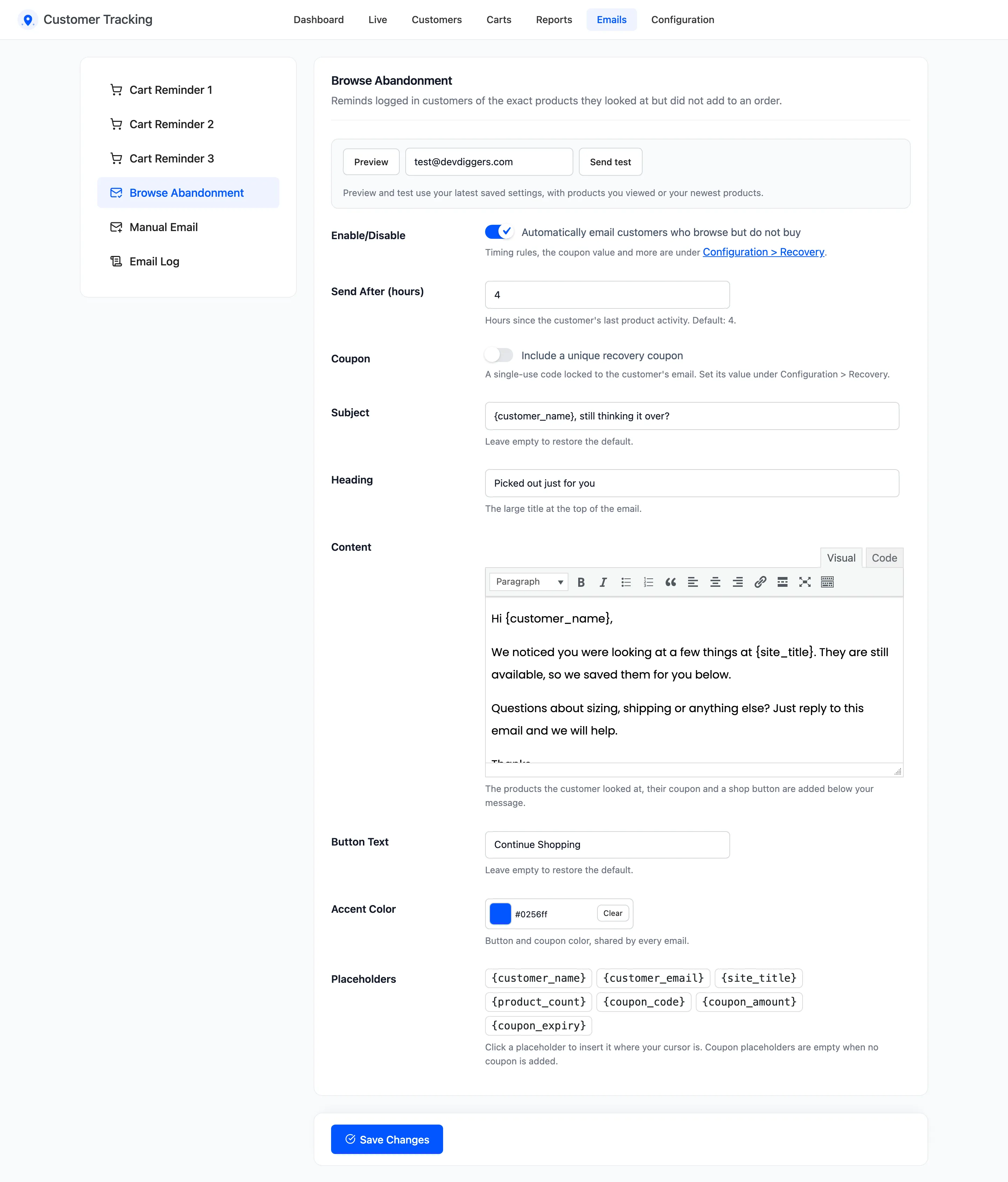
Section titled “Step 1: Switch the email on”Open Emails → Browse Abandonment and tick “Automatically email customers who browse but do not buy”.
Step 2: Set the timing
Section titled “Step 2: Set the timing”Send After (hours) counts from the customer’s last product view or cart add. The default is 4. The hourly job sends it, so it can arrive up to an hour later than that.
Step 3: Set the rules
Section titled “Step 3: Set the rules”Under Configuration → Recovery → Browse Abandonment:
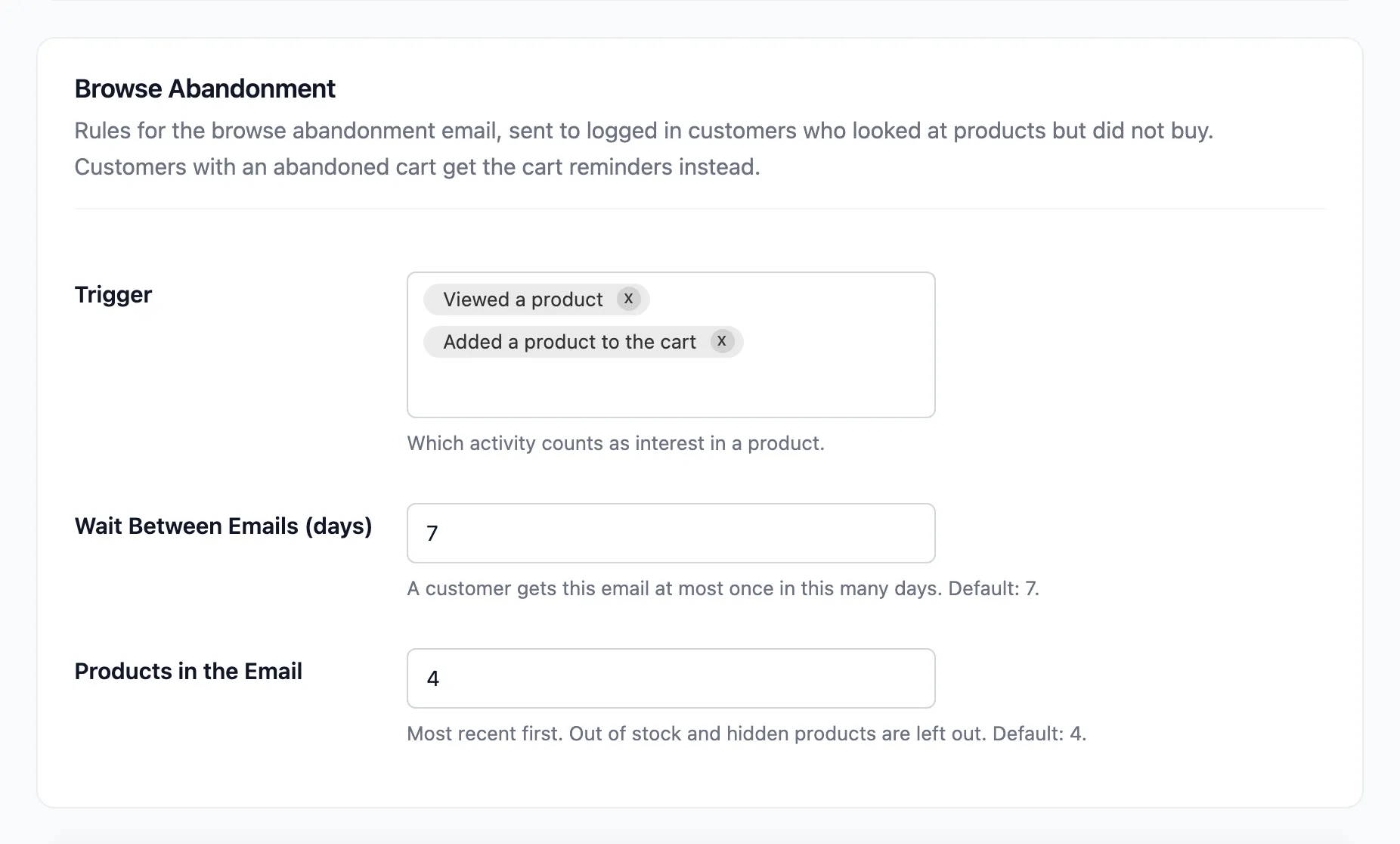
- Trigger: product views, cart adds, or both.
- Wait Between Emails (days): at most one of these emails per customer in this many days. Default 7.
- Products in the Email: up to this many products, newest first. Default 4. Products out of stock or hidden are left out.
Step 4: Save
Section titled “Step 4: Save”Click Save Changes on both screens.
Who gets it
Section titled “Who gets it”Only logged in customers with an account, because a guest’s email is known only once they type it at checkout. A customer is skipped when:
- They placed an order since browsing.
- Their latest cart is abandoned. They get the cart reminders instead.
- They got this email within the waiting period, or stopped the reminders.
On the demo, John looked at a knit top, a framed print and a phone case while logged in, and left. Five hours later, this arrived:
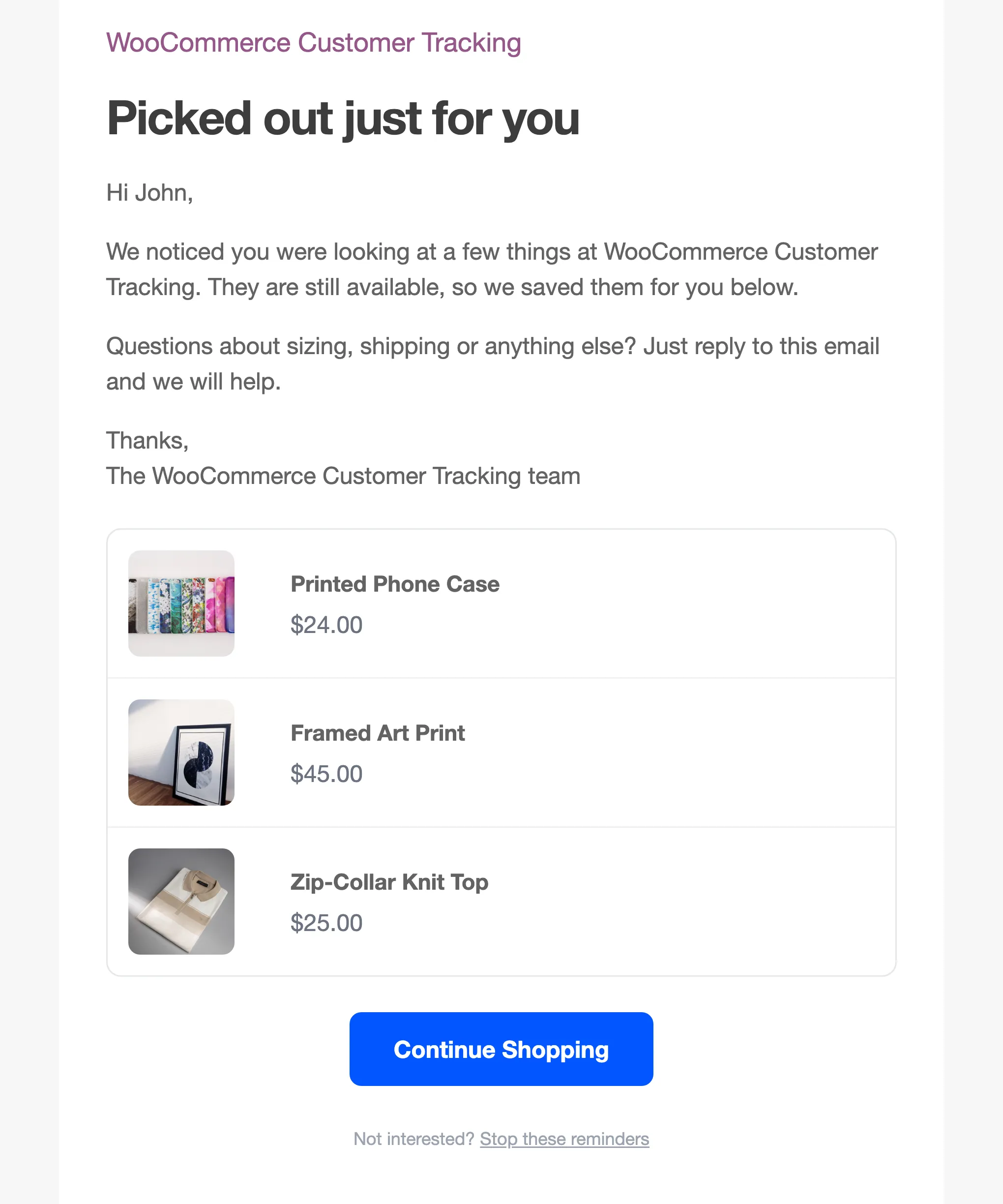
The button opens the shop, or the product itself when there is only one. Tick Coupon on the email to add a unique coupon, with the value set under Recovery Coupon.