

How to Edit the Cart Reminder Emails
The three reminders work out of the box. Most stores still change the wording to sound like them, and some change the timing.
Step 1: Open a reminder
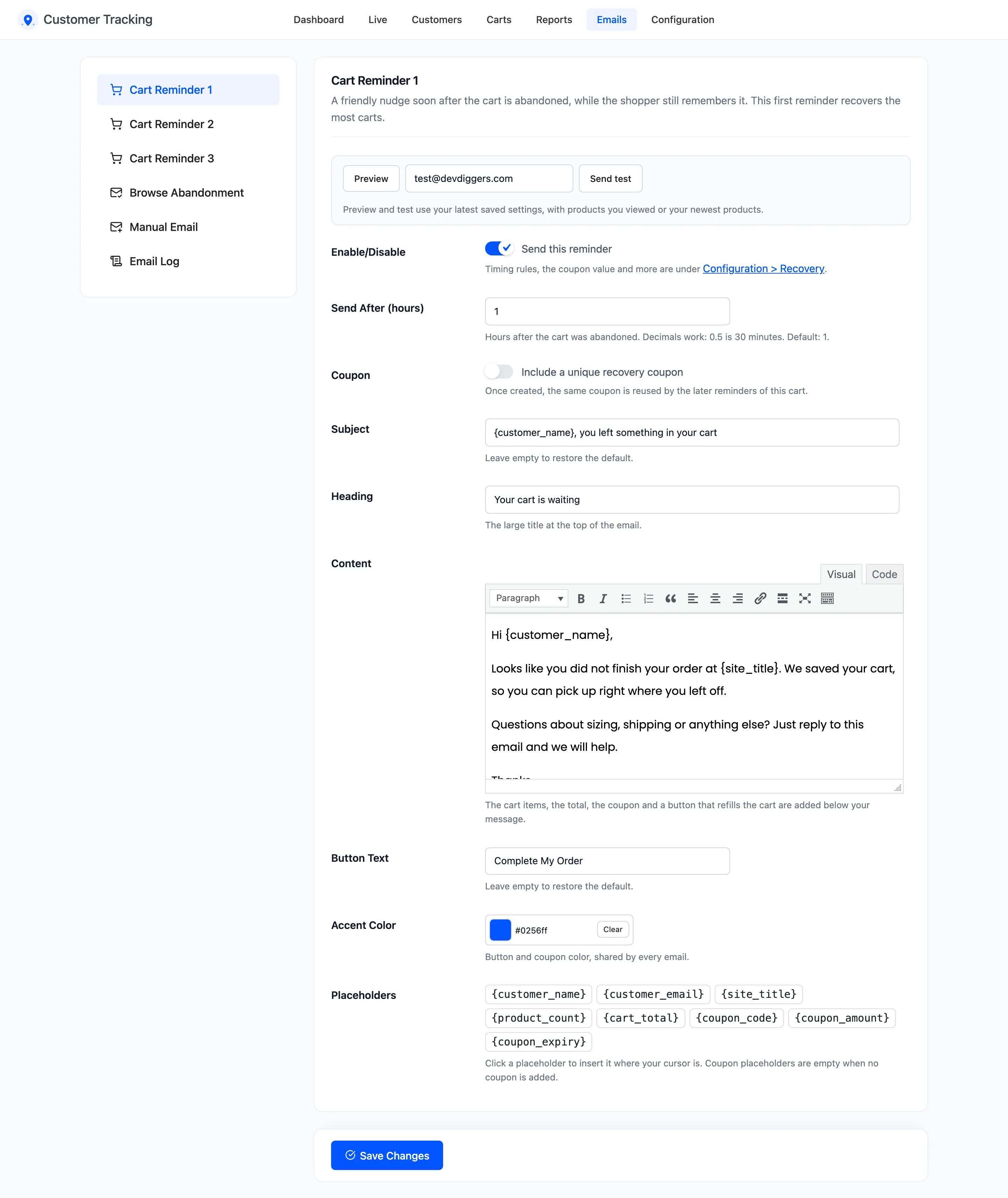
Section titled “Step 1: Open a reminder”Go to DevDiggers Plugins → Customer Tracking → Emails and pick Cart Reminder 1, 2 or 3 on the left.
Step 2: Set the timing
Section titled “Step 2: Set the timing”Send After (hours) counts from the moment the cart was abandoned. The defaults are 1, 24 and 72. Decimals work, so 0.5 sends after 30 minutes.
Keep them in order. Reminders always go out in order, one per run of the 10 minute cart job. So if Reminder 2 were due before Reminder 1, the shopper would get both about ten minutes apart.
To skip a reminder, untick Send this reminder. The next one still goes out at its own time.
Step 3: Write the email
Section titled “Step 3: Write the email”- Subject: Shown in the inbox. Default
{customer_name}, you left something in your cart. - Heading: The large title in the email. Default “Your cart is waiting”.
- Content: Your message. Keep it short: the cart’s products, the total and the button are added below it.
- Button Text: Default “Complete My Order”. The button refills the cart and opens checkout.
Click a placeholder to insert it at the cursor. {customer_name} is the shopper’s first name, or “there”
for a guest who typed none. {cart_total} is the cart’s value.
Step 4: Save
Section titled “Step 4: Save”Click Save Changes. An emptied Subject, Heading or Button Text goes back to its default when saved.
Step 5: Preview and test
Section titled “Step 5: Preview and test”Preview shows the saved email in a window, with products you looked at or your newest products.
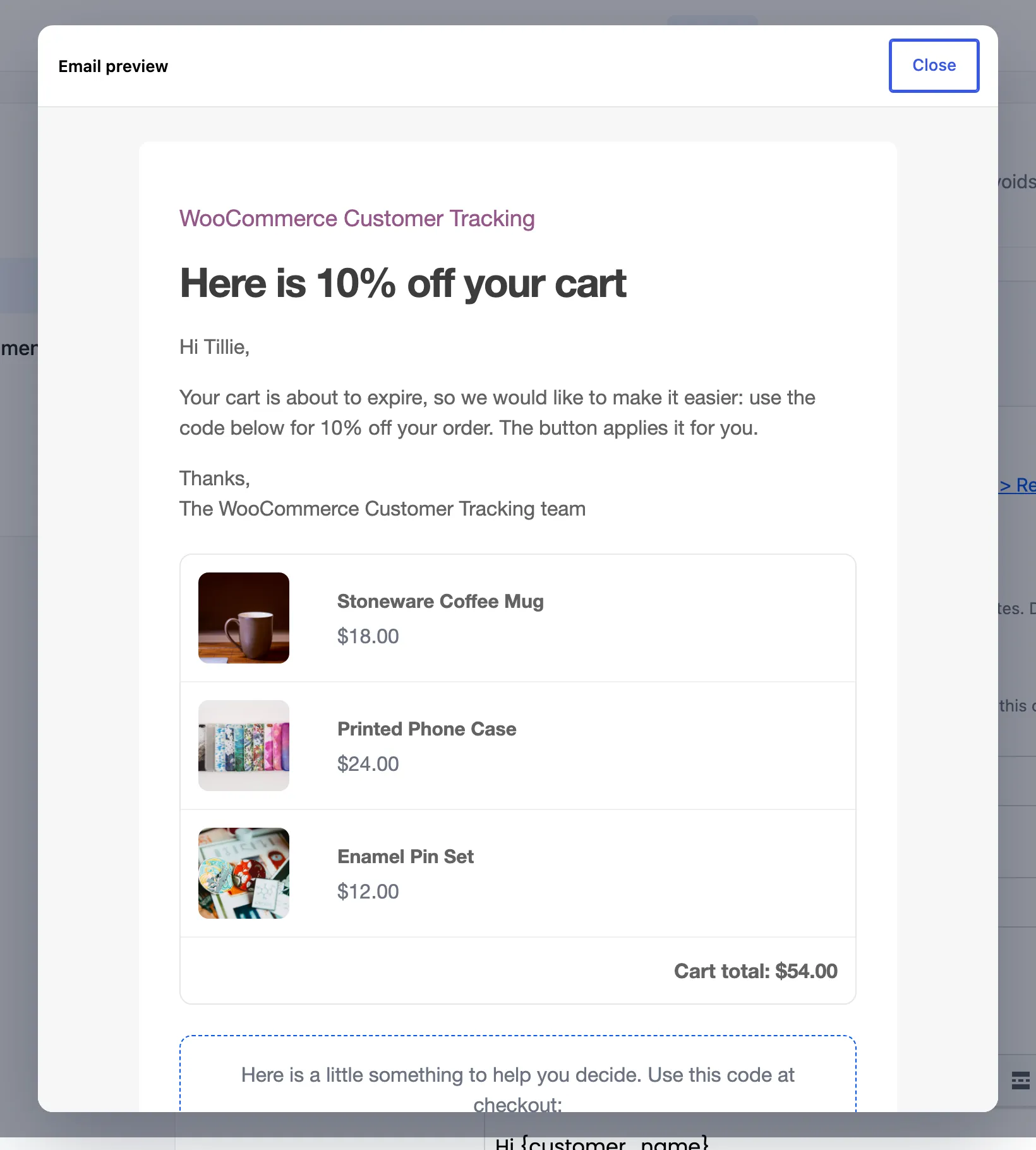
Send test sends it to the address beside it. Change the address to your own first.

The test uses a sample coupon, CT-SAMPLE, so no real coupon is created. It is listed in the
Email Log as a test, not as a reminder.
Good to know
Section titled “Good to know”- Accent Color colors the button and the coupon box in every email, not only this one.
- The header, footer and fonts come from WooCommerce → Settings → Emails.
- Every reminder ends with a Stop these reminders link. See How to Let Shoppers Stop Reminders.