

How to Keep Your Team Out of the Numbers
Every test order and every product page you check skews the funnel and the conversion rate. Four exclusions keep your own visits out.
Step 1: Open the Tracking tab
Section titled “Step 1: Open the Tracking tab”Go to DevDiggers Plugins → Customer Tracking → Configuration → Tracking.
Step 2: Exclude roles and accounts
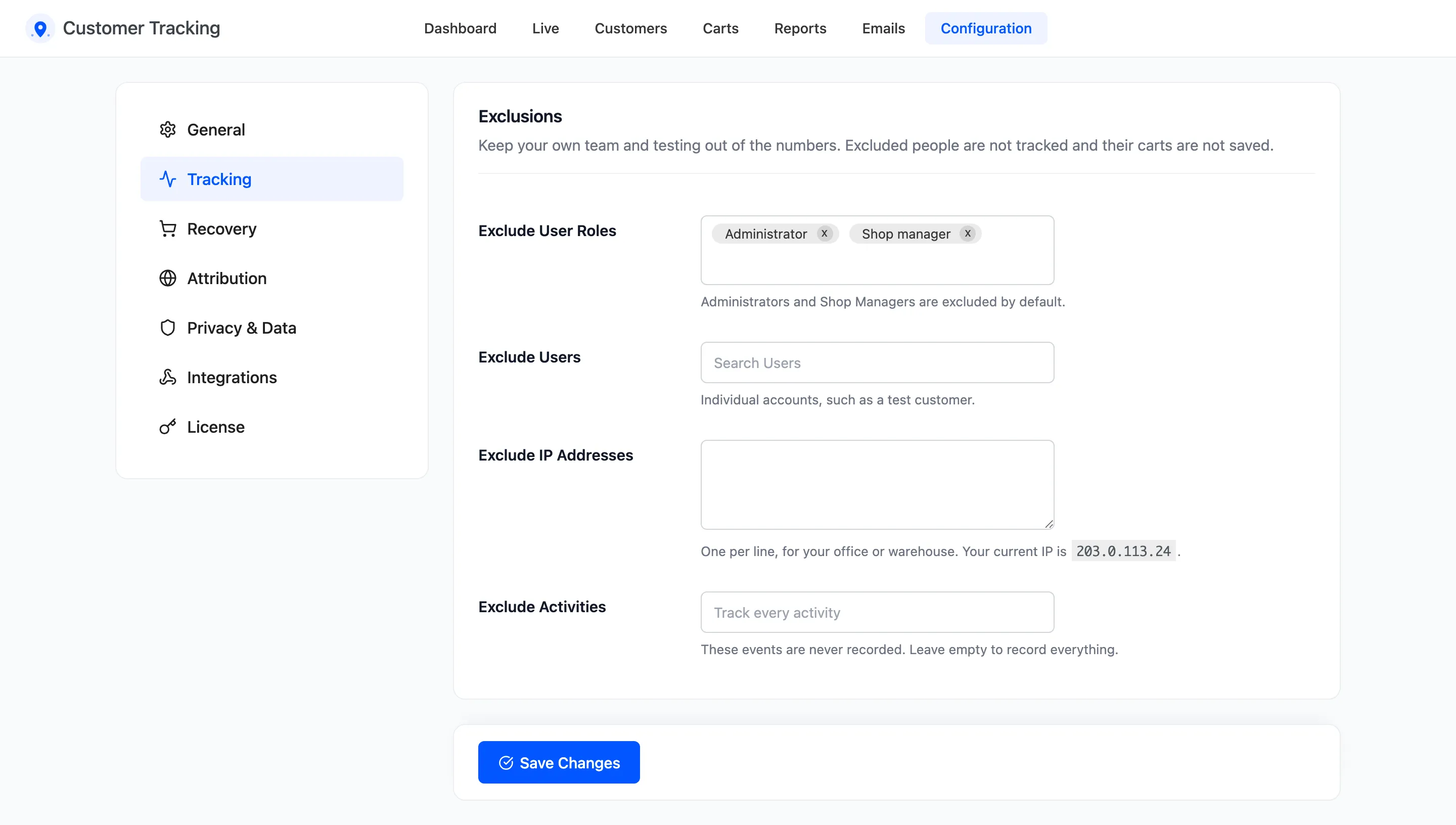
Section titled “Step 2: Exclude roles and accounts”Exclude User Roles holds Administrator and Shop Manager from the start. Add any other staff role, such as an editor who writes your product pages.
Exclude Users takes single accounts. Add the customer account you test checkout with, so its carts never get reminders.
Step 3: Exclude your office
Section titled “Step 3: Exclude your office”Paste your office or warehouse IP addresses into Exclude IP Addresses, one per line. The description shows your current address, so you can copy it in.
An IP exclusion covers everyone on that address, logged in or not. Use it for a shared office connection. At home, where your address changes, rely on the role exclusion and stay logged in.
Step 4: Save
Section titled “Step 4: Save”Click Save Changes. From now on, an excluded visitor has no page views, no searches and no saved cart. They do not appear on the Live screen.
Step 5: Clear earlier test visits
Section titled “Step 5: Clear earlier test visits”Exclusions are not retroactive. Visits you made before saving are still there. Remove the days you tested on with Delete Logs on the Activity Log. See How to Clean Up Old Tracking Data.
Good to know
Section titled “Good to know”- Exclude Activities removes an event for everyone, not for one person. Use it for events you never look at, such as Logout.
- The setup wizard’s Your Team box adds or removes both staff roles in one click.
- Orders from an excluded person still reach WooCommerce as usual, and their customer profile still follows their orders.