

How to Email a Customer from Their Profile
Sometimes one customer deserves a personal note: a thank you, a nudge, or a coupon after a complaint. The profile sends one in a minute, in your store’s email design.
Step 1: Open the customer’s profile
Section titled “Step 1: Open the customer’s profile”Go to Customers and click the customer, or use Customer Profile under their name on the Users screen. This works for customers with an account.
Step 2: Click Send Email
Section titled “Step 2: Click Send Email”The Profile box has Send Email, next to Edit Account and All Orders.
Step 3: Write the email
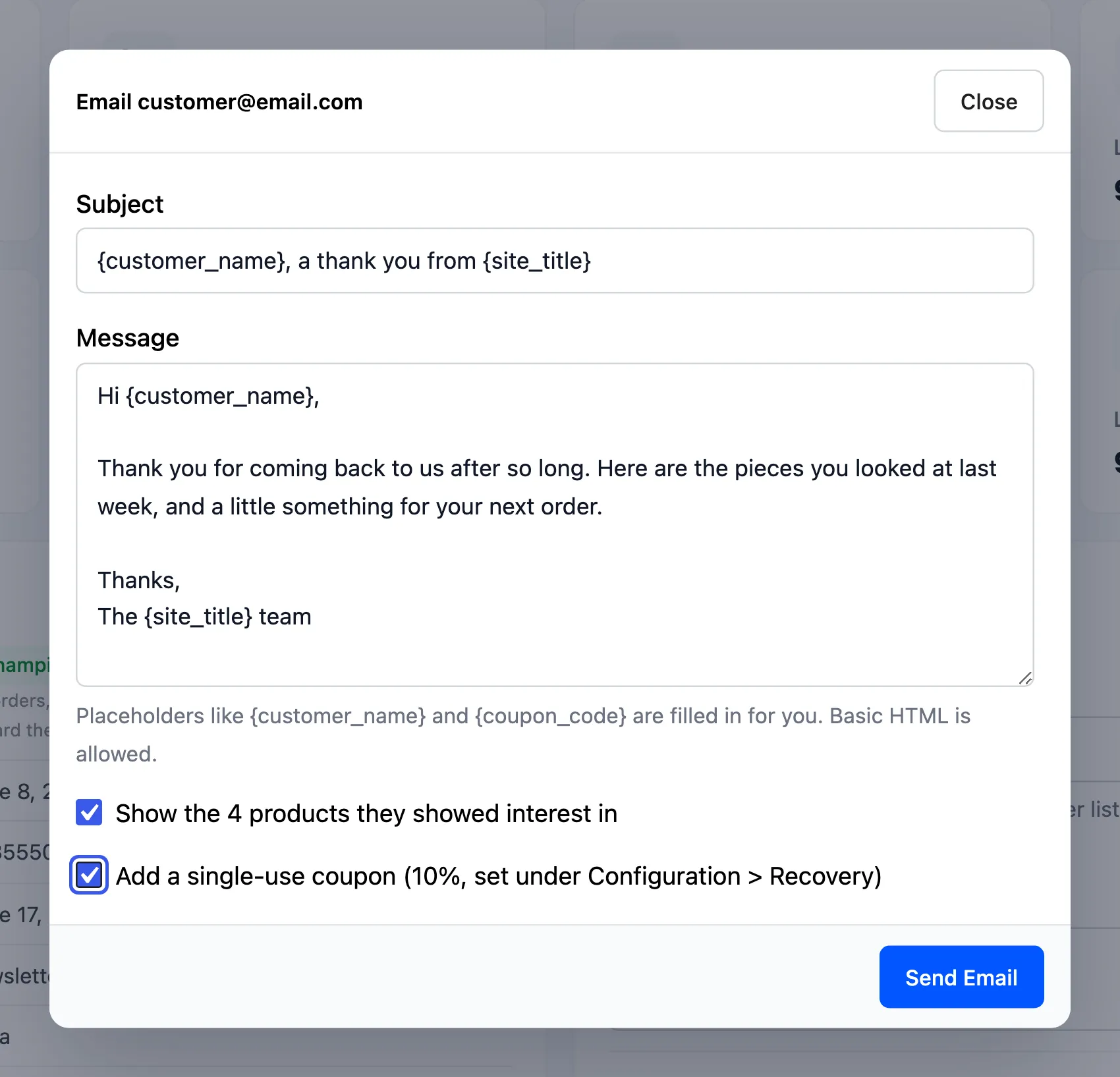
Section titled “Step 3: Write the email”The form starts from the Manual Email template under Emails. Change the Subject and Message
as you like. Placeholders such as {customer_name} and {coupon_code} are filled in when it is sent.
Step 4: Add products and a coupon
Section titled “Step 4: Add products and a coupon”- Show the N products they showed interest in: the products they viewed or added to the cart, newest first.
- Add a single-use coupon: a new
CT-coupon for their email, with the value under Configuration → Recovery.
Step 5: Send
Section titled “Step 5: Send”Click Send Email. The form says “Email sent to” and the address. On the demo, Amara got this:
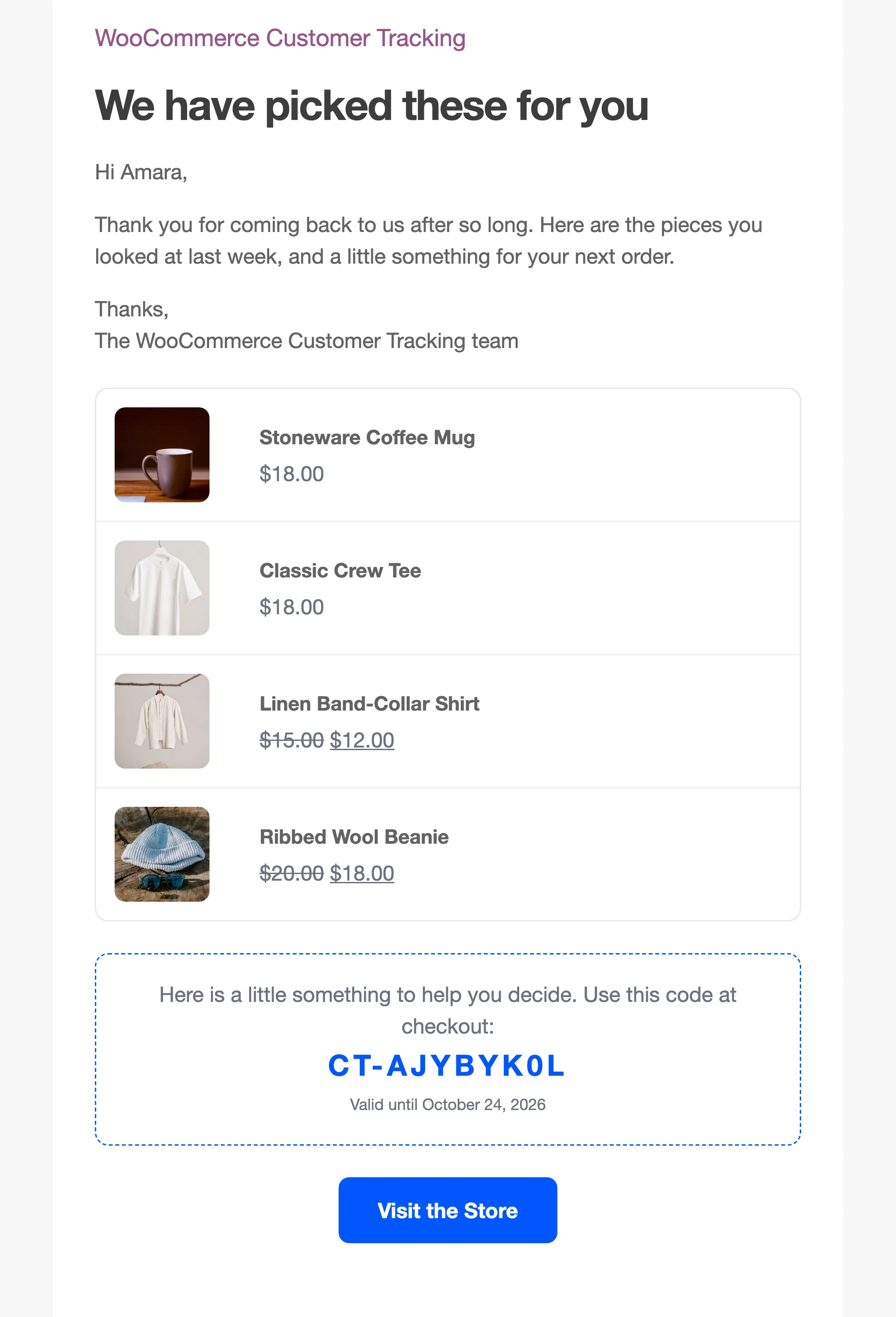
It is listed in the Email Log as a manual email. If the customer orders within the attribution window, it is marked Converted with the order’s total.
Good to know
Section titled “Good to know”- A manual email has no Stop these reminders link, and it goes out even to someone who stopped the reminders.
- To change the starting text for every manual email, edit Emails → Manual Email.