

How to Choose an Attribution Model
A shopper often finds you one way and buys another. The attribution model decides which channel gets the credit.
Step 1: Open the Attribution tab
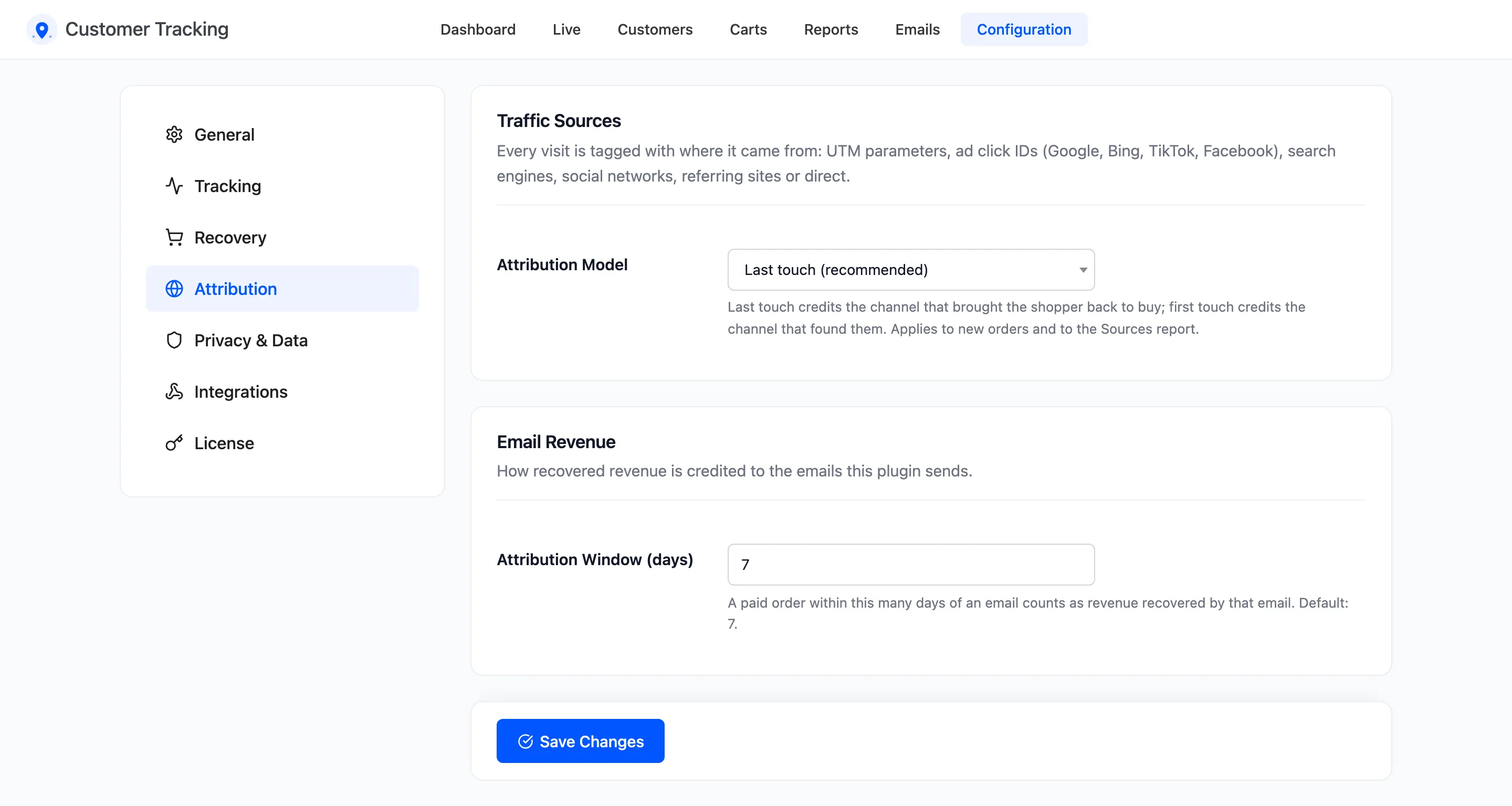
Section titled “Step 1: Open the Attribution tab”Go to Configuration → Attribution.
Step 2: Pick the model
Section titled “Step 2: Pick the model”- Last touch (recommended): credits the latest known channel. It answers “what made them buy?”.
- First touch: credits the channel of their first visit. It answers “what brought new people in?”.
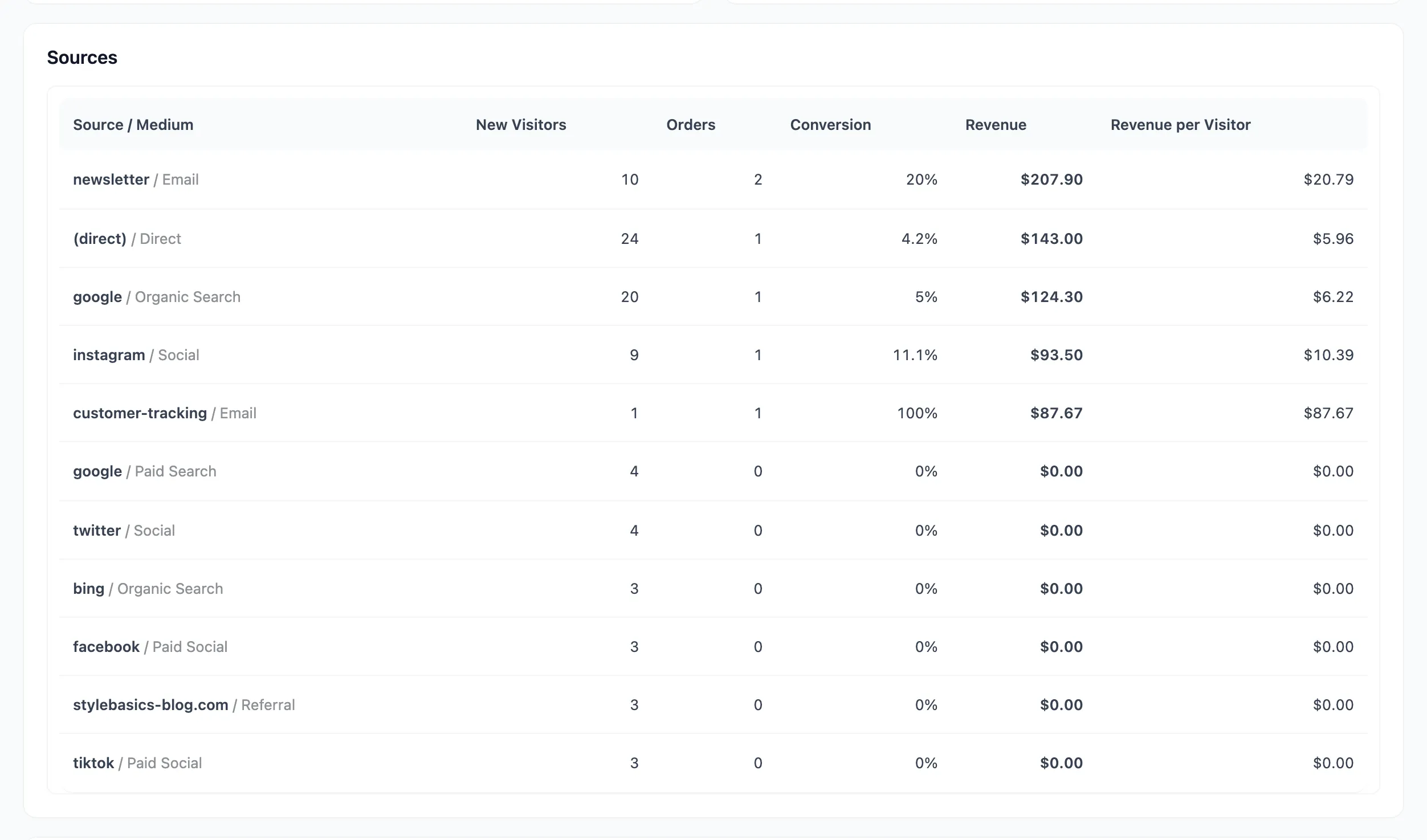
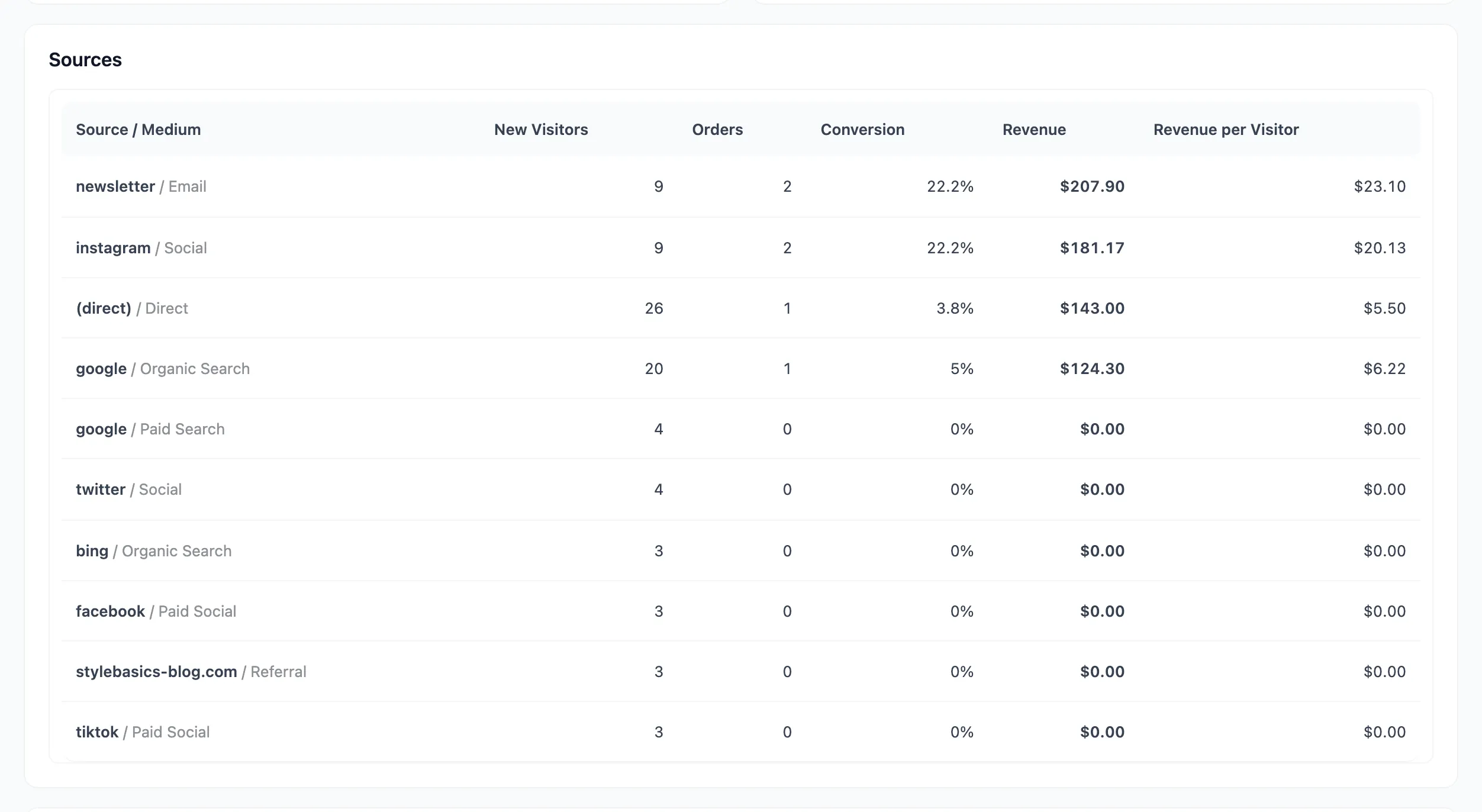
Nina on the demo is both kinds of answer. Nina found the store through Instagram, left a cart, and came back through the third cart reminder. Under last touch the order belongs to the reminder email. Under first touch it belongs to Instagram.
Step 3: Save
Section titled “Step 3: Save”Click Save Changes. The Sources report switches at once:
What changes and what does not
Section titled “What changes and what does not”- The Sources and Campaigns report: Follows the model at once, for any period.
- New orders: Saved with the channel of the model in use when they are placed.
- Earlier orders: Keep the channel saved with them. The Path to Purchase box still shows it.
Run your store on one model, and switch only to look at the other answer for a while.