

Attribution Settings
The Attribution tab decides which channel gets the credit for an order, and how long an email does. Open DevDiggers Plugins → Customer Tracking → Configuration → Attribution.
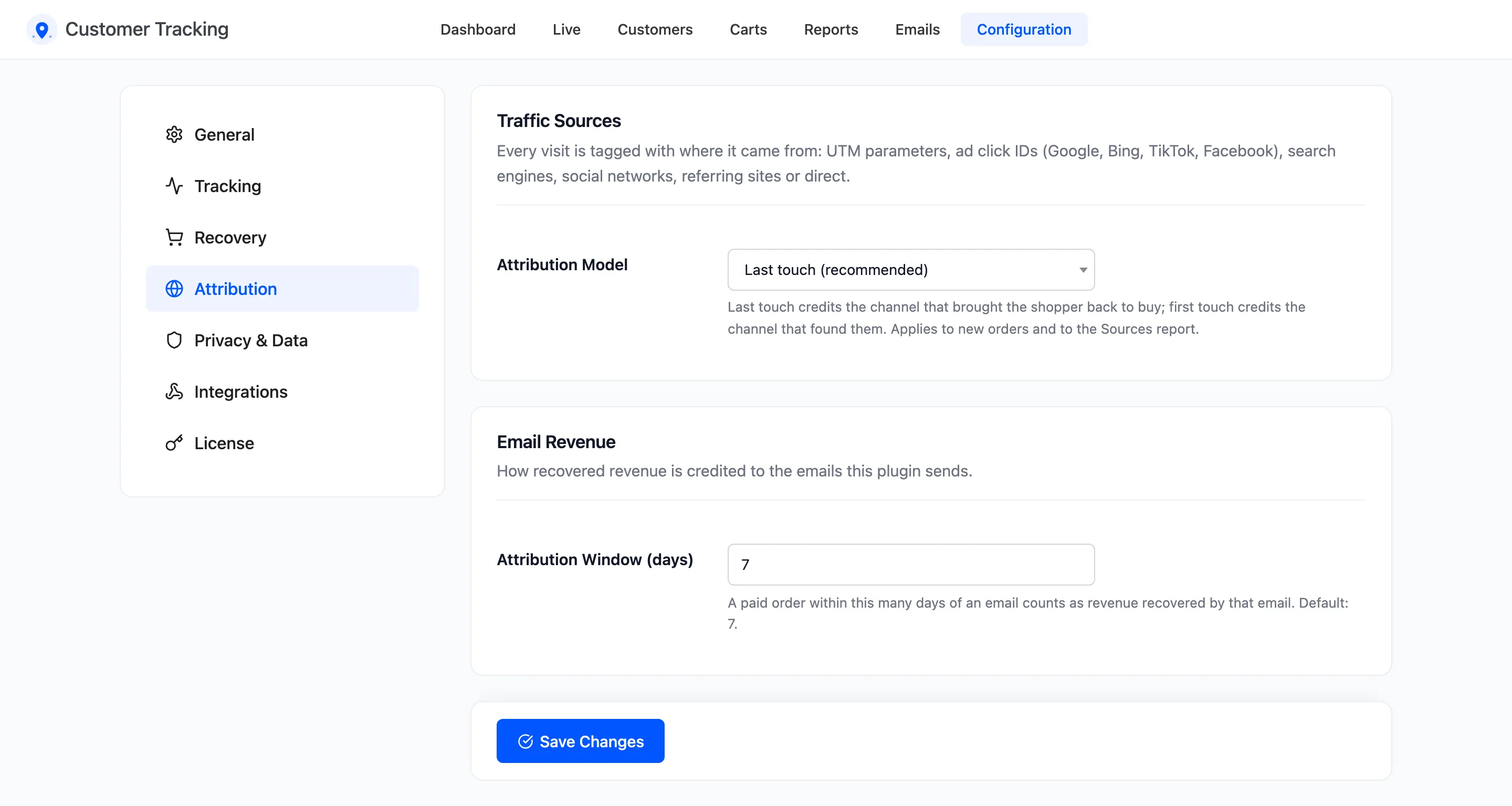
Traffic Sources
Section titled “Traffic Sources”- Attribution Model: Last touch (recommended) or First touch. Default Last touch.
Every visitor’s first channel and their latest channel are both recorded. The model picks which one is saved on an order, and which one the Sources report credits.
- Last touch credits the channel that brought the shopper back to buy. A shopper who found you on Instagram and came back through a reminder email is credited to the email.
- First touch credits the channel that found them, Instagram in the same example.
A direct visit never replaces a known channel. Typing your address after an Instagram visit keeps Instagram as the latest channel.
The model applies to new orders. An order keeps the channel saved when it was placed. See How to Choose an Attribution Model.
Email Revenue
Section titled “Email Revenue”- Attribution Window (days): A paid order within this many days of an email counts as revenue that email recovered. Default 7, from 1 to 90.
When an order is paid, the newest email the customer got in the window is marked Converted, with the order and its total. Only that one email gets the credit, and each order is credited once. The customer is matched by account or by billing email, so guests count too.
“Paid” means the order reaches Processing or Completed. A bank transfer order on On hold is not credited until you mark it Processing. The window counts back from that moment.
Click Save Changes at the bottom of the tab.