

How to Let Shoppers Stop Reminders
Every cart reminder and browse abandonment email ends with Not interested? Stop these reminders. It is signed for the address it was sent to, so it cannot be used to unsubscribe anyone else.
Step 1: Leave the link in
Section titled “Step 1: Leave the link in”There is nothing to set. The link is added below every automatic email, whatever you write in it. Emails you send by hand from a customer profile do not carry it, because the customer asked for nothing to stop.
Step 2: The shopper clicks it
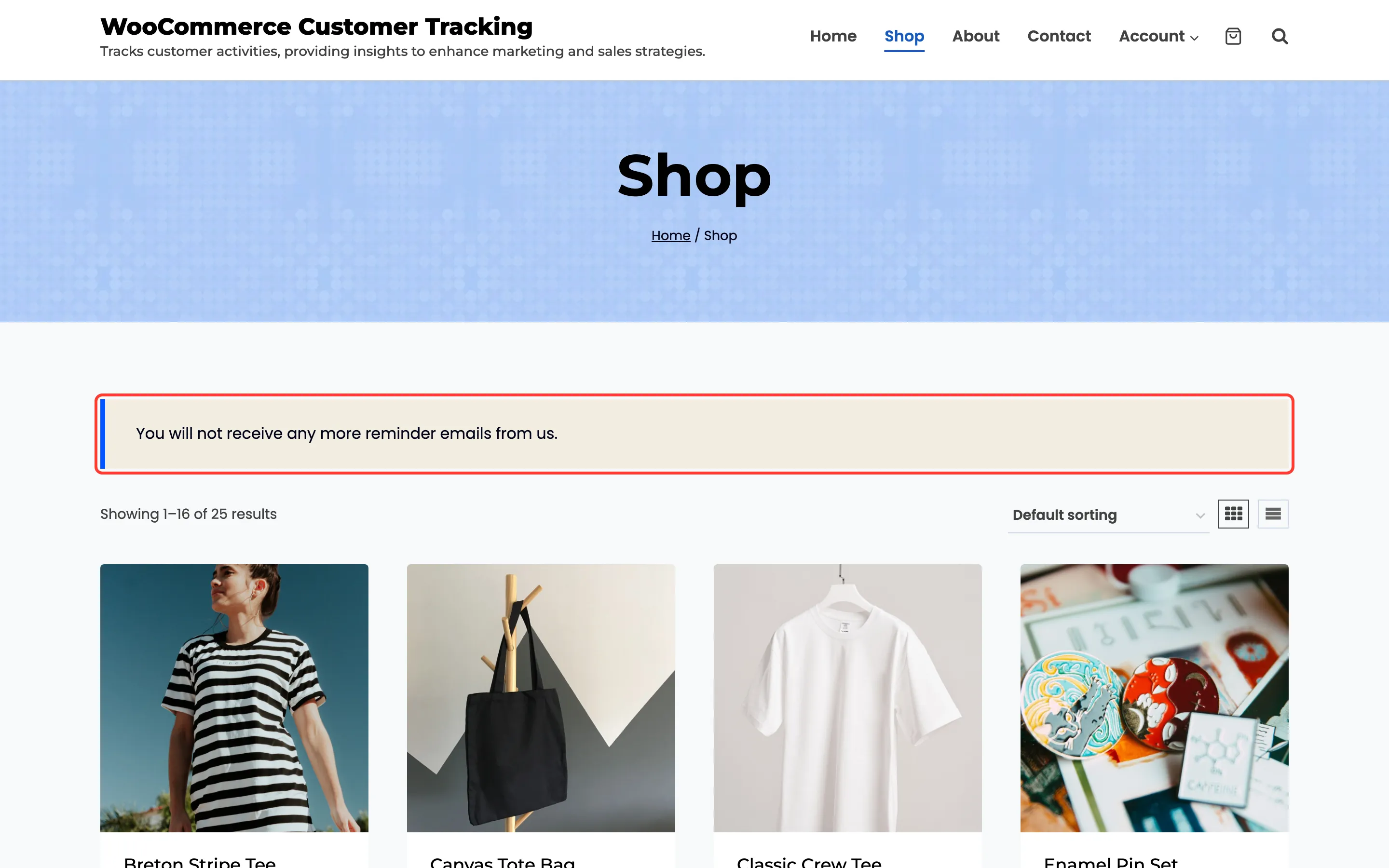
Section titled “Step 2: The shopper clicks it”On the demo, Leo left a belt in the cart and got the first reminder, then clicked Stop these reminders. The link opened the shop with “You will not receive any more reminder emails from us.”
From then on:
- The abandoned cart gets no more reminders.
- A cart left later with the same email gets none either. On the demo, Leo came back two days later, left a second cart, and no reminder was sent.
- A logged in customer also gets no more browse abandonment emails.
Step 3: See who stopped them
Section titled “Step 3: See who stopped them”On the Carts screen, a cart of someone who unsubscribed says Unsubscribed from reminders under their email.
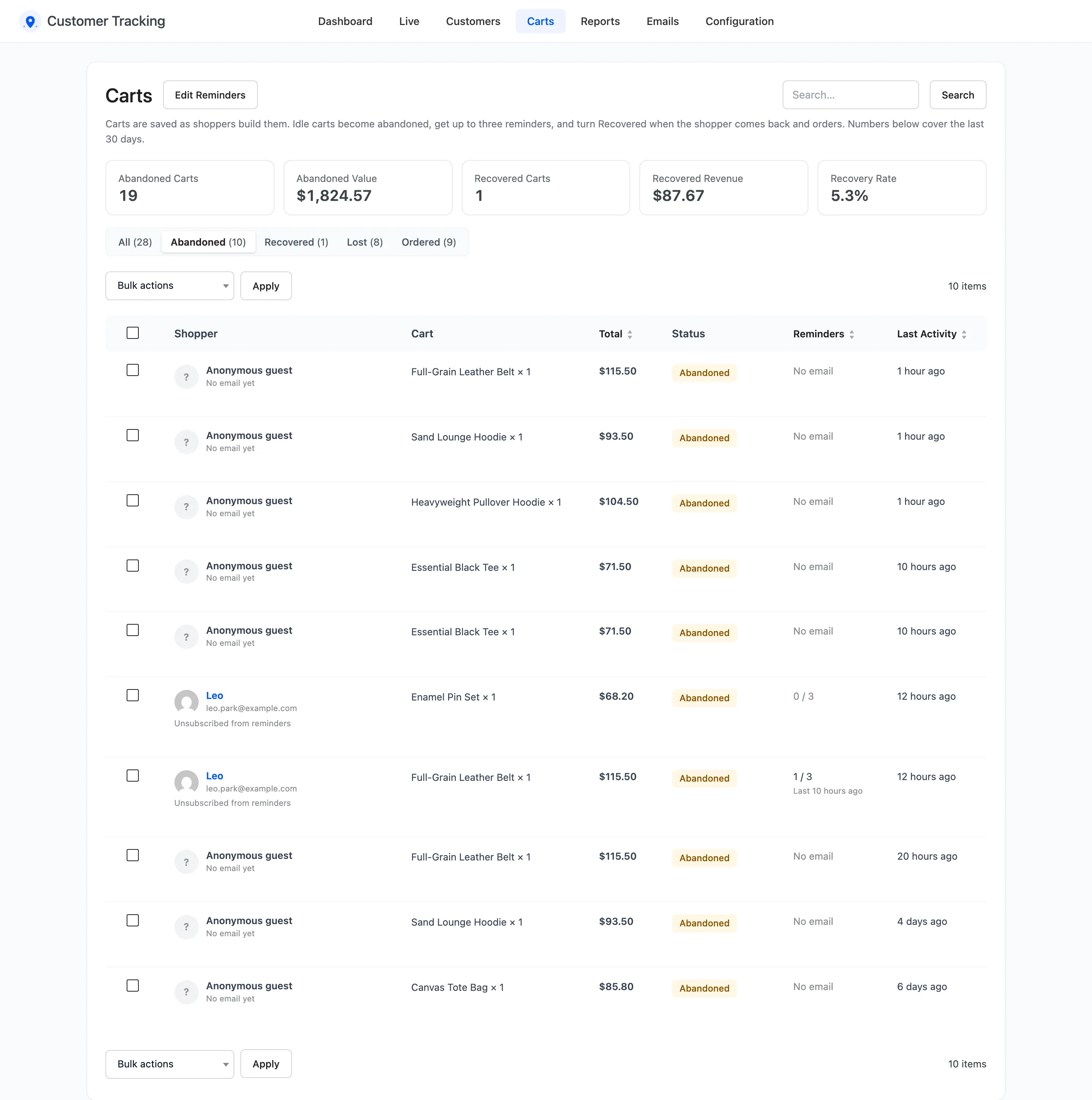
Their carts still count in the abandoned numbers, and you can still email them yourself from their profile.
Good to know
Section titled “Good to know”- The link works even while tracking is switched off, so emails already sent can always be stopped.
- Only a hash of each address is stored for this, not the address itself.
- To let someone back in, they would need to ask you. There is no resubscribe link.