

How to Add a Coupon to Cart Reminders
A discount wins back shoppers who hesitated over the price. Keeping it for the last reminder avoids teaching shoppers to abandon carts on purpose, which is why only Reminder 3 has one by default.
Step 1: Set the coupon’s value
Section titled “Step 1: Set the coupon’s value”Open Configuration → Recovery and find Recovery Coupon.
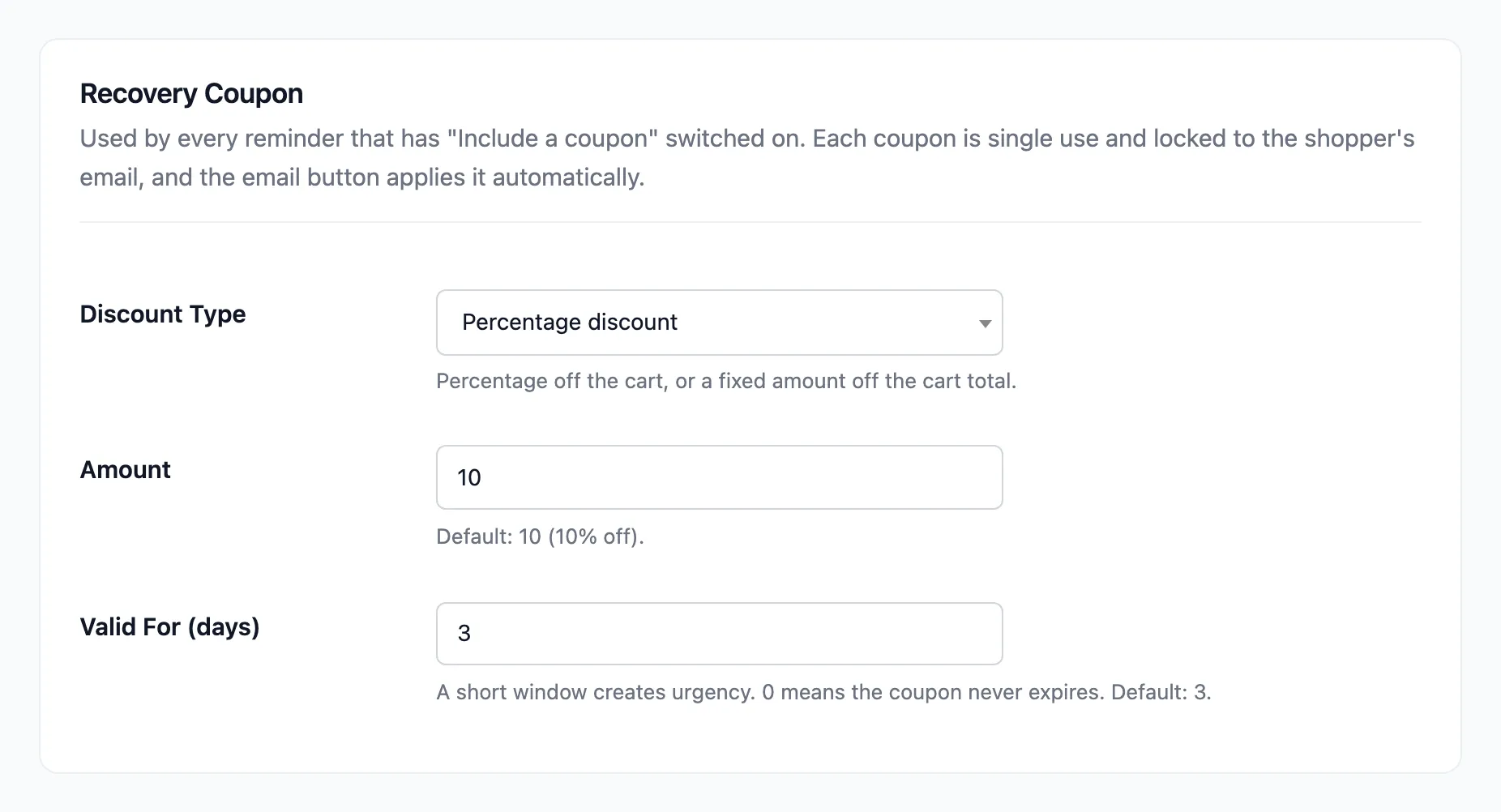
- Discount Type: Percentage discount or Fixed cart discount.
- Amount: 10 by default, so 10% off.
- Valid For (days): 3 by default. A short window gives a reason to act now. 0 never expires.
Click Save Changes.
Step 2: Choose the reminder
Section titled “Step 2: Choose the reminder”Open Emails → Cart Reminder 3 and check Coupon: “Include a unique recovery coupon”.
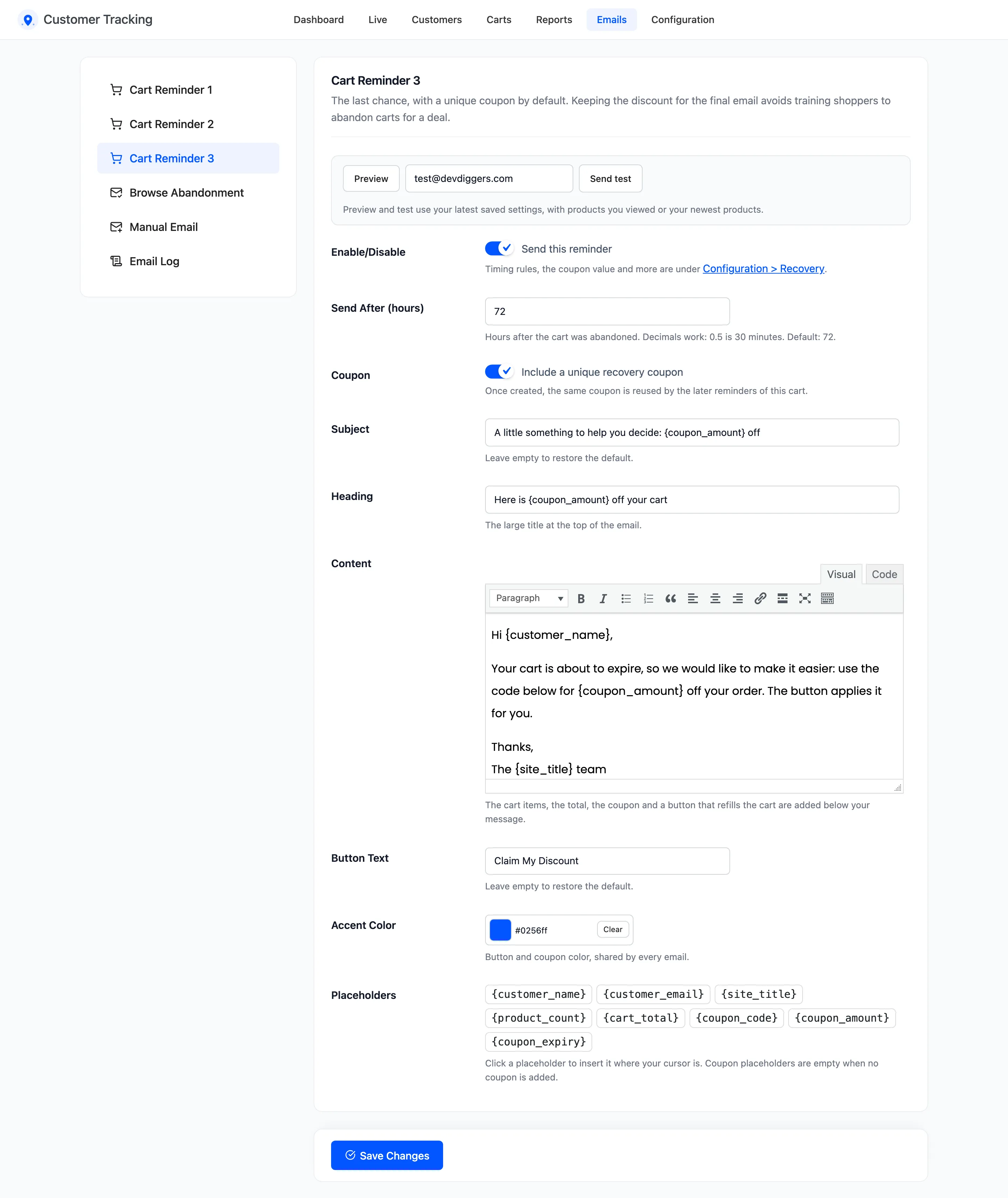
You can tick it on Reminder 1 or 2 too. A coupon is made the first time a reminder needs one, then reused by the later reminders of the same cart. If it has expired or been used by then, the later reminder gets a new one.
Step 3: Save
Section titled “Step 3: Save”Click Save Changes.
Step 4: See it work
Section titled “Step 4: See it work”The reminder shows the code in a dashed box with the date it ends. The default wording of Reminder 3 also
names the discount with {coupon_amount}.
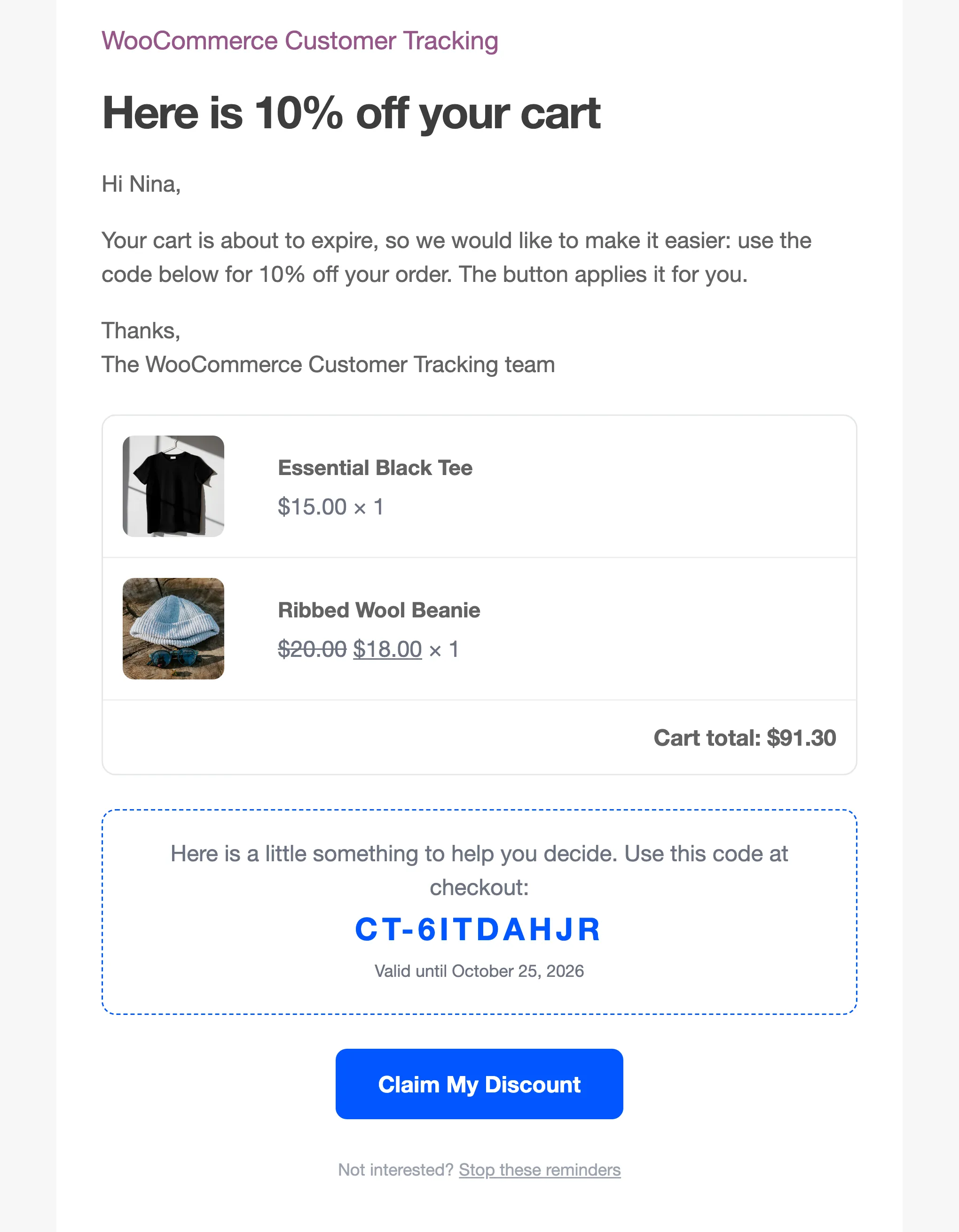
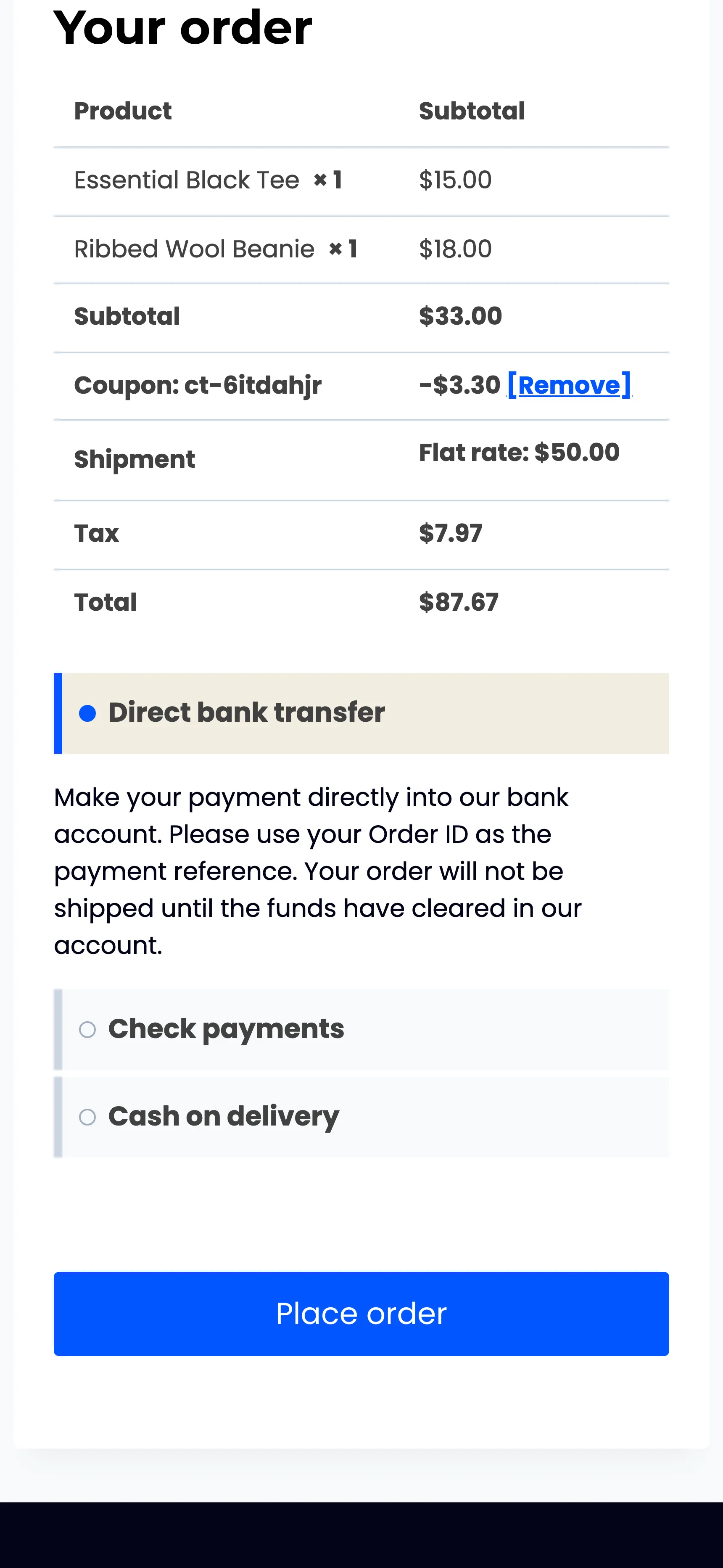
The button applies the code for them. On the demo, Nina’s restored cart had the coupon in its order summary before the shopper touched anything.
What the coupon is
Section titled “What the coupon is”- A normal WooCommerce coupon, listed under Marketing → Coupons, named
CT-and eight characters. - Single use, and only the shopper’s email can redeem it. Forwarded to a friend, it does not work.
- Its description says it was made by Customer Tracking for a recovery email.
The same coupon settings apply to the browse abandonment email and to emails you send from a customer profile, when you add a coupon there.