

How to Get the Weekly Digest Email
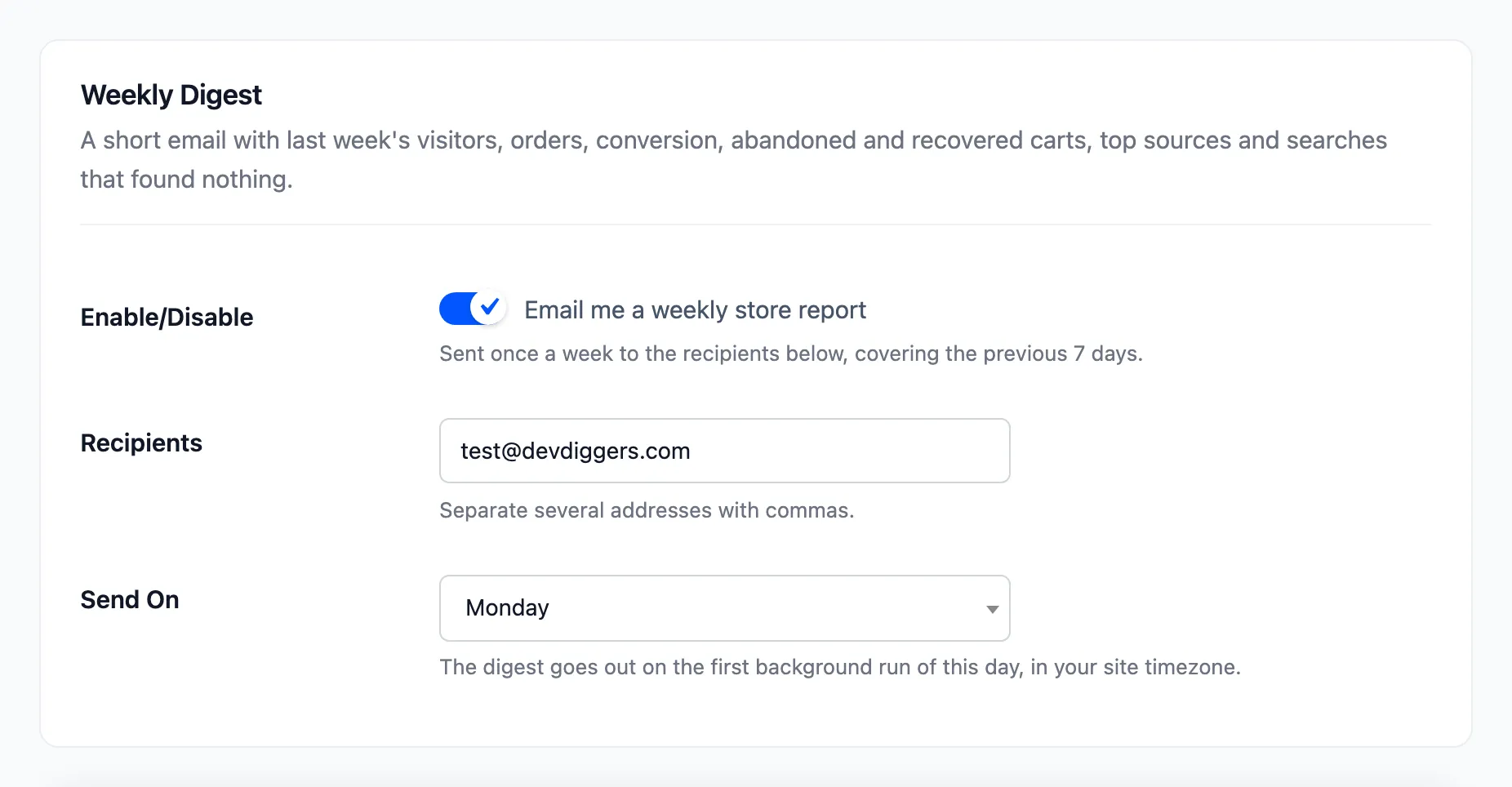
The digest brings last week’s numbers to your inbox, so you do not have to open the dashboard to know how the store did. It is on by default and goes to the site’s admin email every Monday.
Step 1: Open the General tab
Section titled “Step 1: Open the General tab”Go to DevDiggers Plugins → Customer Tracking → Configuration → General and find Weekly Digest.
Step 2: Add the recipients
Section titled “Step 2: Add the recipients”Enter the addresses in Recipients, separated by commas, such as your own and your marketing lead’s. Addresses that are not valid are dropped when you save.
Step 3: Pick the day
Section titled “Step 3: Pick the day”Choose the weekday in Send On. The digest goes out with the first background run of that day, in your site’s time zone. It covers the seven days before, up to yesterday.
Step 4: Save
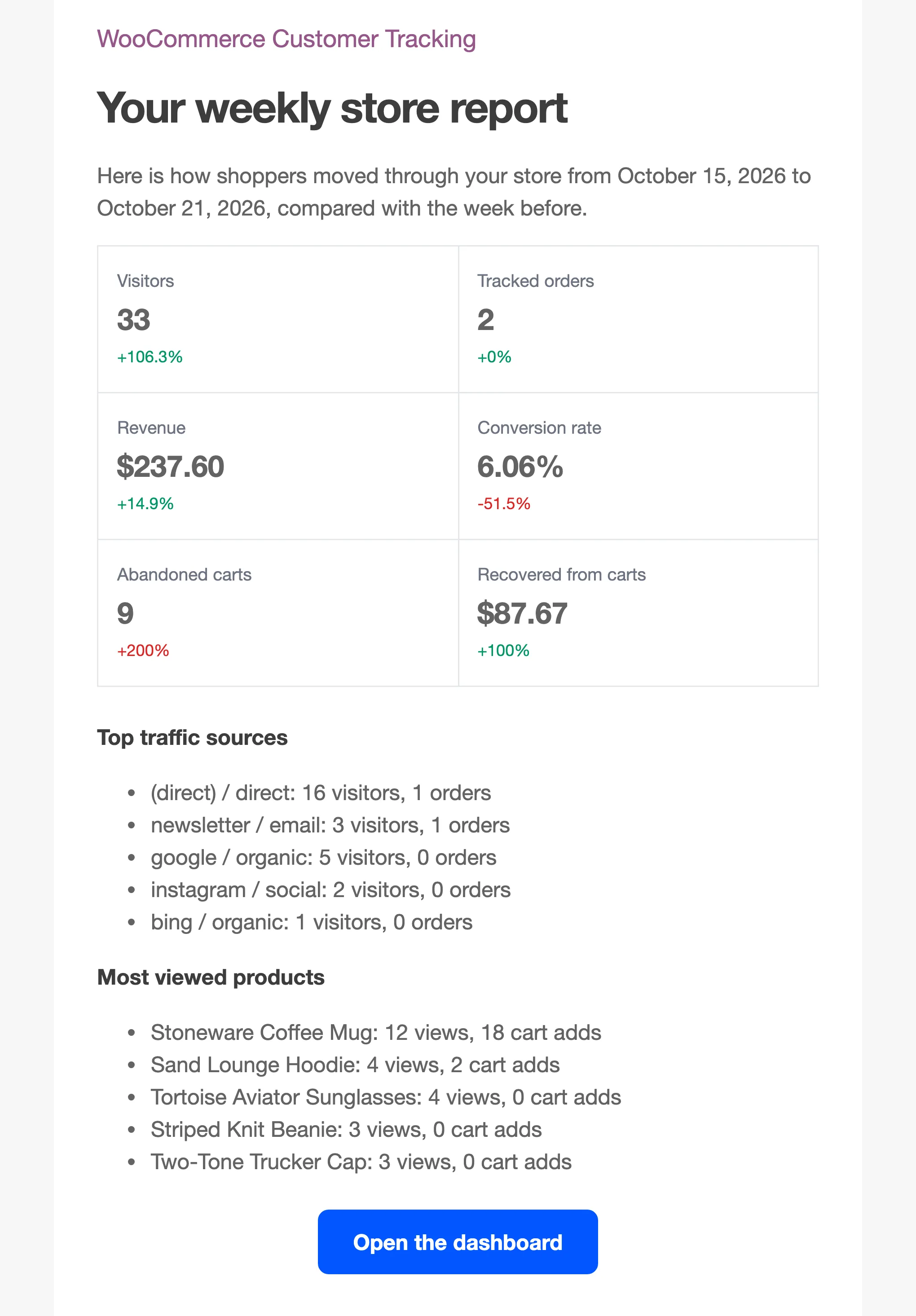
Section titled “Step 4: Save”Click Save Changes. On the demo, the digest for the week looked like this:
What it contains
Section titled “What it contains”- Six numbers, each against the week before: Visitors, Tracked orders, Revenue, Conversion rate, Abandoned carts and Recovered from carts.
- Top traffic sources, with visitors and orders for each.
- Most viewed products, with views and cart adds.
- Searches that found nothing, the products shoppers wanted and did not find.
- An Open the dashboard button.
Good to know
Section titled “Good to know”- Untick Enable/Disable to stop it. Nothing else changes.
- It is a report for your team, so it has no unsubscribe link. Remove an address from Recipients instead.
- No recipients, or the plugin switched off: no digest.