

How to Clean Up Old Tracking Data
Old activity slows nothing down, because the tables are indexed. It still pays to keep only what you use, for privacy and for a lean database. Two tools do it: automatic retention, and Delete Logs for a range of days.
Step 1: Set the retention periods
Section titled “Step 1: Set the retention periods”Open DevDiggers Plugins → Customer Tracking → Configuration → Privacy & Data and find Data Retention.
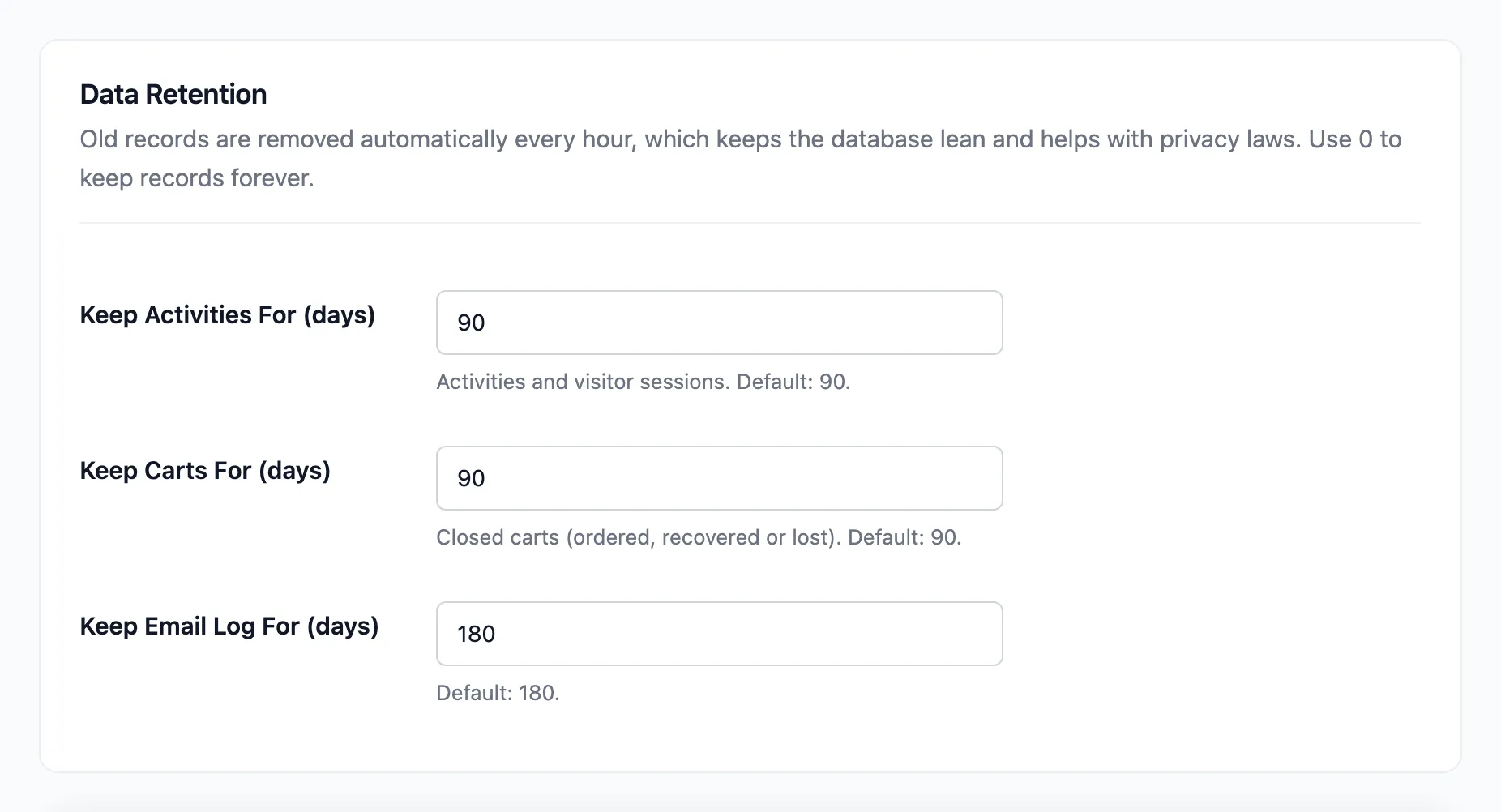
- Keep Activities For (days): Activities and visitor sessions. Default 90.
- Keep Carts For (days): Ordered, recovered and lost carts. Default 90.
- Keep Email Log For (days): Default 180.
Click Save Changes. Older records are removed every hour from then on. 0 keeps them forever.
Carts still waiting for their reminders are never removed by age, whatever the setting.
Step 2: Open the Activity Log
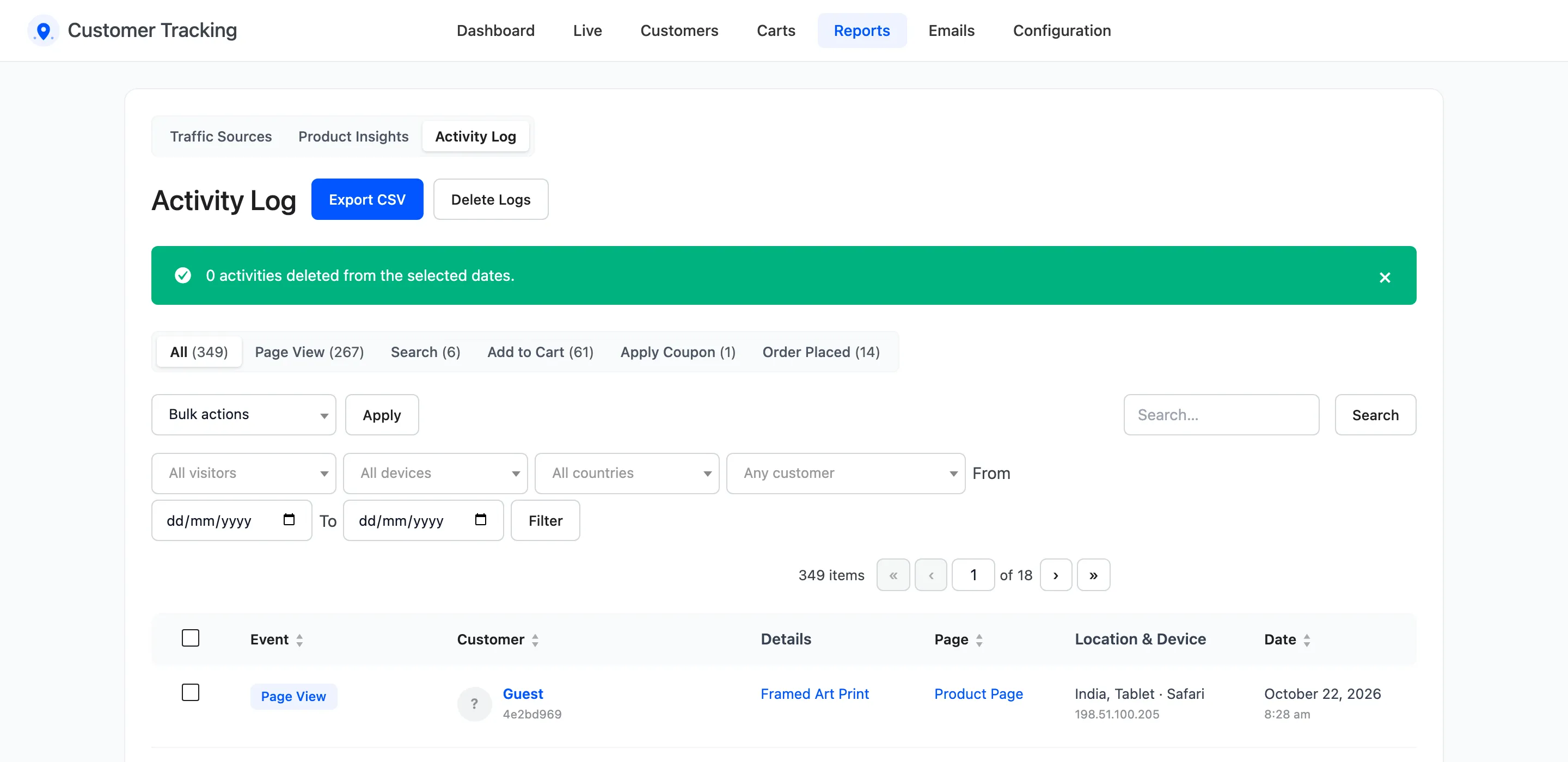
Section titled “Step 2: Open the Activity Log”Go to Reports → Activity Log.
Step 3: Open Delete Logs
Section titled “Step 3: Open Delete Logs”Click Delete Logs next to Export CSV. A short form opens under the title.
Step 4: Pick the dates
Section titled “Step 4: Pick the dates”Choose the first day in the first box and the last day in the second. Leave the second empty to delete a single day.

Step 5: Delete
Section titled “Step 5: Delete”Click Delete and confirm. The Activity Log reloads with a notice saying how many activities were deleted from those dates.
Good to know
Section titled “Good to know”- Delete Logs removes activities only. Carts, customer profiles and the email log stay.
- To remove a few rows, tick them in the list and choose Delete under Bulk actions.
- Deleting is permanent. Run Export CSV first if you may need the rows later.
- To remove one person’s data on request, use the WordPress privacy tools instead. See How to Handle Privacy Requests.