How to Use Price Alerts on Variable Products
On a variable product every variation is watched on its own. A shopper who wants the blue headphones is not emailed when the red ones go on sale.
Step 1: Open the variable product
Section titled “Step 1: Open the variable product”Before an option is picked, the form is hidden. There is no single price to watch yet.
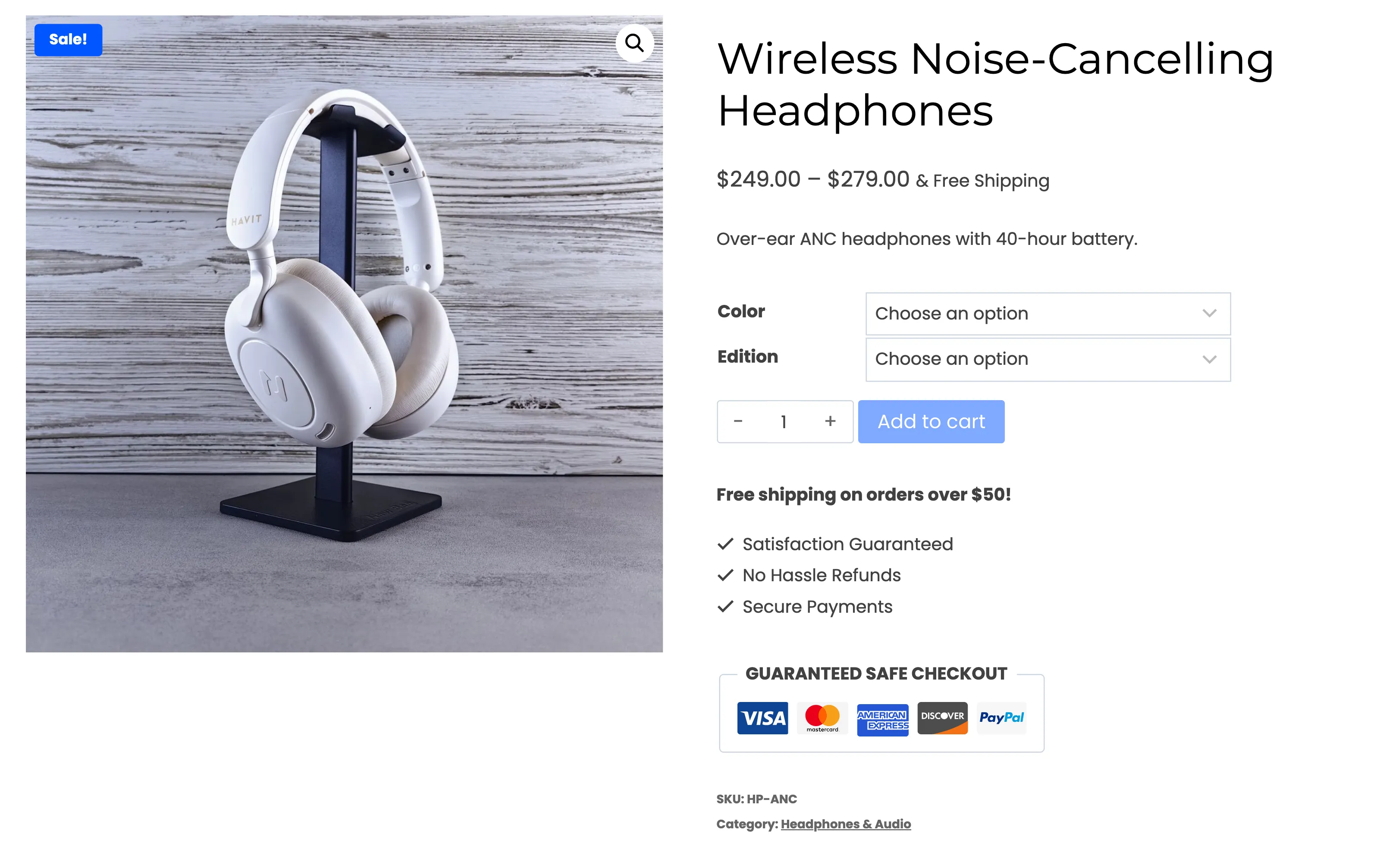
Step 2: Pick an option
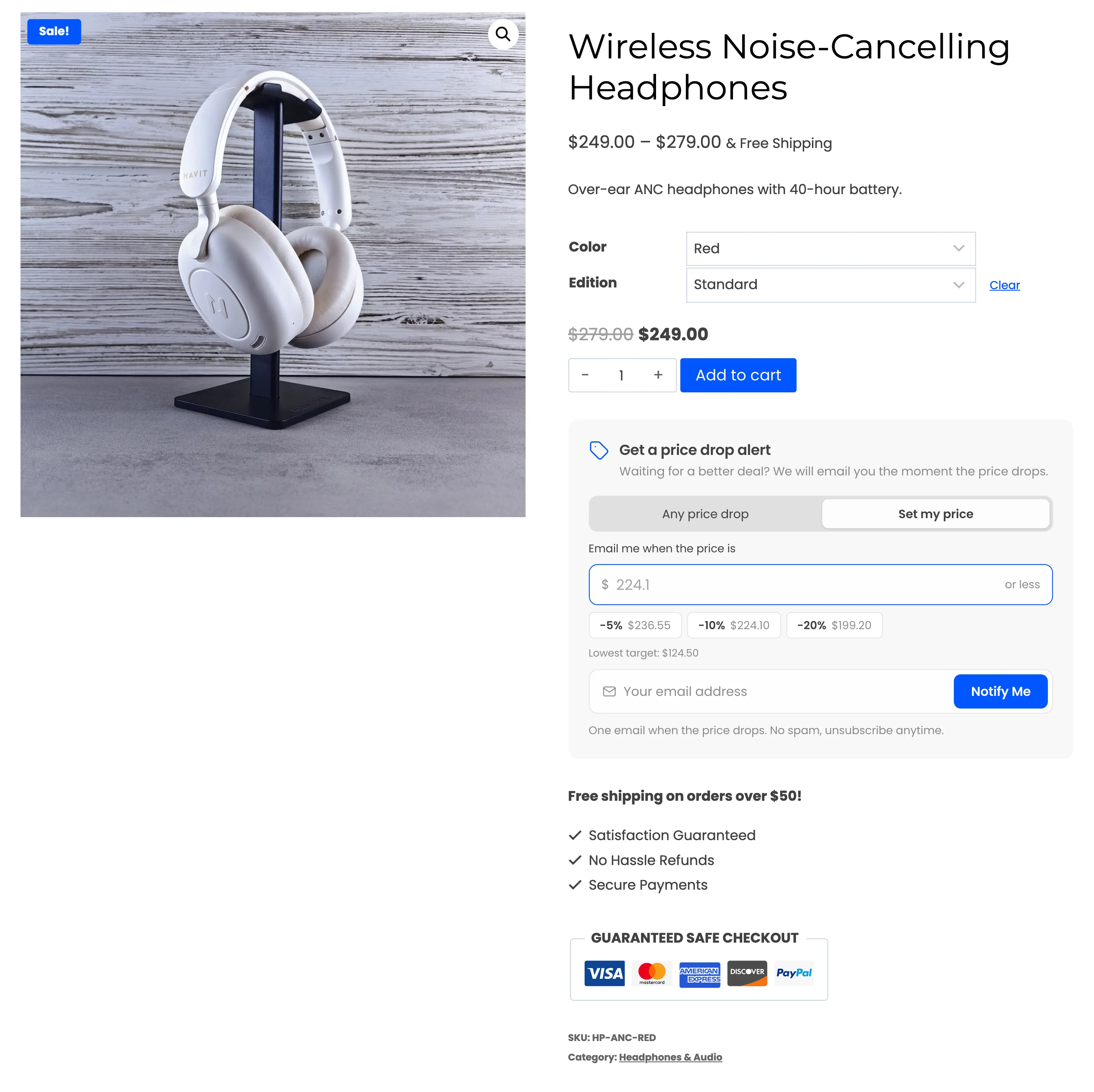
Section titled “Step 2: Pick an option”Choose a value for every attribute. The form appears under Add to cart, with that variation’s price, quick discounts and watchers count. Changing the option repaints it.
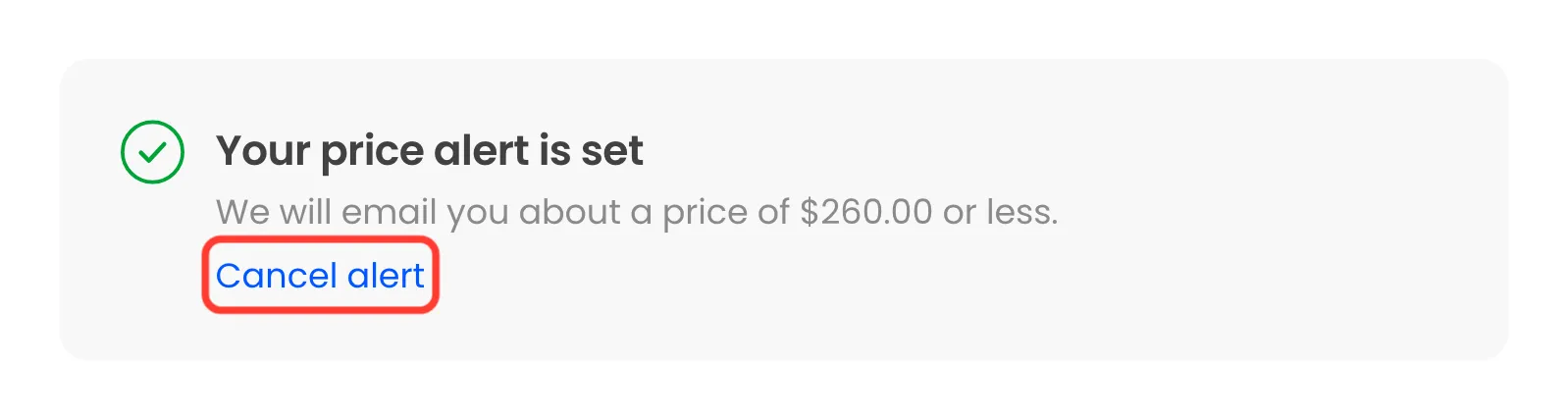
A logged-in customer who already watches the picked option sees their alert and Cancel alert instead.
Step 3: Set the alert
Section titled “Step 3: Set the alert”Pick Any price drop or Set my price, add an email and click Notify Me. The alert is saved on the variation, not on the parent product.
Step 4: See it in the admin
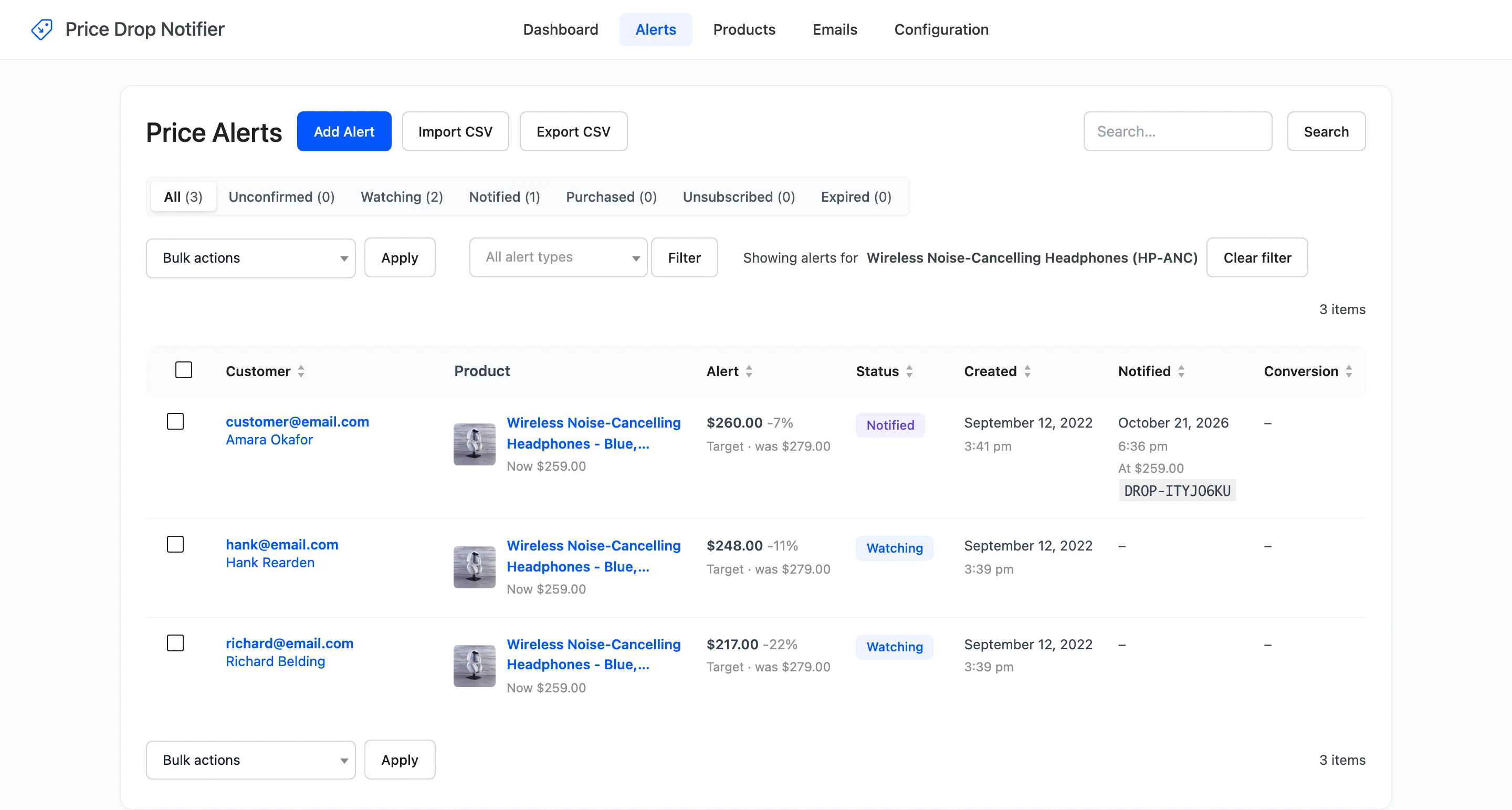
Section titled “Step 4: See it in the admin”The Alerts screen shows the variation’s full name, such as Wireless Noise-Cancelling Headphones - Blue, Travel. The Products screen gives each watched variation its own row.
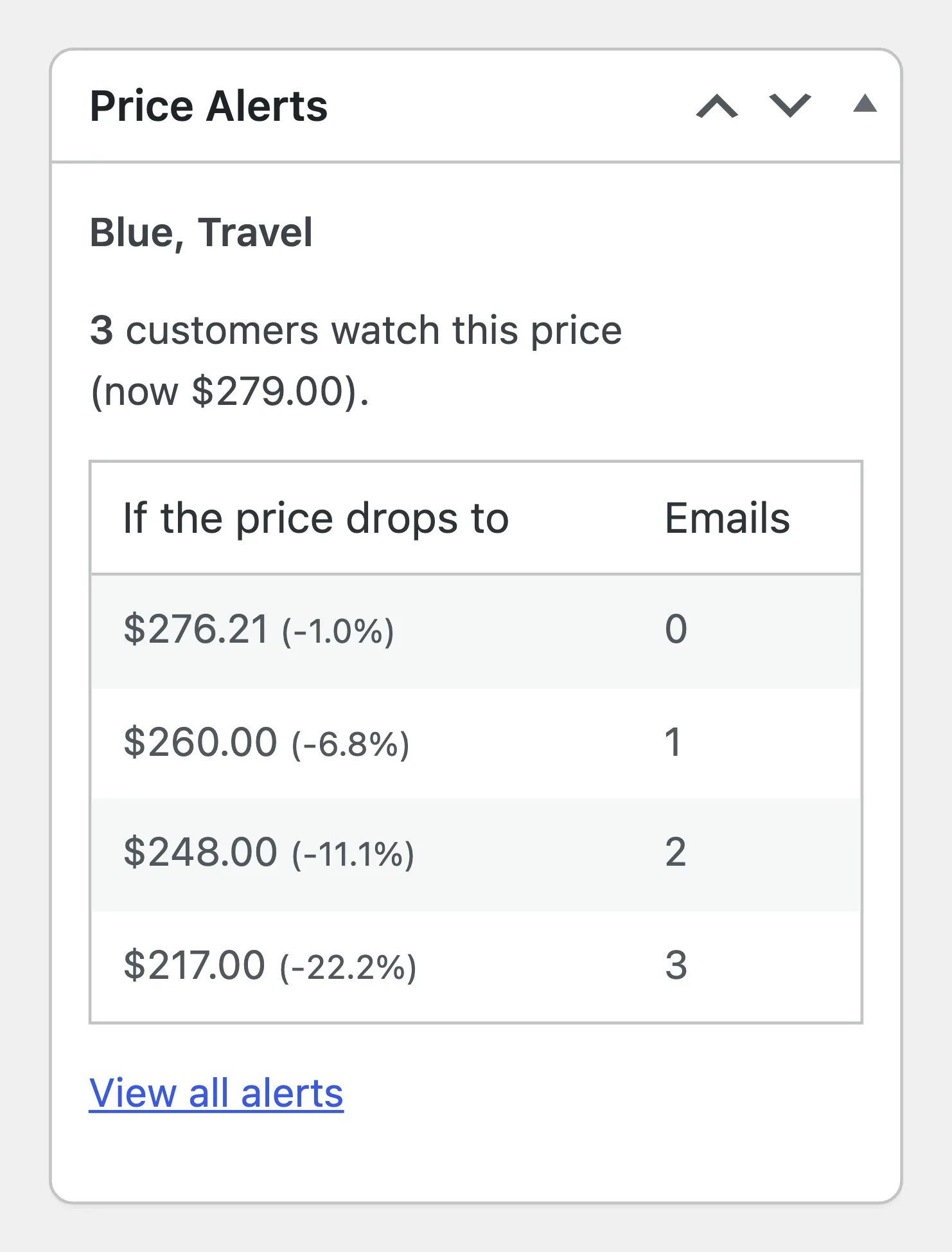
The product editor’s Price Alerts box lists each watched variation separately.
Step 5: Lower that variation’s price
Section titled “Step 5: Lower that variation’s price”Change the variation’s price in Product data → Variations and save. Only that variation’s alerts are checked. On the demo, Blue, Travel went from $279 to $259: the alert at $260 was emailed, the ones at $248 and $217 kept watching.
The email’s Buy Now button opens the product with the variation already picked.
Off the product page
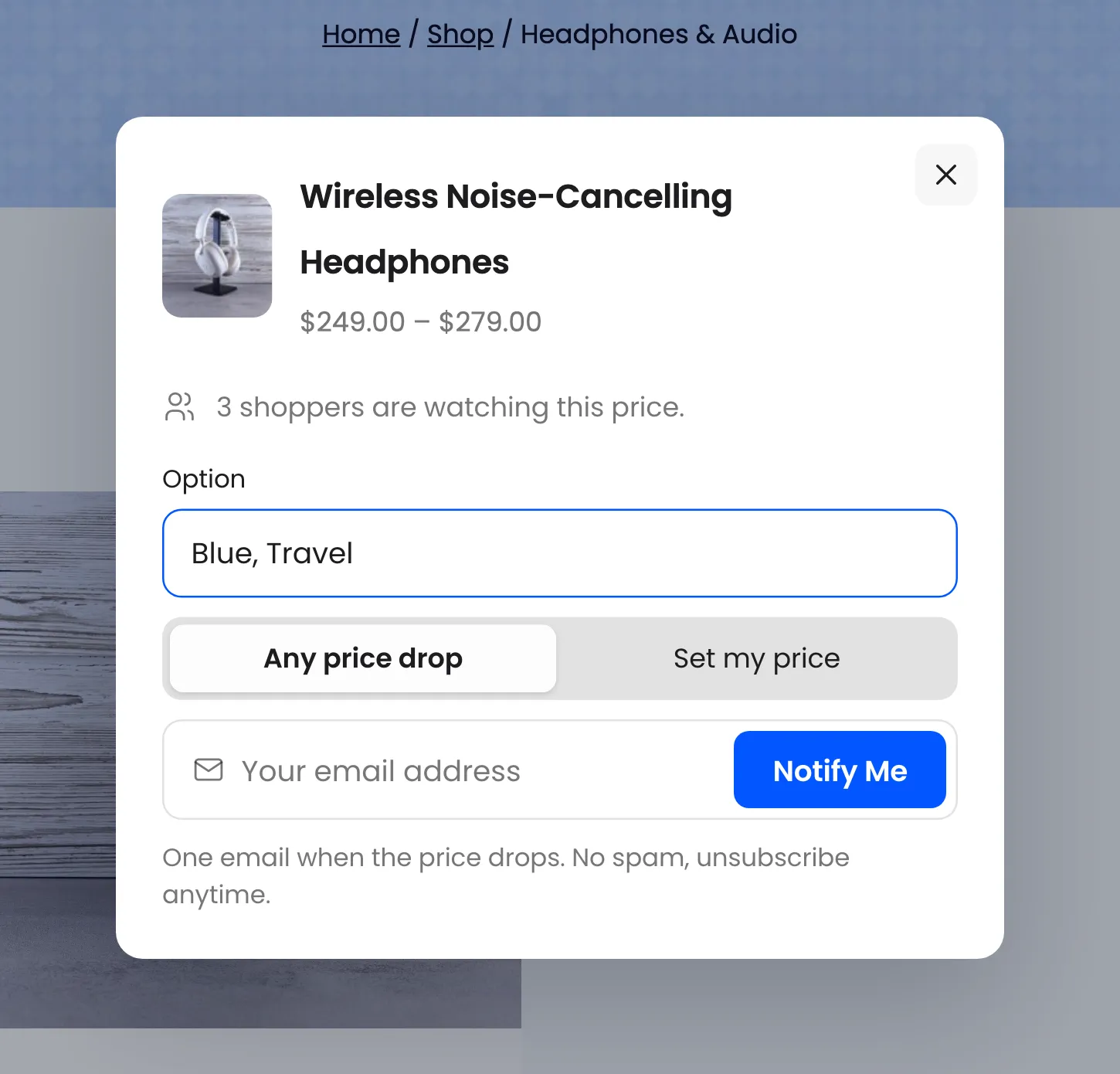
Section titled “Off the product page”In the shop window and in a shortcode on another page, there is no variations form to follow. The form gets its own Option menu instead, listing every variation that accepts alerts.