

Import and Export
Alerts move in and out of the plugin as CSV files. Both buttons sit at the top of the Alerts screen.
Export CSV
Section titled “Export CSV”Export CSV downloads the alerts in the current view. It keeps the status view, the product filter and the search, so you can export only the notified alerts on one product, for example.
The file is named price-alerts- plus the date, with one row per alert and these columns:
ID, Email, Customer, Product ID, Product, SKU, Status, Alert Type, Price At Signup,
Target Price, Notified Price, Current Price, Created On, Notified On, Clicked On,
Converted On, Order ID, Revenue and Coupon.
Customer is the account name or Guest. A cell that starts with =, +, - or @ gets a leading
apostrophe, so a spreadsheet does not run it as a formula.
Import CSV
Section titled “Import CSV”Import CSV opens a three step wizard: Select File, Mapping and Data Import.
Select File
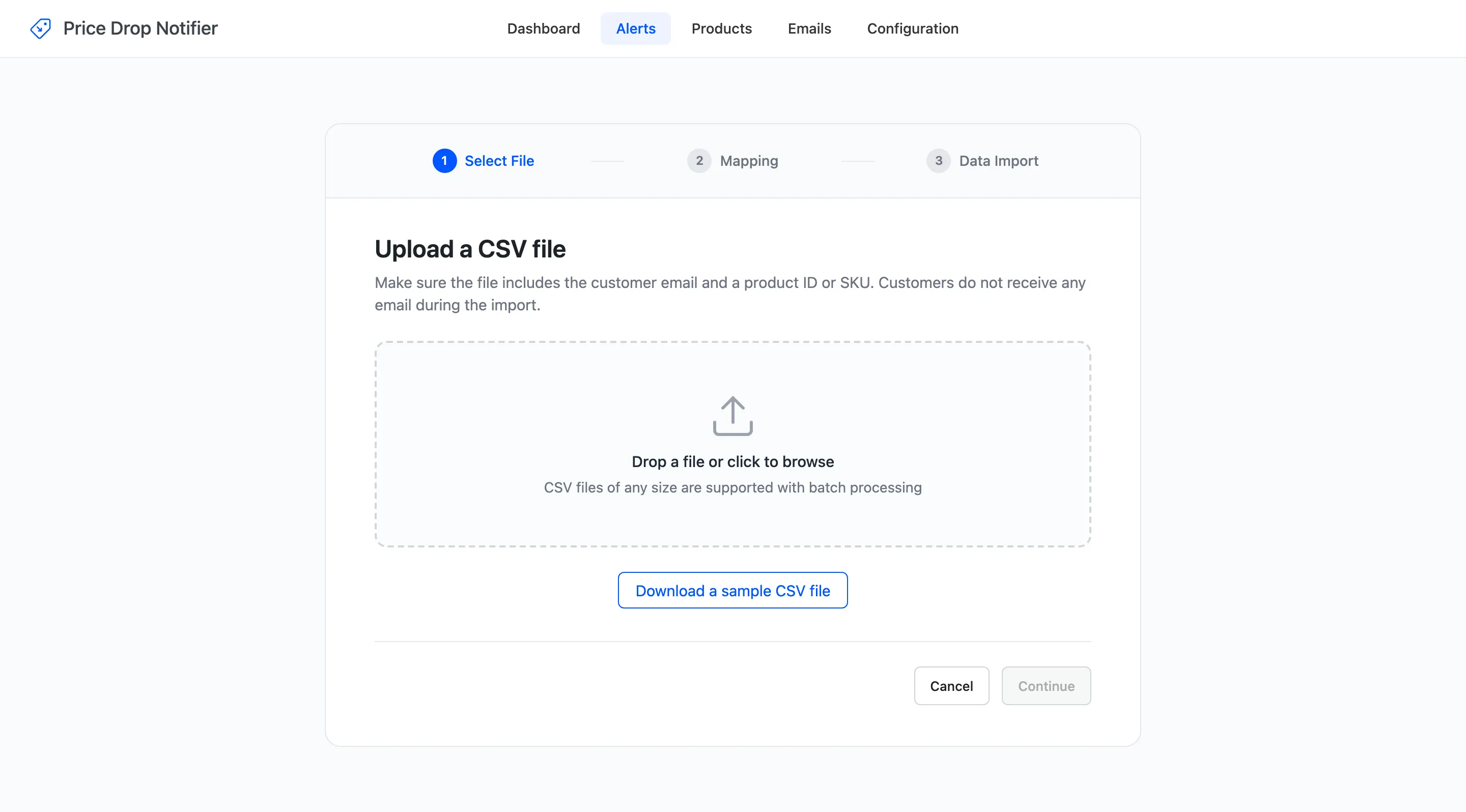
Section titled “Select File”Drop a .csv file on the box or click to browse. The file needs an email and a product ID or SKU on every
row. Download a sample CSV file gives you one to copy.
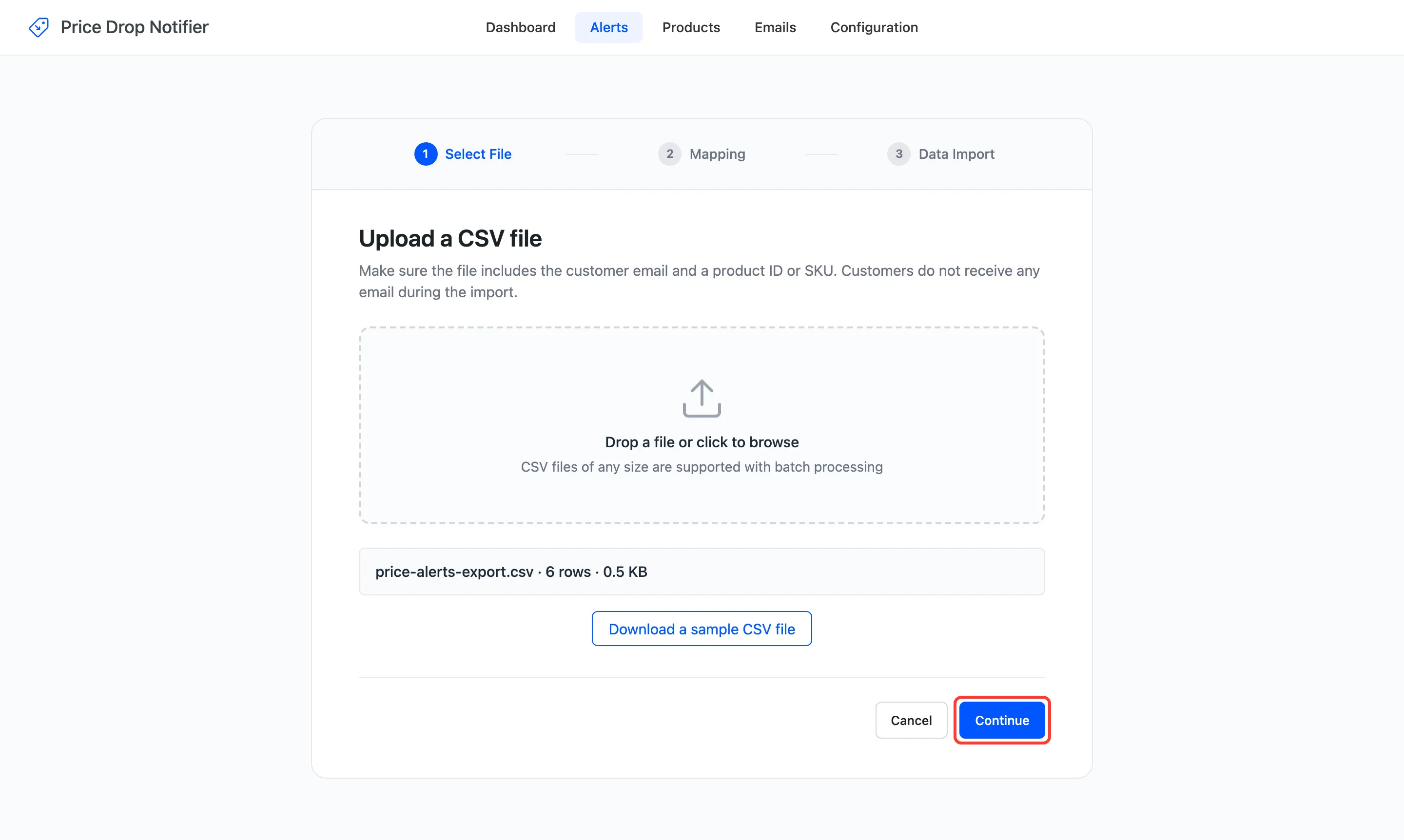
Once a file is read, its name, row count and size show under the box, and Continue opens the mapping.
Mapping
Section titled “Mapping”Each field gets a column from your file. Columns named the usual way are matched for you: Customer Email
to Email, Product SKU to SKU, Price to Price At Signup, Subscribed On to Created On. Anything else you
pick by hand, like Wanted Price for Target Price here.
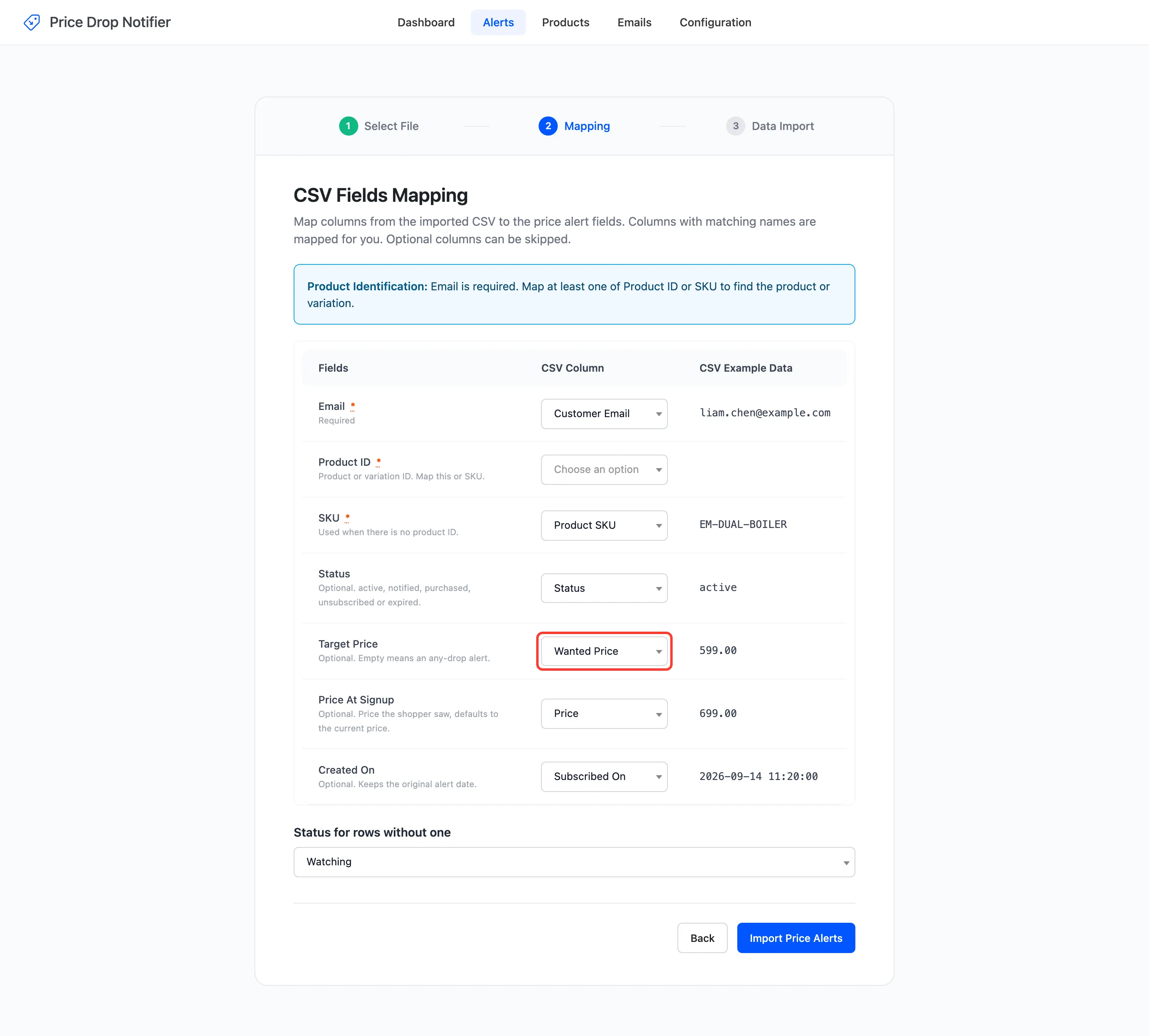
- Email: Required.
- Product ID or SKU: One of them is required. A variation’s ID or SKU sets the alert on that variation.
- Status: Optional. Active, notified, purchased, unsubscribed or expired, or the names on screen such as Watching.
- Target Price: Optional. Empty means an any-drop alert.
- Price At Signup: Optional. The price the shopper saw. Empty uses today’s price.
- Created On: Optional. Keeps the original date.
Status for rows without one sets the status of rows that have no status column or an empty cell. Default Watching.
Data Import
Section titled “Data Import”Rows are imported in batches of 100. The summary counts the rows imported and lists every row that was not, with the reason.
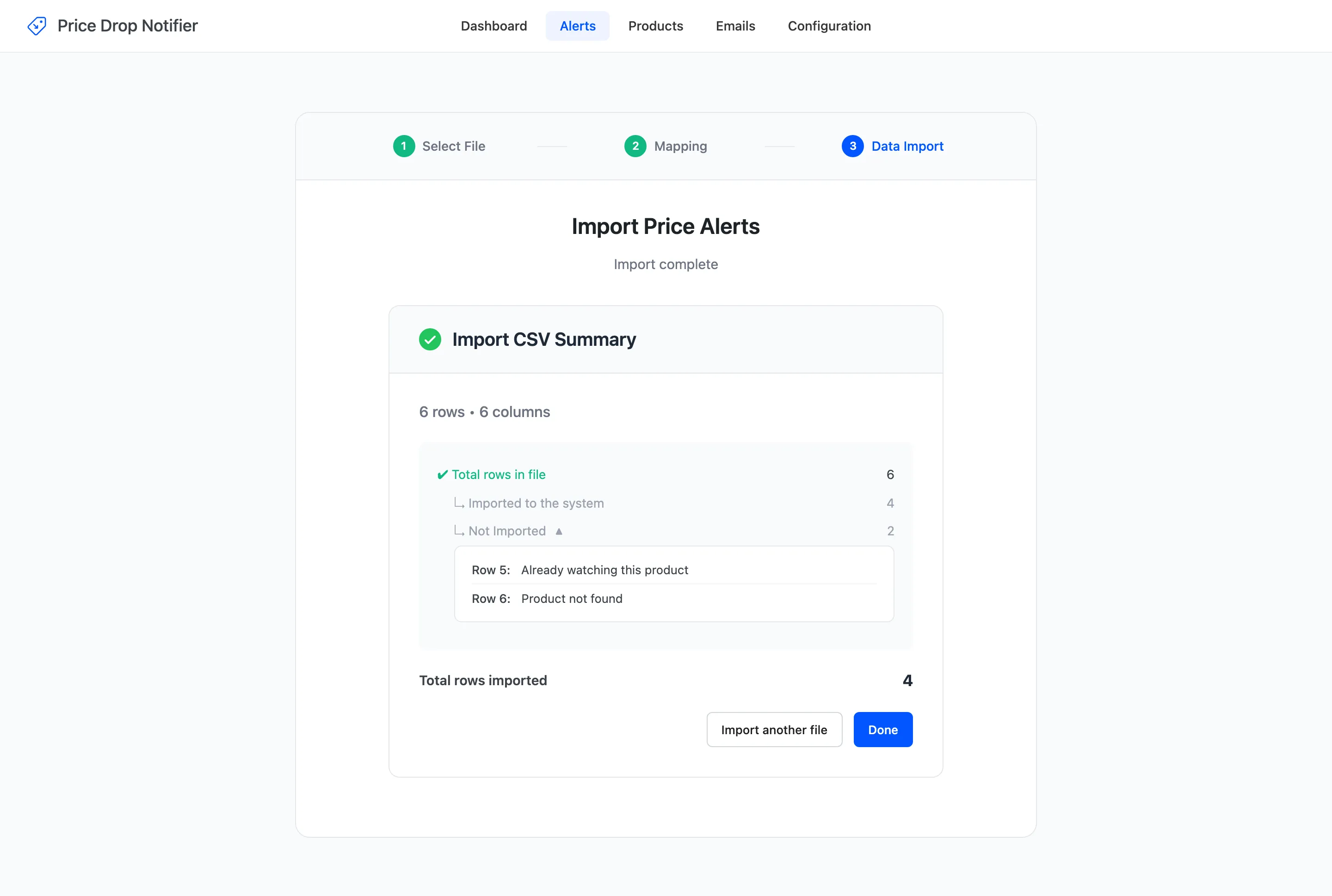
- Product not found: No product has that ID or SKU.
- Already watching this product: That email already has an alert on the product that is watching.
- Invalid email address: The email cell is not an email.
Nobody is emailed during an import, and no webhook is sent. See How to Import Price Alerts from a CSV File.