

Email Settings
The plugin sends five emails. Each has its own screen under DevDiggers Plugins → Price Drop → Emails, next to Email Settings, which they share, and the Email Log.
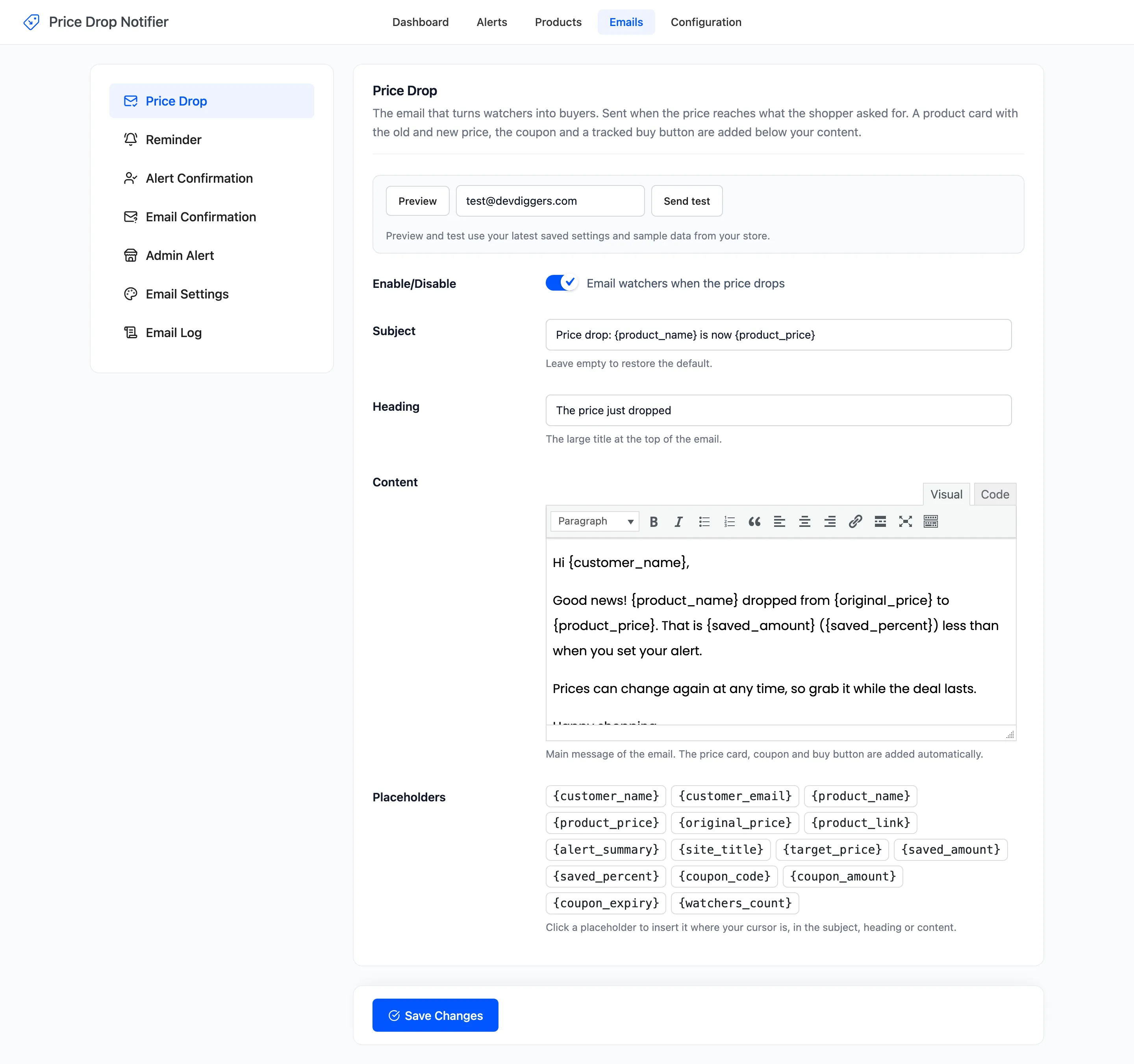
They use your WooCommerce email design, so the logo, colors, footer and sender name come from WooCommerce → Settings → Emails. They also appear in WooCommerce’s list there, with a link back to these screens.
The five emails
Section titled “The five emails”| Sent to | When | Default | |
|---|---|---|---|
| Price Drop | The shopper | The price reaches what they asked for | On |
| Reminder | The shopper | Days after the price drop email, if they have not bought | On |
| Alert Confirmation | The shopper | Right after they set an alert | On |
| Email Confirmation | A guest | With double opt-in, before the alert switches on | Follows double opt-in |
| Admin Alert | Your team | Every new alert | Off |
The fields on each screen
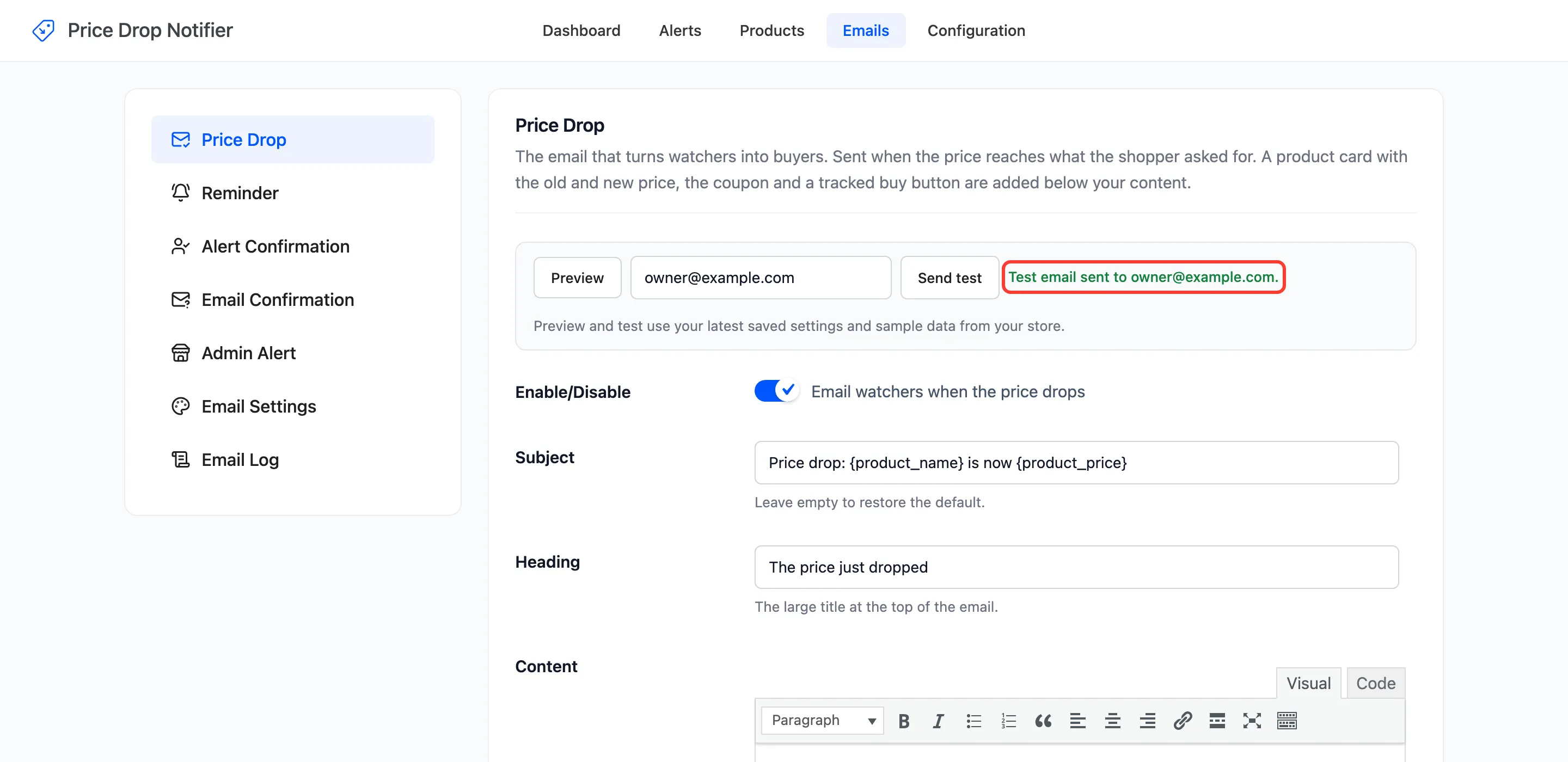
Section titled “The fields on each screen”- Enable/Disable: Whether the email is sent. The Email Confirmation screen has a Status line instead, because that email follows Double Opt-in on the Alert Form tab.
- Subject: Leave empty to restore the default.
- Heading: The large title at the top of the email.
- Content: The message, in the visual editor. The product card, the coupon and the button are added below it on their own.
- Placeholders: Click one to insert it where your cursor is, in the subject, heading or content.
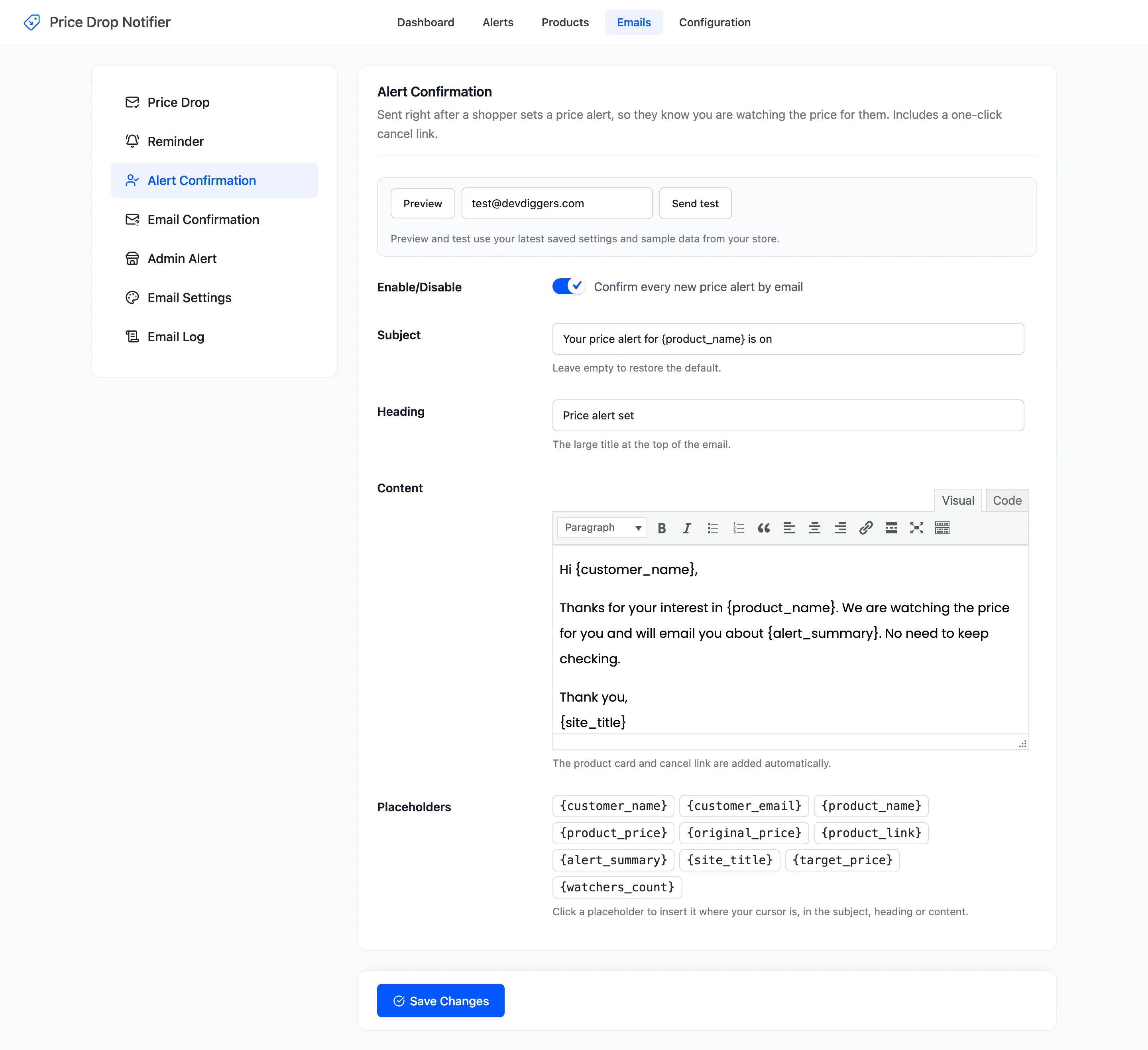
Two screens have one more field:
- Send After (days) on the Reminder: days after the price drop email. Default 3.
- Recipients on the Admin Alert: comma separated. Empty sends it to the site admin email.
The placeholders
Section titled “The placeholders”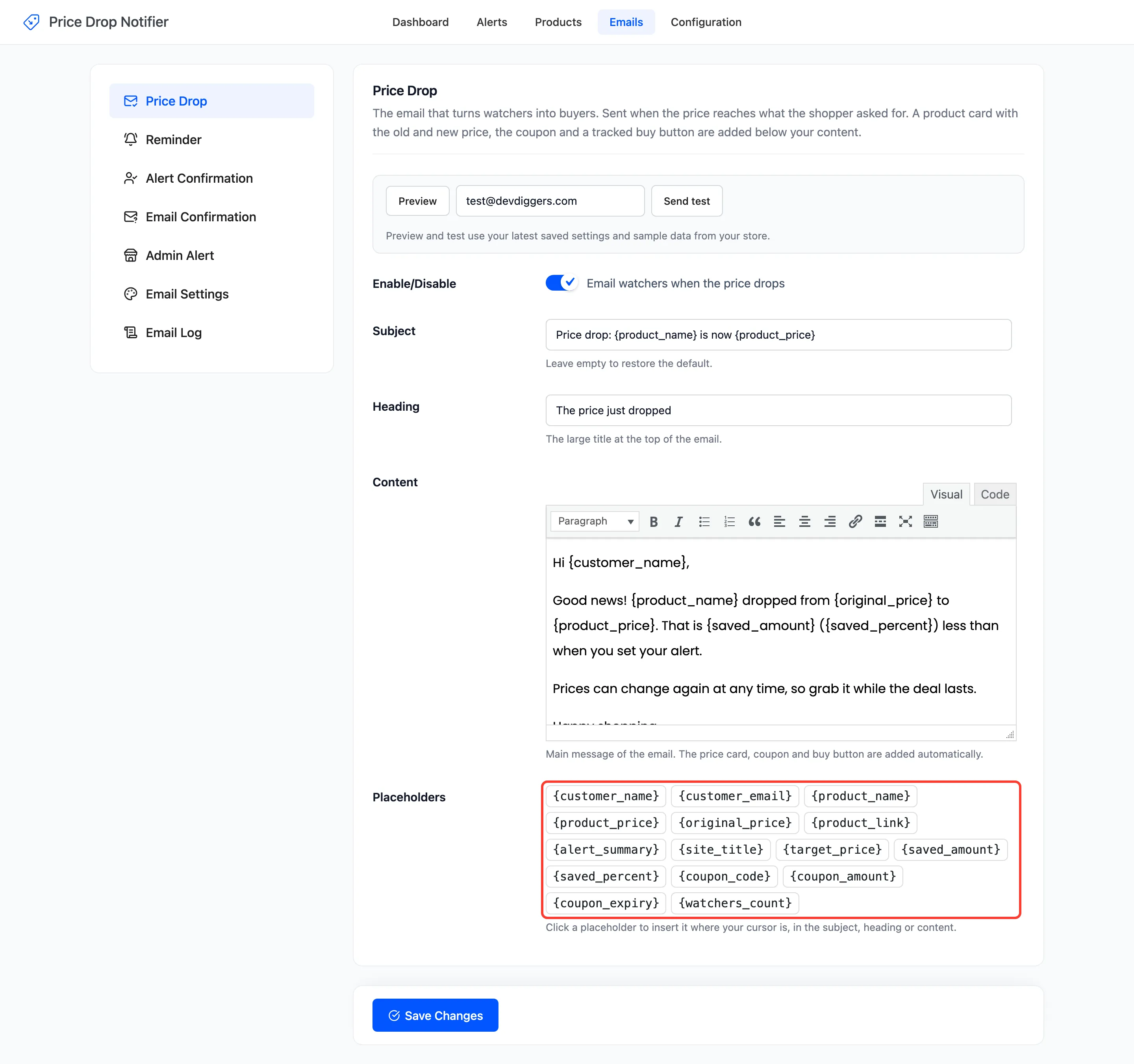
Every email has {customer_name}, {customer_email}, {product_name}, {product_price},
{original_price}, {product_link}, {alert_summary} and {site_title}.
{customer_name}is the account’s first name, or “there” for a guest.{original_price}is the price the shopper saw when they set the alert.{alert_summary}reads “any price drop” or “a price of $629.10 or less”.{product_link}is the tracked link that the Buy Now button uses.
The Price Drop and Reminder emails add {target_price}, {saved_amount}, {saved_percent},
{coupon_code}, {coupon_amount} and {coupon_expiry}. The Price Drop, Alert Confirmation and Admin
Alert emails add {watchers_count}, and the last two add {target_price} too.
Preview and Send test
Section titled “Preview and Send test”Each screen opens with Preview and Send test. Both use your last saved settings and sample data from your store: the newest alert and its product. A sample alert whose product has not dropped yet is shown as if it had, so the preview always reads as a real price drop.
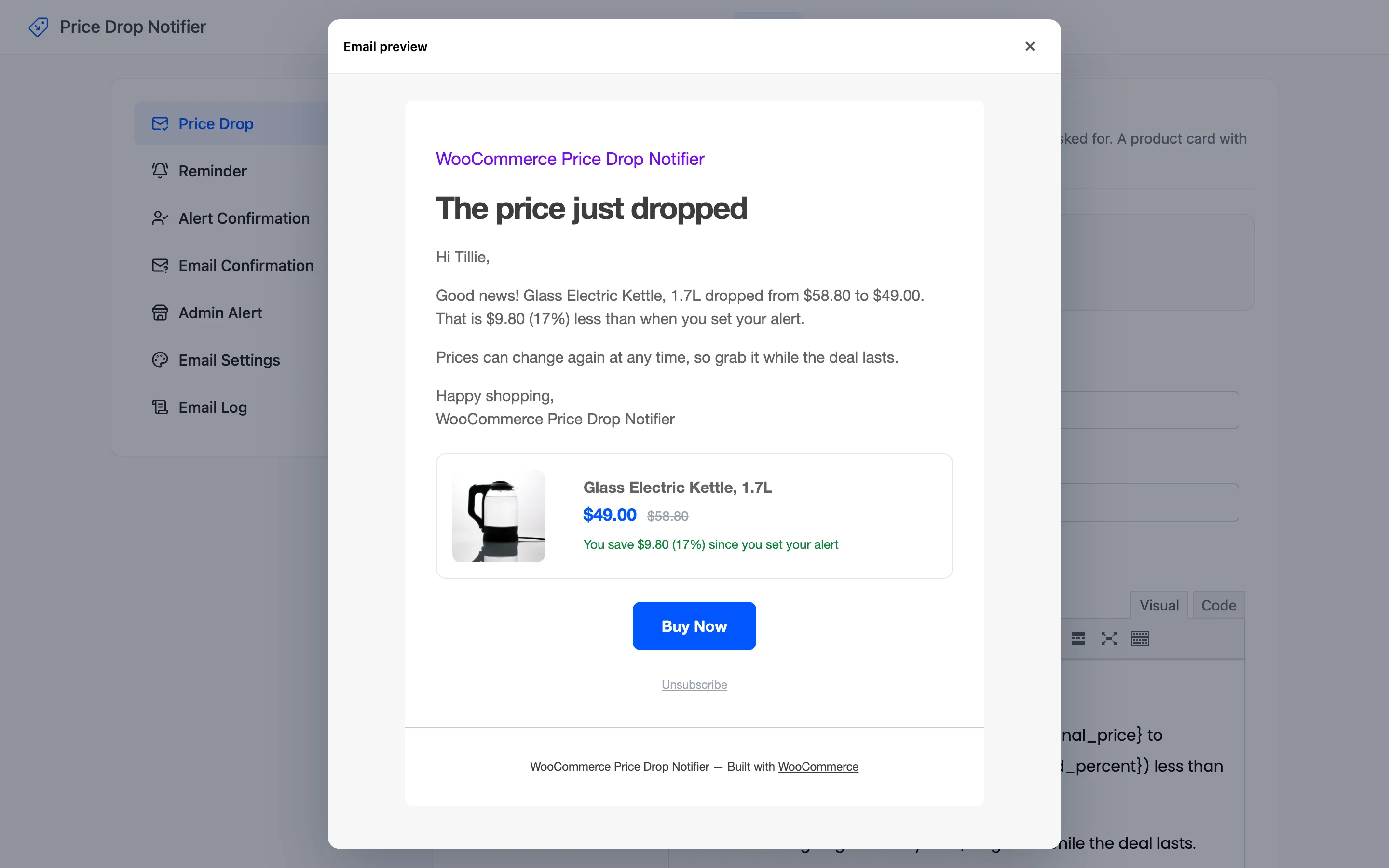
Send test goes to the address in the box, your own by default, and shows the result next to the button.
Email Settings
Section titled “Email Settings”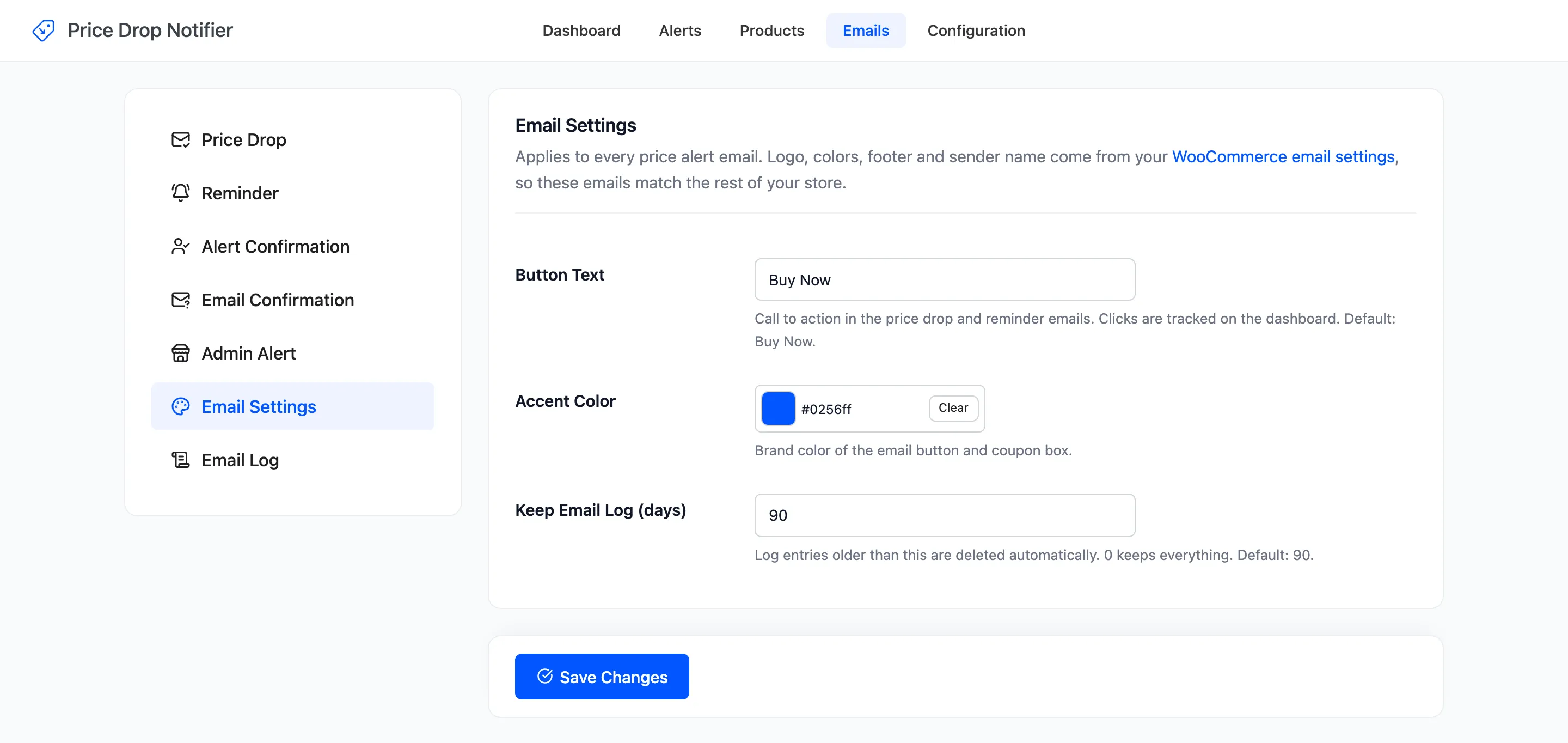
- Button Text: The call to action in the Price Drop and Reminder emails. Default Buy Now. Clicks are tracked on the dashboard.
- Accent Color: The email button and the coupon box. Default #0256ff.
- Keep Email Log (days): Log entries older than this are deleted. Default 90. 0 keeps everything.
What each email looks like
Section titled “What each email looks like”See The Email Log for every email sent.