

The Products Screen
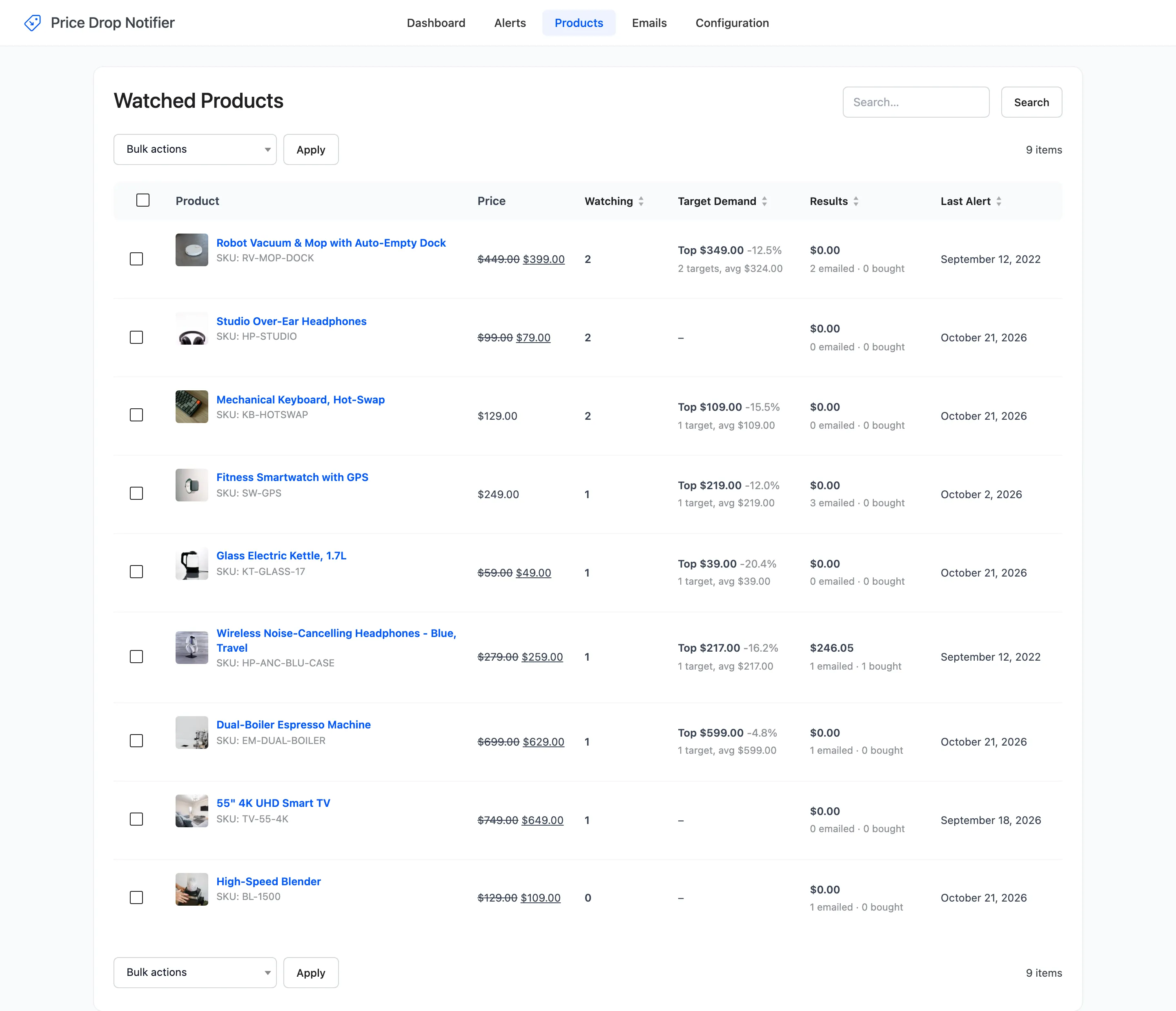
The Products screen gives one row per watched product or variation, so you can see where demand is and act on it. Open DevDiggers Plugins → Price Drop → Products.
The columns
Section titled “The columns”- Product: The product or variation and its SKU.
- Price: The current price, and Out of stock when it is.
- Watching: Alerts still waiting for a lower price.
- Target Demand: The highest target price anyone named, how far below today’s price it is, and the number and average of the targets. A dash means nobody named a price.
- Results: The revenue from these alerts, and how many were emailed and how many bought.
- Last Alert: When the newest alert was set.
Watching, Target Demand, Results and Last Alert sort. The list starts with the most watched.
Row actions
Section titled “Row actions”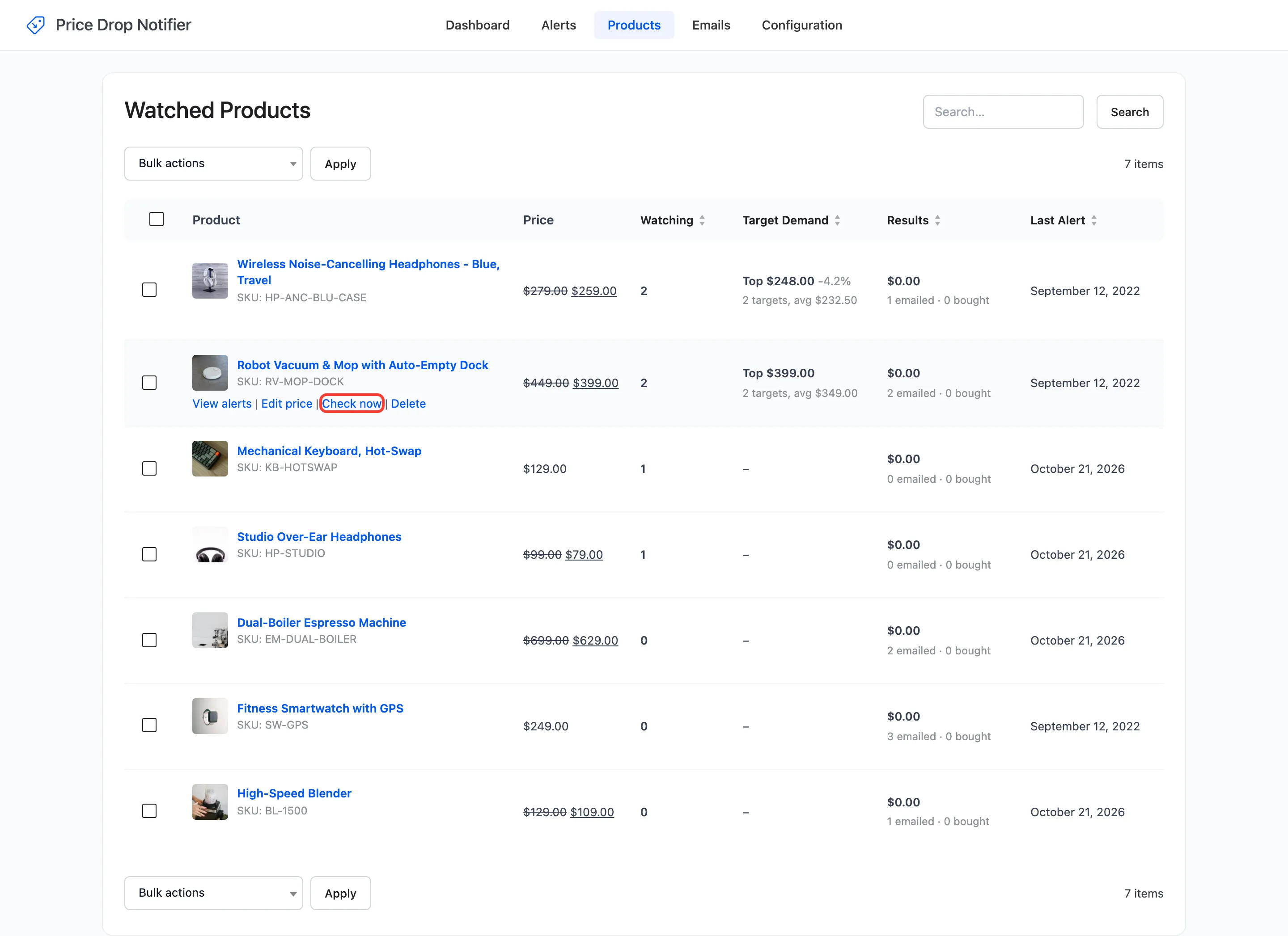
- View alerts: The Alerts screen for this product.
- Edit price: The product editor.
- Check now: Checks today’s price against every watching alert and emails the ones it satisfies. It works even with Automatic Emails off. It asks first.
- Delete: Deletes every alert on the product. It asks first.
Check now runs in the background, and the notice says so.
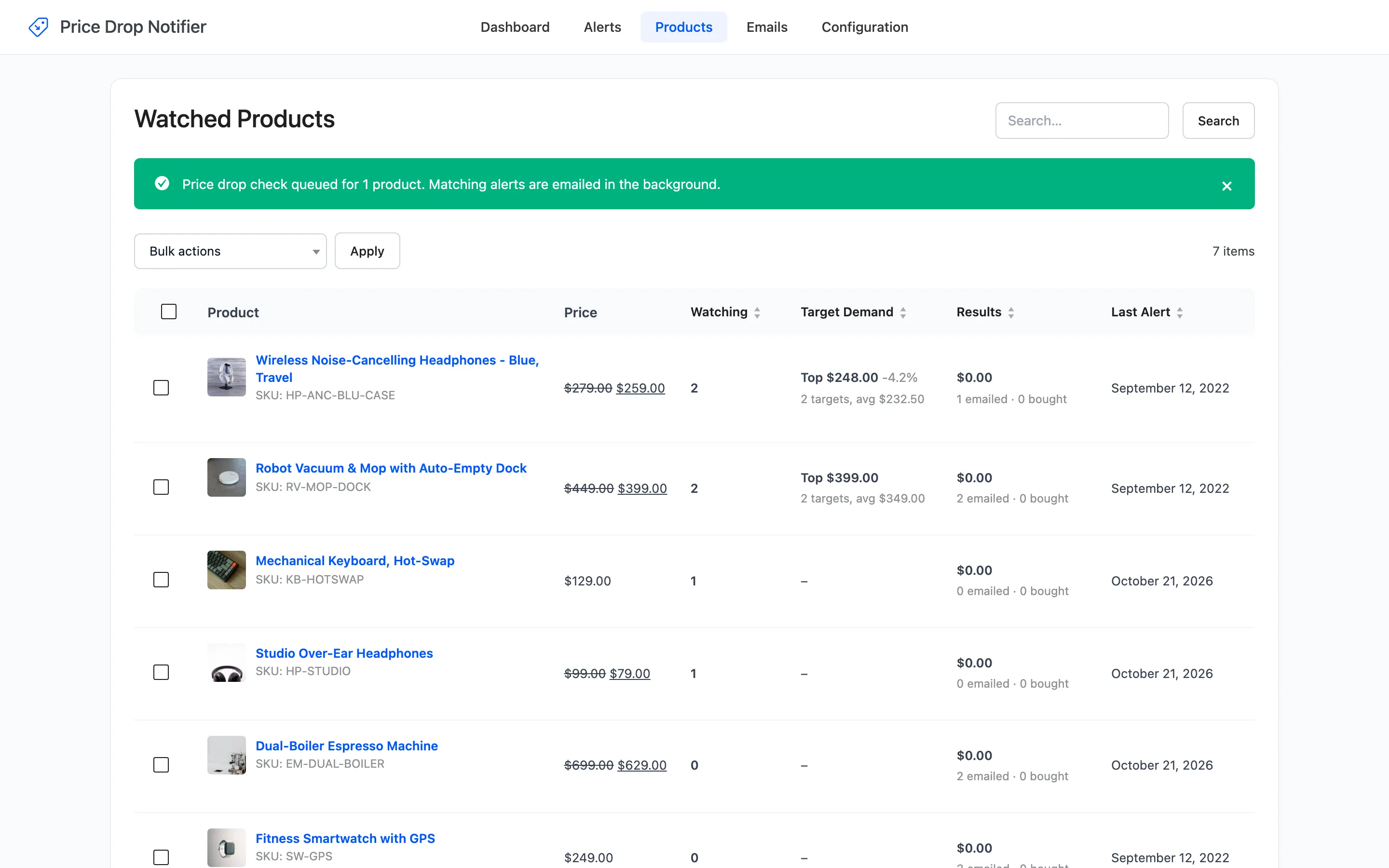
A product nobody is watching any more is not queued: “Nothing queued. Only products with active price alerts are checked.”
Bulk actions
Section titled “Bulk actions”Tick products, pick Check prices and email matching alerts or Delete all alerts, and click Apply.
The Price Alerts column on WooCommerce’s Products screen
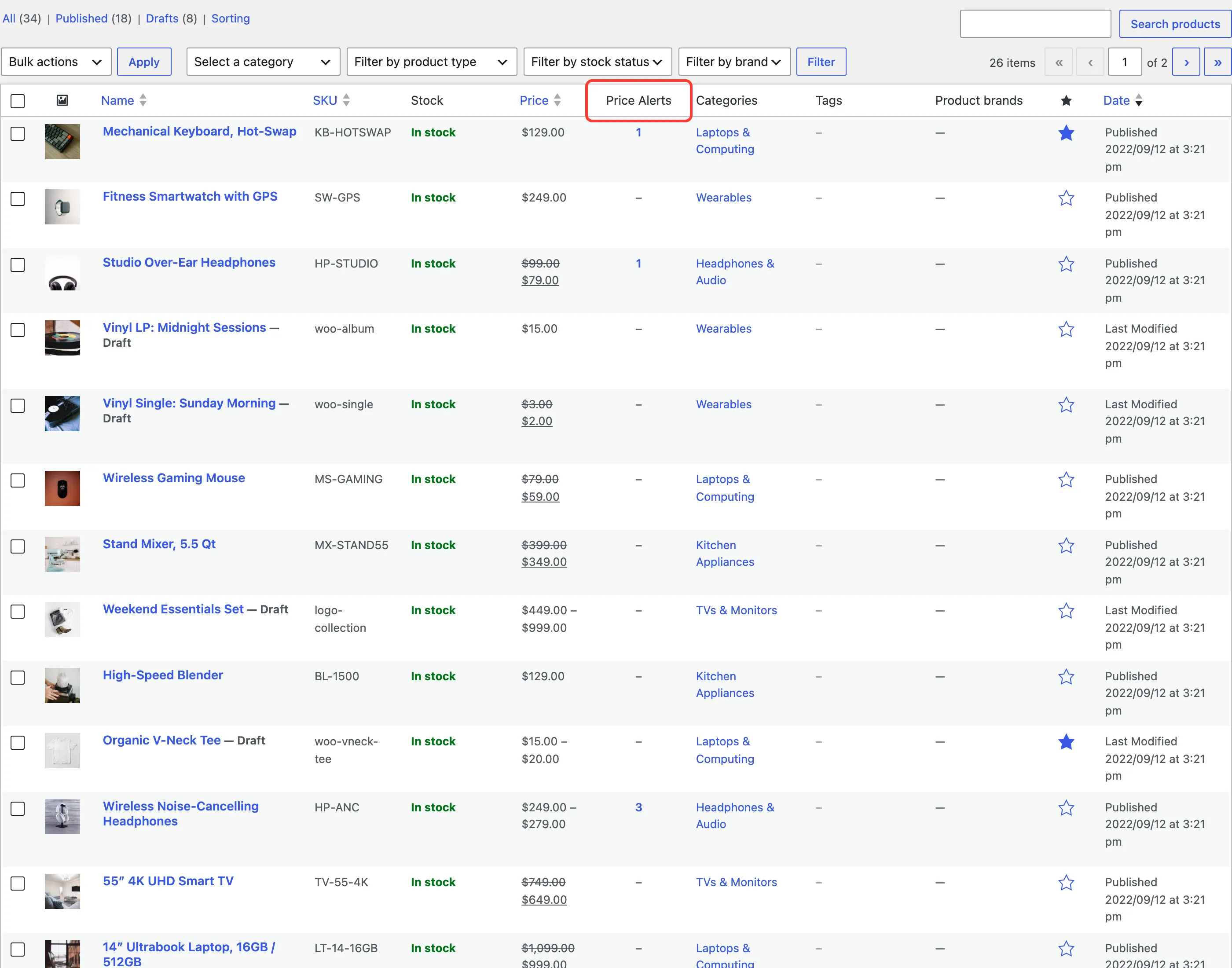
Section titled “The Price Alerts column on WooCommerce’s Products screen”Products → All Products gets a Price Alerts column after Price. It counts the alerts watching each product, its variations included. The number opens the Alerts screen for that product.
The Price Alerts box in the product editor
Section titled “The Price Alerts box in the product editor”A product with watching alerts gets a Price Alerts box in the product editor’s side column. For each watched item it shows how many customers watch it, the current price, and a small table of prices worth trying.
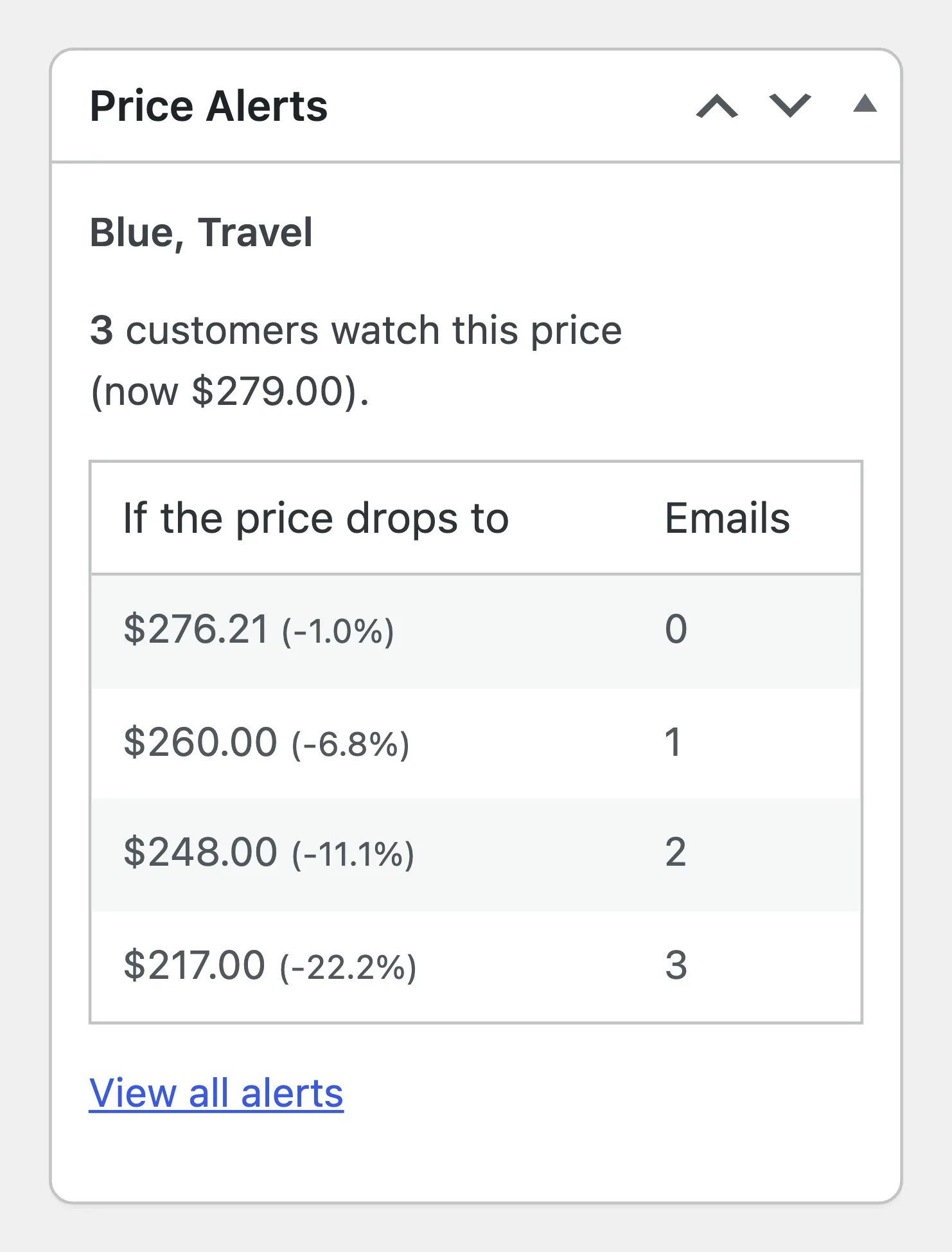
Each row is one target someone named, plus the Minimum Drop (%) price. Emails is how many alerts that price would send. On the headphones, $260.00 emails one customer and $248.00 emails two. A variable product lists each watched variation separately.
View all alerts opens the Alerts screen for the product. See How to Find the Price Shoppers Want.