

How to Send a Reminder to Customers Who Did Not Buy
Most people who ignore a price drop email were busy, not uninterested. One reminder while the deal still stands brings a share of them back.
Step 1: Check the Reminder is on
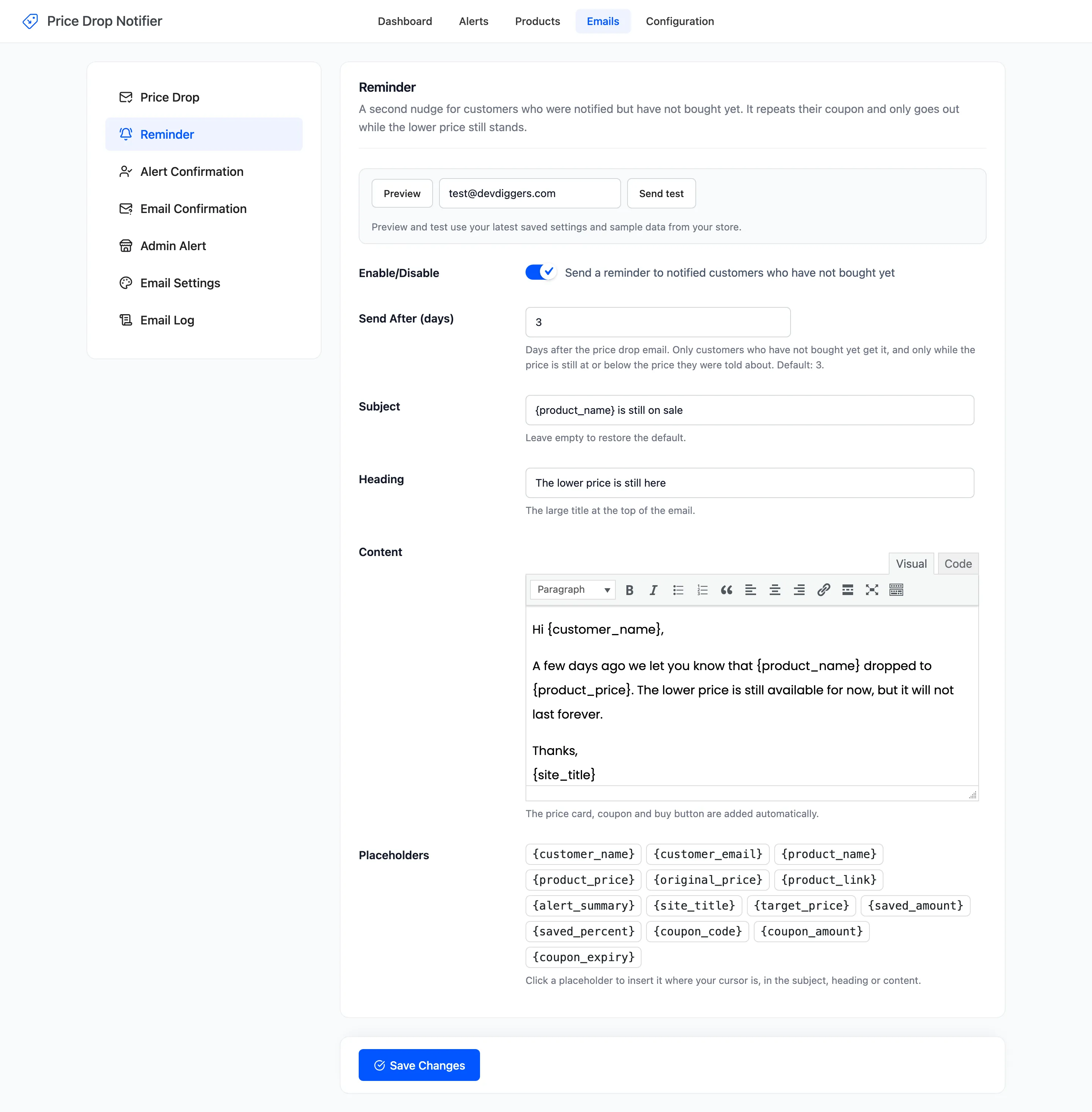
Section titled “Step 1: Check the Reminder is on”Open Emails → Reminder. Enable/Disable is on by default.
Step 2: Set Send After (days)
Section titled “Step 2: Set Send After (days)”Send After (days) counts from the price drop email. Default 3, from 1 to 60.
Step 3: Check the wording
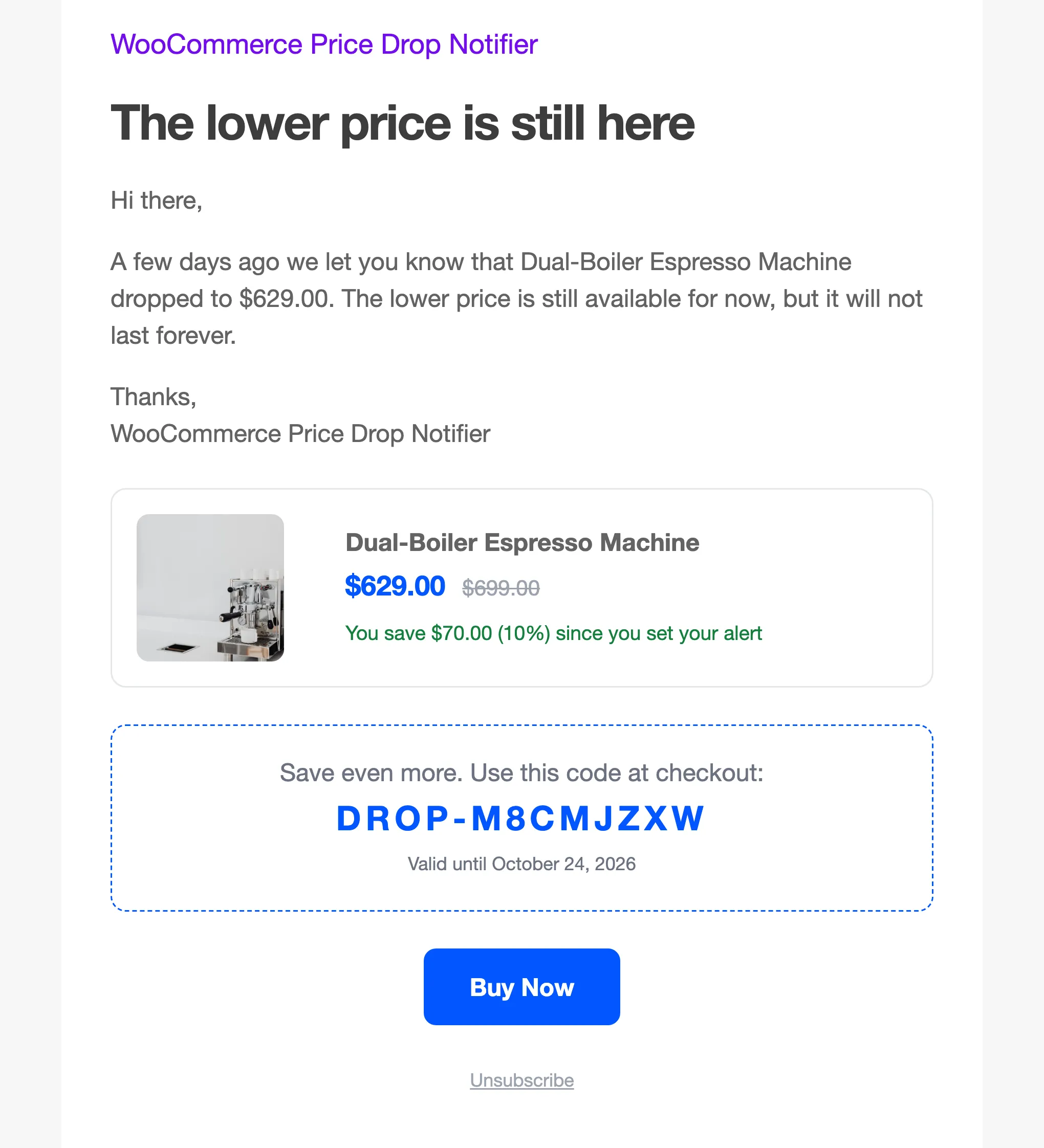
Section titled “Step 3: Check the wording”The default subject is “{product_name} is still on sale”. The product card, the coupon and the Buy Now button are added below your content. Press Preview to read it.
Step 4: Let it run
Section titled “Step 4: Let it run”Once an hour the plugin looks for alerts that were emailed longer ago than Send After (days) and have not had a reminder. For each one it checks two things:
- The customer has not bought. A Purchased alert never gets one.
- The price is still at or below the price in the first email, and the product can still be bought.
When both hold, the reminder goes out. Either way the alert is marked, so nobody is reminded twice.
On the demo, the any-drop customer of the Espresso Machine was emailed at $629.00, clicked and did not buy. The reminder repeated the same coupon:
Good to know
Section titled “Good to know”- If the price is back above the first email’s price when the reminder is due, the reminder is skipped for good.
- Reminders depend on WP-Cron, or a server cron job, like every scheduled WordPress task.
- With Enable/Disable off under Configuration → General, reminders pause too.