

How to Place the Alert Form with a Shortcode
The automatic form covers most stores. The shortcode is for everything else: a deals page, a page builder product layout, or a landing page for one product.
Step 1: Choose where the automatic form goes
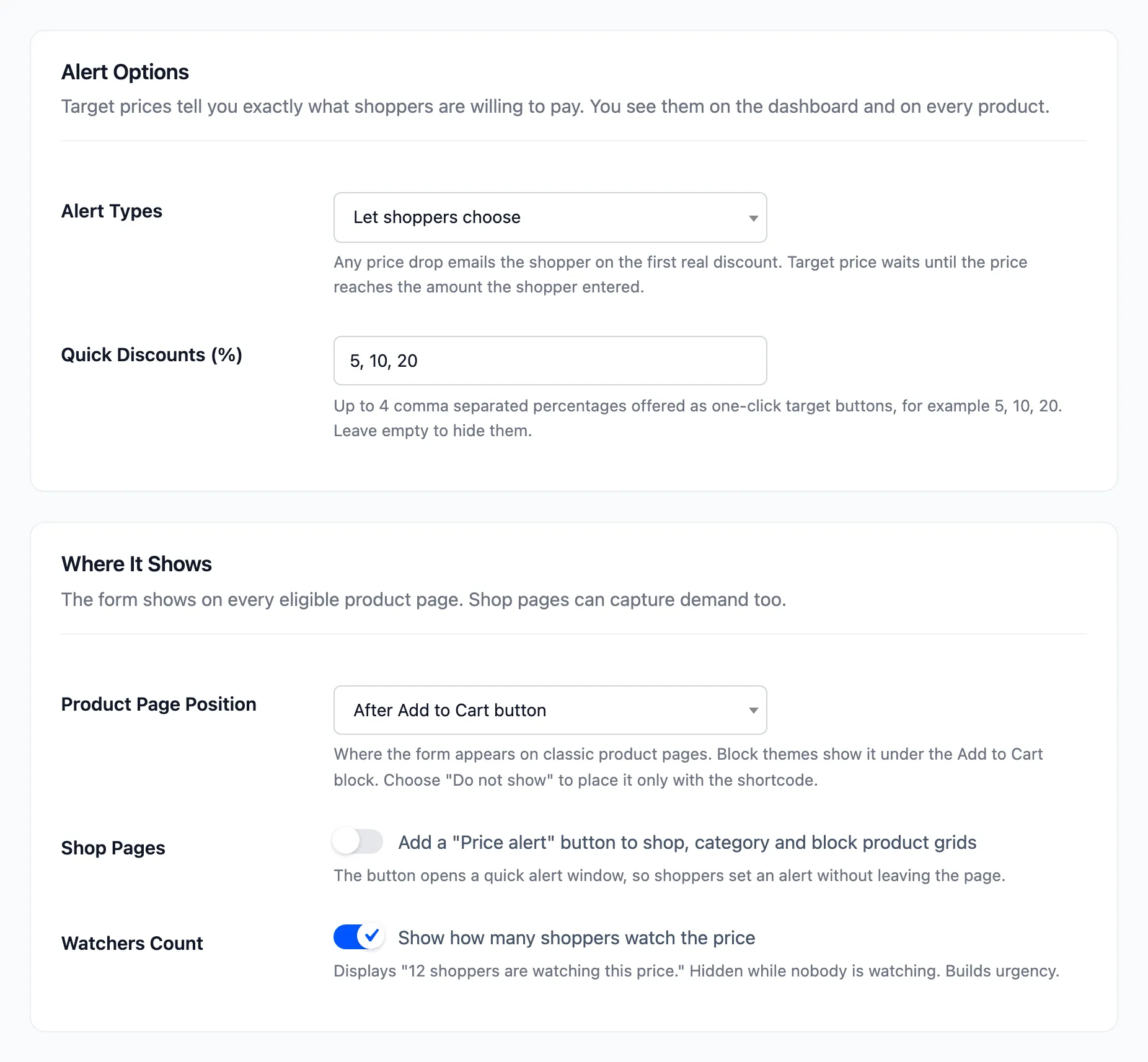
Section titled “Step 1: Choose where the automatic form goes”Open Configuration → Alert Form. To place the form only where you put the shortcode, set Product Page Position to Do not show (shortcode only). To keep the automatic form and add more, leave it.
Step 2: Add the shortcode
Section titled “Step 2: Add the shortcode”On a product page or a product template, the shortcode shows the form for that product:
[ddwcpdn_price_drop_notifier_shortcode]Anywhere else, give it the product’s ID:
[ddwcpdn_price_drop_notifier_shortcode product_id="22"]The ID can be a simple product, a single variation, or a variable product. Off its own page, a variable product gets an Option menu.
Step 3: Check the page
Section titled “Step 3: Check the page”The demo’s Deals We Are Watching page holds two shortcodes, one for the Espresso Machine and one for the headphones.
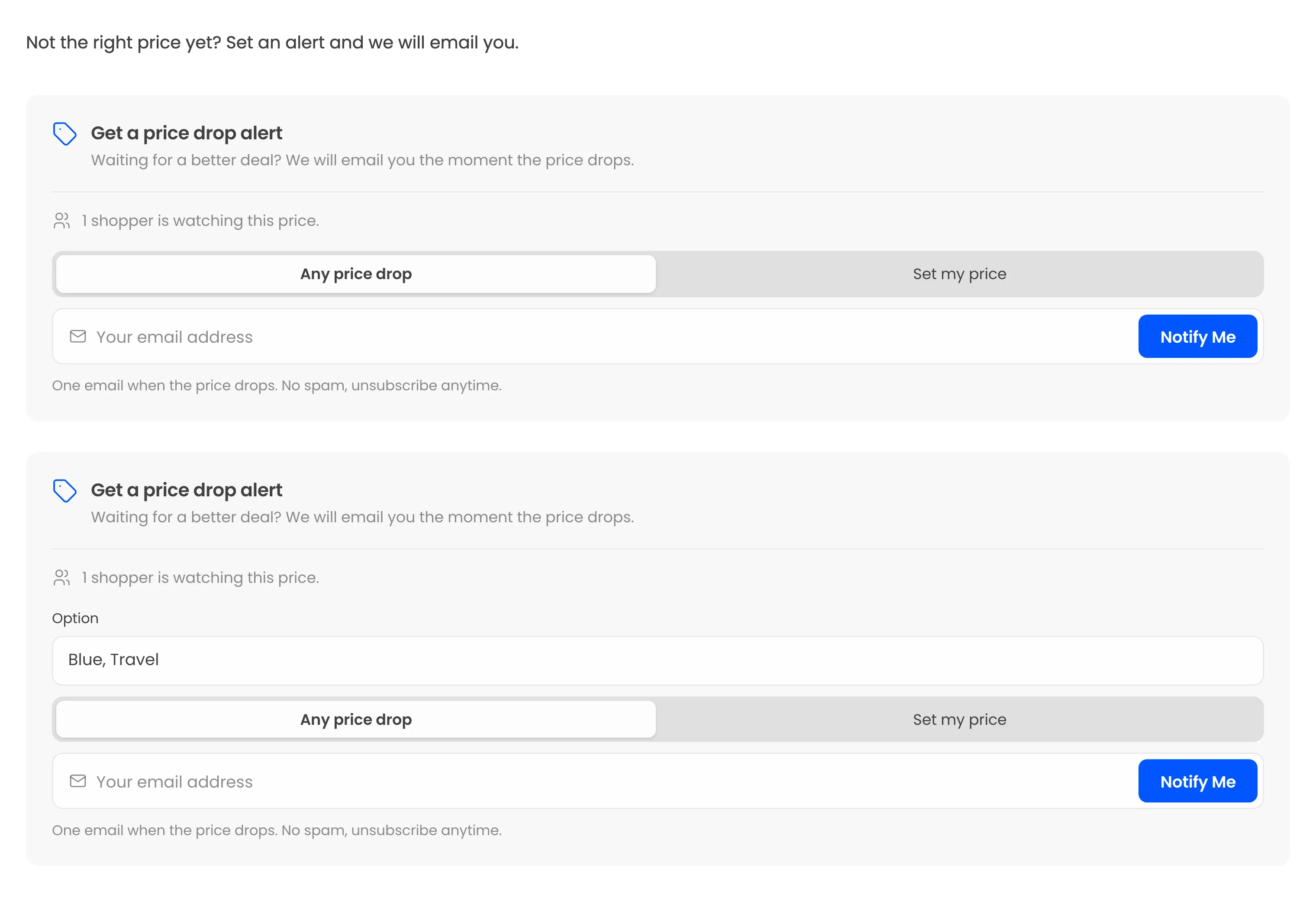
The form brings its own styles and script, so it looks right on a page WooCommerce knows nothing about.
Good to know
Section titled “Good to know”- A product page shows one form at most. A shortcode for the same product stays quiet if the automatic form is already there.
- A product that does not accept alerts prints nothing, and so does every shortcode while the plugin is off.
- The tag can be renamed on the Shortcodes tab, if it clashes with another plugin.