

Installing and Activating Price Drop Notifier
Price Drop Notifier installs like any WooCommerce extension. The step people miss is the license, because the storefront shows nothing until it is active.
Before you start
Section titled “Before you start”WooCommerce must be active first. Without it the plugin shows a notice and does nothing.
- WordPress 6.2 or newer, WooCommerce 8.0 or newer, PHP 7.4 or newer.
- The zip file from your DevDiggers order.
Install from the zip
Section titled “Install from the zip”-
Go to Plugins → Add New Plugin.

-
Click Upload Plugin at the top of the screen.

-
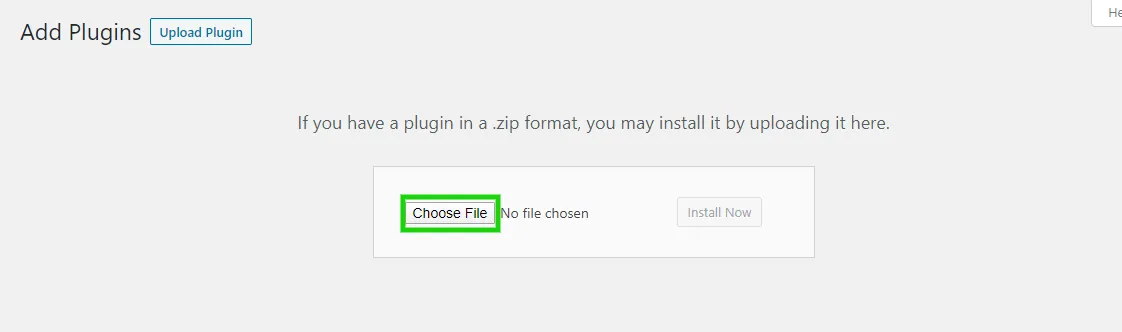
Click Choose File and select dd-woocommerce-price-drop-notifier.zip.
-
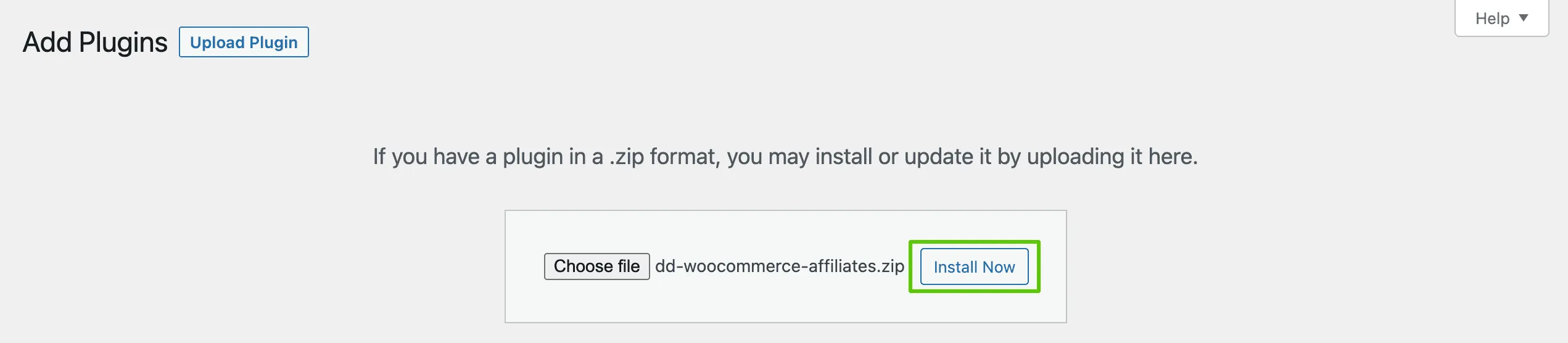
Click Install Now.
-
When the install finishes, click Activate Plugin.

Do not unzip the file first. WordPress expects the zip itself.
What activation sets up
Section titled “What activation sets up”A first activation opens the Setup Wizard straight away. Activation also creates two tables, one for the alerts and one for the email log. It also schedules an hourly task that sends reminders and tidies old alerts.
The shipped settings already work. The form sits under Add to cart on every simple product and variation, shoppers can pick either kind of alert, and price drops are emailed automatically. Nothing else needs to be set before the first alert.
Activate your license
Section titled “Activate your license”Enter your purchase code and email on the wizard’s License step, or later under DevDiggers Plugins → Price Drop → Configuration → License. See License Activation.
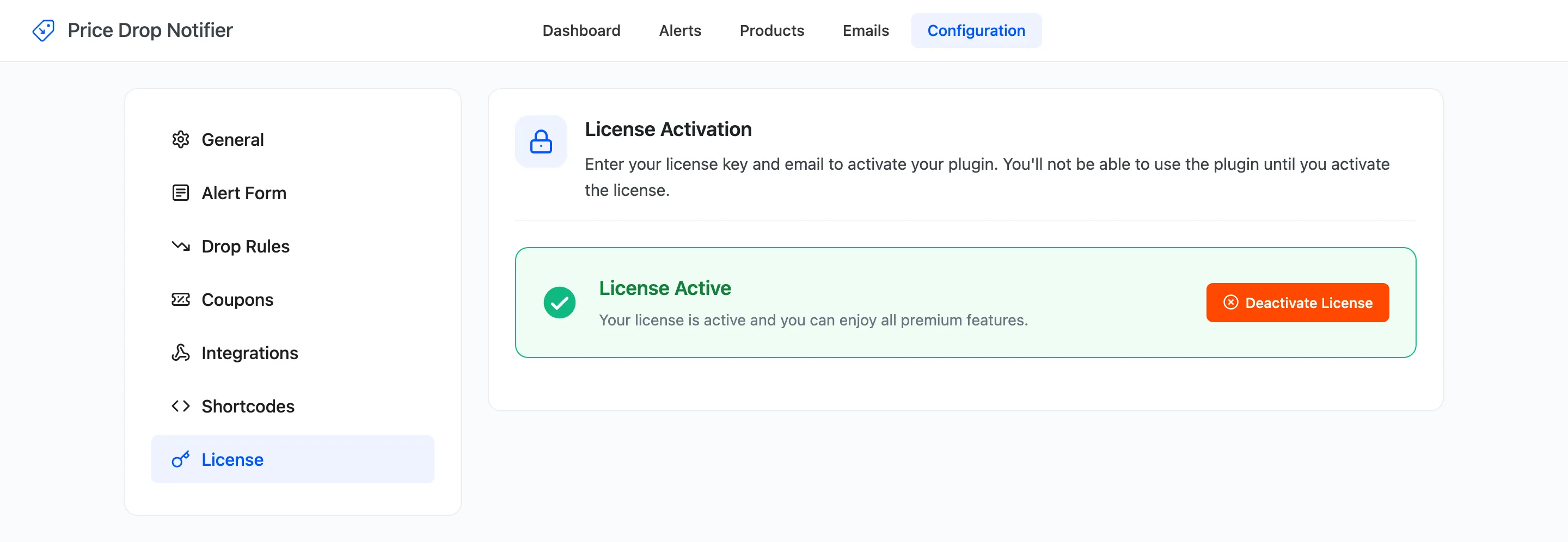
Until the license is active, the storefront shows no form, no shop buttons and no My Account page. No price drop email is sent automatically either. The admin screens still open, so you can set things up first.
Find the plugin
Section titled “Find the plugin”Every screen lives under DevDiggers Plugins → Price Drop, in five menus across the top: Dashboard, Alerts, Products, Emails and Configuration.
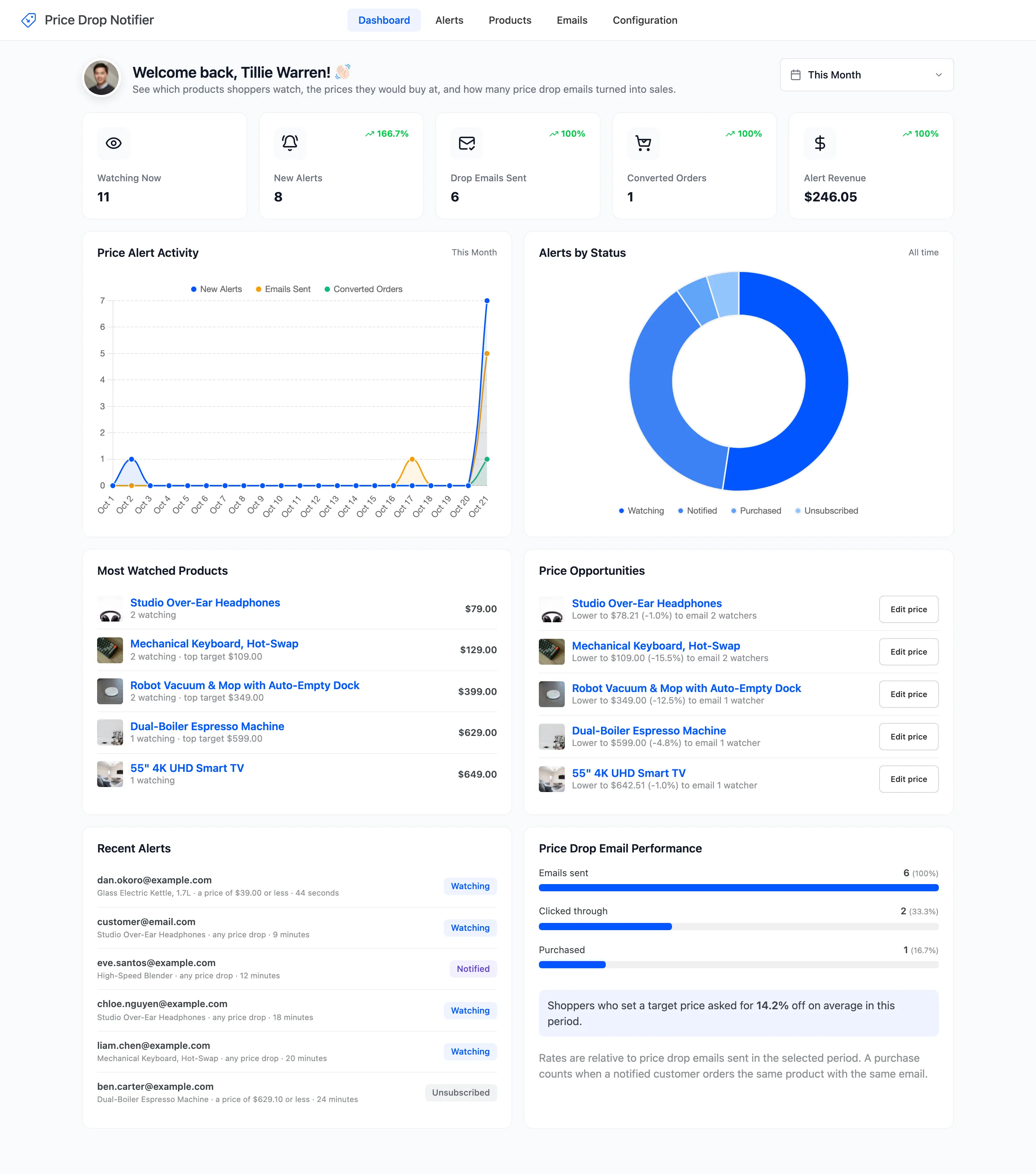
The Plugins screen also gives the plugin three links under its name: Dashboard, Setup Wizard and Configuration.
Check the storefront
Section titled “Check the storefront”Open any simple product with a price. Under Add to cart you see Get a price drop alert, with an email field for guests.
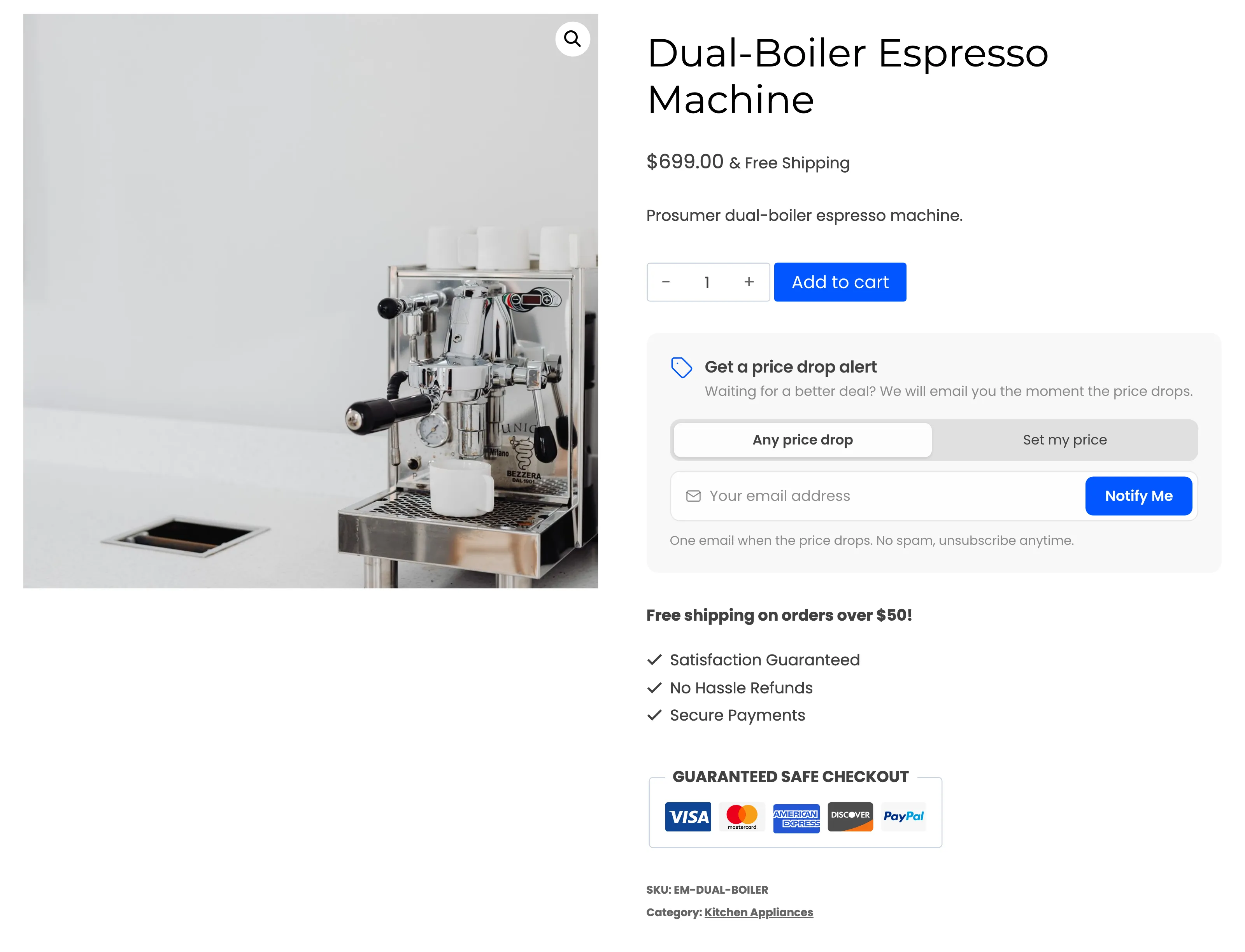
No form? Check the license, then Enable/Disable under Configuration → General, then that the product and its category are not excluded there. Grouped and external products never show the form, and a variable product shows it once an option is picked.
Coming from version 1.x
Section titled “Coming from version 1.x”Updating keeps your settings and moves every 1.x list into the new alerts table. A 1.x “expected price” below the price at signup becomes a Set my price alert, anything else an Any price drop alert. Customers who were already emailed keep the Notified status. Stores upgrading from 1.x do not see the setup wizard.