

How to Handle Unsubscribes and Privacy Requests
Every alert can be cancelled in one click, and WordPress’s own privacy tools cover the alerts too. Nothing needs setting up.
Step 1: Let shoppers cancel
Section titled “Step 1: Let shoppers cancel”There are four ways to cancel an alert:
- Unsubscribe at the foot of the price drop and reminder emails.
- “Changed your mind? Cancel this price alert” in the alert confirmation email.
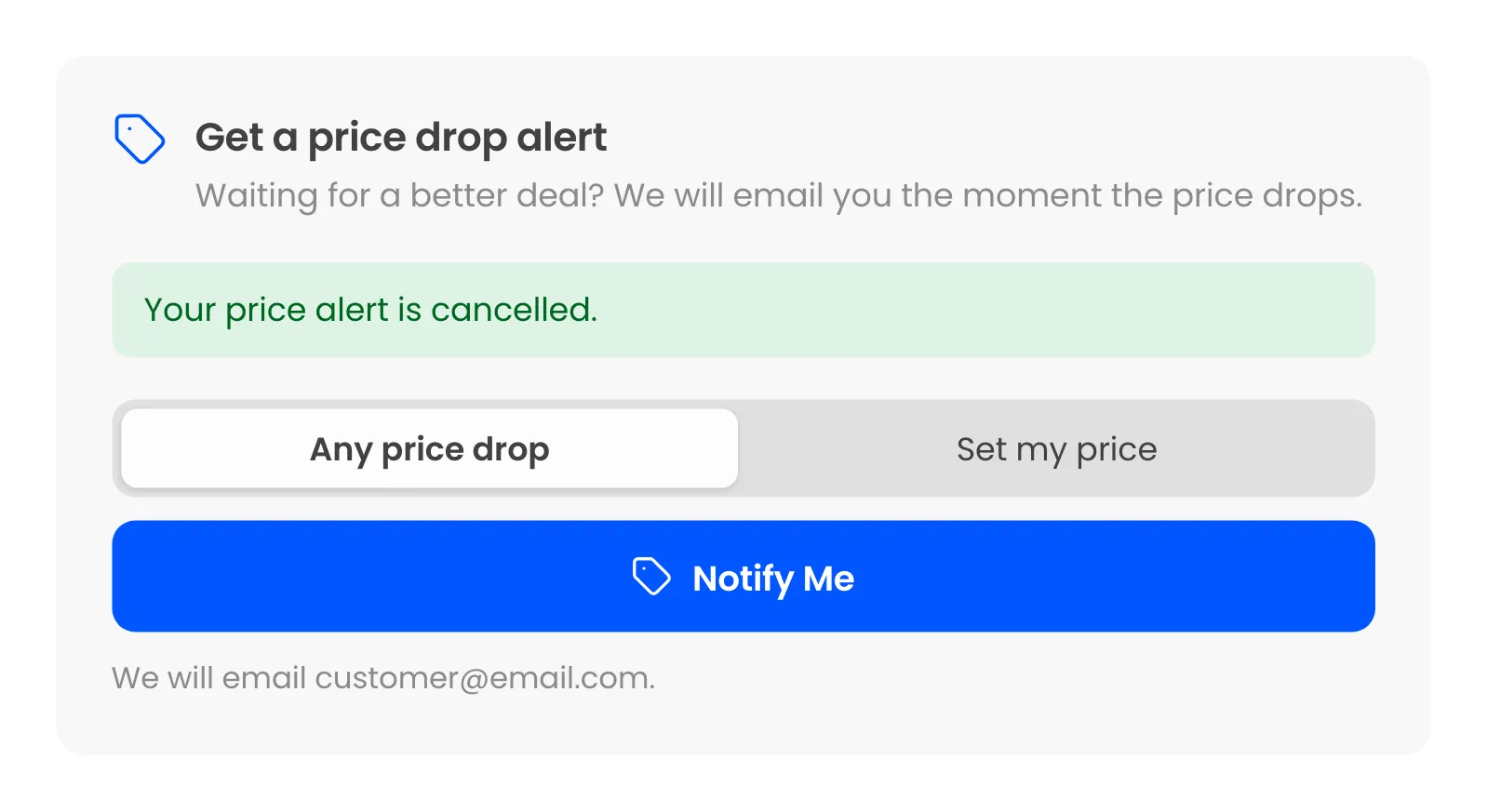
- Cancel alert on the form, for a logged-in customer.
- Cancel alert on the Price Alerts page in My Account.
Step 2: Check the result
Section titled “Step 2: Check the result”An email link needs no login. It opens the product with “You have been unsubscribed from this price alert.”
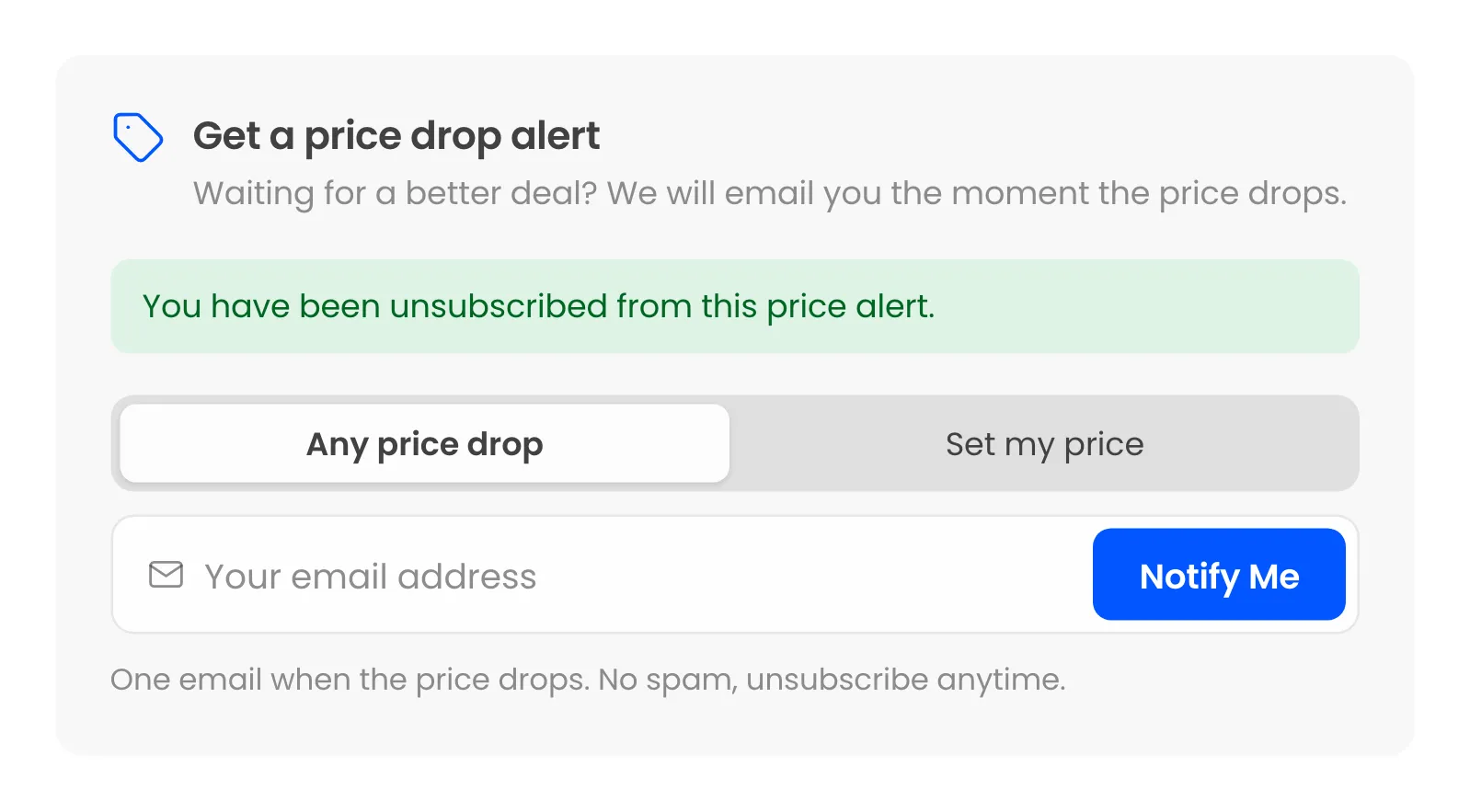
The alert turns Unsubscribed on the Alerts screen. It is never emailed again, and no reminder follows. Each link belongs to one alert, so the shopper’s other alerts keep watching.
A logged-in customer can switch it back on with Watch again in My Account. A guest sets a new alert on the product.
Step 3: Export a person’s data
Section titled “Step 3: Export a person’s data”Go to Tools → Export Personal Data and add a request for the email. The export includes a Price Drop Alerts group, with each alert’s product, status and the date it was set.
Step 4: Erase a person’s data
Section titled “Step 4: Erase a person’s data”Go to Tools → Erase Personal Data and run a request for the email. Every alert for that address is deleted, and so are its Email Log entries.
Keeping data lean
Section titled “Keeping data lean”Two settings delete old data for you, under Configuration → General → Data. See How to Limit How Long Alerts Last. For consent and confirmed addresses, see How to Add a Consent Checkbox and How to Turn On Double Opt-in.