

How to Import Price Alerts from a CSV File
Moving from another price alert tool keeps your watchers. Export their list to CSV and import it here. Nobody is emailed during the import.
Step 1: Prepare the file
Section titled “Step 1: Prepare the file”Each row is one alert. The demo’s file came from another tool, with its own column names:
Customer Email,Product SKU,Wanted Price,Price,Subscribed On,Statusliam.chen@example.com,EM-DUAL-BOILER,599.00,699.00,2026-09-14 11:20:00,activesofia.rossi@example.com,TV-55-4K,,649.00,2026-09-18 08:05:00,active- An empty target price makes an any-drop alert.
- The price column is the price the shopper saw. An any-drop alert is measured from it.
- The date keeps everyone’s original alert date.
Step 2: Open Import CSV
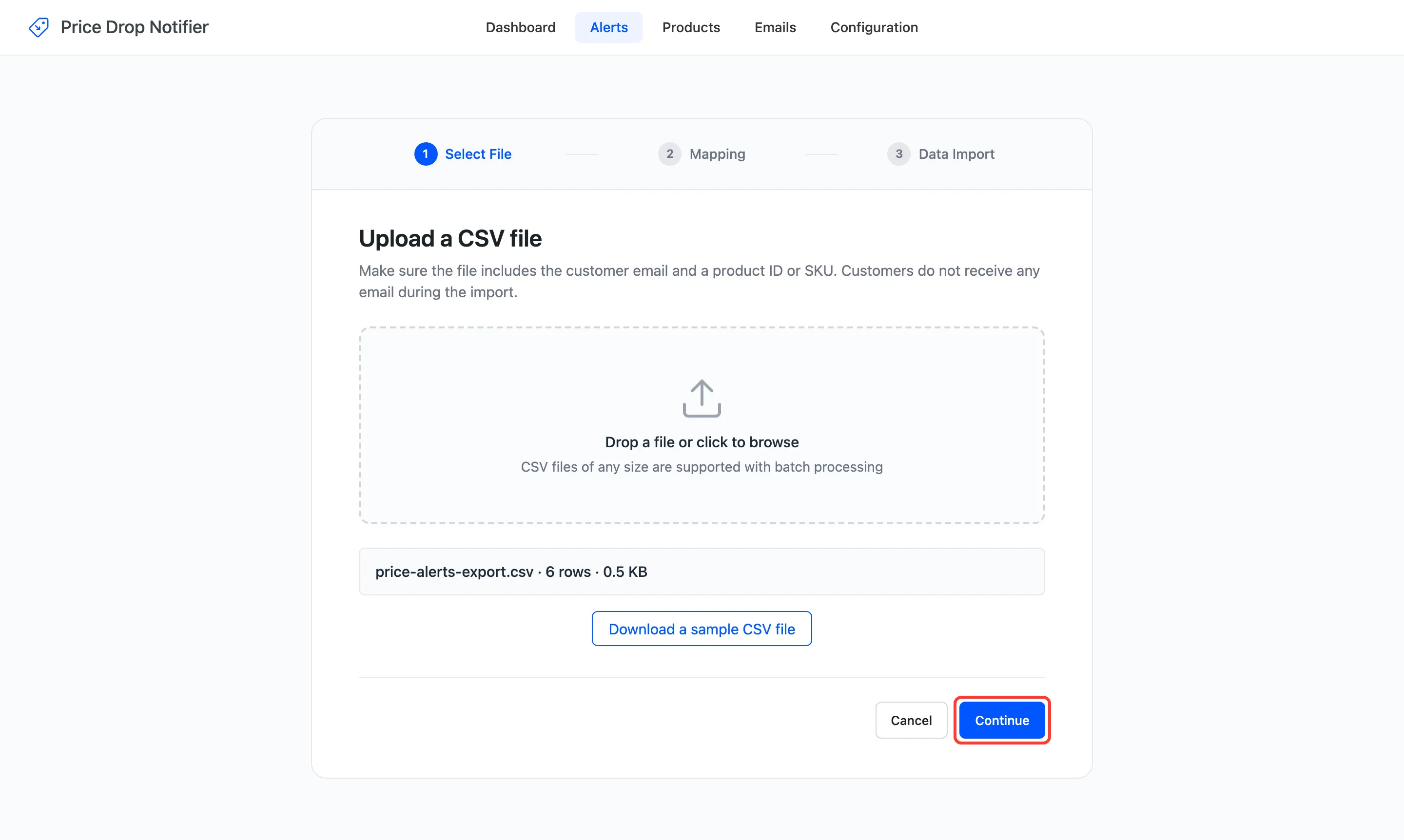
Section titled “Step 2: Open Import CSV”Open Alerts and click Import CSV. Drop the file on the box or click to browse, then click Continue.
Step 3: Map the columns
Section titled “Step 3: Map the columns”Columns with a familiar name are matched for you. Here Customer Email, Product SKU, Price, Subscribed On and Status were. Wanted Price was not, so it was mapped to Target Price by hand.
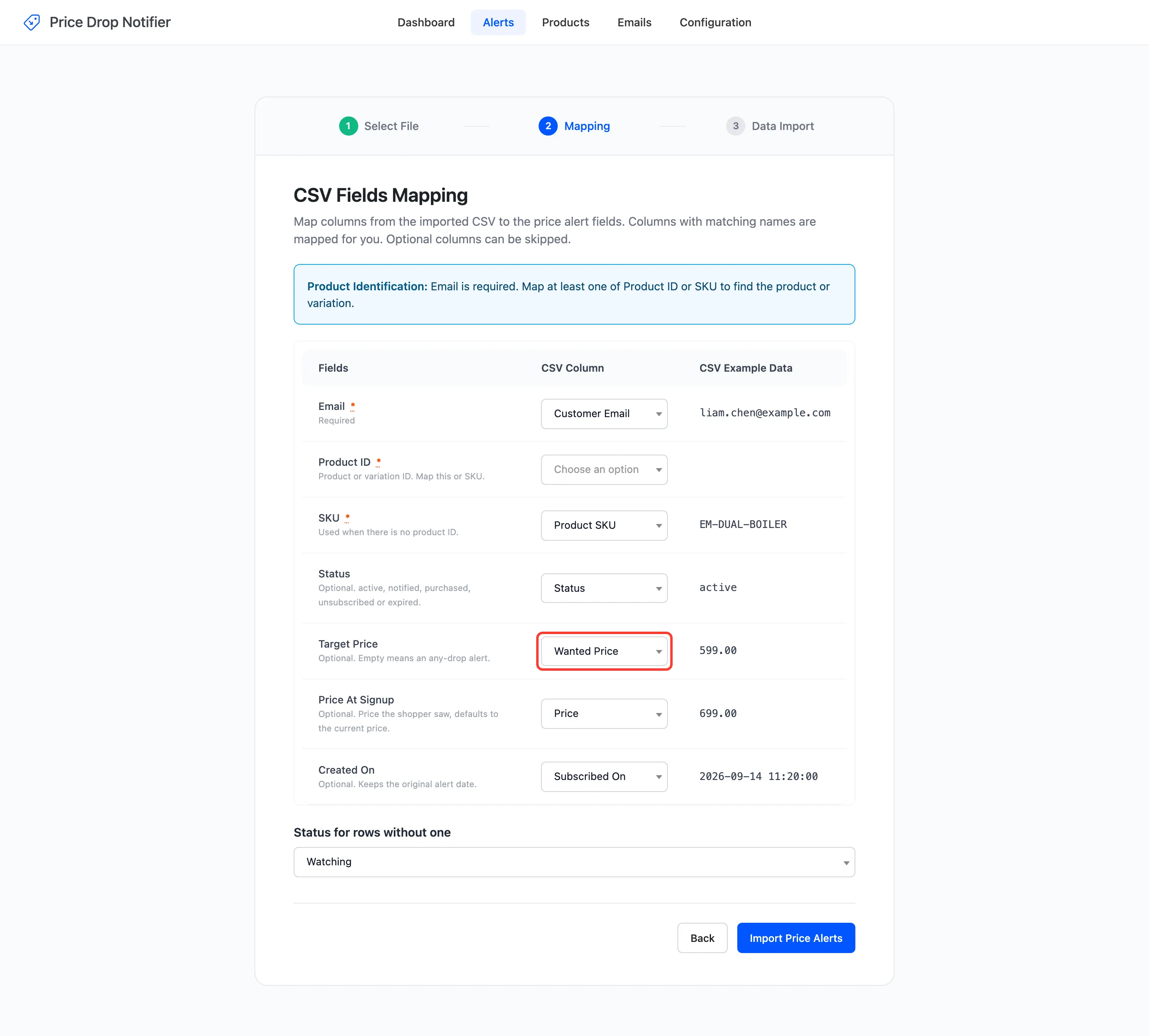
Status for rows without one covers rows with no status, Watching by default.
Step 4: Import
Section titled “Step 4: Import”Click Import Price Alerts. The summary counts the imported rows and lists the others with the reason.
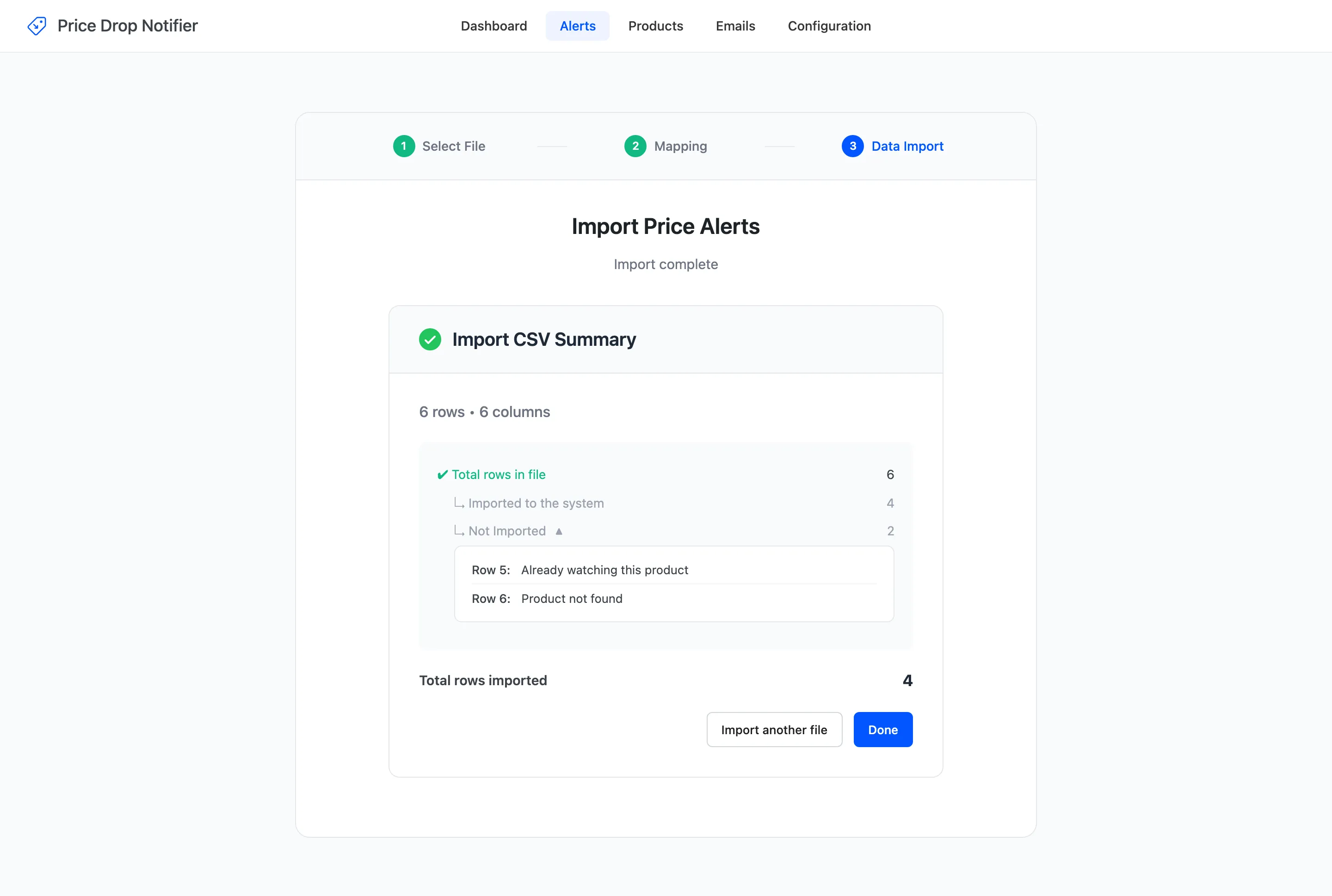
Of the demo’s six rows, four were imported. One SKU no longer existed, and one email already watched that product. The imported alerts kept their dates and their signup prices.
After the import
Section titled “After the import”The alerts are live straight away. They are emailed at the next price change that satisfies them, or with Check now on the Products screen. No confirmation email, admin alert or webhook is sent for them. See Import and Export for every field.