

The Setup Wizard
The wizard sets the handful of options that decide how alerts look and how they turn into sales. It takes about a minute, and everything it sets can be changed later under Configuration and Emails.
Step 1: Welcome
Section titled “Step 1: Welcome”The wizard opens on its own after the first activation. To run it again, click Setup Wizard under the plugin’s name on the Plugins screen. Click Continue, or Skip Setup to go straight to the dashboard with the shipped settings.
Step 2: License
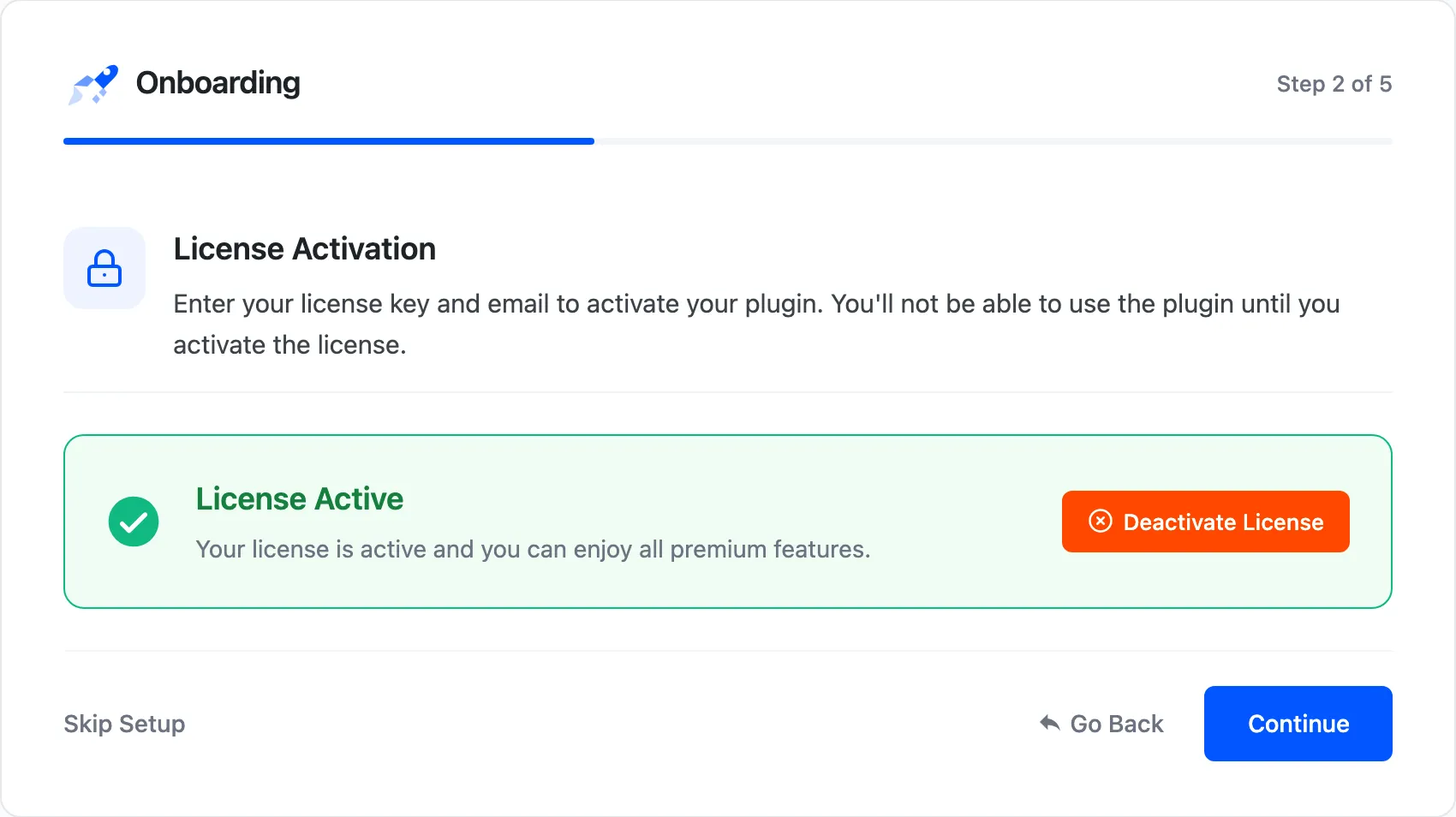
Section titled “Step 2: License”Enter the purchase code and email from your order. The wizard does not move on until the license is active, because the storefront shows nothing without it.
Step 3: General
Section titled “Step 3: General”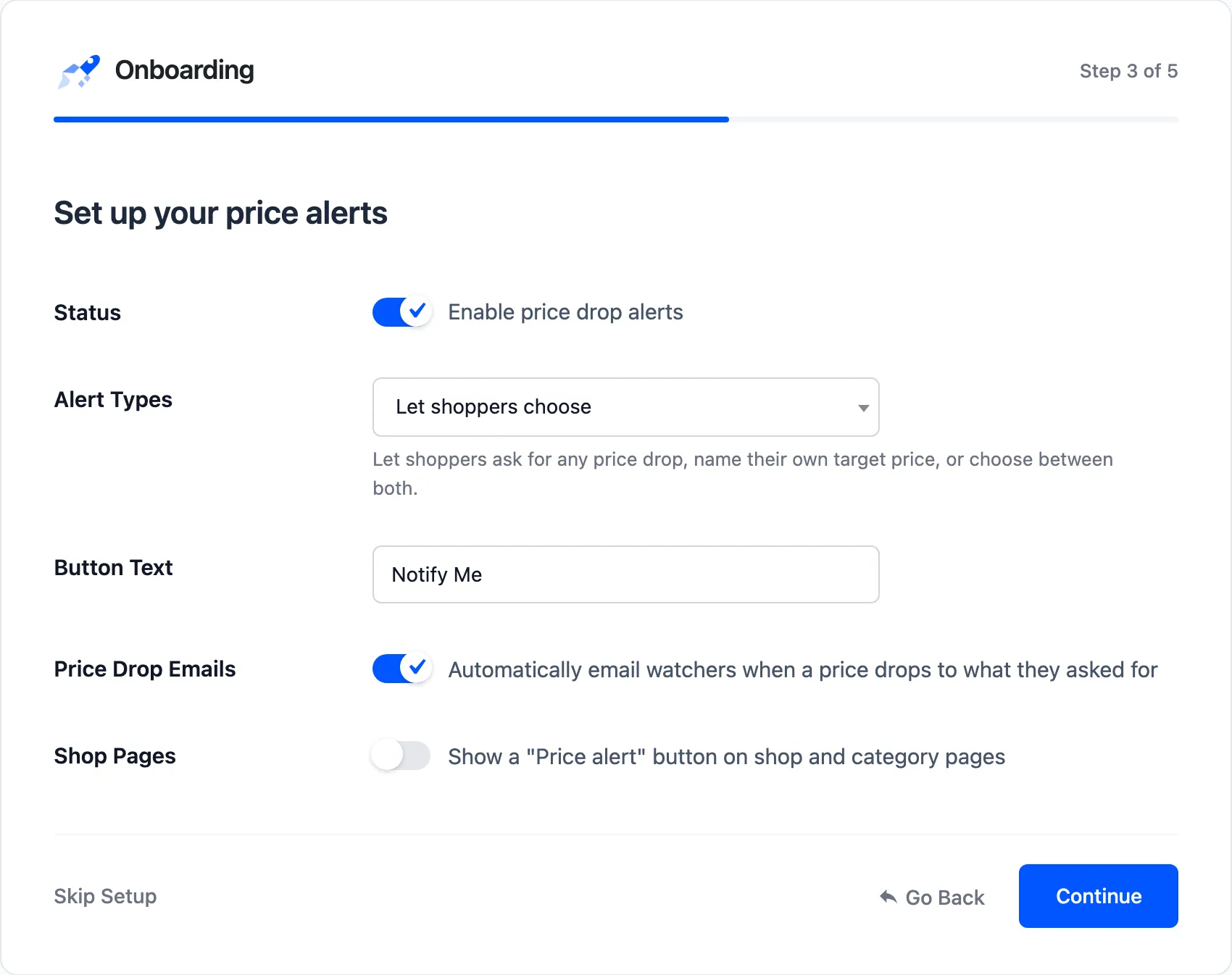
- Status: “Enable price drop alerts”. On by default.
- Alert Types: Let shoppers choose, Any price drop only or Target price only.
- Button Text: The button on the form and the shop window. Default Notify Me.
- Price Drop Emails: “Automatically email watchers when a price drops to what they asked for”. On by default. Off, you send the emails yourself from the Products screen.
- Shop Pages: “Show a “Price alert” button on shop and category pages“. Off by default.
Step 4: Growth
Section titled “Step 4: Growth”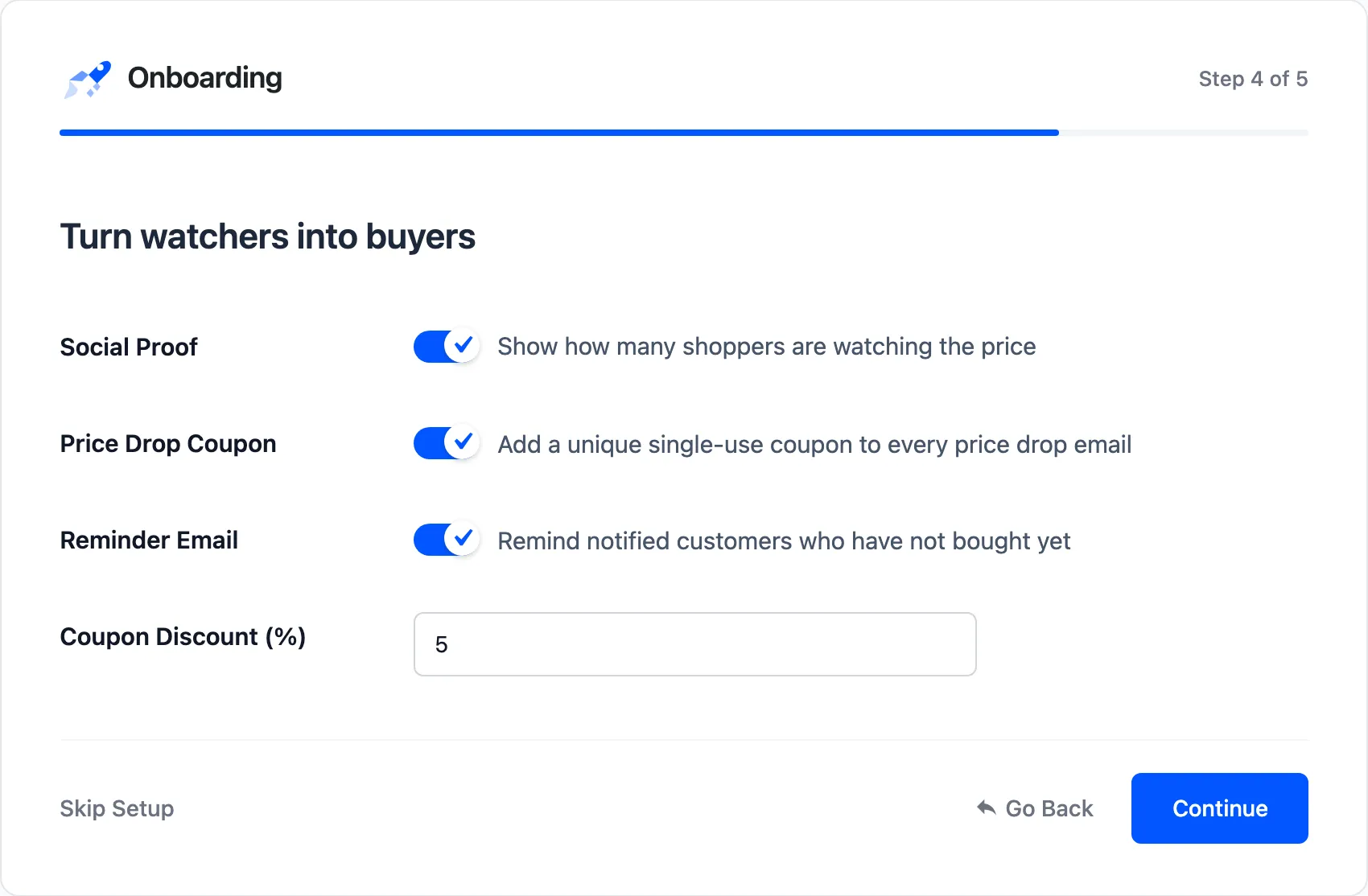
- Social Proof: “Show how many shoppers are watching the price”. On by default.
- Price Drop Coupon: “Add a unique single-use coupon to every price drop email”. Off by default.
- Reminder Email: “Remind notified customers who have not bought yet”. On by default.
- Coupon Discount (%): The coupon’s amount. Default 5. If the Coupons tab is set to a fixed cart discount, the label shows your currency instead of %.
Saving this step changes only the reminder’s on/off switch. The other emails keep their subjects, headings and wording.
Step 5: Ready
Section titled “Step 5: Ready”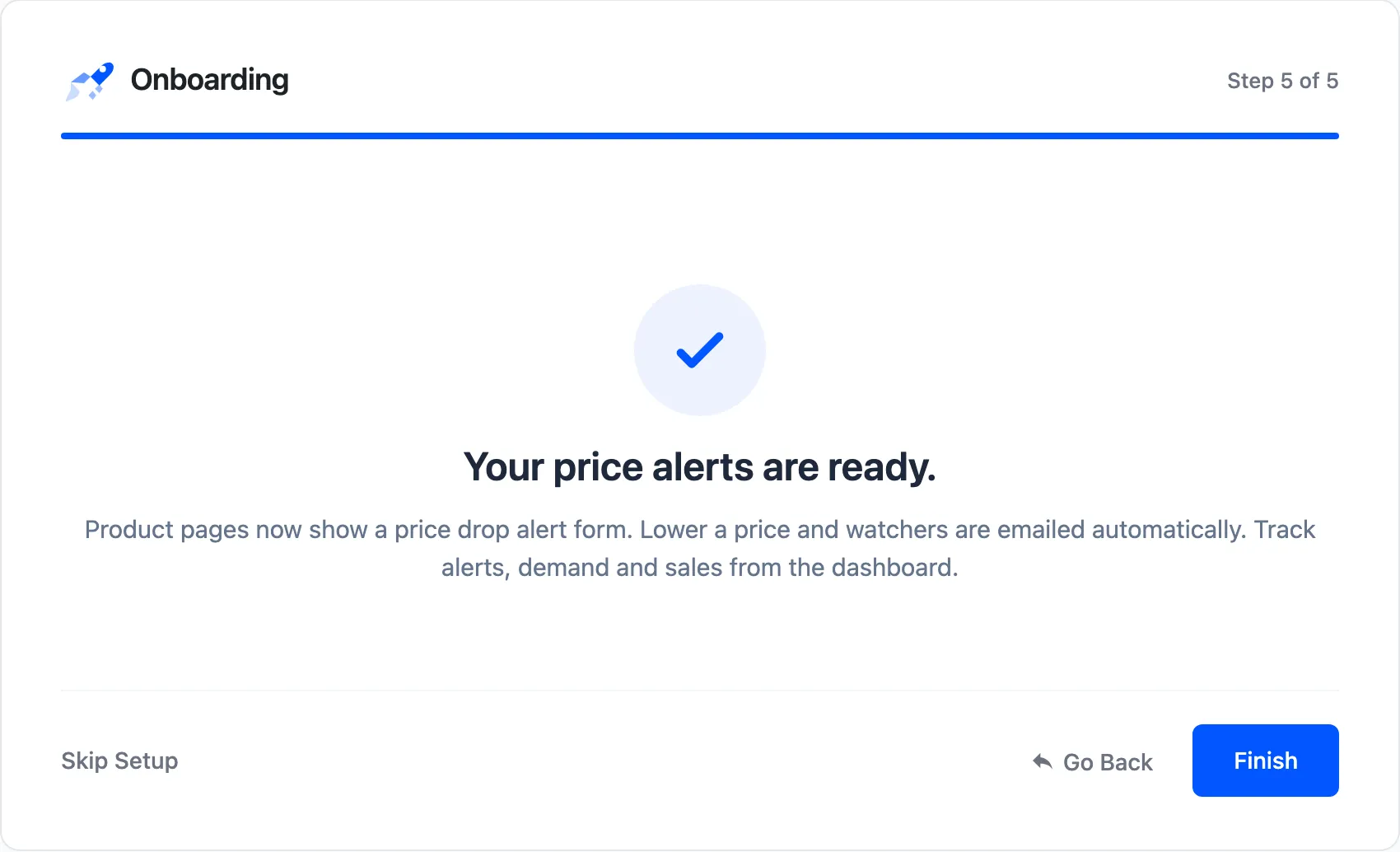
Product pages now show the alert form. Click Finish to open the dashboard. Go Back returns to the step before.
What the wizard does not set
Section titled “What the wizard does not set”The wizard leaves the rest at the shipped values. The ones worth a look next:
- Minimum Drop (%) and Lowest Target (%) on the Drop Rules tab.
- The coupon’s type and lifetime on the Coupons tab.
- The form’s wording, position, privacy options and colors on the Alert Form tab.
- The email wording under Emails.