

The Customer Experience
This page shows what shoppers see, in the order they meet it. Every screenshot comes from the demo store, with the shipped settings unless the caption says otherwise.
The form on a product page
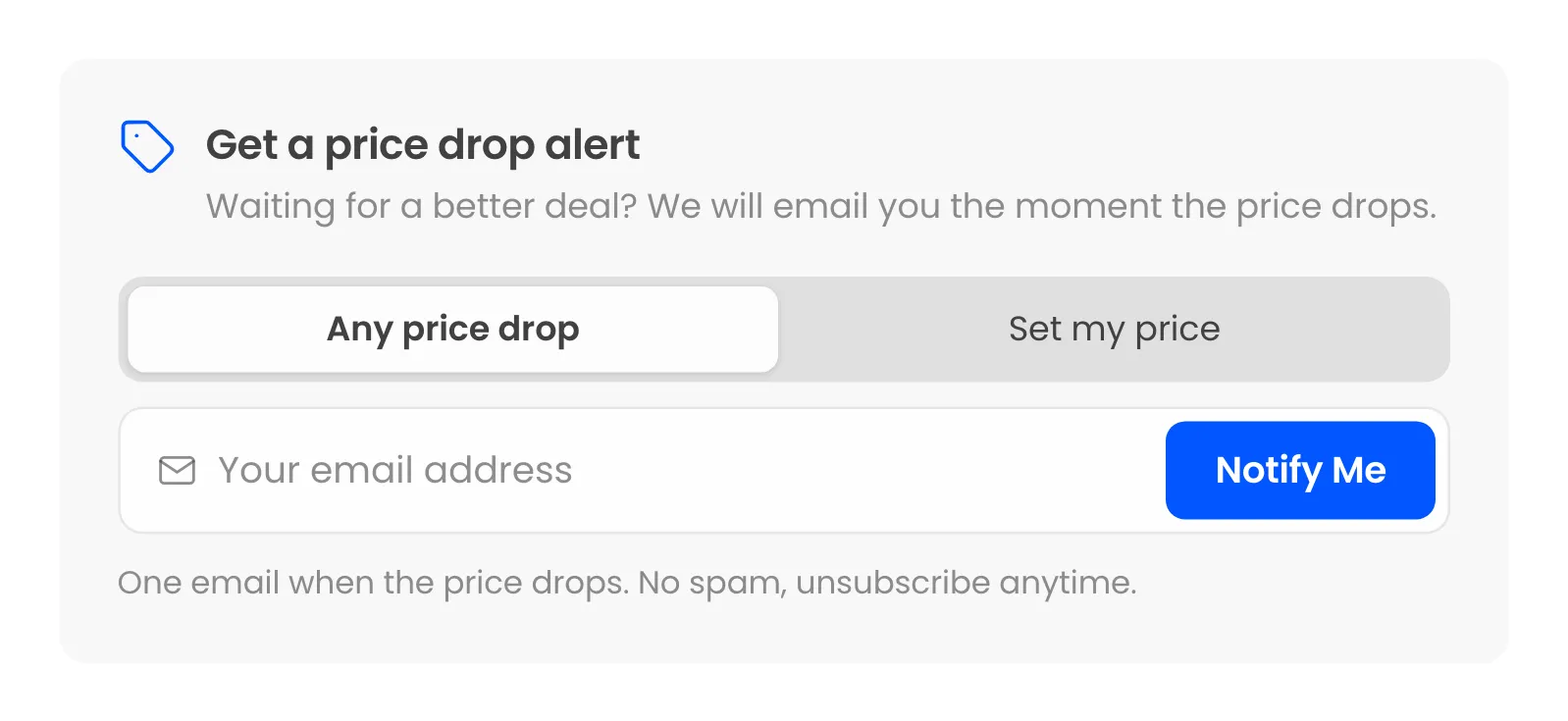
Section titled “The form on a product page”The form sits under Add to cart on every simple product and variation with a price. A guest sees an email field and Notify Me, with a short note on what to expect.
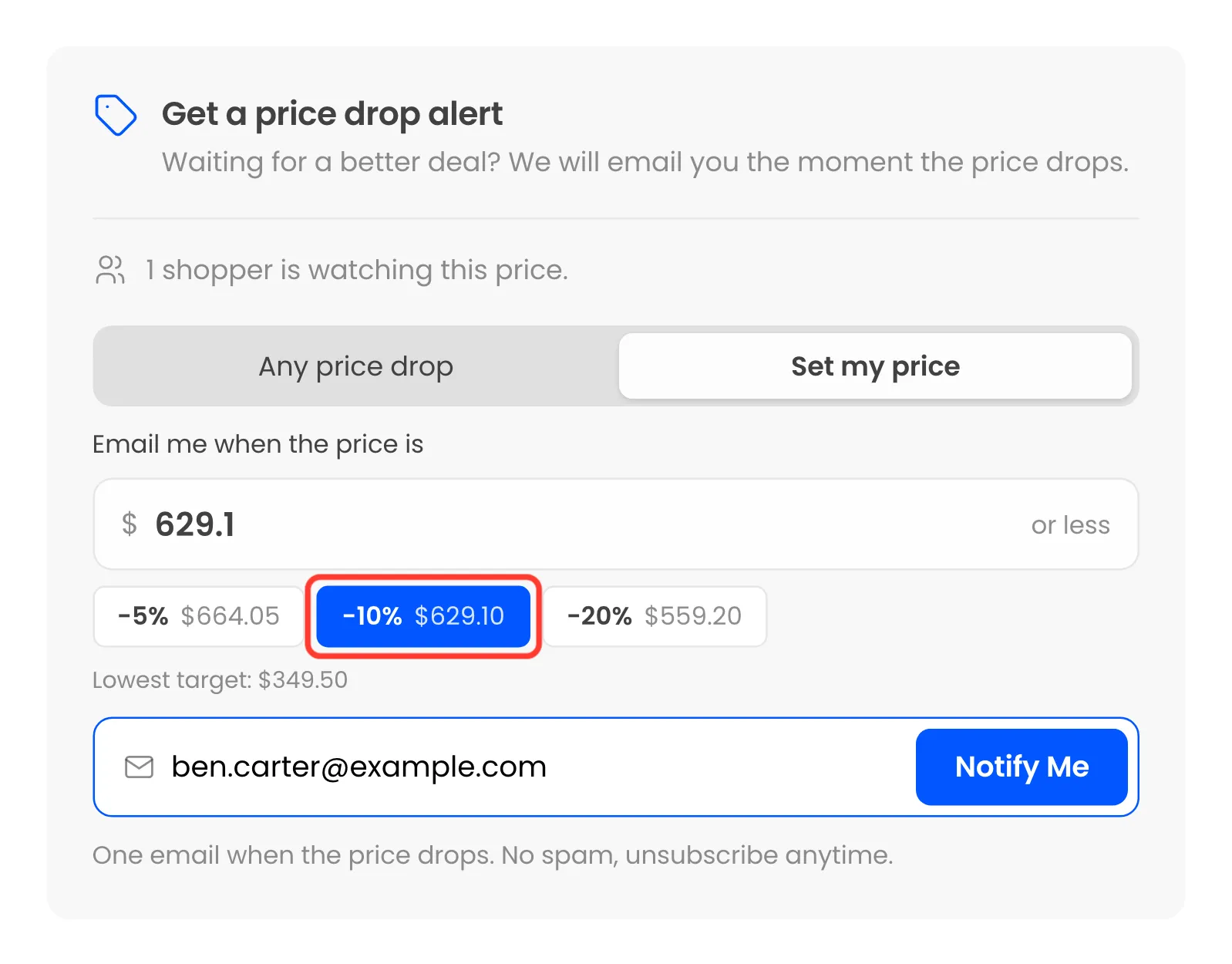
Once someone is watching, a line such as “2 shoppers are watching this price.” appears under the title.
Setting a target price
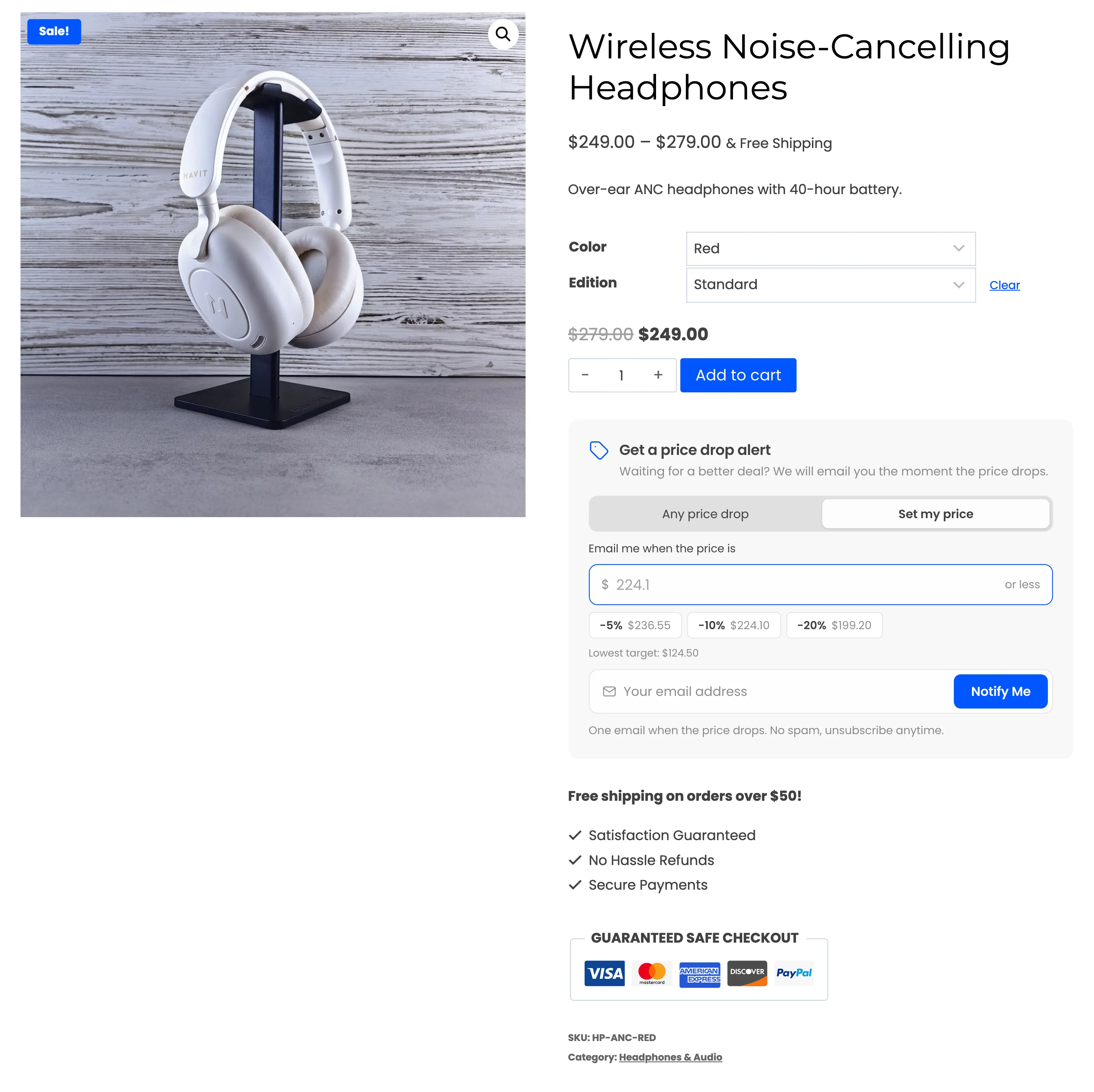
Section titled “Setting a target price”Set my price opens a price field. The quick discount buttons fill it with 5%, 10% or 20% off, and each button shows the price it would set. The lowest target allowed is printed underneath.
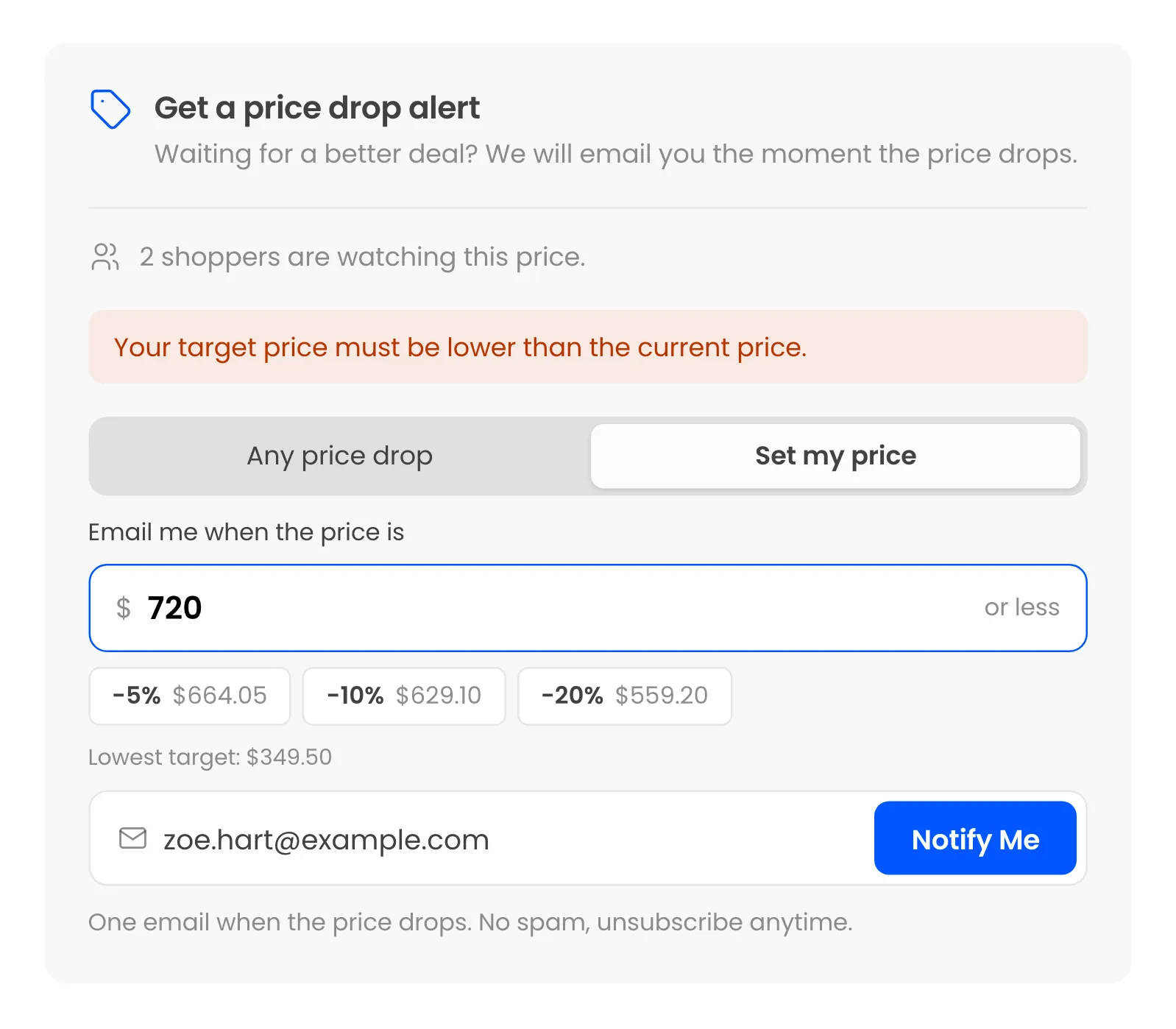
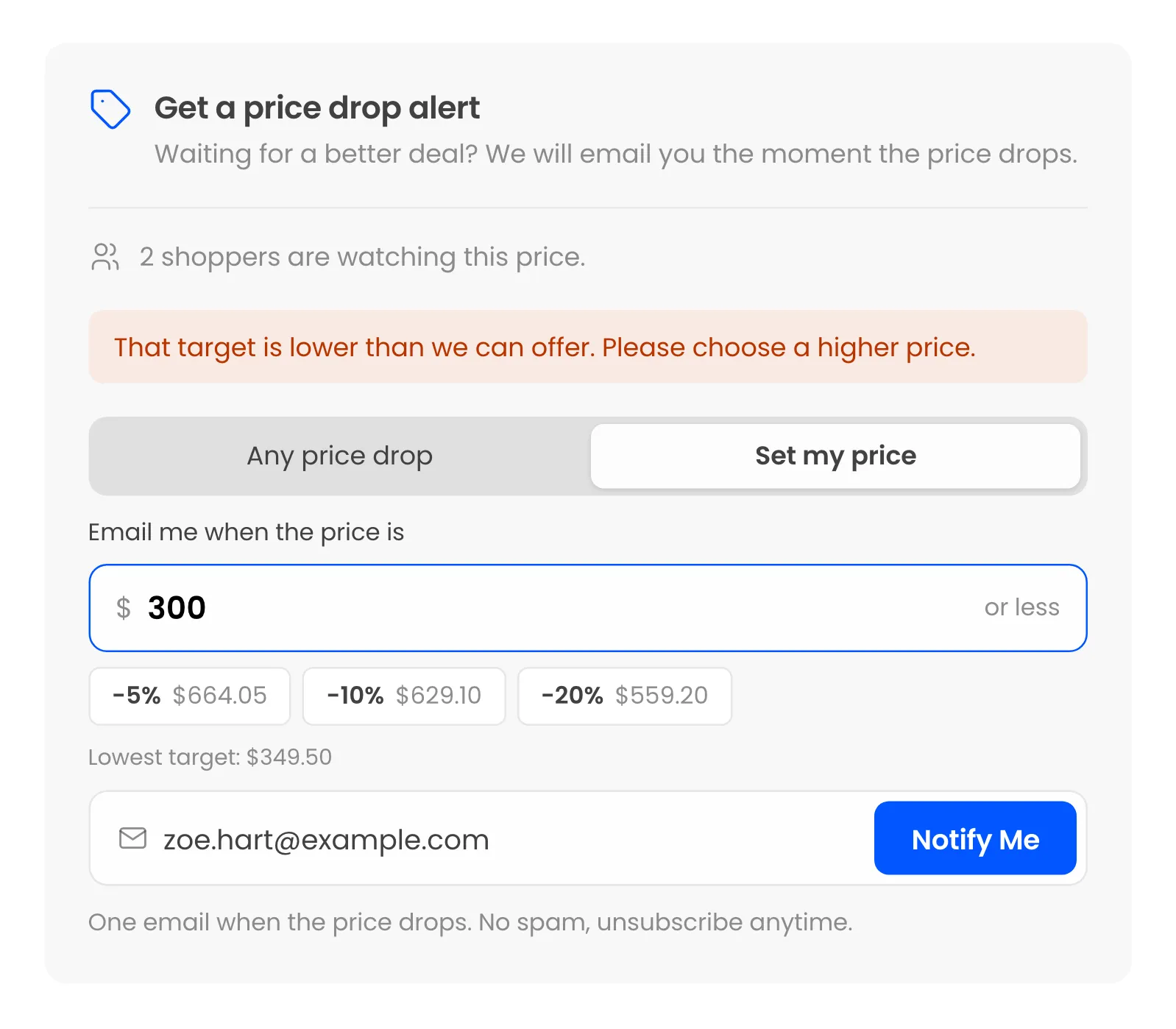
A target the store will not accept is refused on the spot, before anything is saved:
After clicking Notify Me
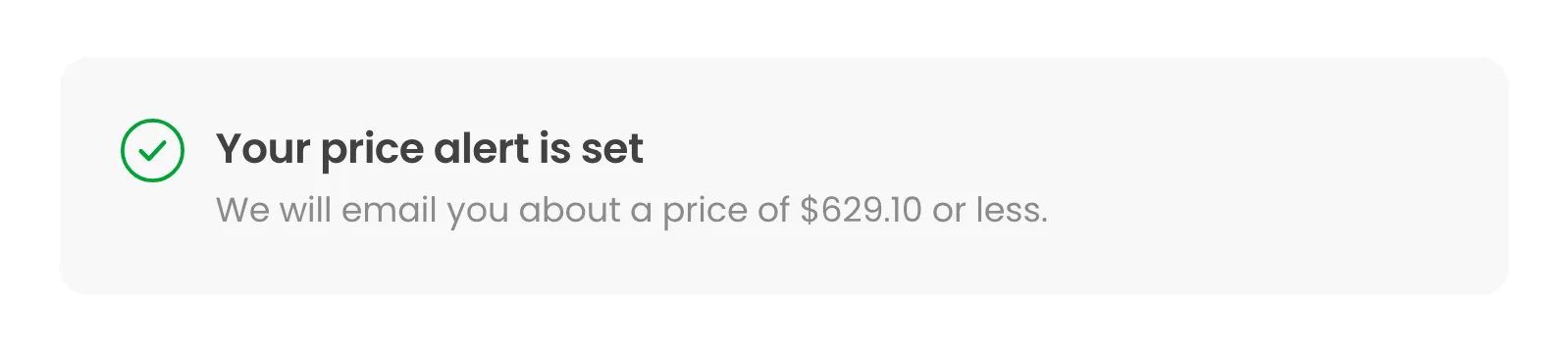
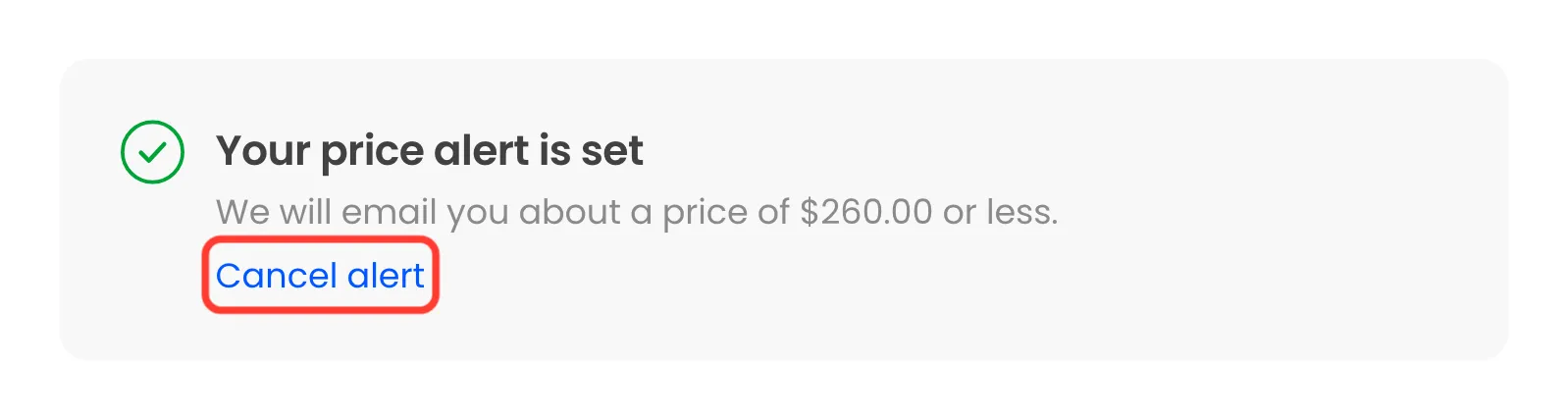
Section titled “After clicking Notify Me”The form turns into Your price alert is set, with what the alert waits for.
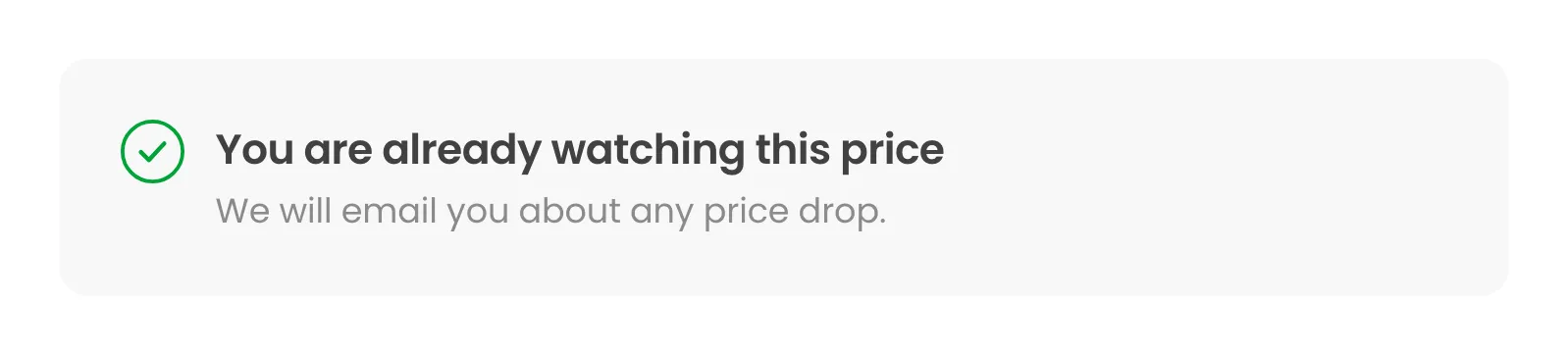
The same email on the same product again shows You are already watching this price, and nothing is added twice.
Logged-in customers
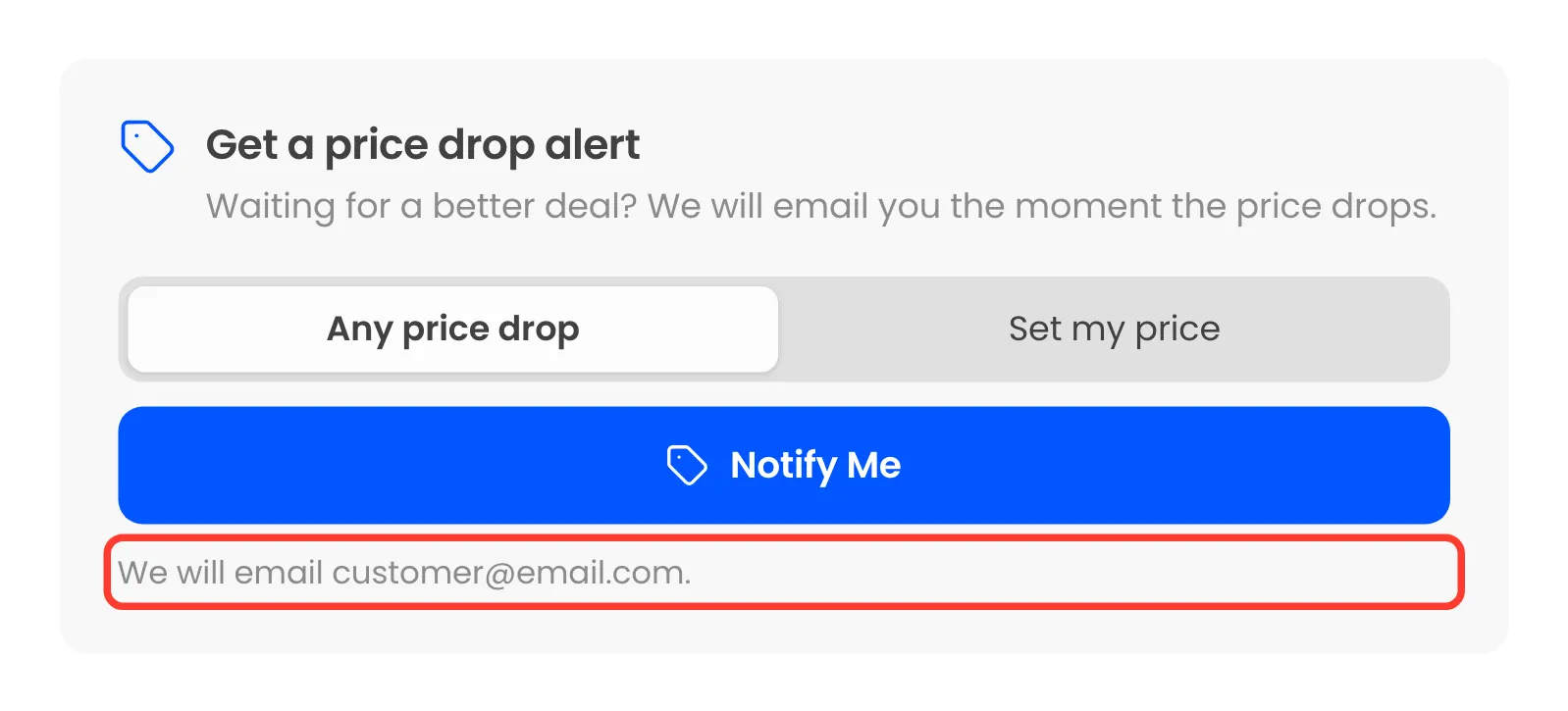
Section titled “Logged-in customers”A logged-in customer has no email field. The form names the address it will use, and one click sets the alert.
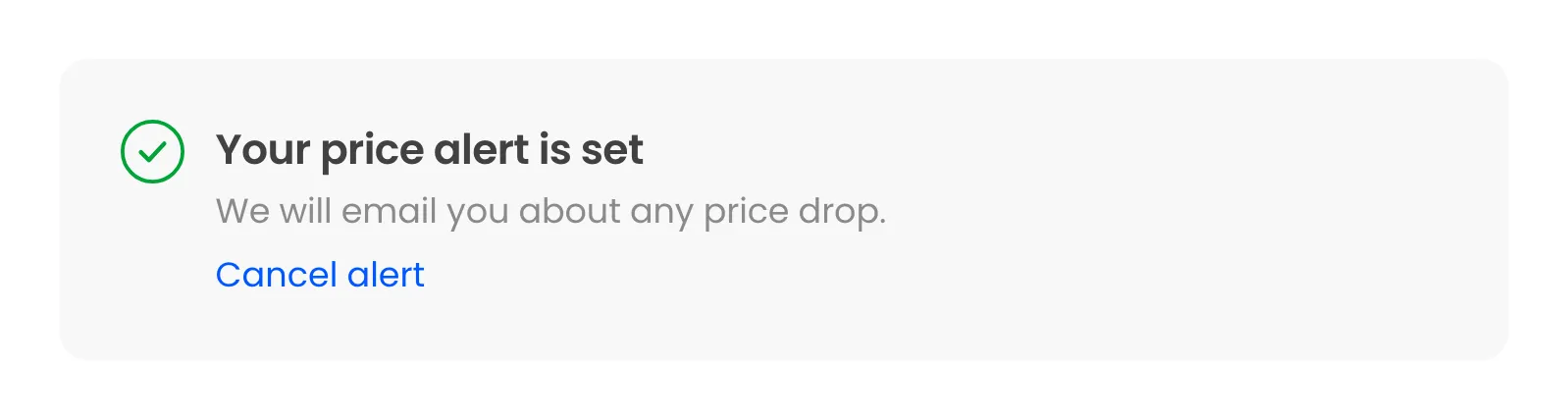
The next visit shows their alert too, with Cancel alert.
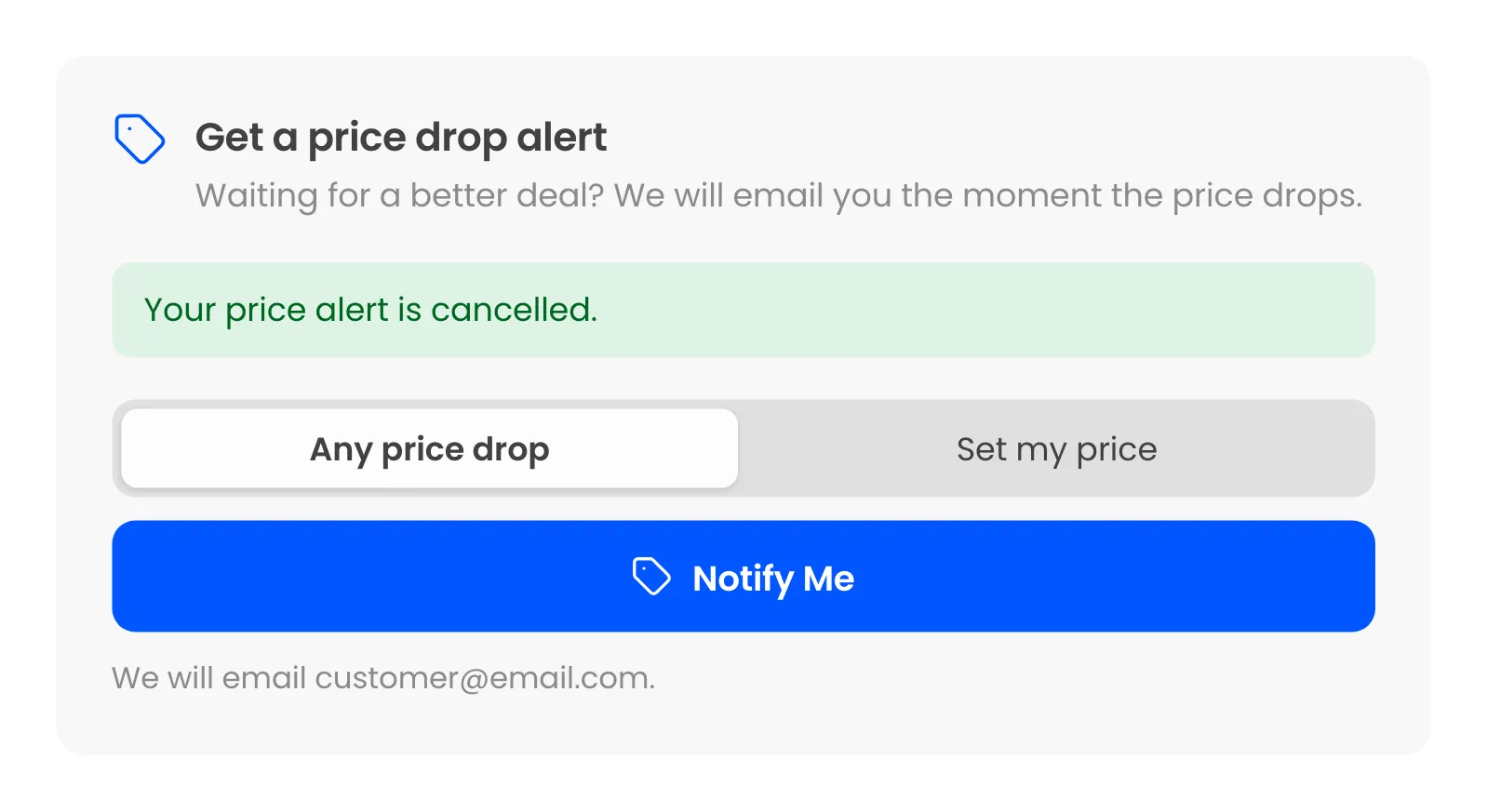
Cancelling shows “Your price alert is cancelled.” and the form returns.
Variable products
Section titled “Variable products”The form appears once the shopper picks an option, and every option has its own alerts, prices and watchers count.
Shop pages
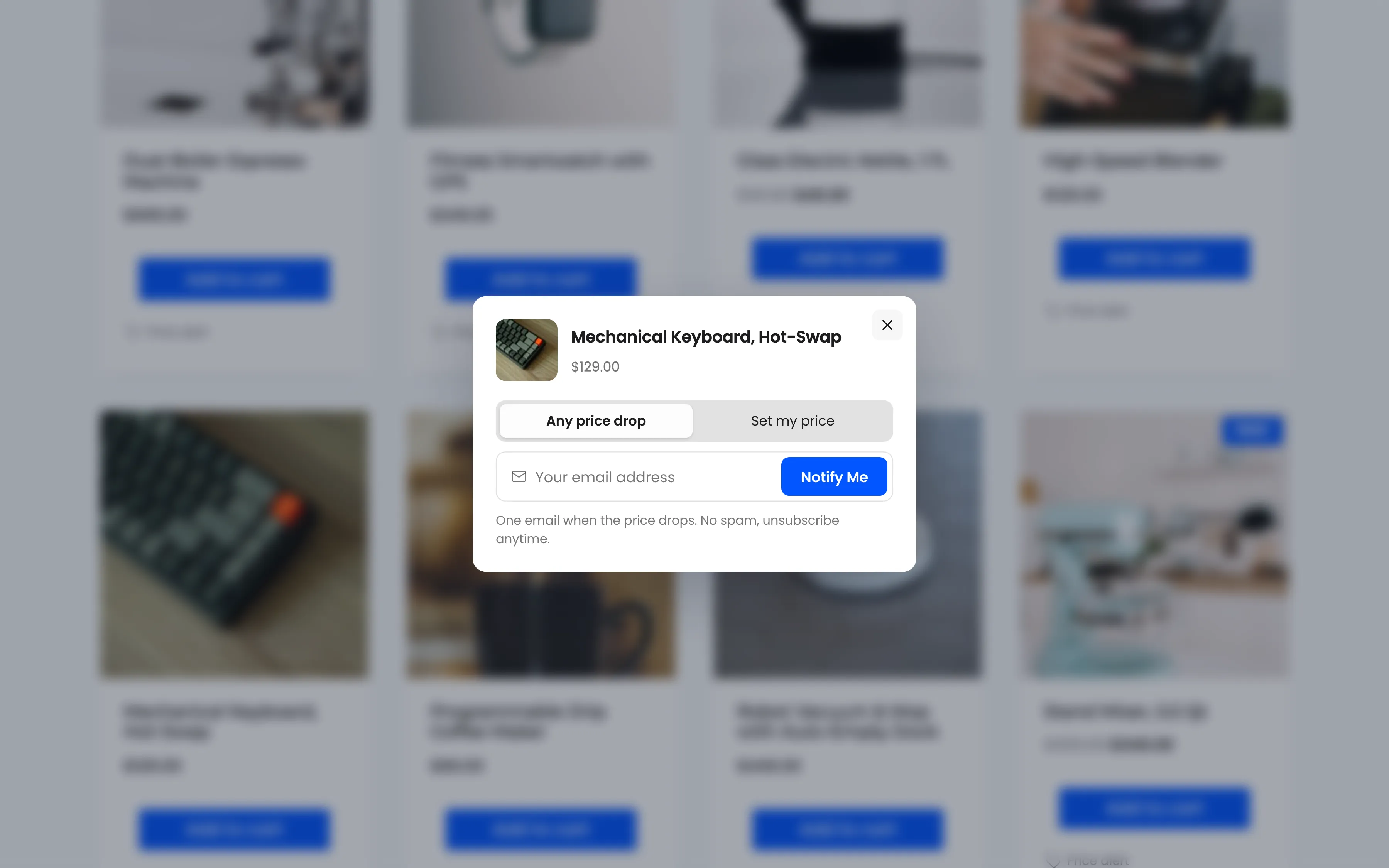
Section titled “Shop pages”With Shop Pages on, every eligible product card gets a Price alert button. It opens a window with the same form, so the shopper never leaves the page.
Options you may switch on
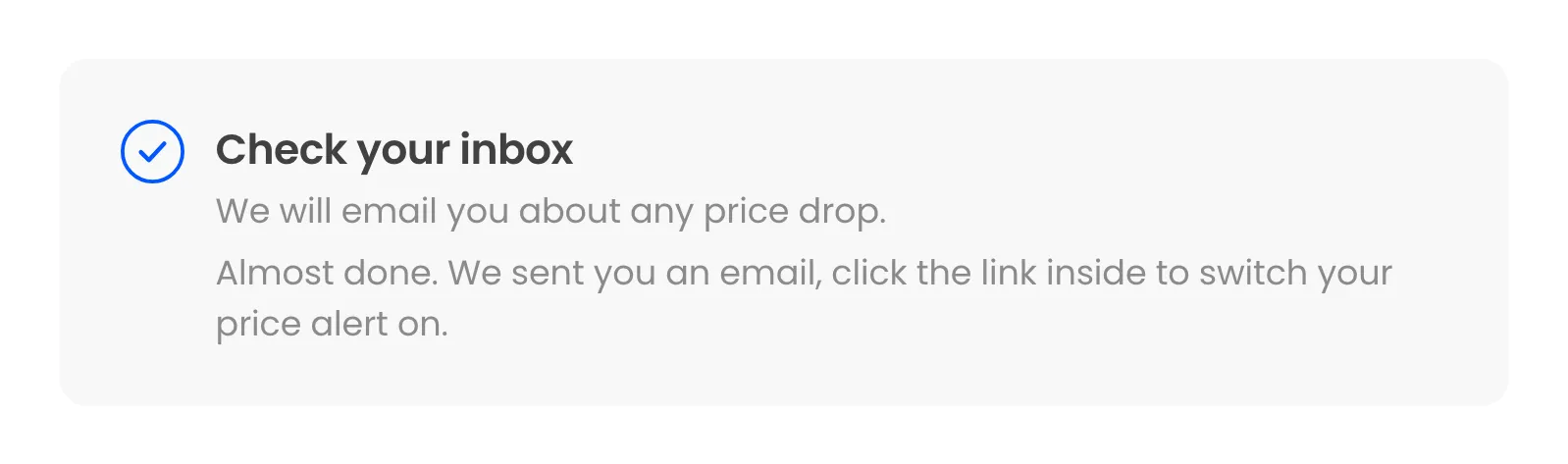
Section titled “Options you may switch on”- Double opt-in: Guests see Check your inbox and confirm by email first.
- Consent checkbox: Shoppers tick a box before the alert is set.
- Require Login: Guests get Log in to set a price alert instead of the form.
The emails a shopper gets
Section titled “The emails a shopper gets”- Alert Confirmation: Right after the alert is set, with a one-click cancel link.
- Email Confirmation: Only with double opt-in, with a Confirm my email button.
- Price Drop: When the price reaches what they asked for, with the old and new price, an optional coupon and Buy Now.
- Reminder: A few days later, if they have not bought and the price still stands.
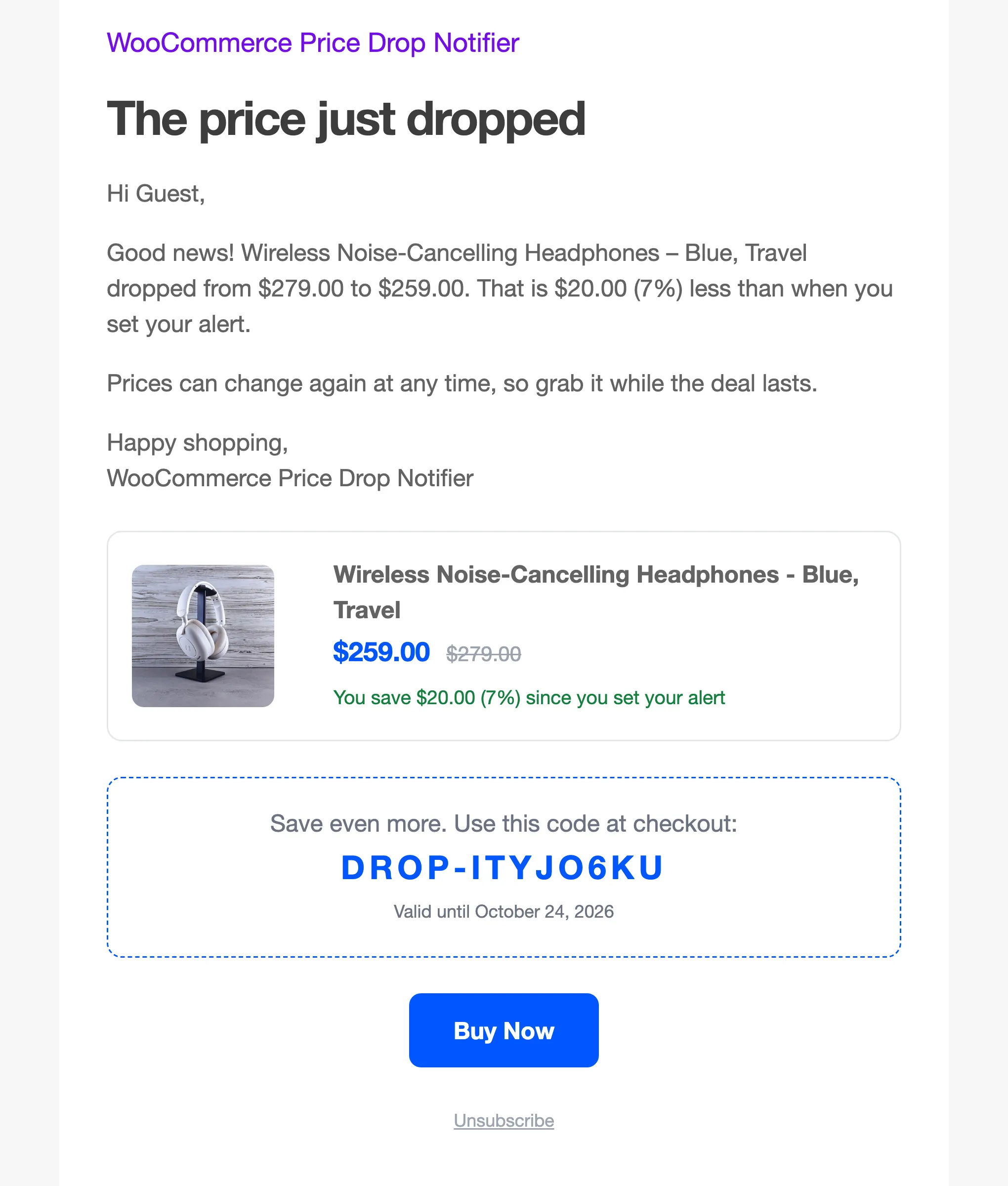
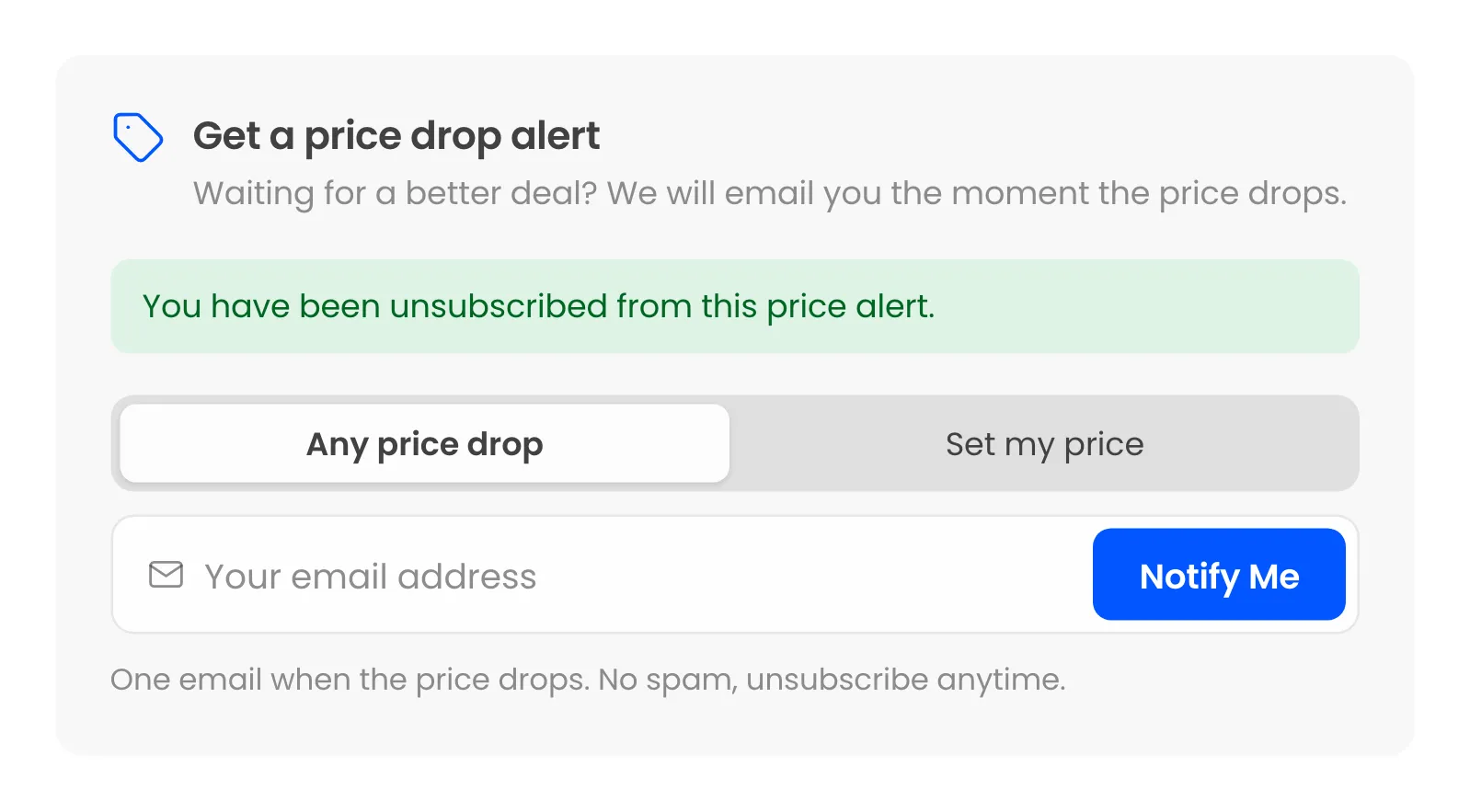
The price drop and reminder emails carry an Unsubscribe link, and the alert confirmation a “Changed your mind? Cancel this price alert” link. Either one cancels that alert and opens the product with a message.
My Account
Section titled “My Account”Logged-in customers get a Price Alerts page in My Account. It lists every alert they set, newest first, with the current price and the drop since they set it.
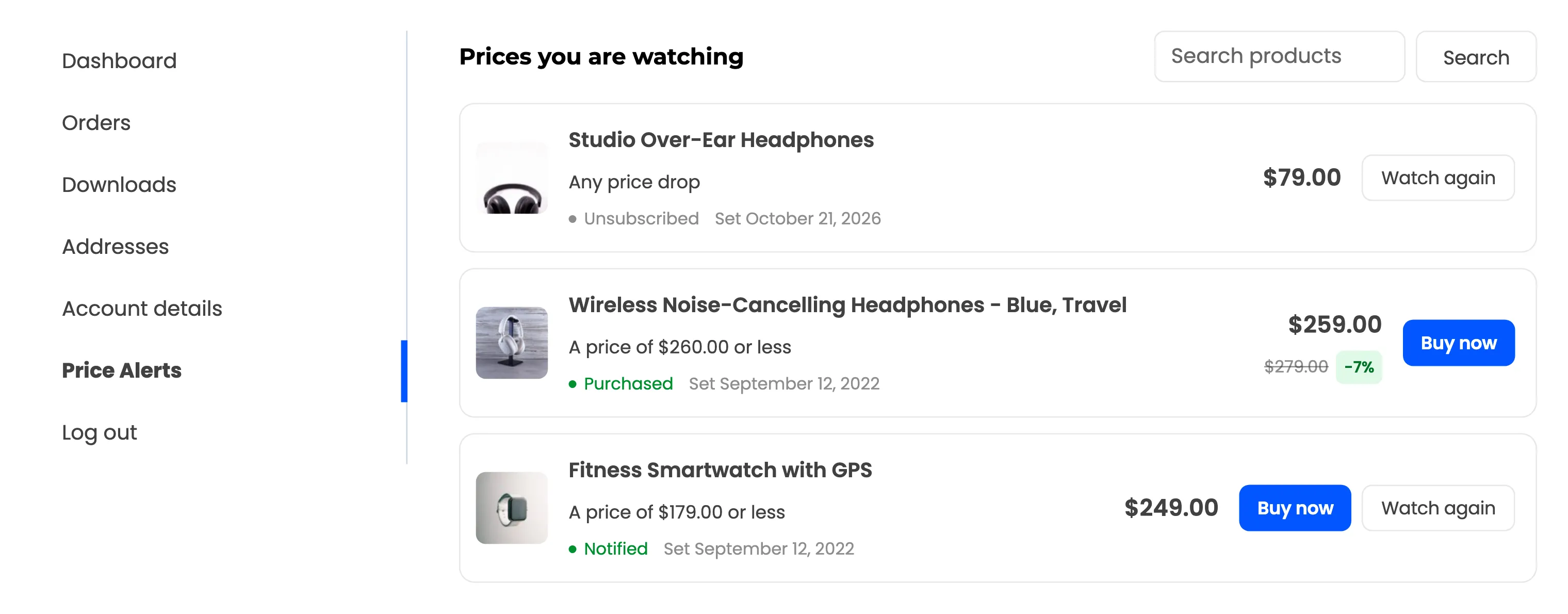
- Cancel alert on an alert that is still watching.
- Buy now on an alert that was emailed or bought, while the product is in stock.
- Watch again on an emailed, cancelled or expired alert. It watches from today’s price.
The search box finds an alert by product name. Ten alerts show per page.