

How Price Alerts Work
This page follows real alerts on the demo store, from the form to a paid order. Each step names the screen where you see it, and the numbers are the demo’s own.
1. A shopper sets an alert
Section titled “1. A shopper sets an alert”On the Dual-Boiler Espresso Machine, at $699.00, a guest typed an email and clicked Notify Me. That is an Any price drop alert. A second guest picked Set my price, clicked the -10% button and got a target of $629.10.
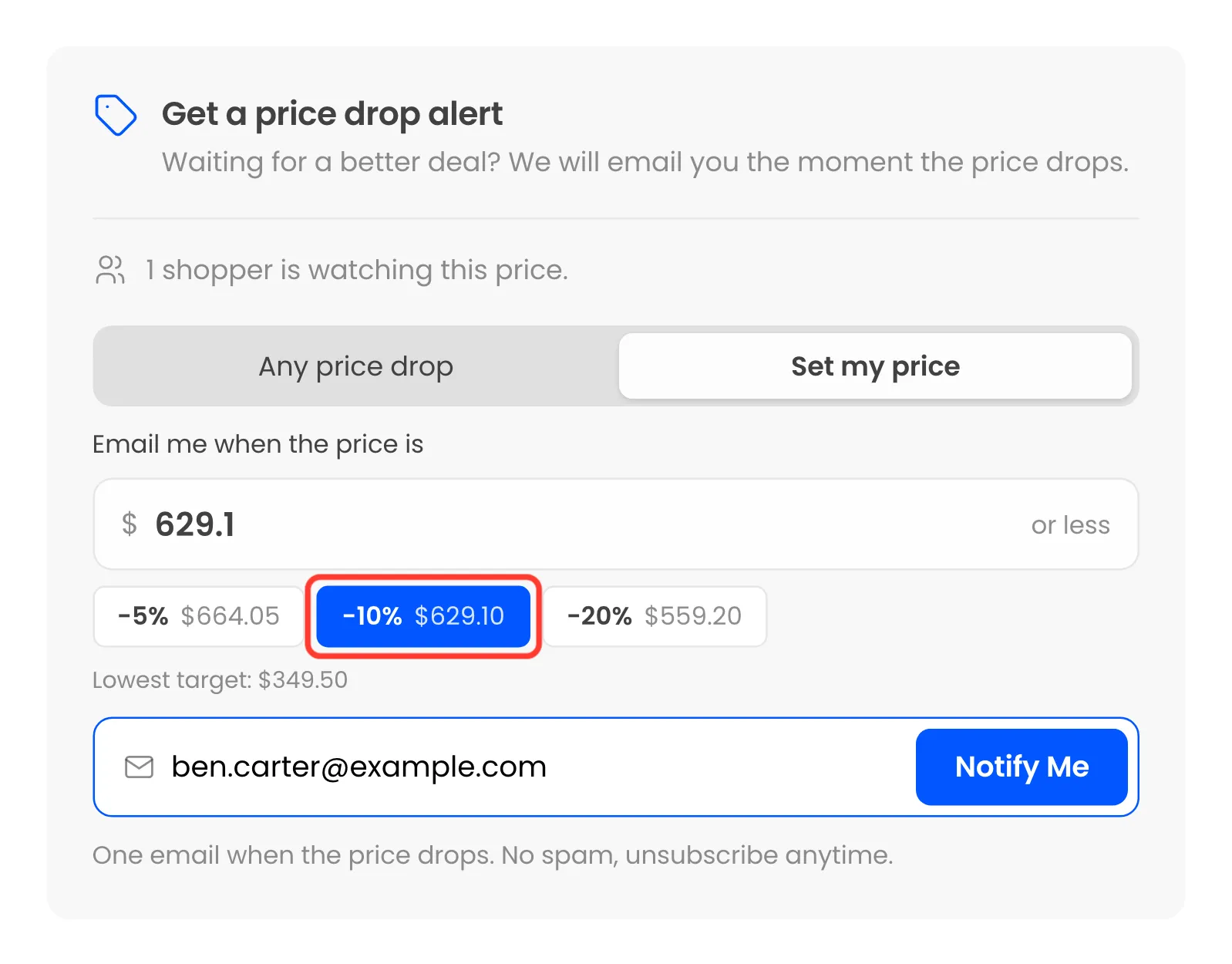
The form checks a target before saving it:
- It must be below the current price: “Your target price must be lower than the current price.”
- It must not be below the Lowest Target (%) of the current price, 50% by default. On a $699.00 product that is $349.50.
Each alert remembers the price the shopper saw, $699.00 here. An any-drop alert is measured from that price, not from today’s.
2. The alert is confirmed
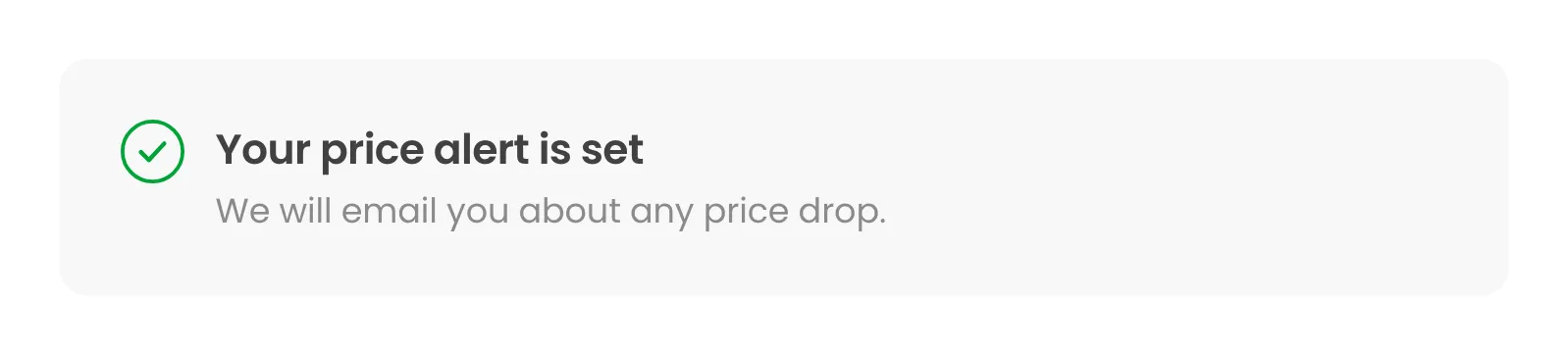
Section titled “2. The alert is confirmed”The shopper sees Your price alert is set, with what it waits for, and gets the Alert Confirmation email. The product’s watchers count goes up by one.
With double opt-in on, a guest’s alert starts as Unconfirmed instead, and switches on only after they click the link in the Email Confirmation email. Logged-in customers skip that step.
On the Alerts screen the alert is Watching.
3. The price changes
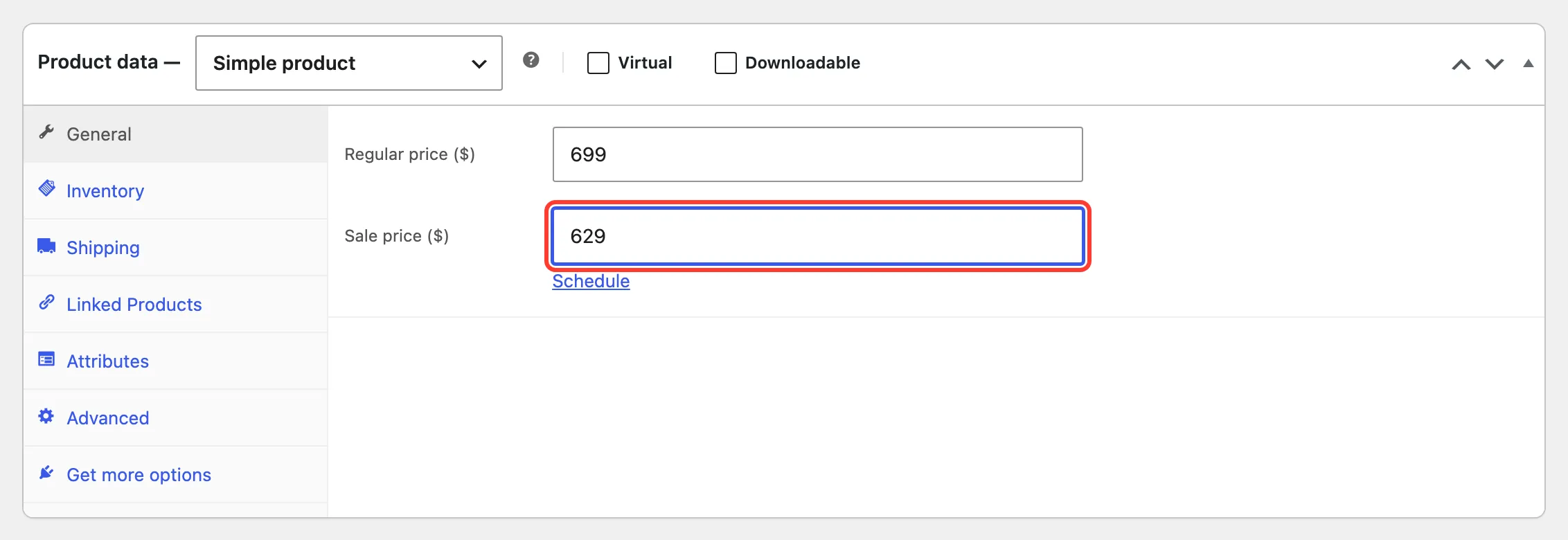
Section titled “3. The price changes”The owner set a sale price of $629 in the product editor. Any route that changes a price counts: the product editor, quick and bulk edit, scheduled sales, CSV imports, the REST API and other plugins.
The plugin queues a background check for that product, and only for a product someone is watching. The check uses WooCommerce’s Action Scheduler, so the product saves at normal speed.
4. The check picks the alerts that are due
Section titled “4. The check picks the alerts that are due”For each alert still Watching, the new price is compared with what it asked for:
- Any price drop: Due when the price is at least the Minimum Drop (%) below the price at signup. At the default 1%, $699.00 needs $692.01 or less.
- Set my price: Due when the price is at or below the target. $629.00 meets $629.10.
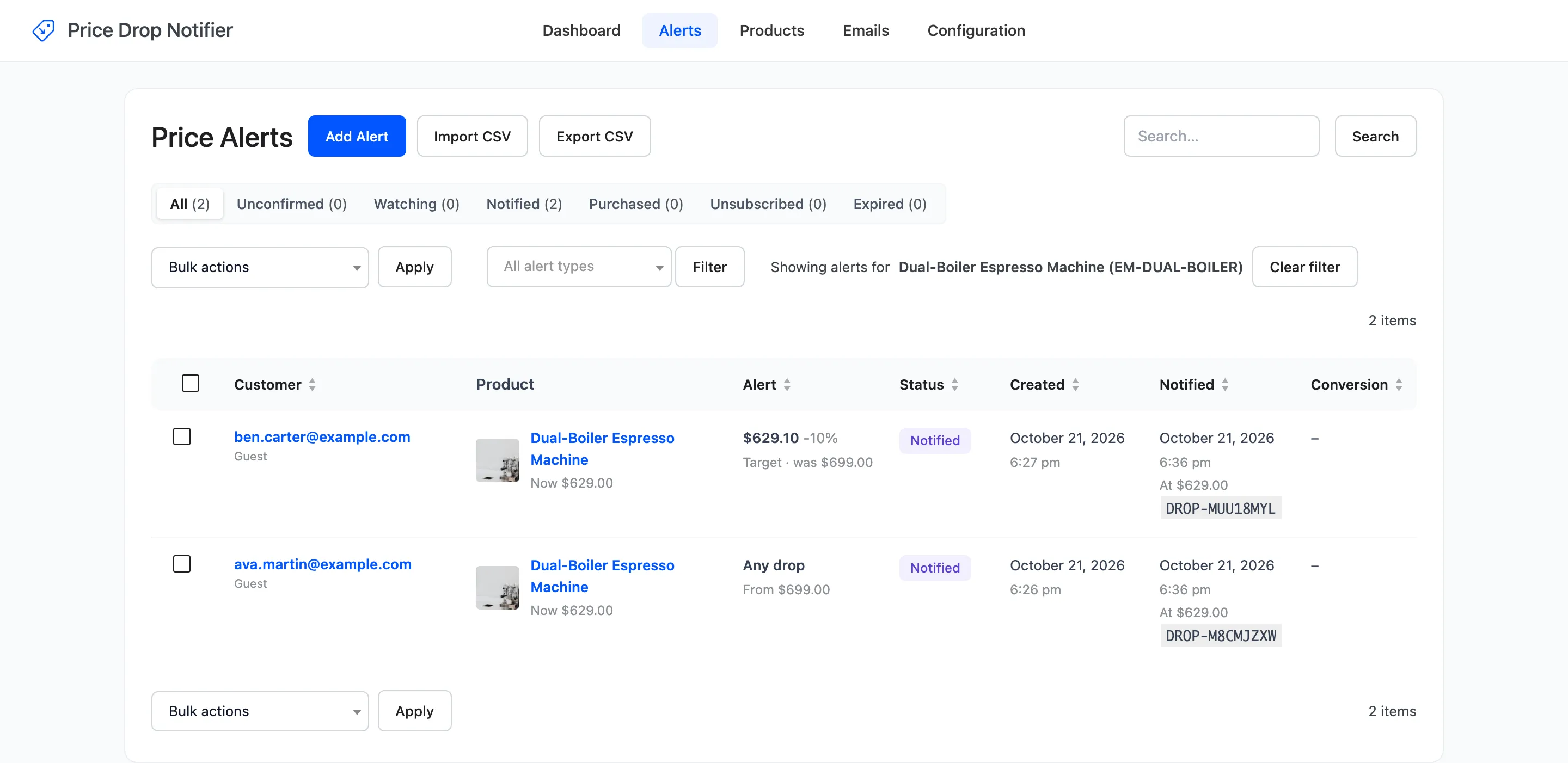
Both Espresso alerts were due. On the headphones, a drop to $259 emailed the customer whose target was $260. The two watching at $248 and $217 were left alone.
Two more checks run first. The product must be published and cost more than nothing. With Stock Check on, it must also be in stock, or the email waits until it is back.
Emails go out in batches of 50, oldest alert first. A bigger list carries on in a new batch.
5. The price drop email goes out
Section titled “5. The price drop email goes out”Each due alert is marked Notified first, with the date and the price, so a slow mail server never sends the same person two emails. Then the Price Drop email goes out.
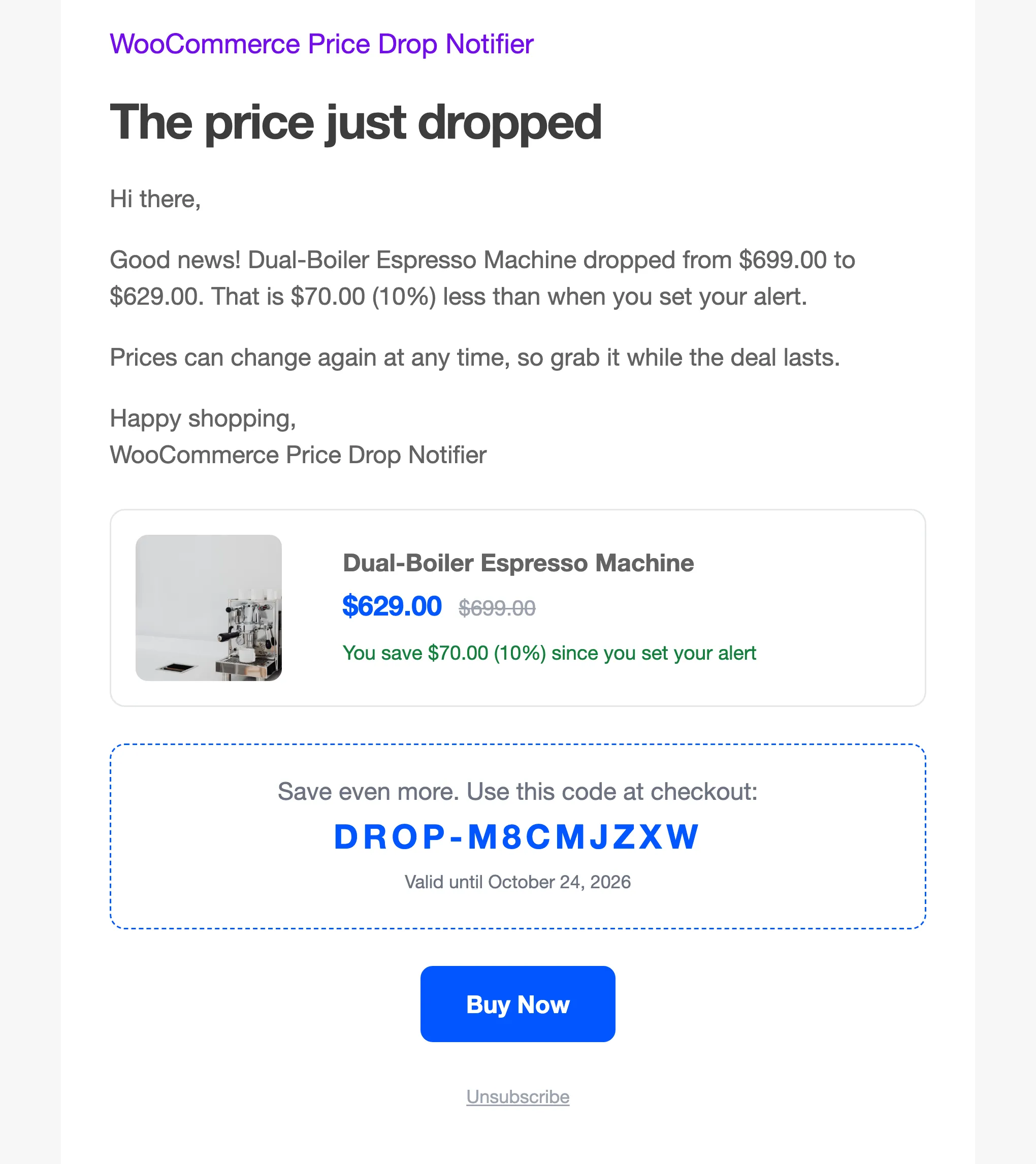
With Price Drop Coupon on, each email gets its own coupon, such as DROP-M8CMJZXW. It is single use, for that customer’s email only, for that product only, and valid for 3 days by default.
6. The customer clicks and buys
Section titled “6. The customer clicks and buys”Buy Now in the email is a tracked link. The first click is recorded as Clicked email and sends the customer to the product, with the variation already picked.
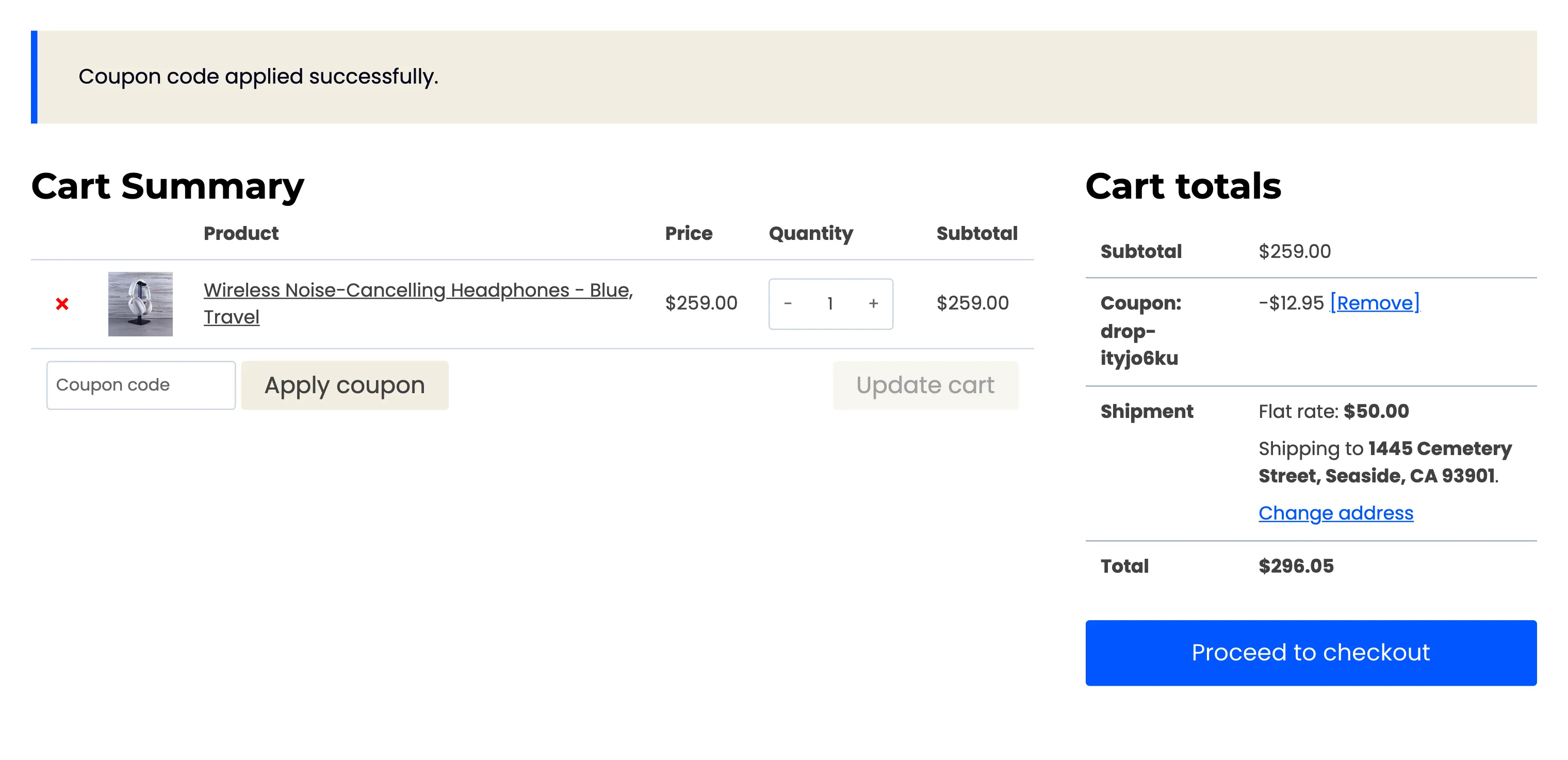
The demo customer added the headphones to the cart, applied the coupon and paid by bank transfer. A bank transfer order waits On hold, so nothing was counted yet.
7. The sale is counted
Section titled “7. The sale is counted”When an order reaches Processing or Completed, the plugin looks for Notified alerts on the products in it. They are matched by the billing email, or by the customer’s account. Each match becomes Purchased, with the order number and the line total after discounts.
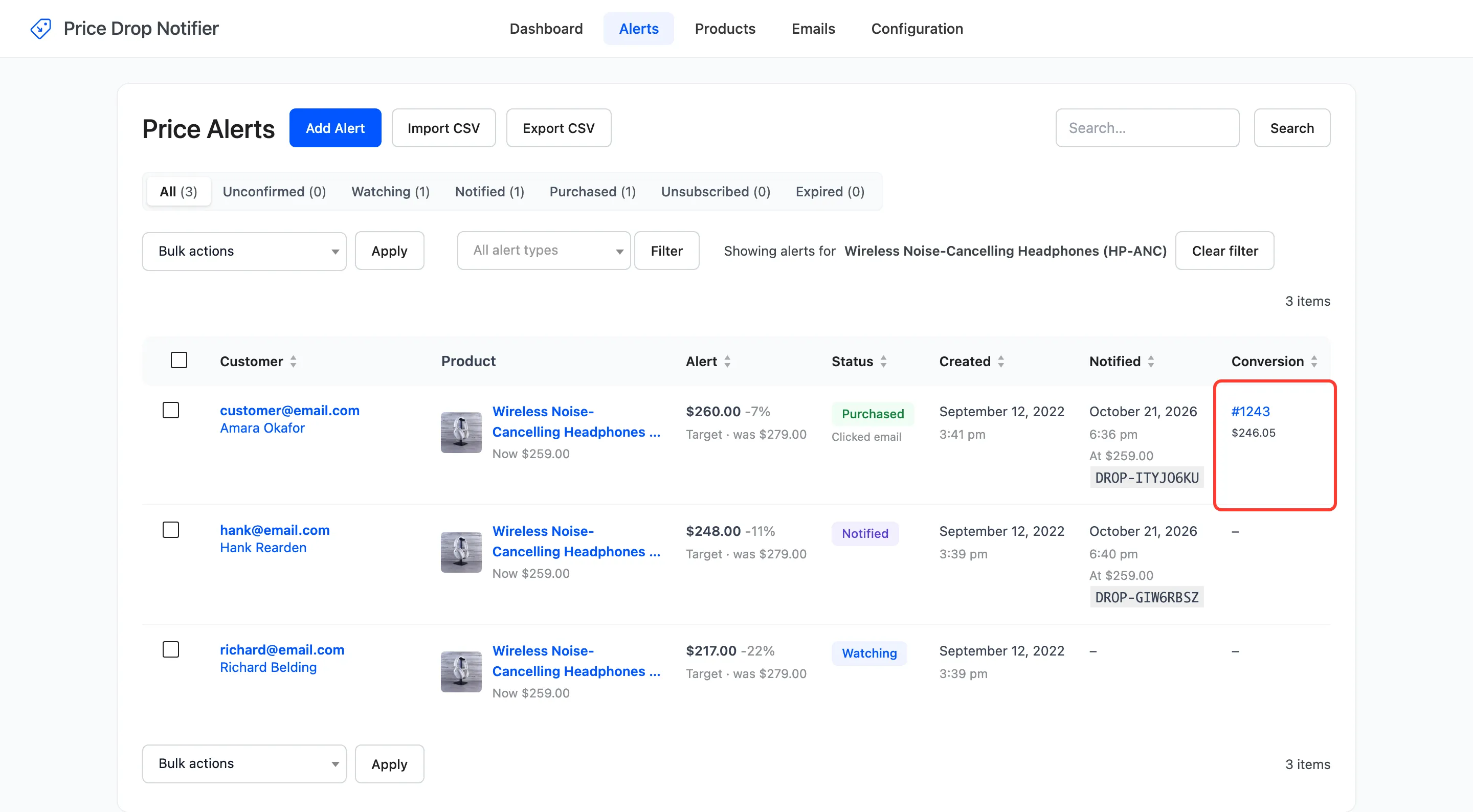
The demo order was marked Processing by hand, as a store does once a transfer arrives. The alert showed #1243 and $246.05: $259.00 less the 5% coupon. Shipping is not part of the figure. An alert still Watching is not counted, because that customer was never emailed.
8. Or a reminder follows
Section titled “8. Or a reminder follows”A customer who was emailed and did not buy gets one Reminder after 3 days. It goes out only if the price is still at or below the price in the first email. The hourly task sends it and marks the alert, so it is never sent twice.
The statuses
Section titled “The statuses”- Unconfirmed: A double opt-in guest who has not clicked the link yet. Deleted after Confirm Within (days), 3 by default.
- Watching: Waiting for the price.
- Notified: Emailed. A customer can set a new alert on the same product from its page or My Account.
- Purchased: Bought after the email.
- Unsubscribed: Cancelled by the customer, from the form, an email link or My Account.
- Expired: Closed by Alert Lifetime (days), which is off by default.
An alert never fires twice. To watch again after Notified, the customer sets a new alert, or you click Switch back on on the Alerts screen.