

How to Let Shoppers Set a Target Price
A target price alert waits until the price reaches what the shopper said they would pay. It is the more useful alert for you too, because it tells you the price that would sell.
Step 1: Choose the alert types
Section titled “Step 1: Choose the alert types”Open Configuration → Alert Form and find Alert Types.
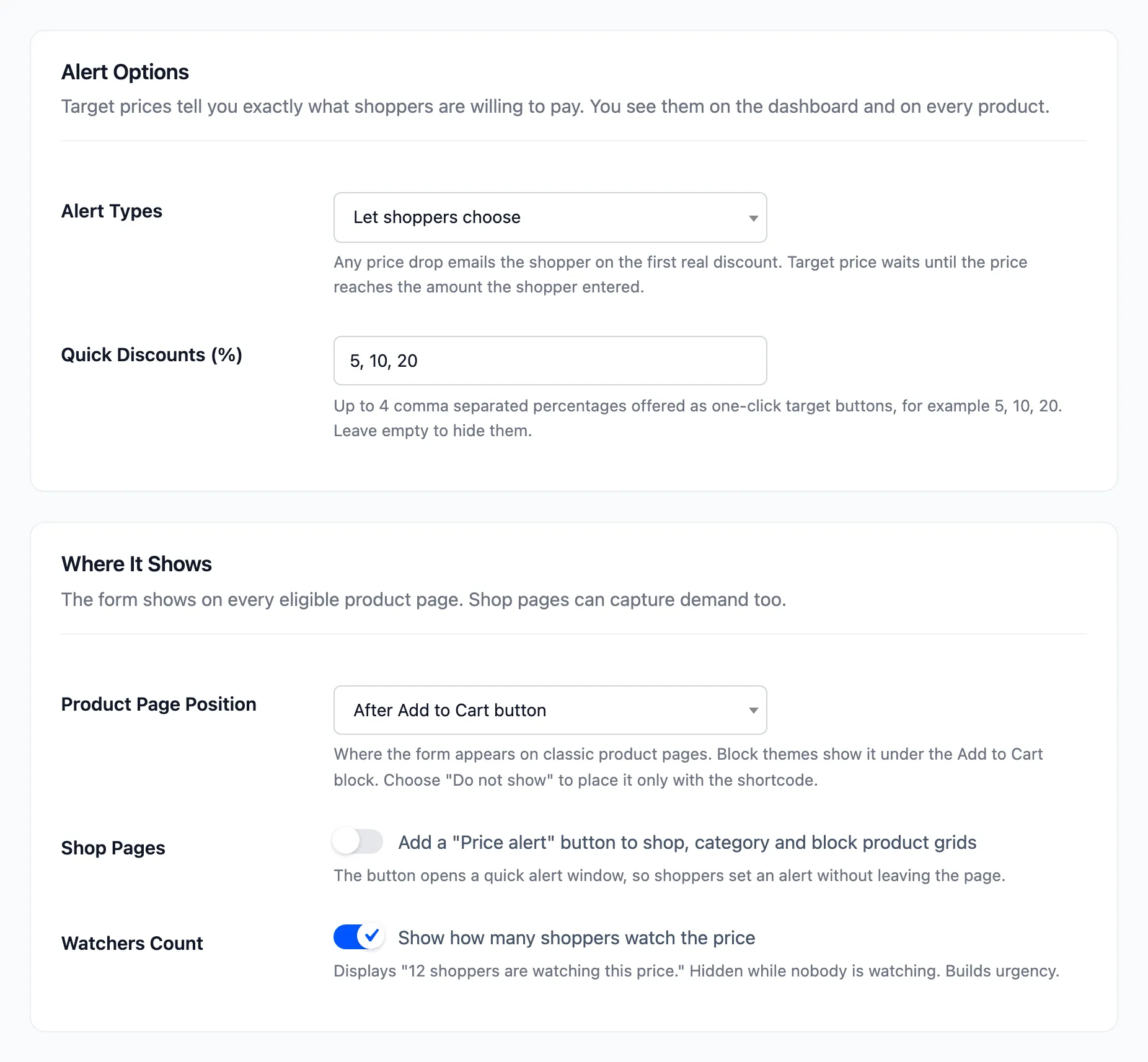
- Let shoppers choose: The default. The form has Any price drop and Set my price.
- Target price only: No switch. The price field is open from the start.
Step 2: Set the quick discounts
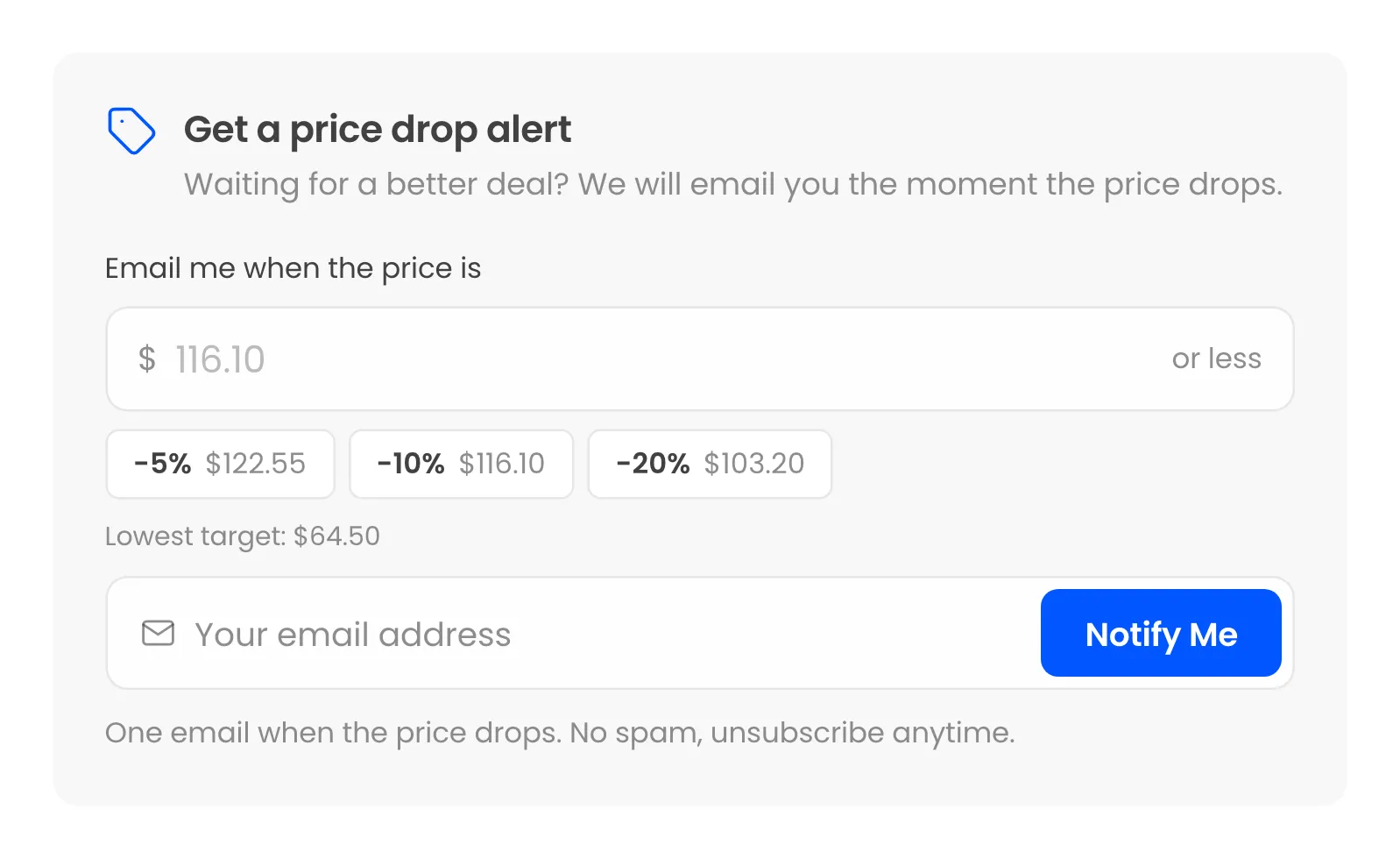
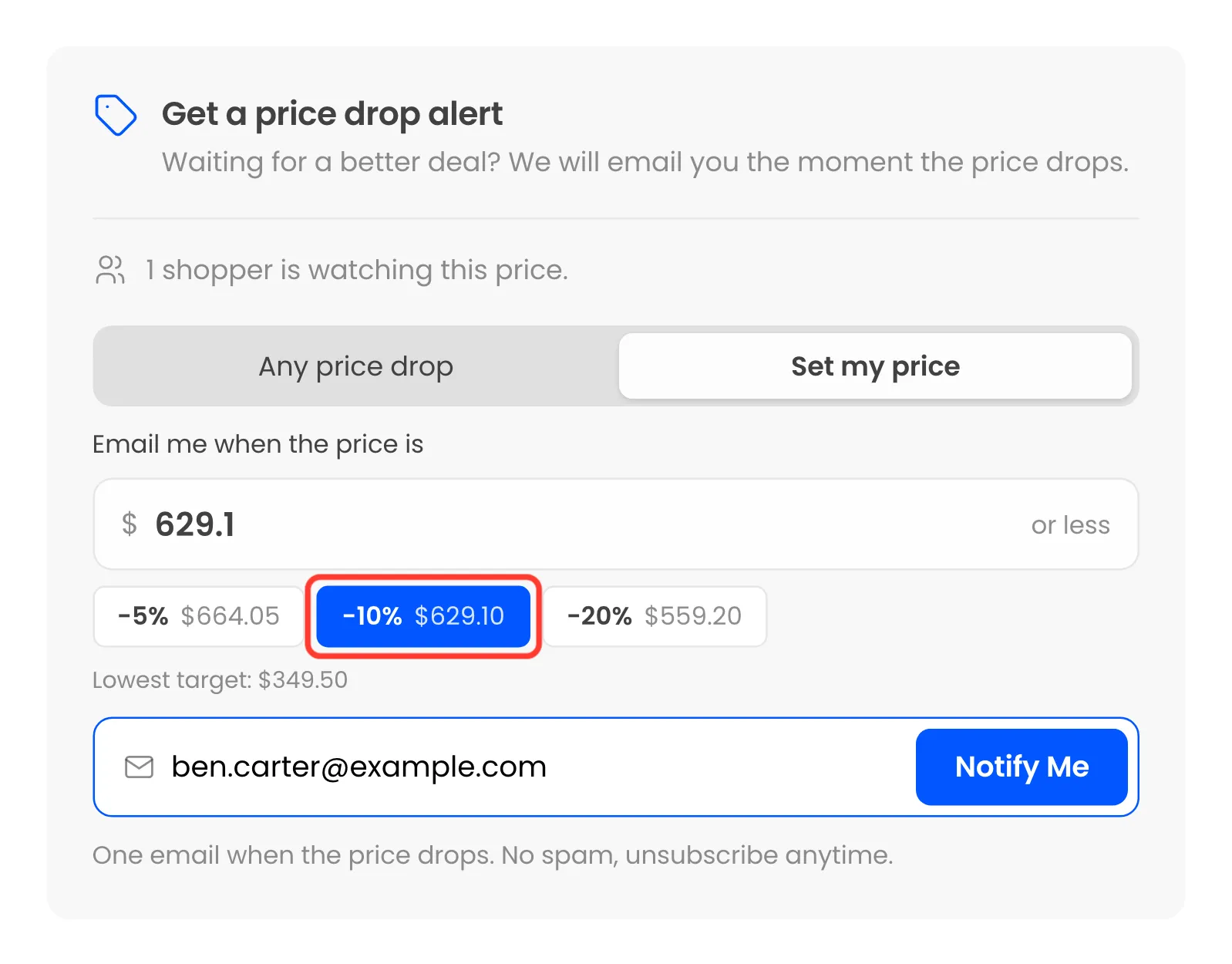
Section titled “Step 2: Set the quick discounts”Quick Discounts (%) holds up to four percentages, 5, 10, 20 by default. Each becomes a button that fills the price field and shows the price it would set. Leave the field empty to hide the buttons.
Step 3: Set the lowest target
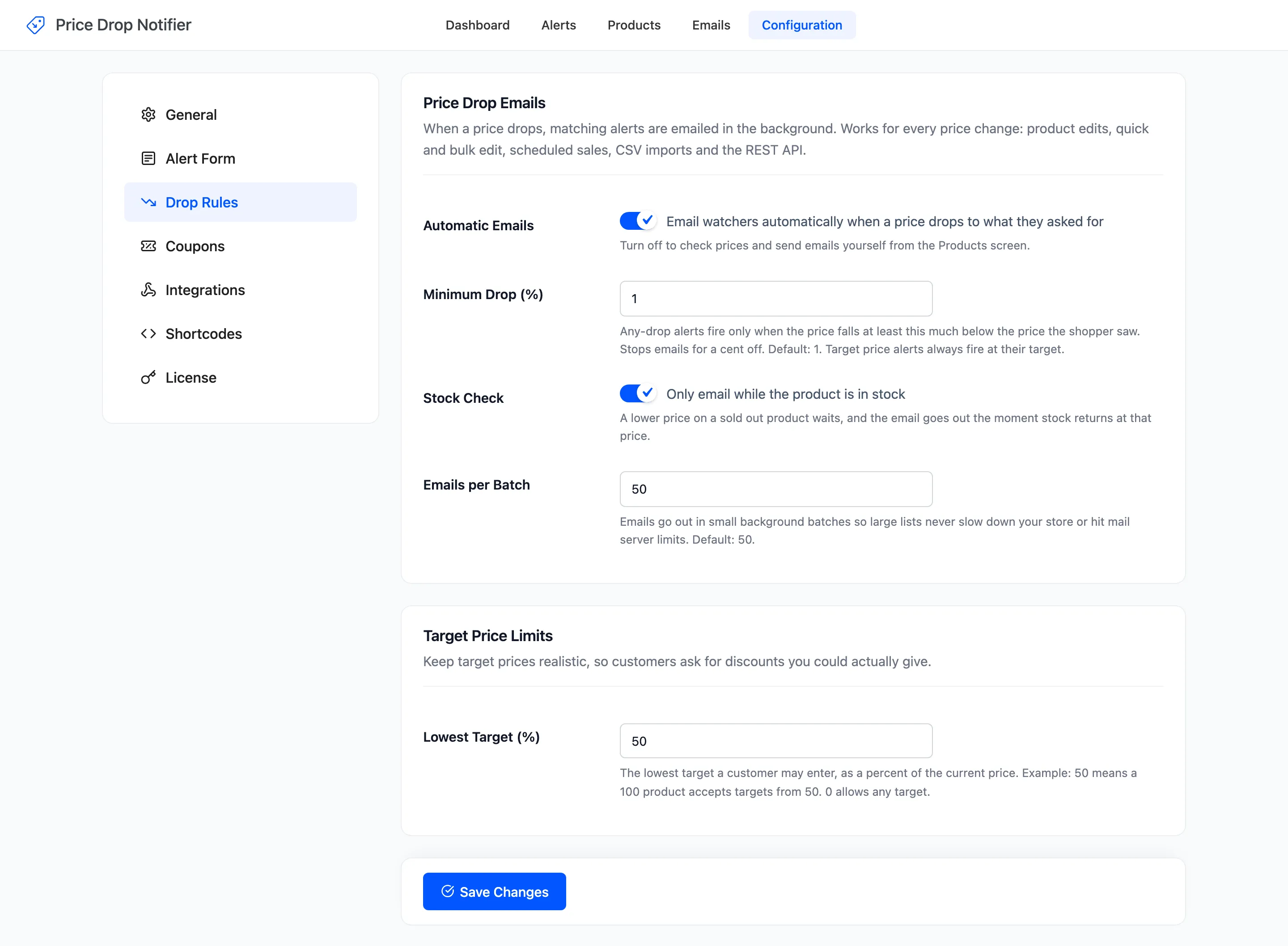
Section titled “Step 3: Set the lowest target”Open Configuration → Drop Rules and set Lowest Target (%). At the default 50, a $699.00 product accepts targets from $349.50. 0 allows any target.
Step 4: Try it as a shopper
Section titled “Step 4: Try it as a shopper”Open a product and click Set my price.
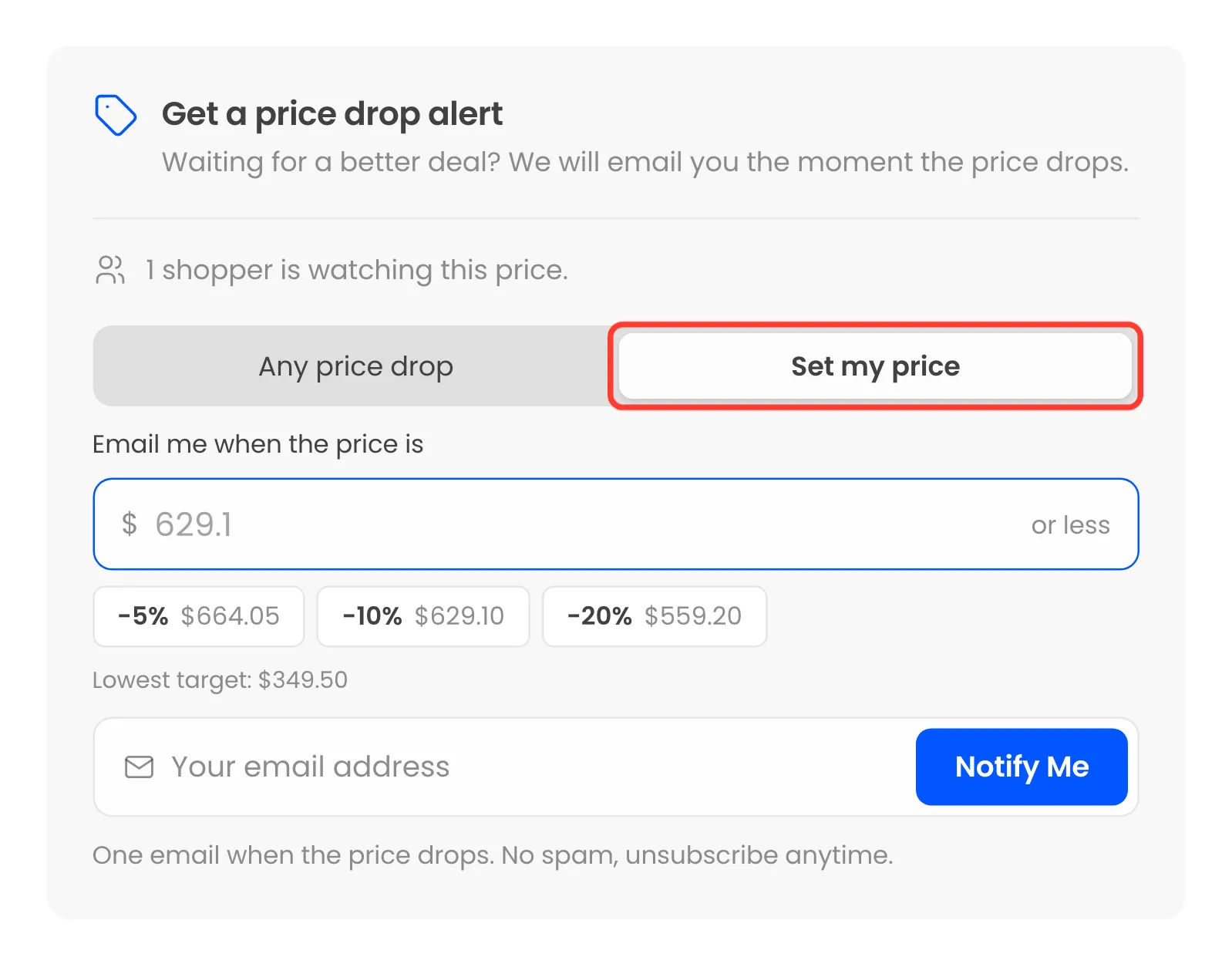
Click -10% or type a price, add an email and click Notify Me. On the demo, -10% of $699.00 set $629.10.
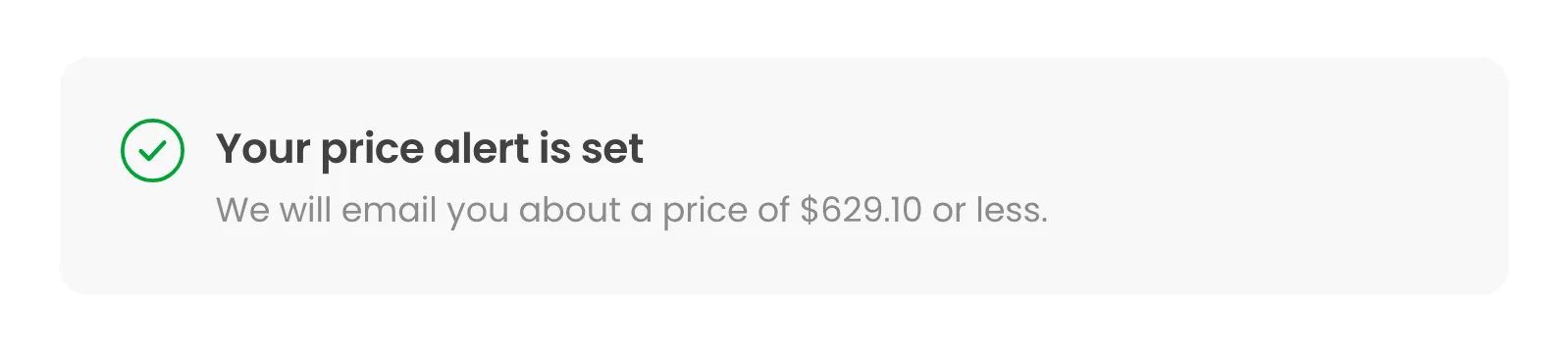
The form confirms “We will email you about a price of $629.10 or less.”
A target at or above today’s price is refused with “Your target price must be lower than the current price.”
One below the lowest target gets “That target is lower than we can offer.”
Step 5: Read the demand
Section titled “Step 5: Read the demand”Targets show up wherever you decide on a price:
- Products screen: Target Demand gives the highest target, how far below today’s price it is, and the average.
- Dashboard: Price Opportunities suggests the cut that emails the most watchers.
- Product editor: The Price Alerts box counts how many alerts each price would email.
See How to Find the Price Shoppers Want.
When it fires
Section titled “When it fires”The alert fires when the price is at or below the target, whatever the Minimum Drop (%) says. A drop to $629.00 emailed the $629.10 alert on the demo.