

How to Add a Consent Checkbox
Stores selling in the EU and UK often need a clear yes before they email anyone. The consent checkbox adds one to every alert form.
Step 1: Turn on the checkbox
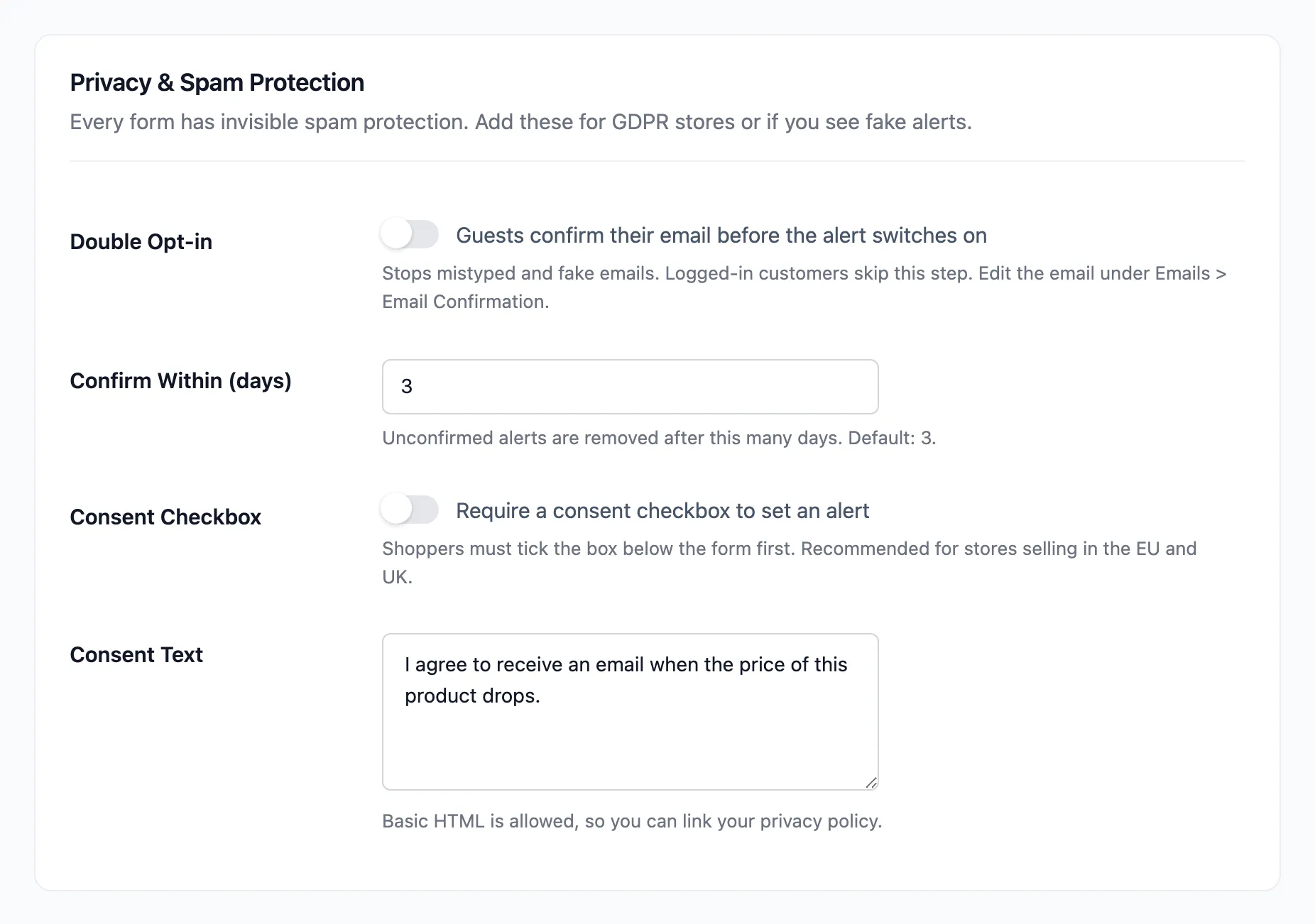
Section titled “Step 1: Turn on the checkbox”Open Configuration → Alert Form and tick Consent Checkbox under Privacy & Spam Protection. It is off by default.
Step 2: Write the consent text
Section titled “Step 2: Write the consent text”Consent Text is the label next to the box. The default reads “I agree to receive an email when the price of this product drops.”
Basic HTML is allowed, so you can add a link:
I agree to receive price alerts. See our <a href="/privacy-policy/">privacy policy</a>.Click Save Changes.
Step 3: Check the form
Section titled “Step 3: Check the form”The box appears under the email field, on product pages, in the shop window and in shortcodes.
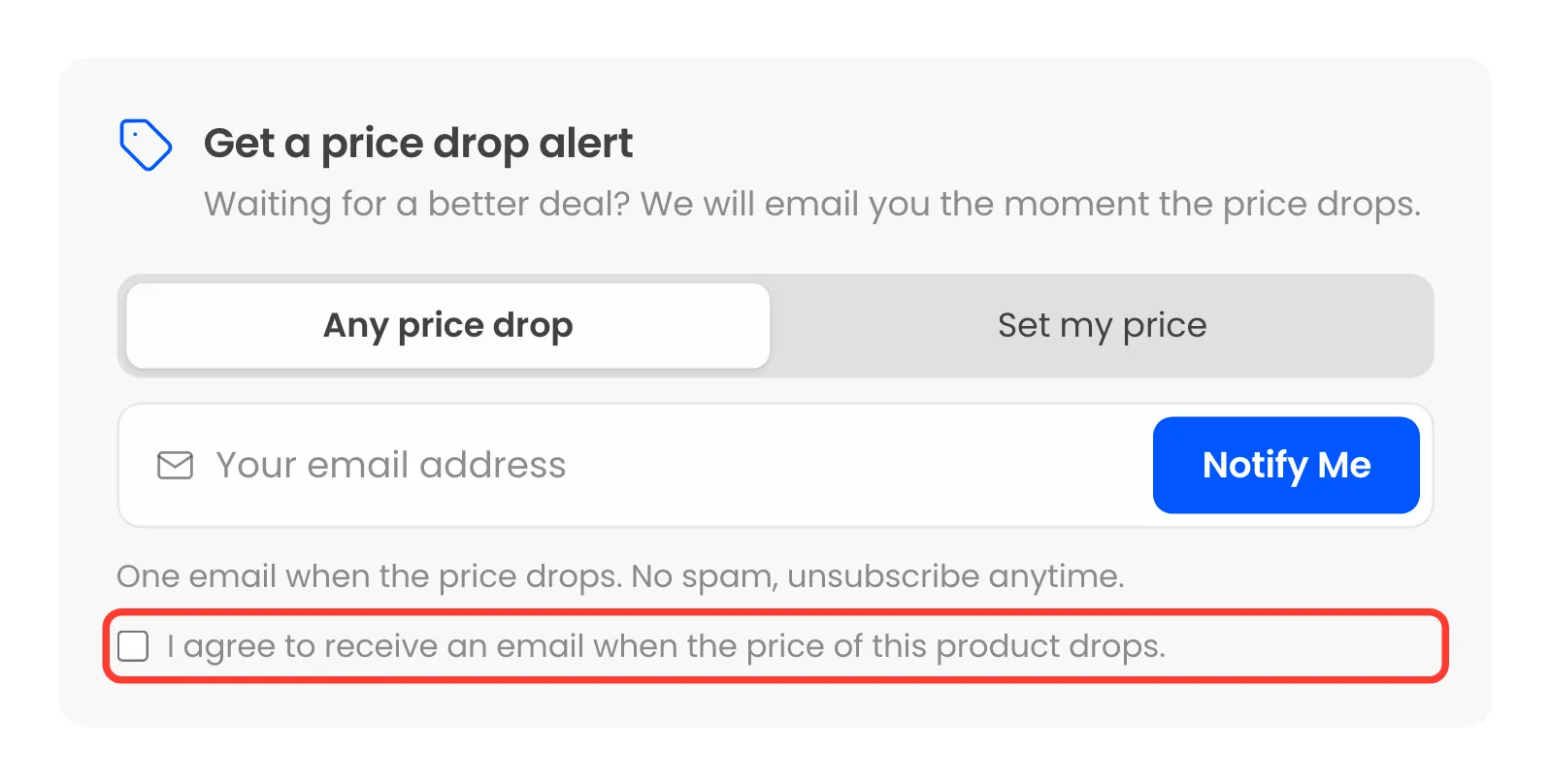
Clicking Notify Me without ticking it asks the shopper to tick it, and nothing is saved. The server checks again, with “Please accept the consent checkbox to set a price alert.”
Good to know
Section titled “Good to know”- The box applies to logged-in customers too.
- Alerts you add by hand or import are not asked for consent. Collect it where the list came from.
- For a confirmed address as well as consent, add double opt-in.