

How to Lower a Price and Email Watchers
Lowering a price is all it takes. The plugin finds the alerts the new price satisfies and emails them in the background. This walk through cuts the demo’s Espresso Machine from $699 to $629.
Step 1: Check Automatic Emails is on
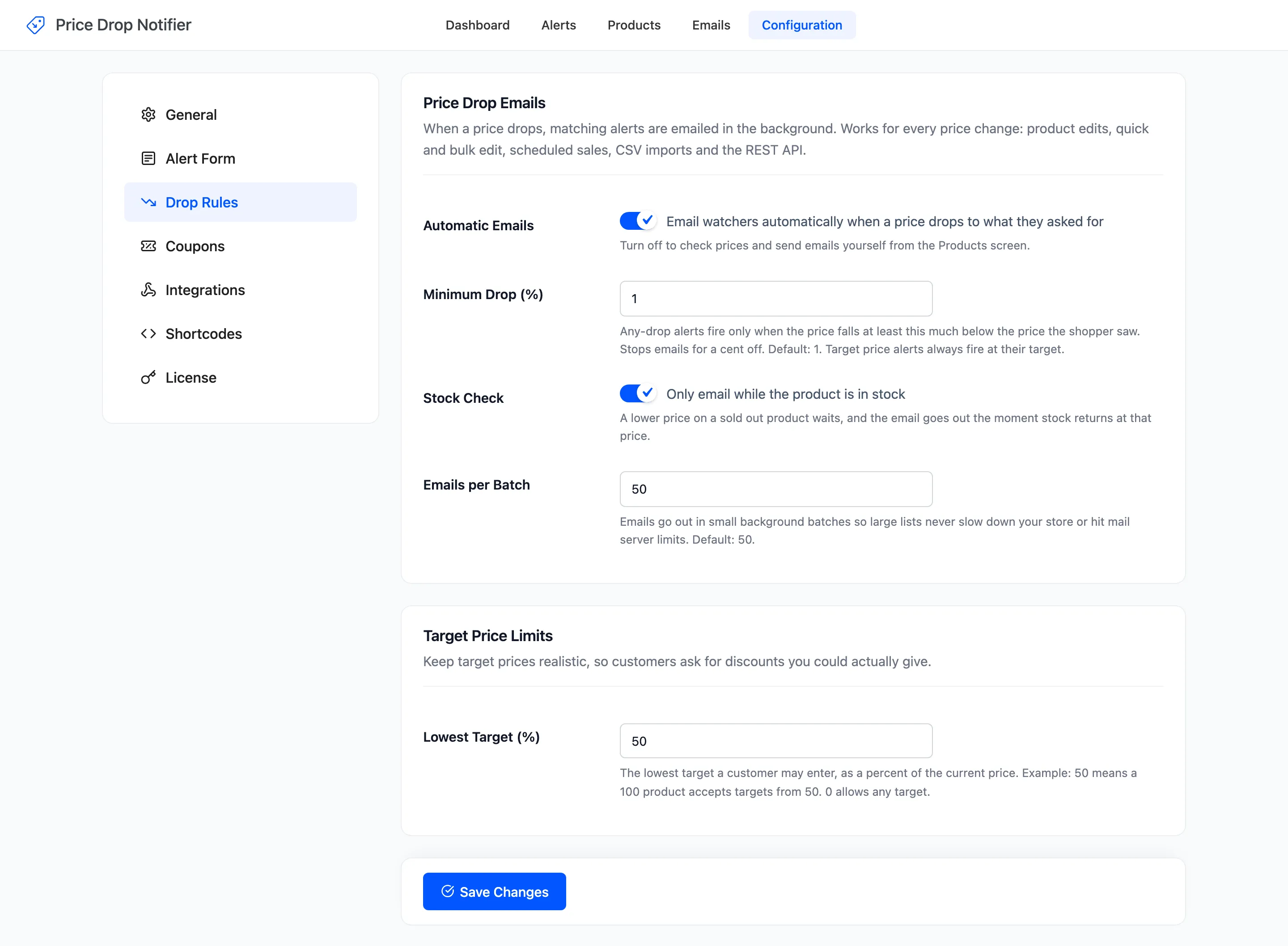
Section titled “Step 1: Check Automatic Emails is on”Open Configuration → Drop Rules. Automatic Emails is on by default.
Step 2: See who the new price will email
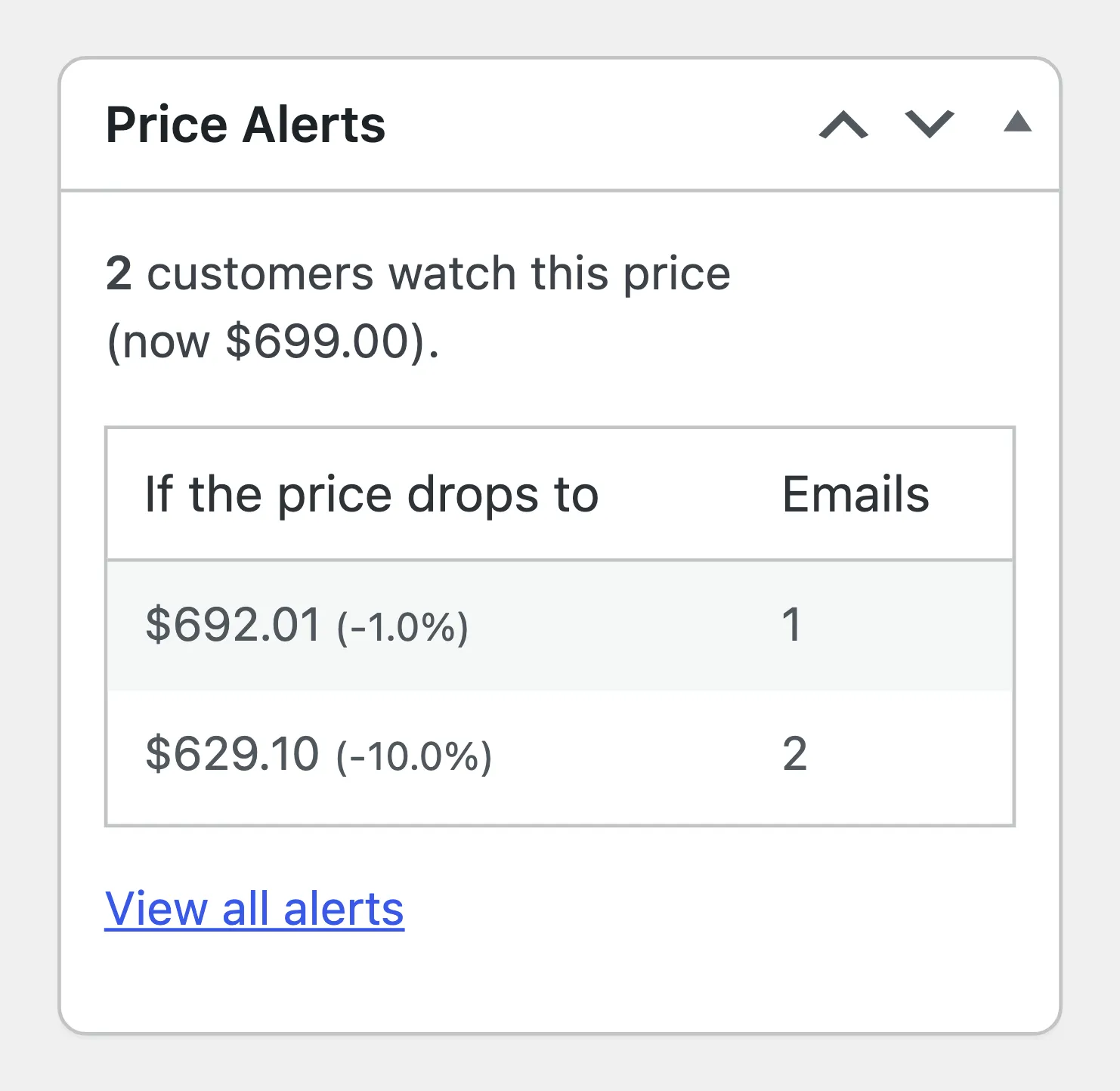
Section titled “Step 2: See who the new price will email”Open the product in the editor. While someone watches it, a Price Alerts box in the side column lists the prices worth trying, and how many alerts each would email.
Step 3: Lower the price
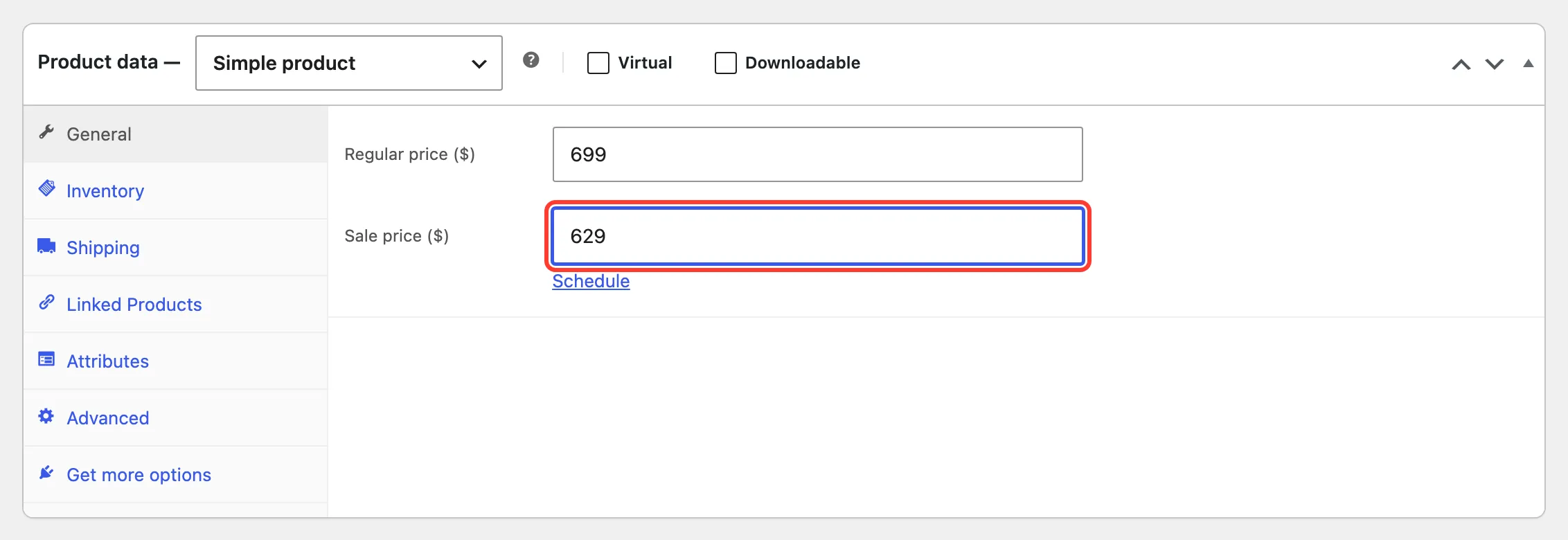
Section titled “Step 3: Lower the price”Set a Sale price of 629 in Product data → General and click Update. A lower regular price, quick edit, bulk edit, a scheduled sale, a CSV import or the REST API all work the same way.
The product saves at normal speed. The check runs right after in the background, through WooCommerce’s Action Scheduler, usually within a minute.
Step 4: Check who was emailed
Section titled “Step 4: Check who was emailed”Open Alerts and filter by the product, or click View alerts on the Products screen. Both Espresso alerts were satisfied: the any-drop alert set at $699.00, and the target alert at $629.10. Each is Notified, with the date, At $629.00, and its coupon code.
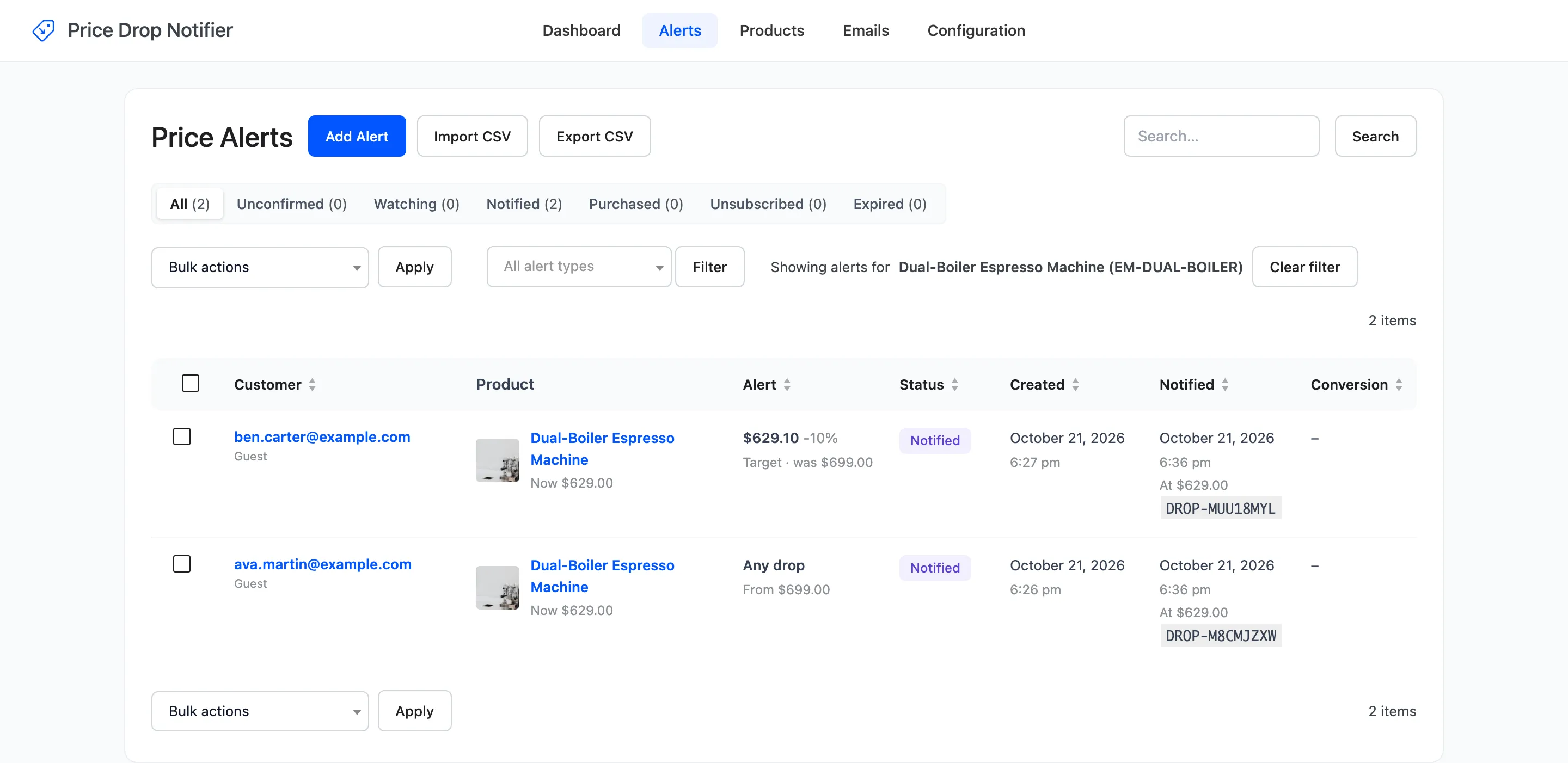
Alerts the price does not satisfy keep watching. A deeper cut later emails them, and never emails the notified ones a second time.
Step 5: Read the email
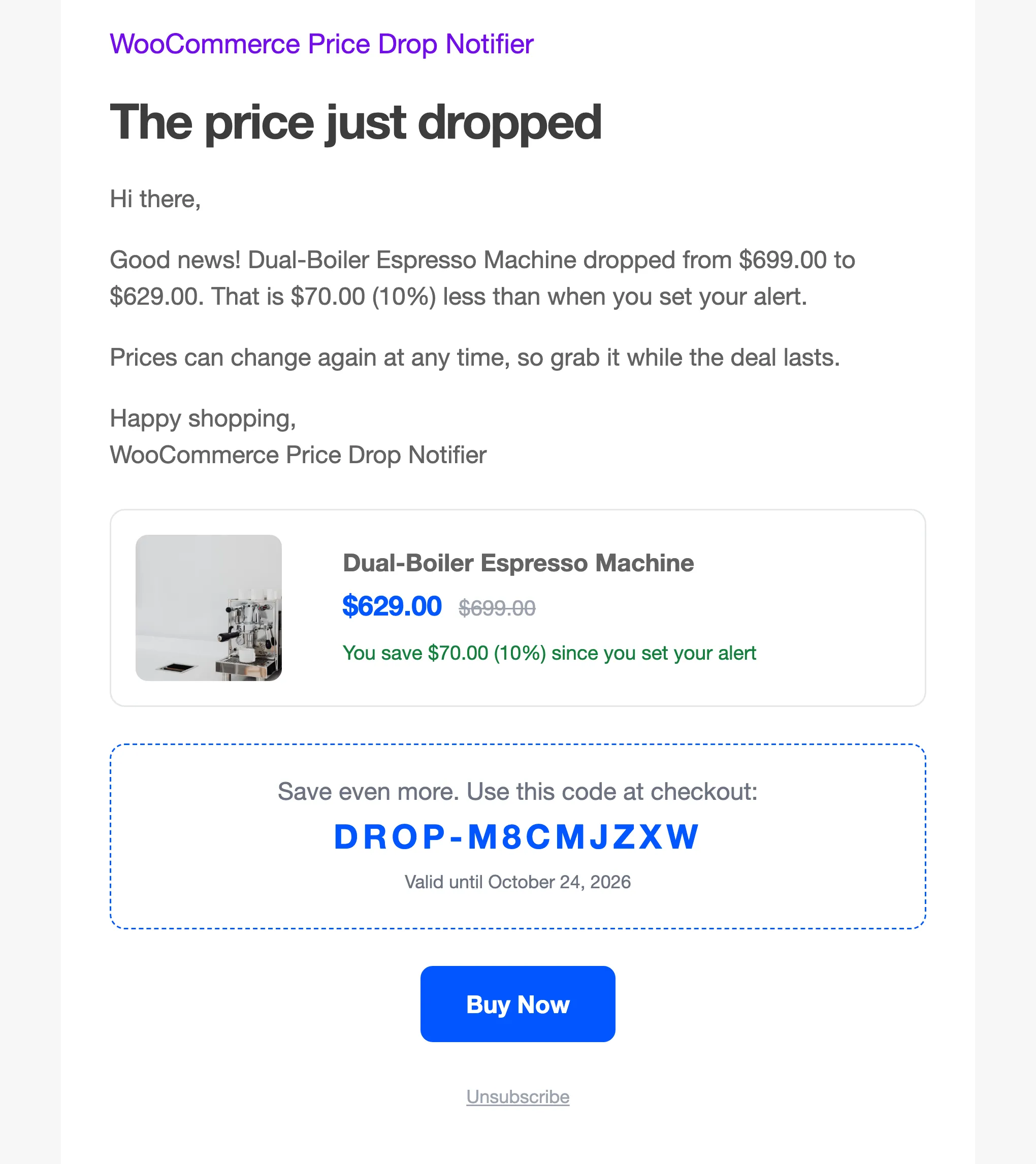
Section titled “Step 5: Read the email”The shopper received the Price Drop email: the old and new price, how much they save, the coupon, and Buy Now.
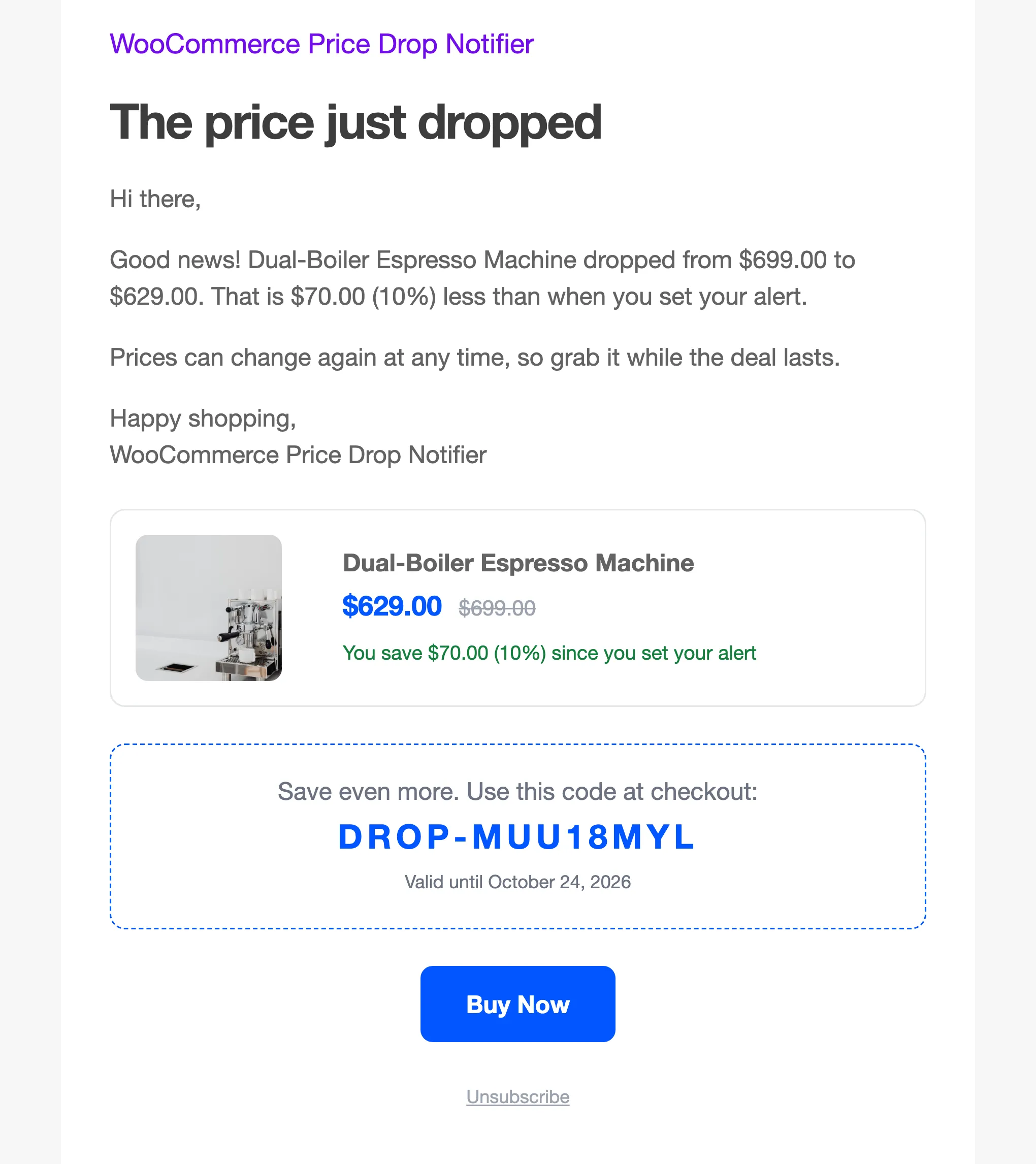
The target alert’s email says the same, measured from the price at signup:
Every send is listed in the Email Log.
Nothing was sent?
Section titled “Nothing was sent?”- Automatic Emails is off. Use Check now on the Products screen instead.
- The product is out of stock and Stock Check is on. The emails wait for stock.
- The drop is smaller than Minimum Drop (%) for any-drop alerts, or above every target.
- Enable/Disable is off, or the license is inactive.
- Your site runs no background tasks. WooCommerce’s Action Scheduler needs WP-Cron, or a server cron job.