

How to Let Customers Manage Alerts in My Account
Logged-in customers get their own page with every alert they set. They can cancel, buy or start watching again without contacting you.
Step 1: Check the page is on
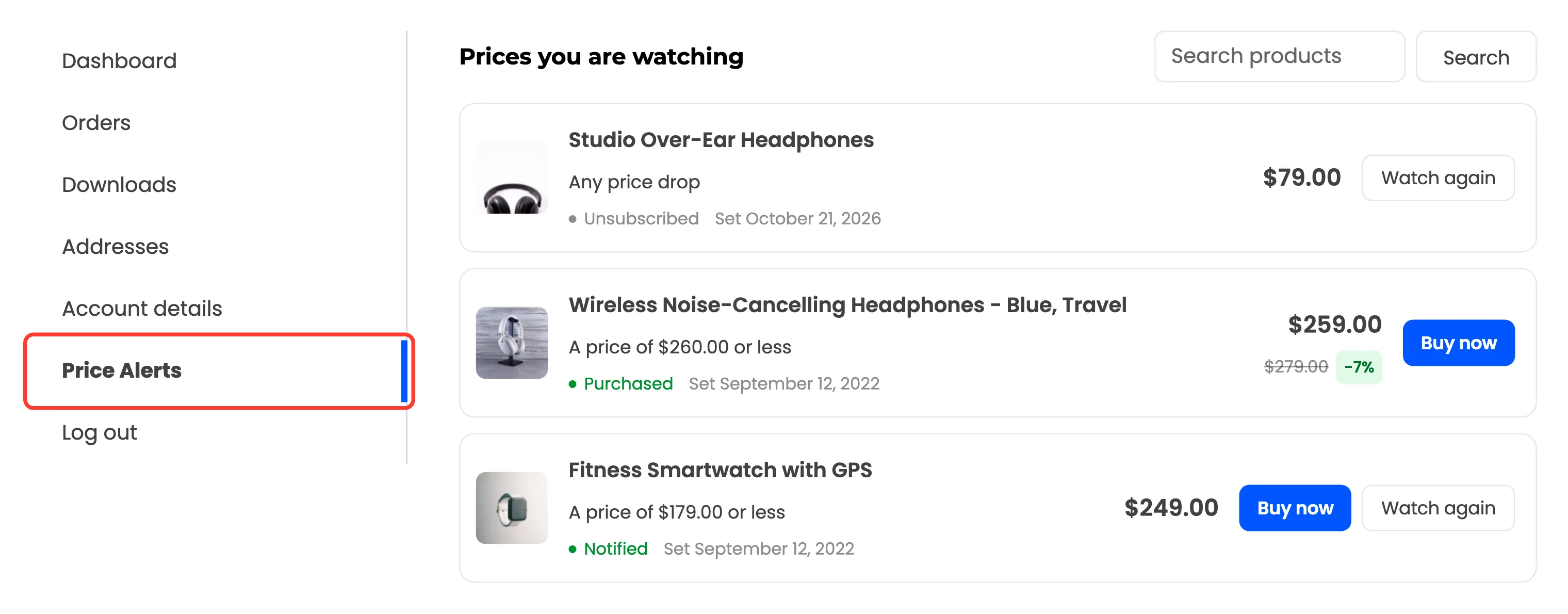
Section titled “Step 1: Check the page is on”The page is on whenever the plugin is. Open Configuration → General to change its Endpoint, the address, or its Menu Title, Price Alerts by default. It sits in the My Account menu before Log out.
Step 2: Open it as a customer
Section titled “Step 2: Open it as a customer”Each alert shows the product, what it waits for, its status and the date it was set. The current price is on the right, with the old price and the drop when it is lower than at signup.
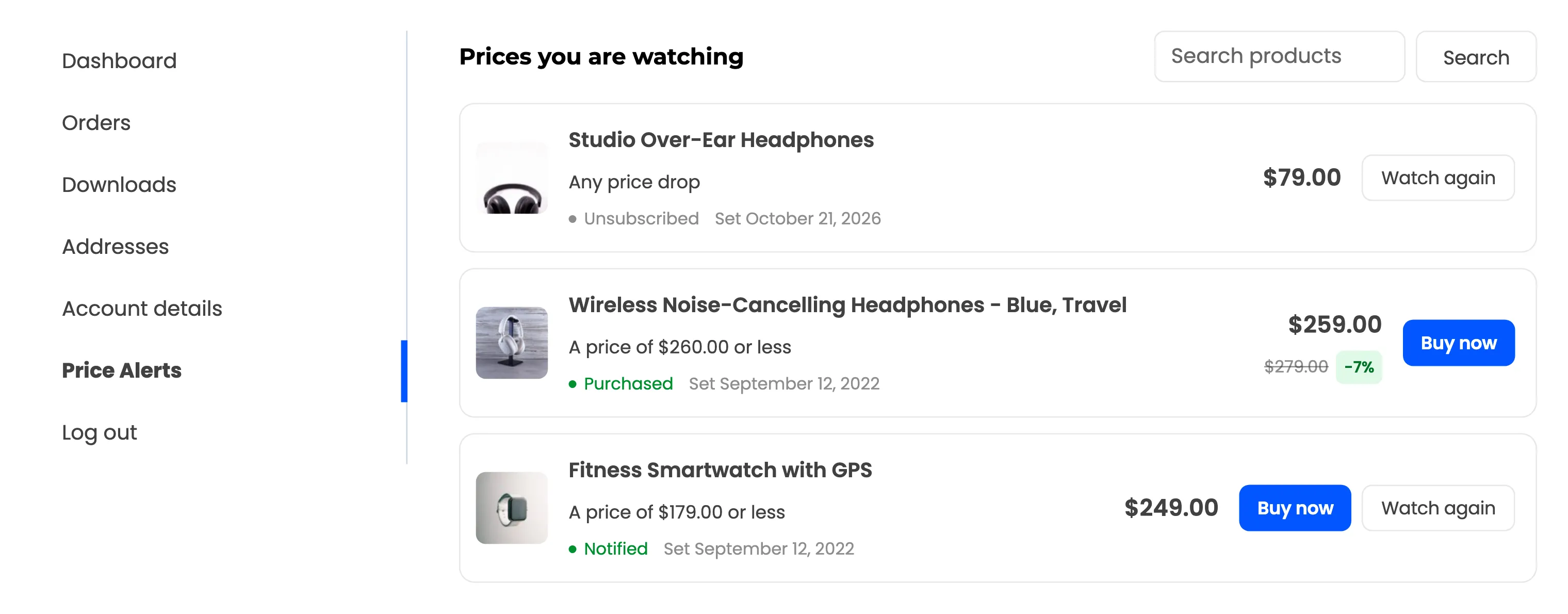
- Watching: Cancel alert.
- Notified: Buy now while the product is in stock, and Watch again.
- Purchased: Buy now while the product is in stock.
- Unsubscribed or Expired: Watch again.
The list shows the alerts of the customer’s account email. Ten show per page, with Previous and Next.
Step 3: Cancel or watch again
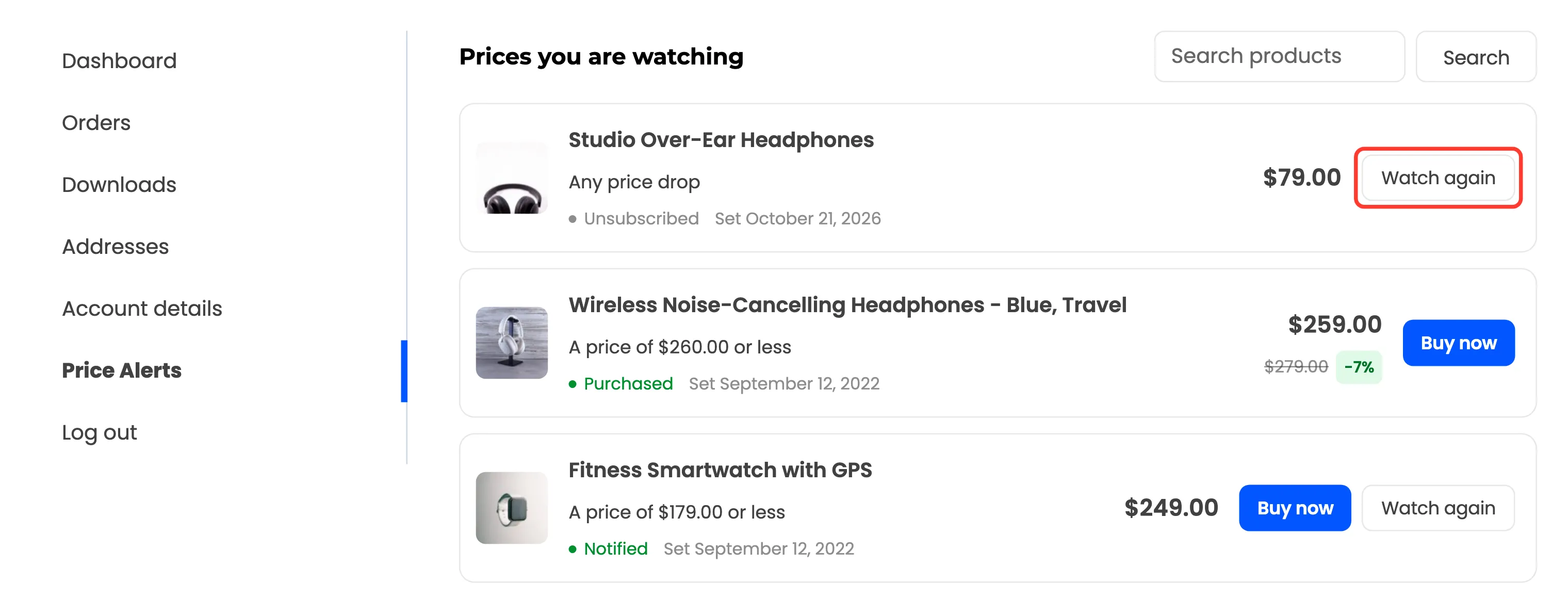
Section titled “Step 3: Cancel or watch again”The demo customer had cancelled the Studio headphones alert from the product page. Watch again puts it back:
The page confirms “Your price alert is back on.” and the alert is Watching again.
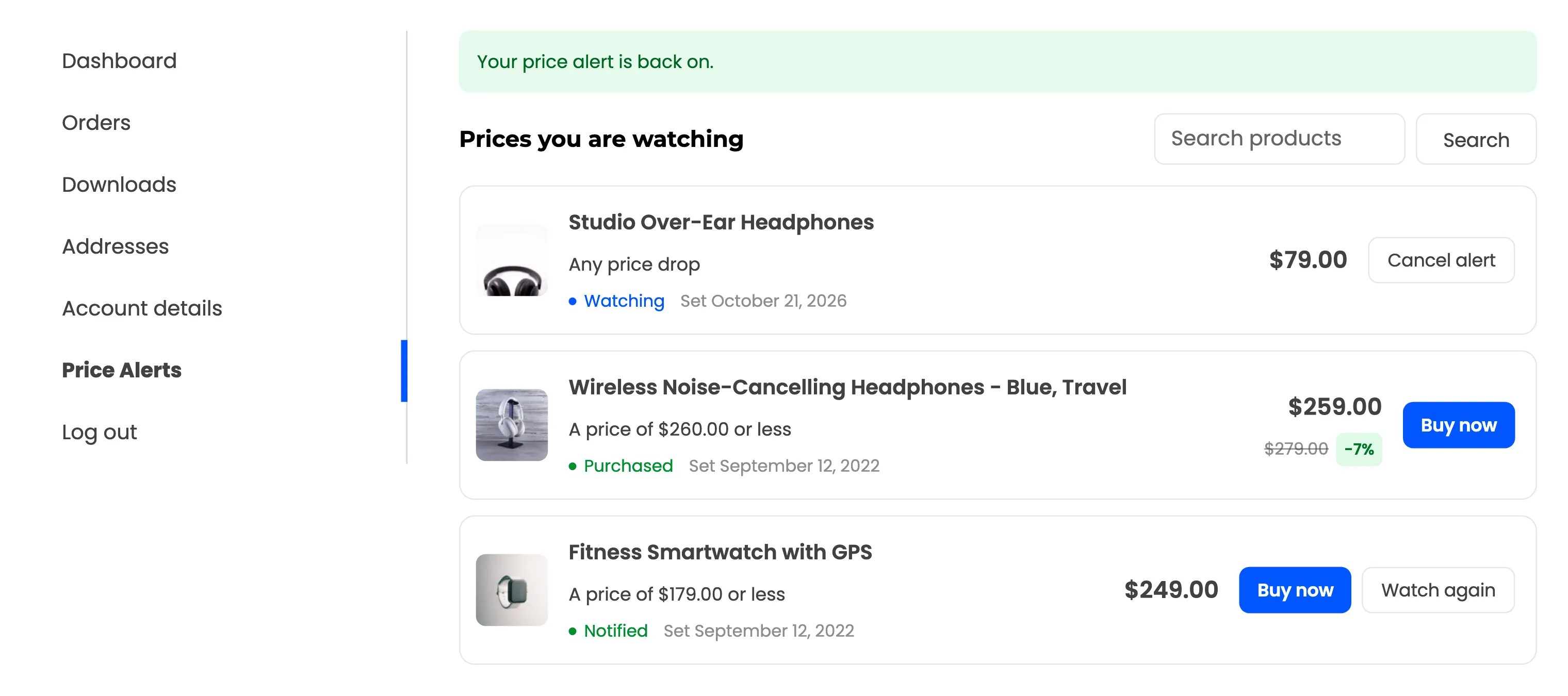
Watch again starts from today’s price. A target that is still below it is kept. One the price already passed turns into an any-drop alert.
Step 4: Search the list
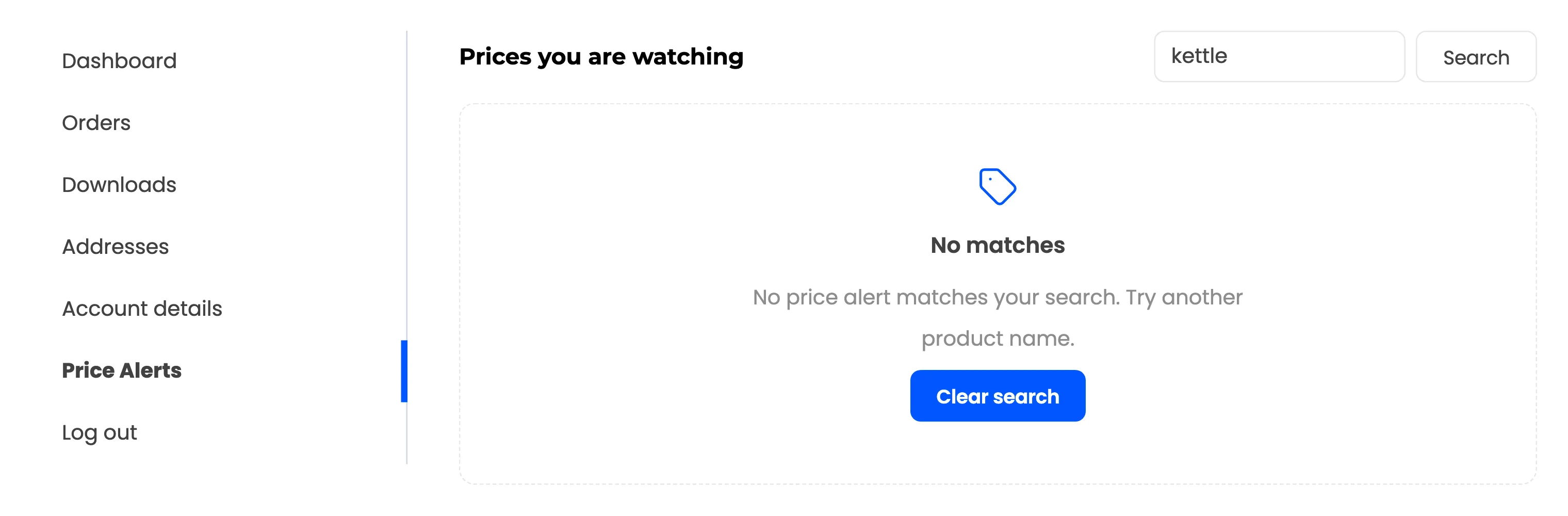
Section titled “Step 4: Search the list”The search box finds alerts by product name. A search with no match says so, with Clear search.
A customer with no alerts sees “No price alerts yet” and a Browse the shop button.
Good to know
Section titled “Good to know”- The theme’s sidebar is hidden on this page, so the list gets the full width. Footer and header widgets stay. Tick Sidebar Widgets to keep the sidebar.
- Guests have no page. They cancel with the link in their emails.