

Shortcode Settings
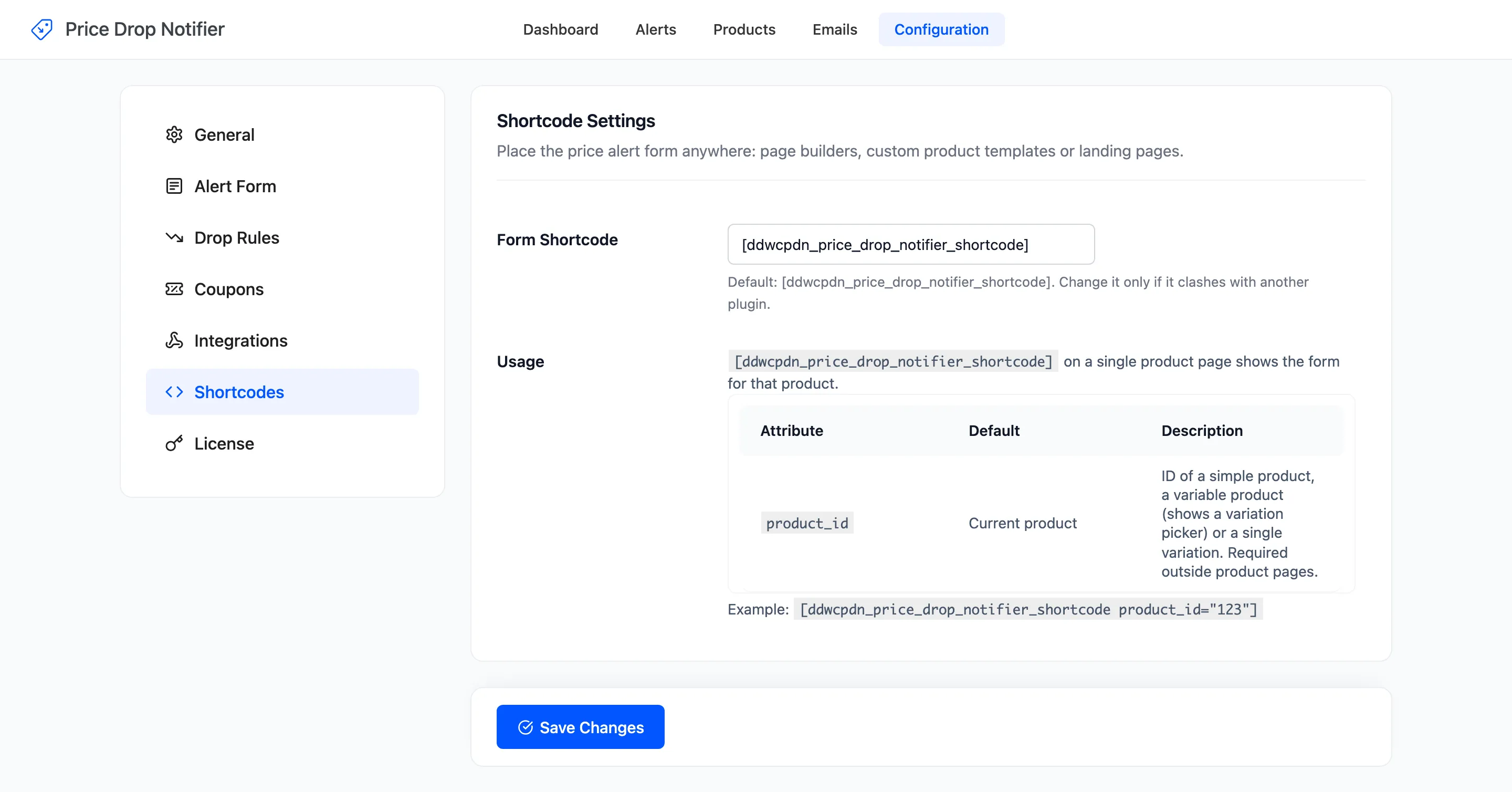
The shortcode puts the price alert form anywhere: a page builder layout, a custom product template or a landing page. Open DevDiggers Plugins → Price Drop → Configuration → Shortcodes.
Shortcode Settings
Section titled “Shortcode Settings”- Form Shortcode: Default
[ddwcpdn_price_drop_notifier_shortcode]. Change it only if it clashes with another plugin. A changed name replaces the old one, so update any page that uses it.
On a single product page, the shortcode shows the form for that product:
[ddwcpdn_price_drop_notifier_shortcode]Anywhere else, name the product with product_id:
[ddwcpdn_price_drop_notifier_shortcode product_id="123"]| Attribute | Default | Description |
|---|---|---|
product_id |
The current product | A simple product, a variable product or a single variation. Needed outside product pages. |
- A simple product or a variation: The form for that one item.
- A variable product, on its own page: The form follows the options the shopper picks, like the automatic form.
- A variable product anywhere else: The form gets its own Option menu with every variation that accepts alerts.
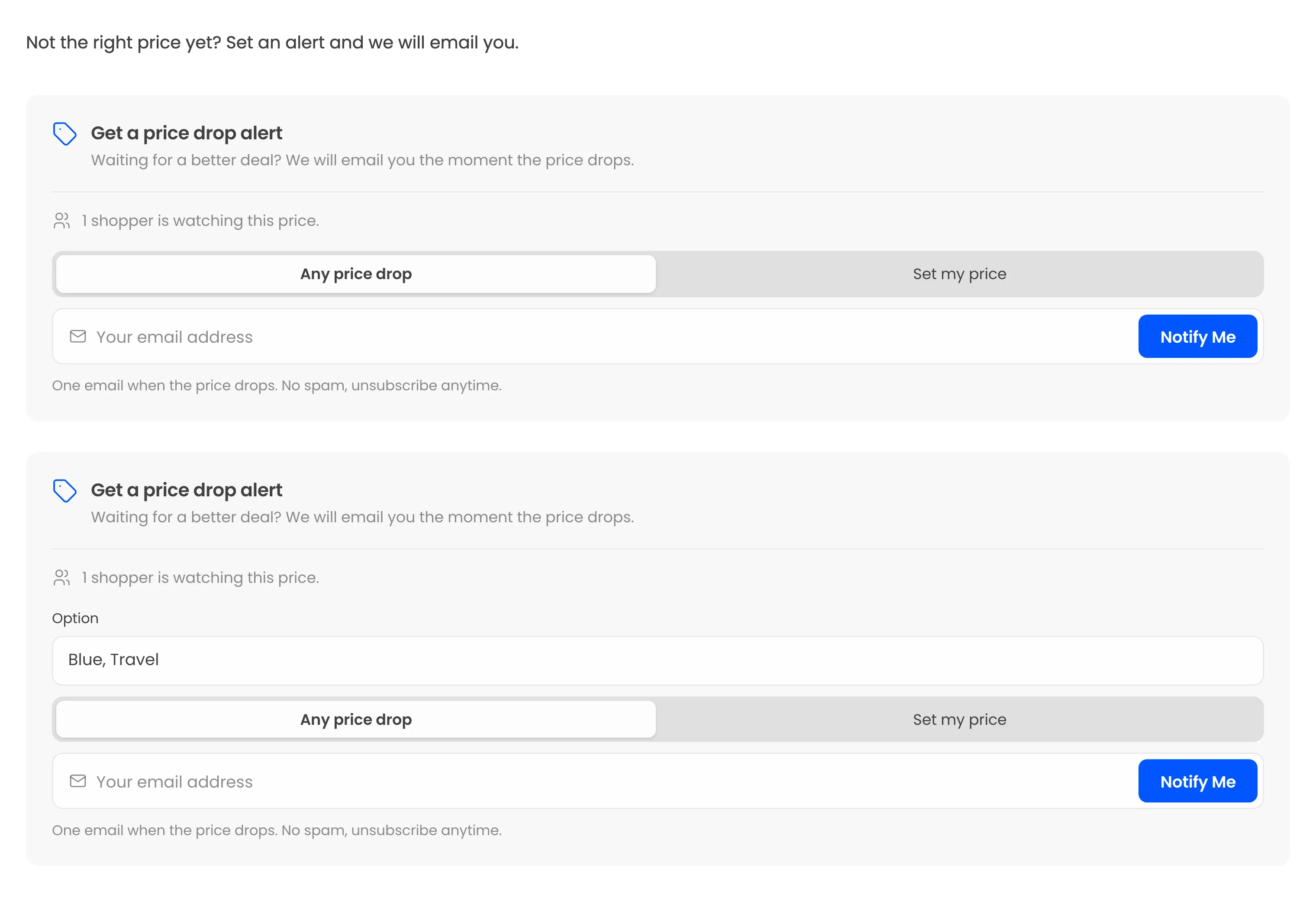
The form brings its own styles and script, so it looks the same on any page. A product that does not accept alerts, such as an excluded one, prints nothing.
A product page shows one form at most. A shortcode for the same product, such as one in its description, stays quiet when the automatic form is already on the page. To place the form only with the shortcode, set Product Page Position to Do not show (shortcode only) on the Alert Form tab. See How to Place the Alert Form with a Shortcode.
With Enable/Disable off or the license inactive, the shortcode prints nothing, never its raw tag.
Click Save Changes at the bottom of the tab.