

How to Add a Price Drop Coupon
A coupon gives a watcher one more reason to buy now. Each price drop email gets its own code, which only that customer can use, on that product, once.
Step 1: Switch the coupon on
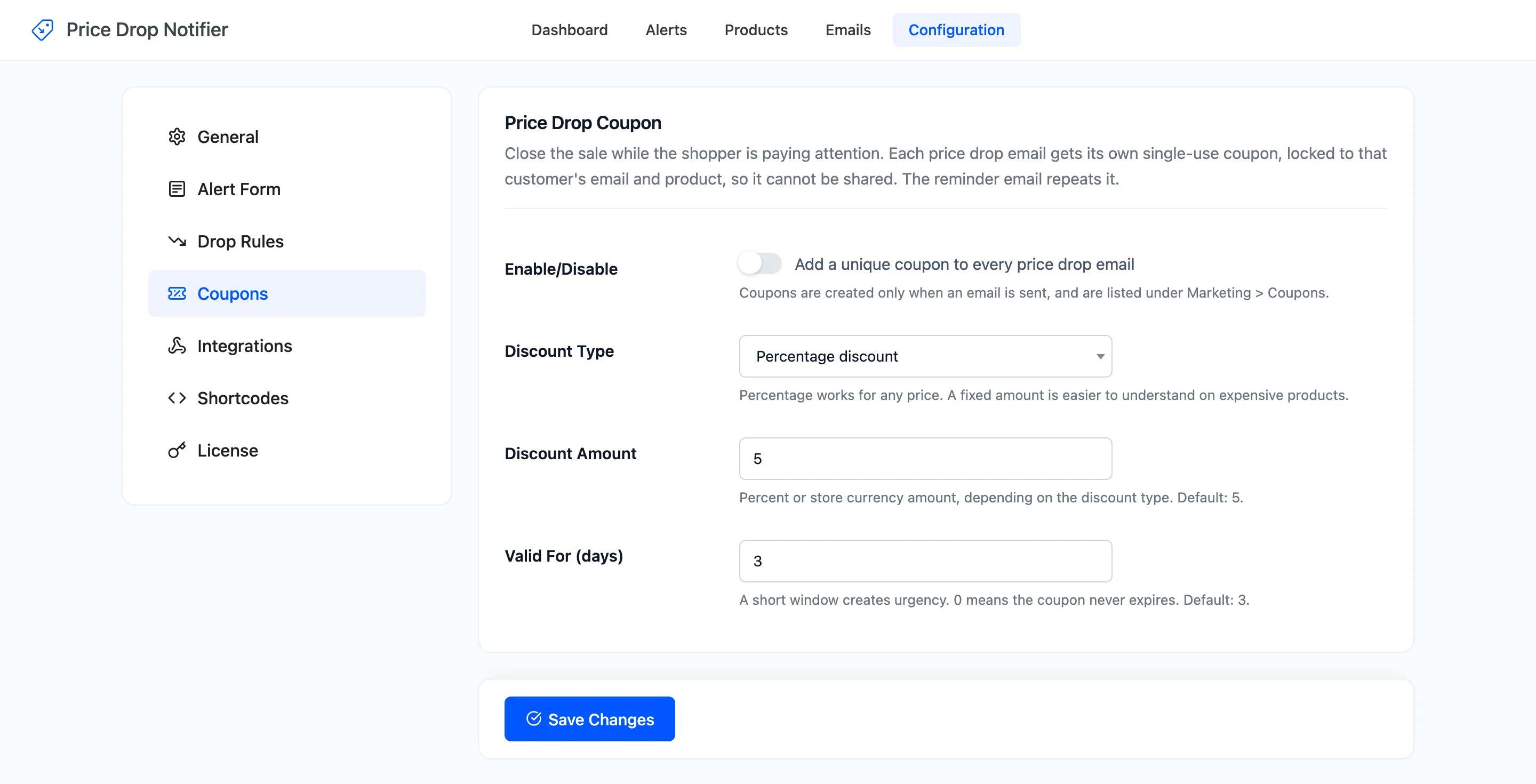
Section titled “Step 1: Switch the coupon on”Open Configuration → Coupons and tick Enable/Disable. It is off by default. The setup wizard’s Price Drop Coupon switch does the same.
Step 2: Set the type, amount and lifetime
Section titled “Step 2: Set the type, amount and lifetime”- Discount Type: Percentage discount works at any price. Fixed cart discount is easier to read on expensive products.
- Discount Amount: Default 5.
- Valid For (days): Default 3. A short window creates urgency. 0 never expires.
Click Save Changes.
Step 3: Lower a price
Section titled “Step 3: Lower a price”The next price drop email carries a coupon box with the code and its expiry date. The Reminder email repeats it.
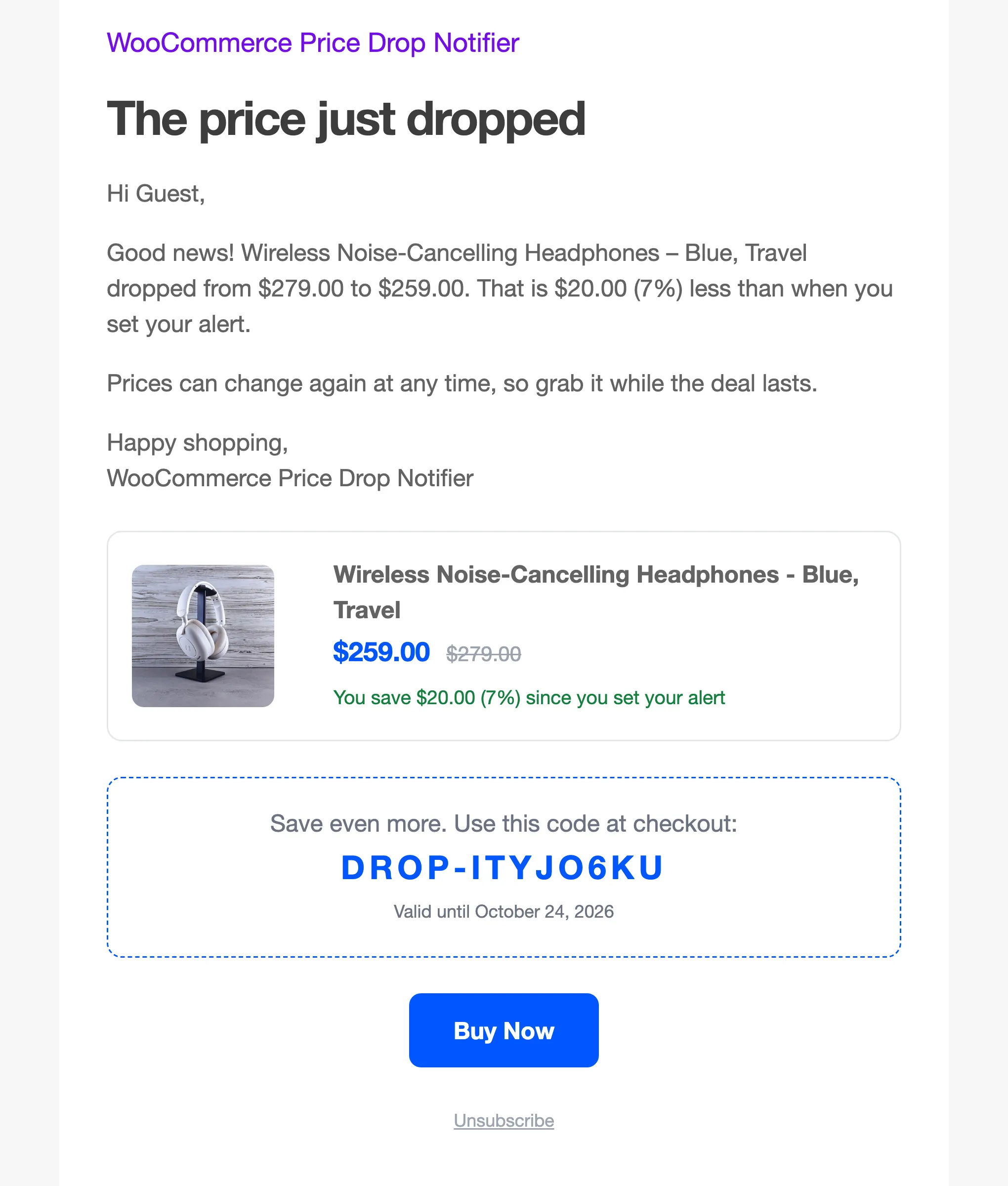
The coupon is created only when the email is sent. An alert that is never emailed never makes a coupon.
Step 4: Find the coupons
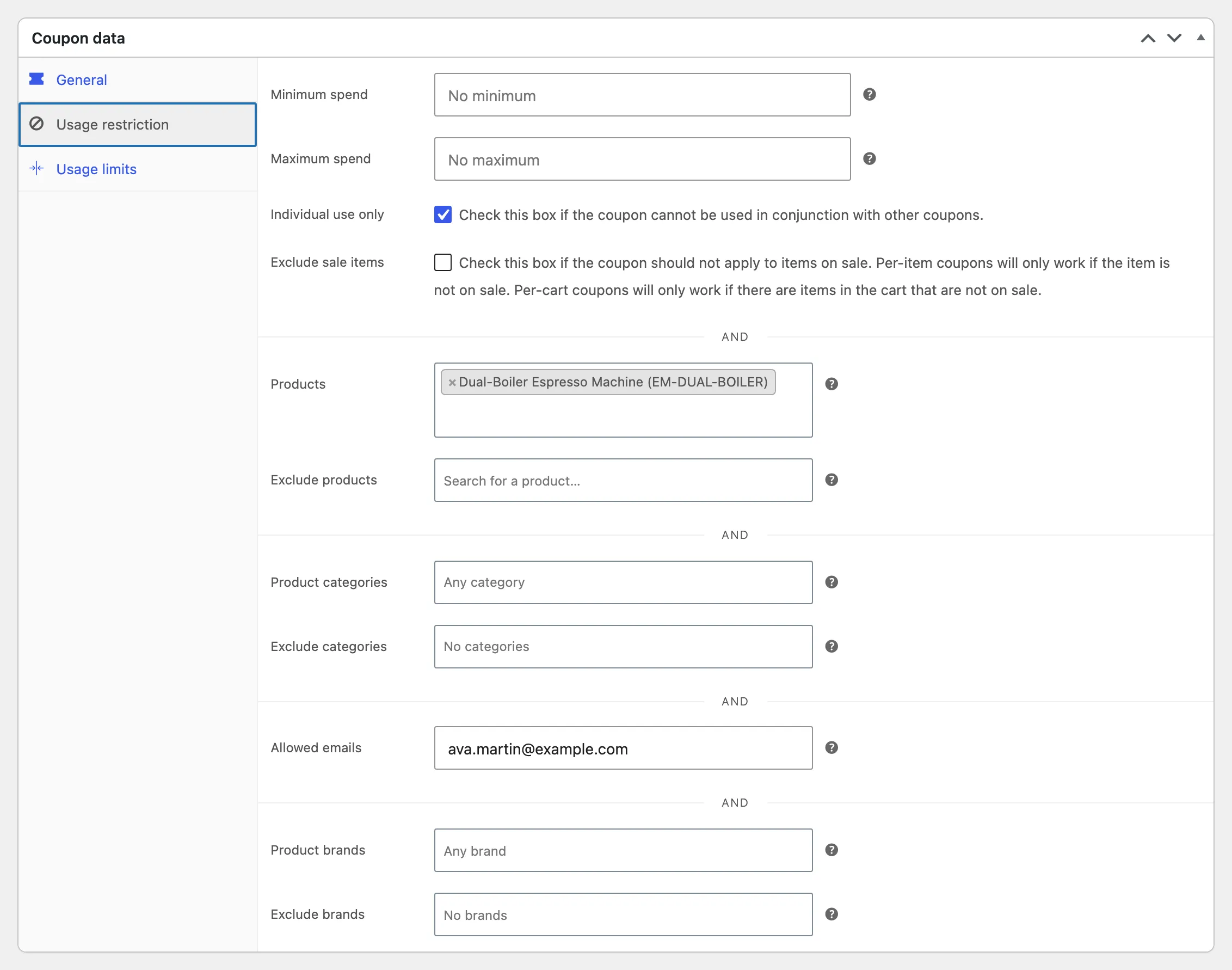
Section titled “Step 4: Find the coupons”Open Marketing → Coupons. Each one is named like DROP-ITYJO6KU, with the description “Generated by Price Drop Notifier for a price drop email.”
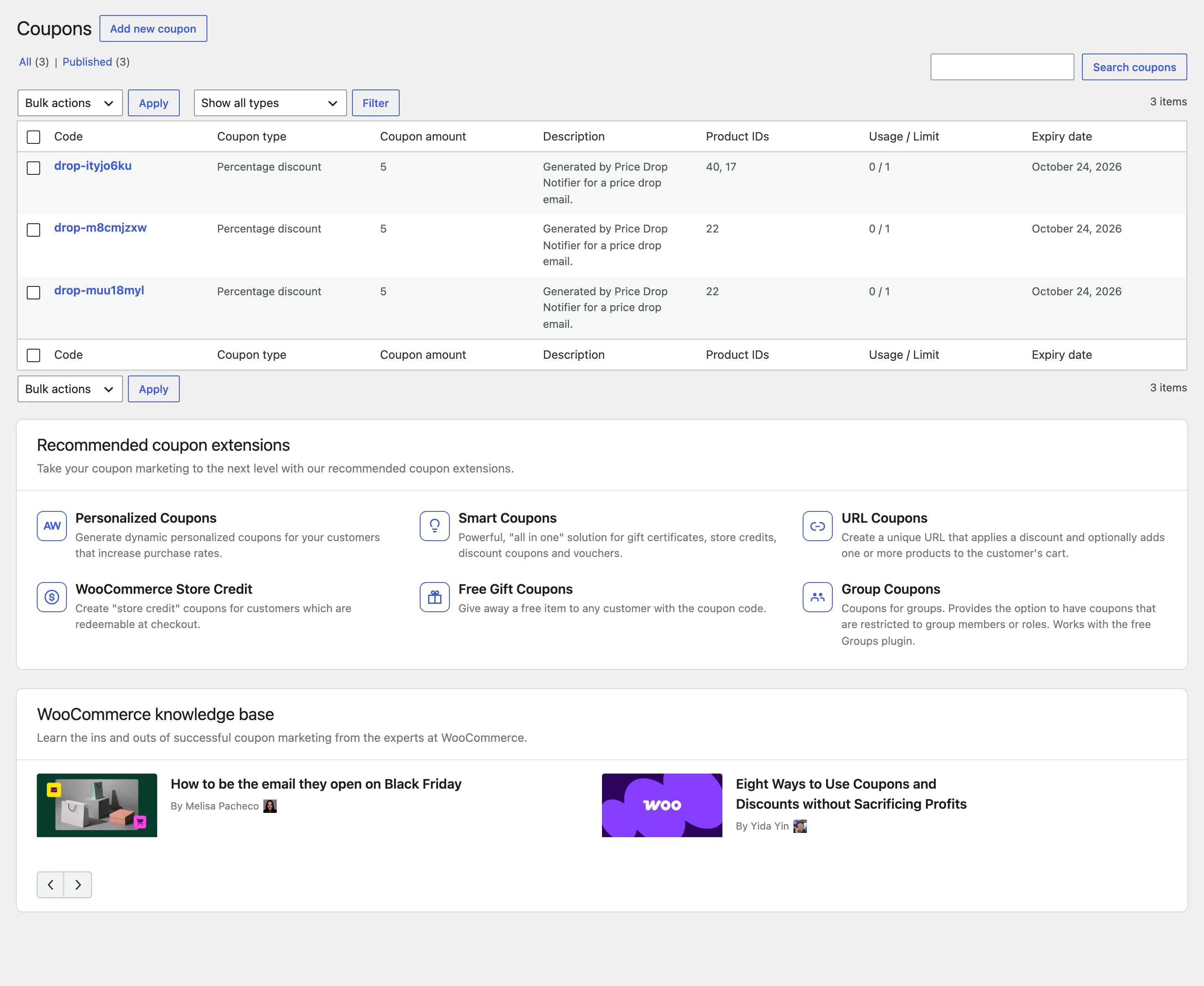
Its Usage restriction tab locks it to the alert’s email and the product, and it cannot be combined with another coupon.
The Alerts screen shows each alert’s code under the date it was emailed.
Step 5: Watch it used
Section titled “Step 5: Watch it used”On the demo, the customer applied DROP-ITYJO6KU in the cart. The 5% came off the lowered price: $12.95 off $259.00.
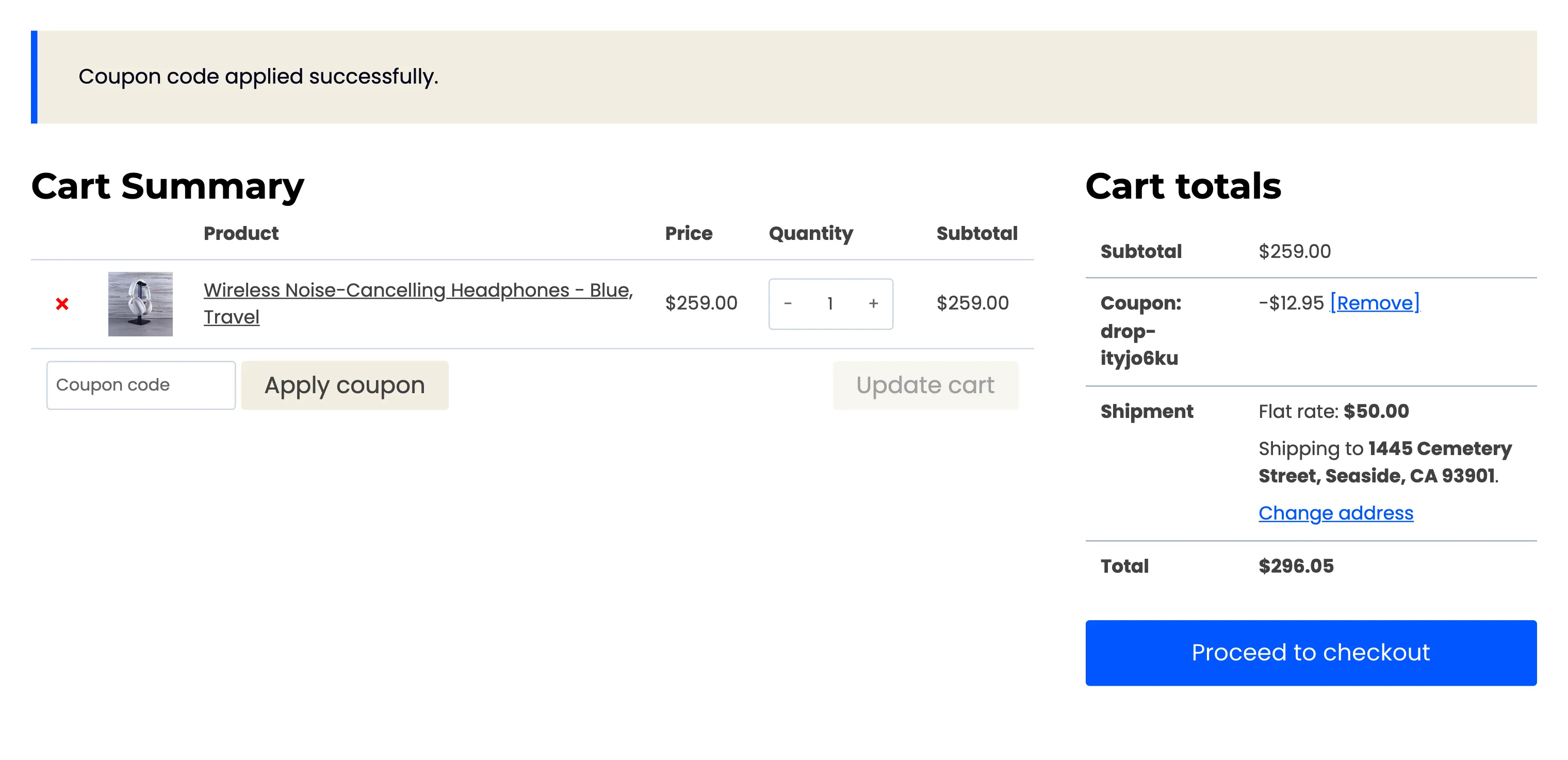
At checkout, the billing email or the customer’s account email must be the one the coupon is locked to, or WooCommerce refuses it.
Good to know
Section titled “Good to know”- The coupon is a normal WooCommerce coupon. Edit or delete it like any other.
- An alert emailed again keeps its coupon while that coupon still exists.