

How to Add Price Alert Buttons to Shop Pages
Many shoppers decide on the shop grid, not on the product page. A Price alert button there catches the ones who think the price is too high before they leave.
Step 1: Turn on Shop Pages
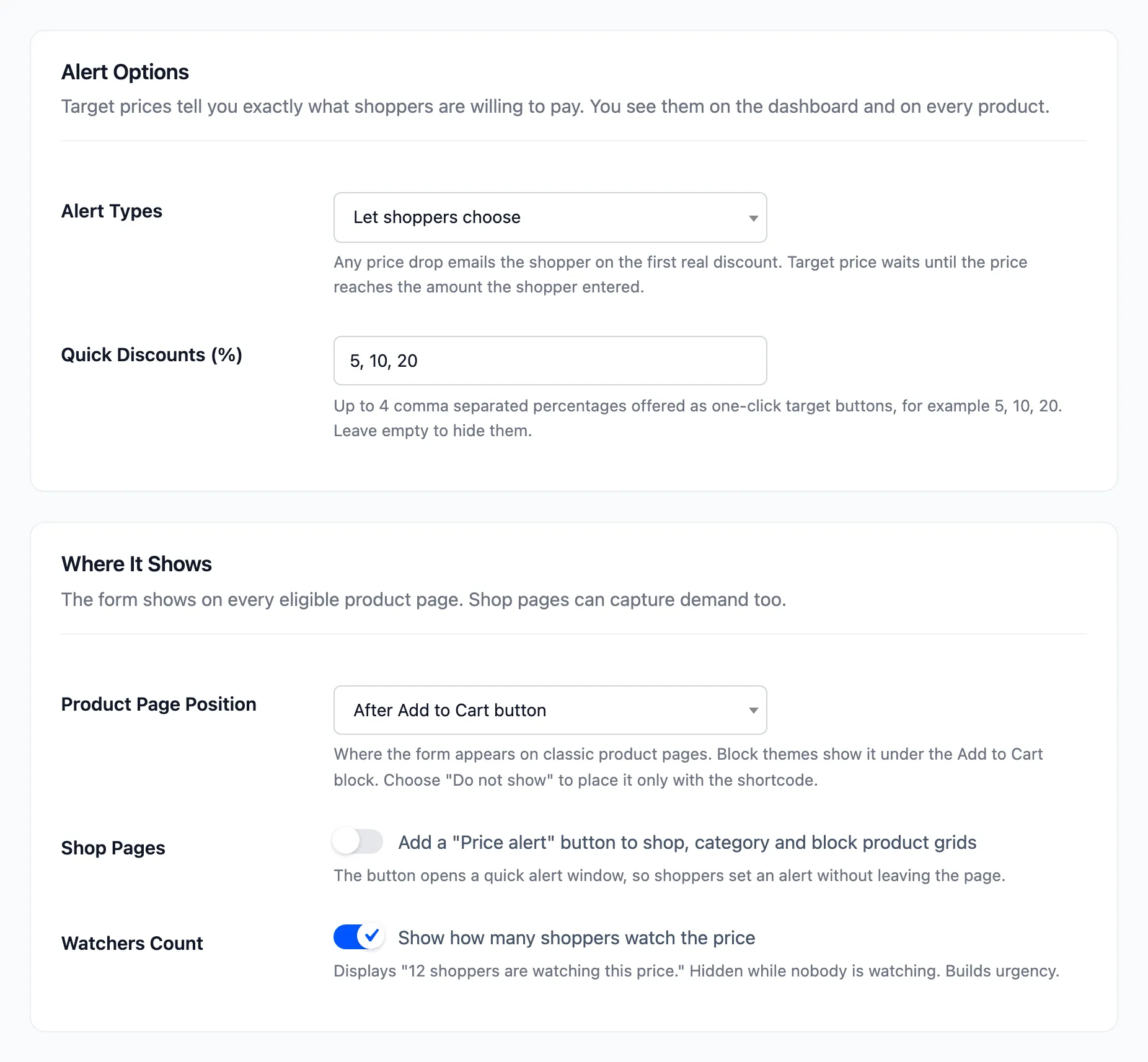
Section titled “Step 1: Turn on Shop Pages”Open Configuration → Alert Form, tick Shop Pages under Where It Shows, and click Save Changes. It is off by default.
Step 2: Check the shop
Section titled “Step 2: Check the shop”Every card that accepts alerts gets Price alert under its button. That covers shop pages, category pages and WooCommerce’s product grid blocks. Excluded products and products without a price get no button.
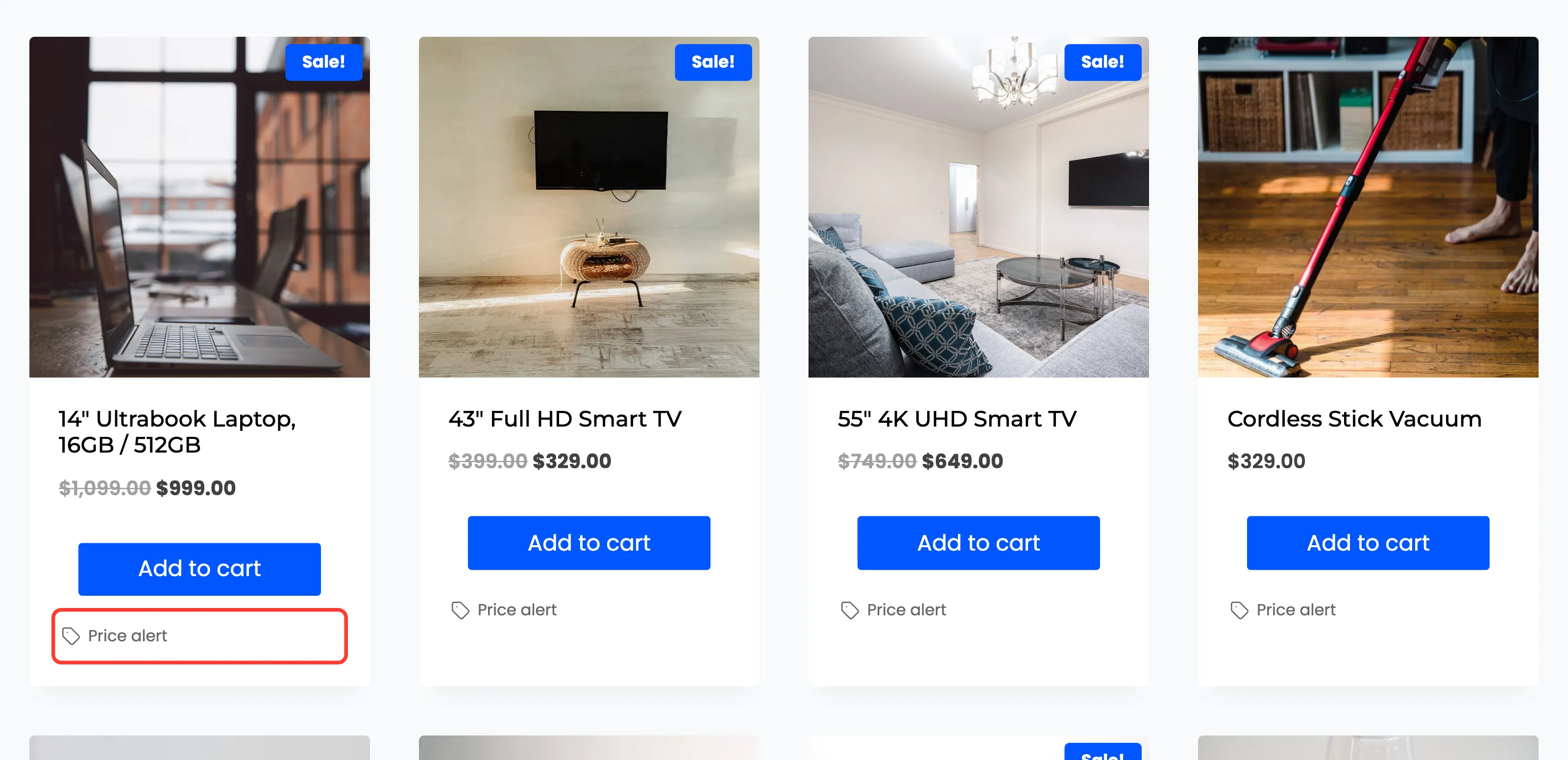
The demo’s theme showed card buttons only on hover. A rule in Appearance → Customize → Additional CSS keeps them visible, so the Price alert button sits under Add to cart on every card.
Step 3: Open the quick window
Section titled “Step 3: Open the quick window”Click Price alert. The window shows the product’s image, name and price, and the same form as the product page. It is loaded fresh each time, so a cached shop page never serves an old form.
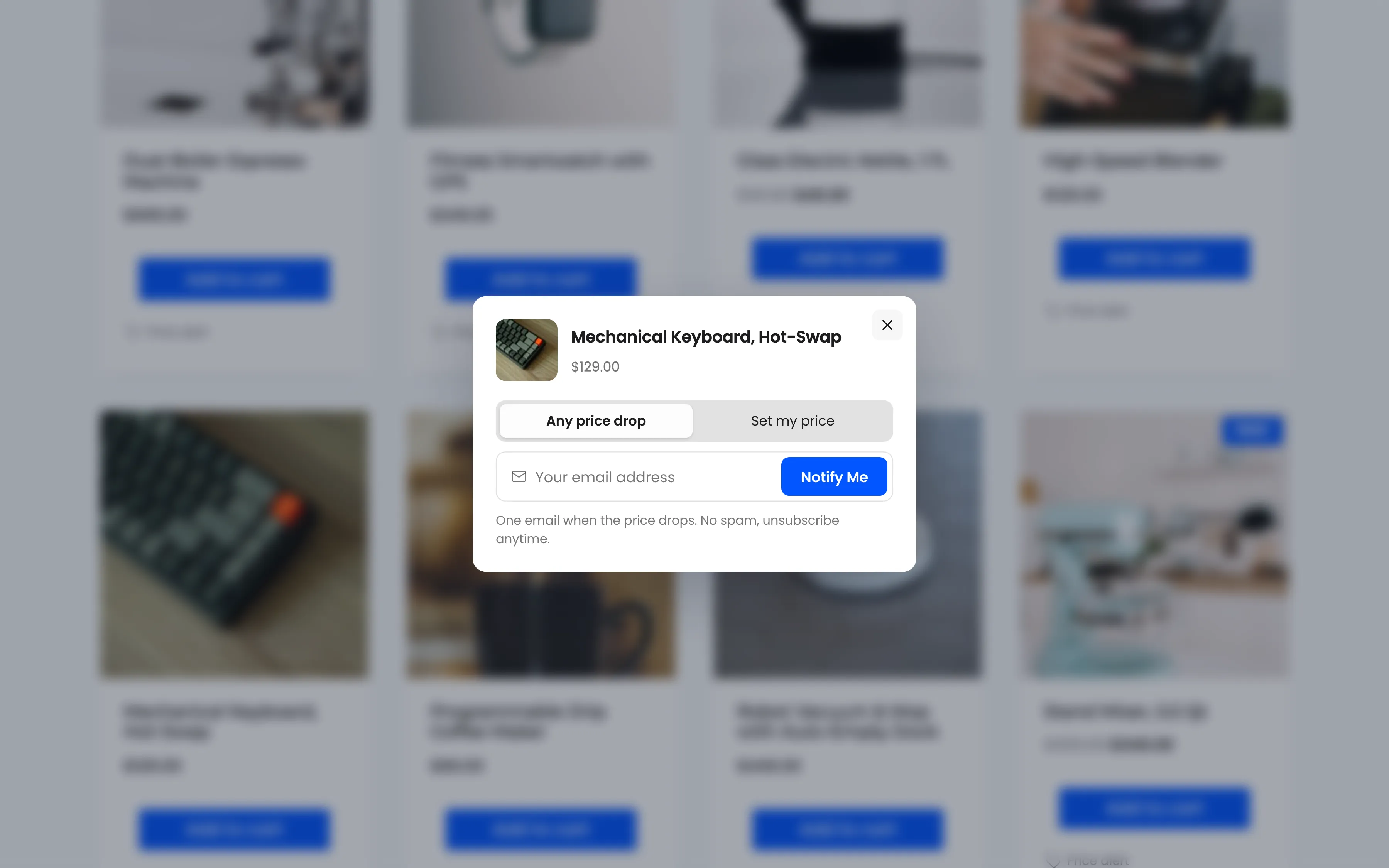
A variable product gets an Option menu in the window.
Step 4: Set the alert
Section titled “Step 4: Set the alert”Add an email and click Notify Me. The window shows Your price alert is set.
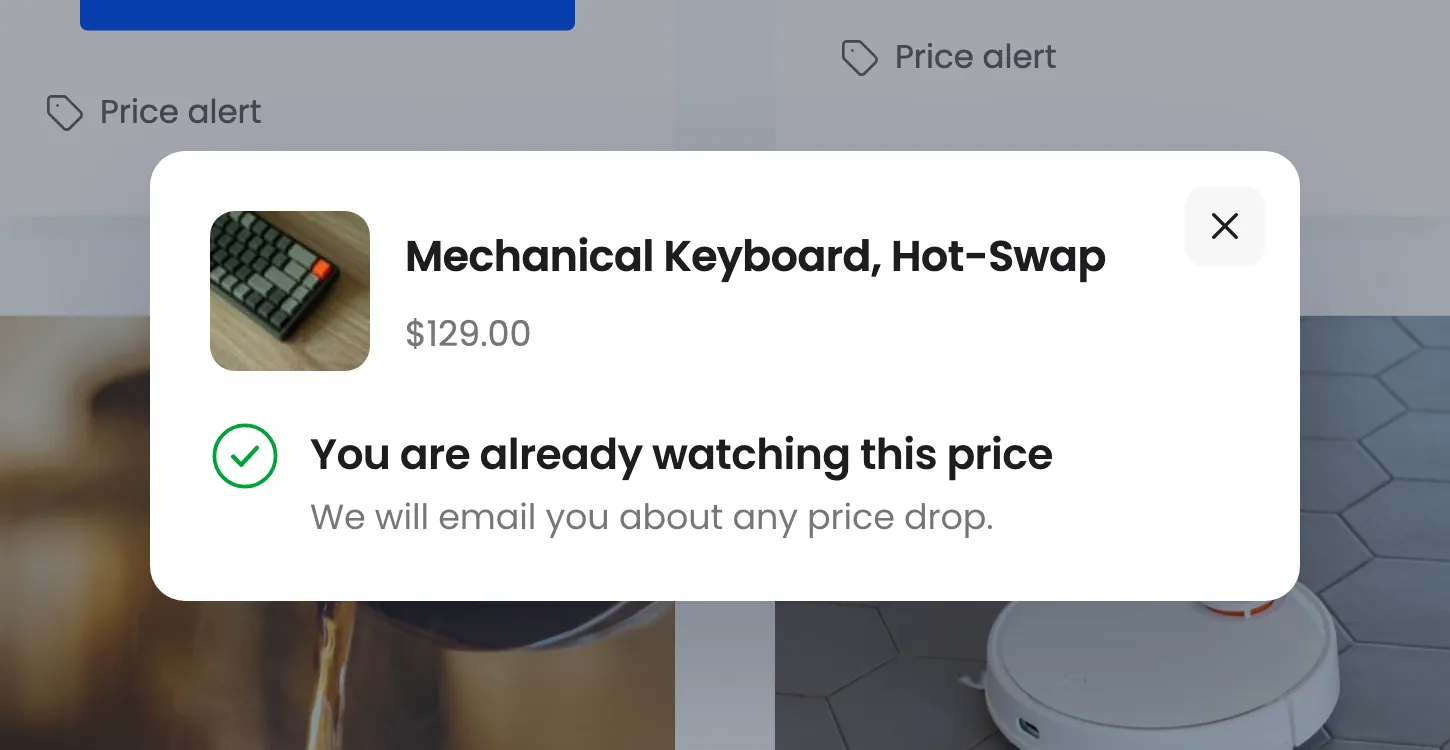
Close it with the cross, the Escape key or a click outside. The shopper is still on the shop page.
Good to know
Section titled “Good to know”- The button text is fixed: Price alert. The button inside the window uses your Button Text.
- Require Login and the consent checkbox apply in the window too.