

How to Check Prices and Email Watchers Yourself
Some stores set prices first and announce them later. Think of a sale that starts at a set hour, or a batch of price changes. Turn the automatic emails off and send them when you are ready.
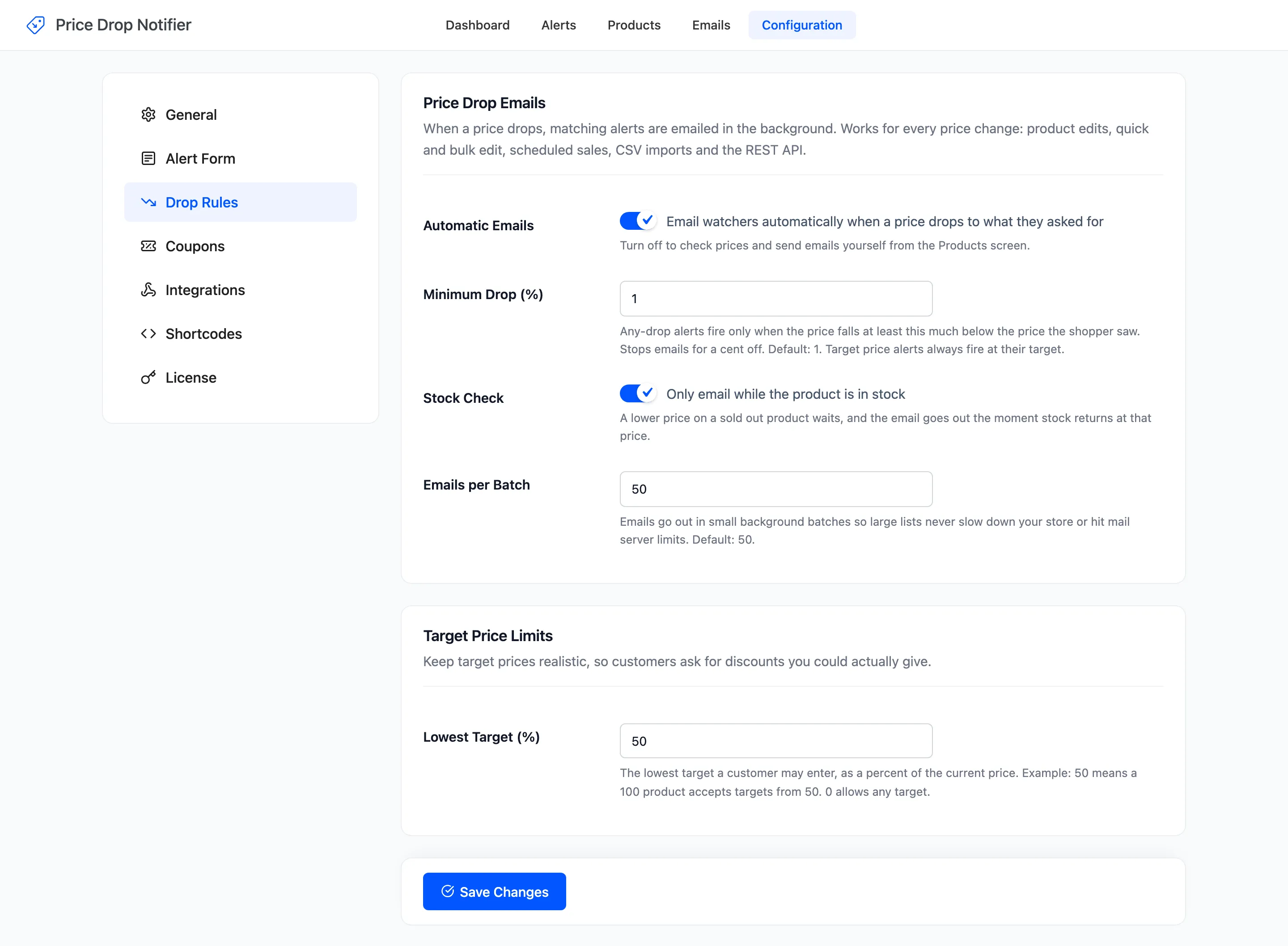
Step 1: Turn off Automatic Emails
Section titled “Step 1: Turn off Automatic Emails”Open Configuration → Drop Rules, untick Automatic Emails and click Save Changes.
Step 2: Lower the price
Section titled “Step 2: Lower the price”Change the price as usual. On the demo the Robot Vacuum went from $449 to $399, and nobody was emailed.
Step 3: Click Check now
Section titled “Step 3: Click Check now”Open Products, hover the product’s row and click Check now. It asks you to confirm.
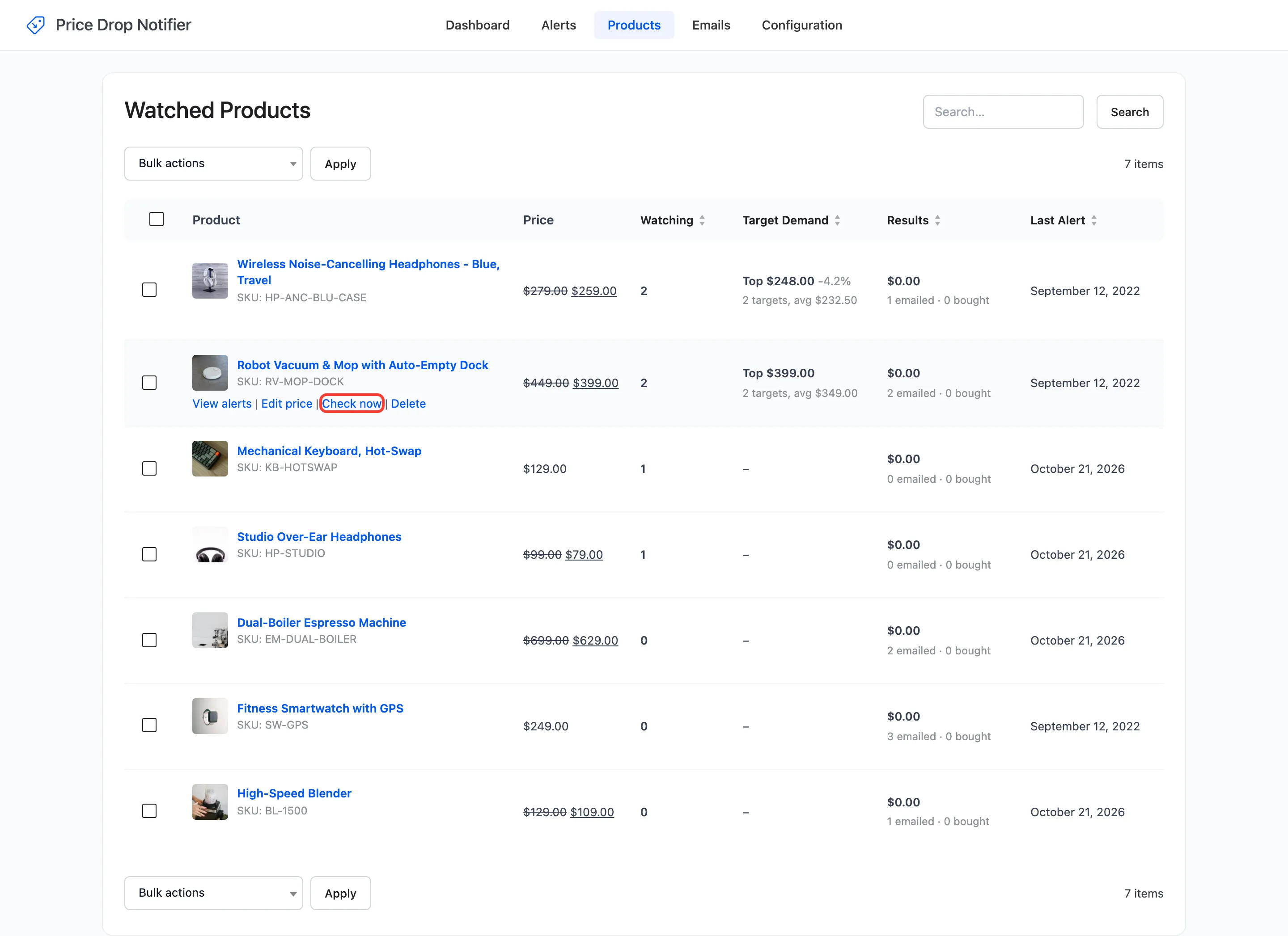
To check several products at once, tick them and use the bulk action Check prices and email matching alerts.
Step 4: Check who was emailed
Section titled “Step 4: Check who was emailed”The notice confirms the check was queued. The emails go out in the background.
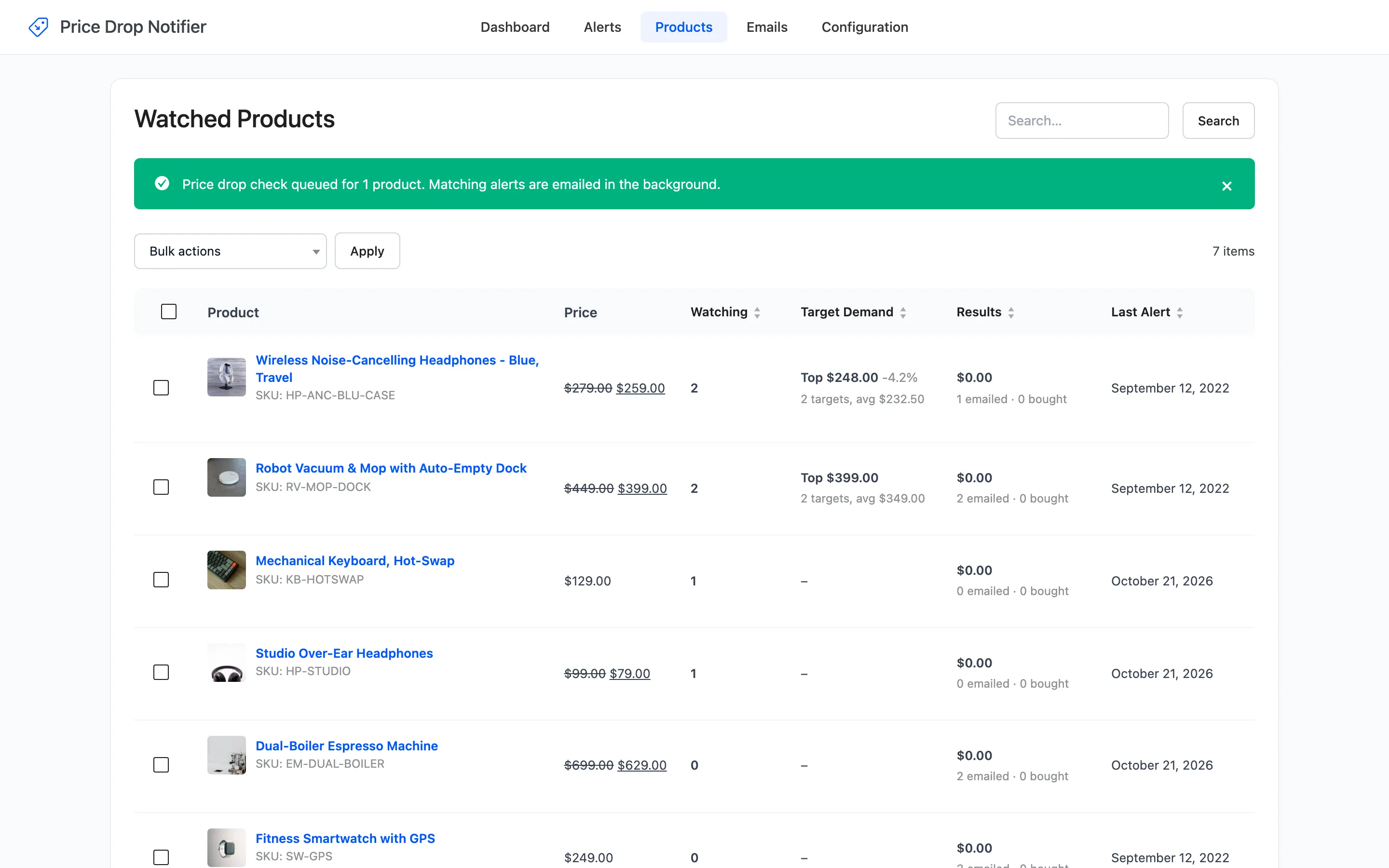
Only alerts the price satisfies are emailed, the same as automatic emails. On the demo, the $399 target was emailed and the $299 target kept watching.
Step 5: Or email chosen alerts
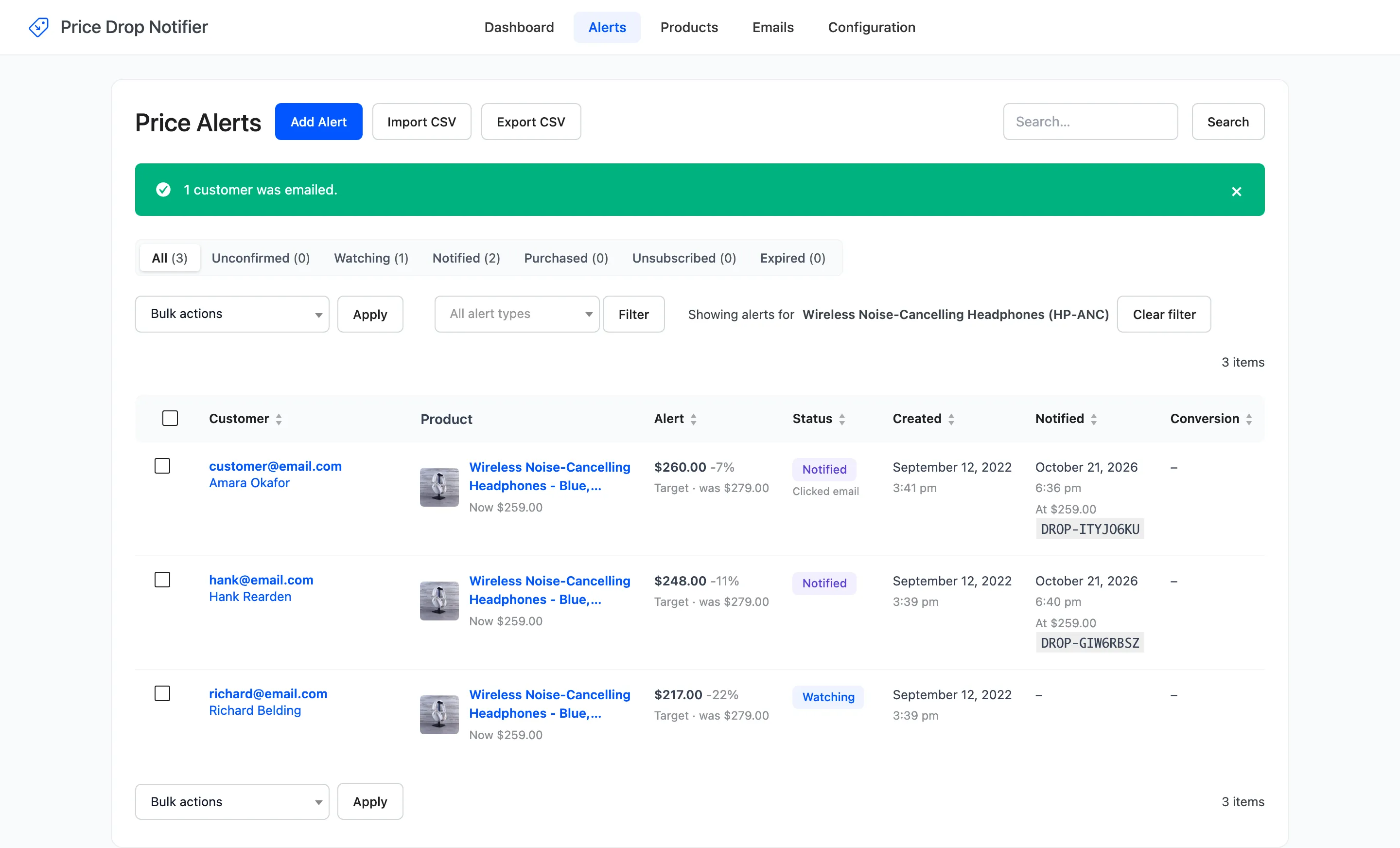
Section titled “Step 5: Or email chosen alerts”Send email now on the Alerts screen emails an alert at today’s price, whatever it asked for. Tick the alerts, pick Send price drop email now and click Apply.
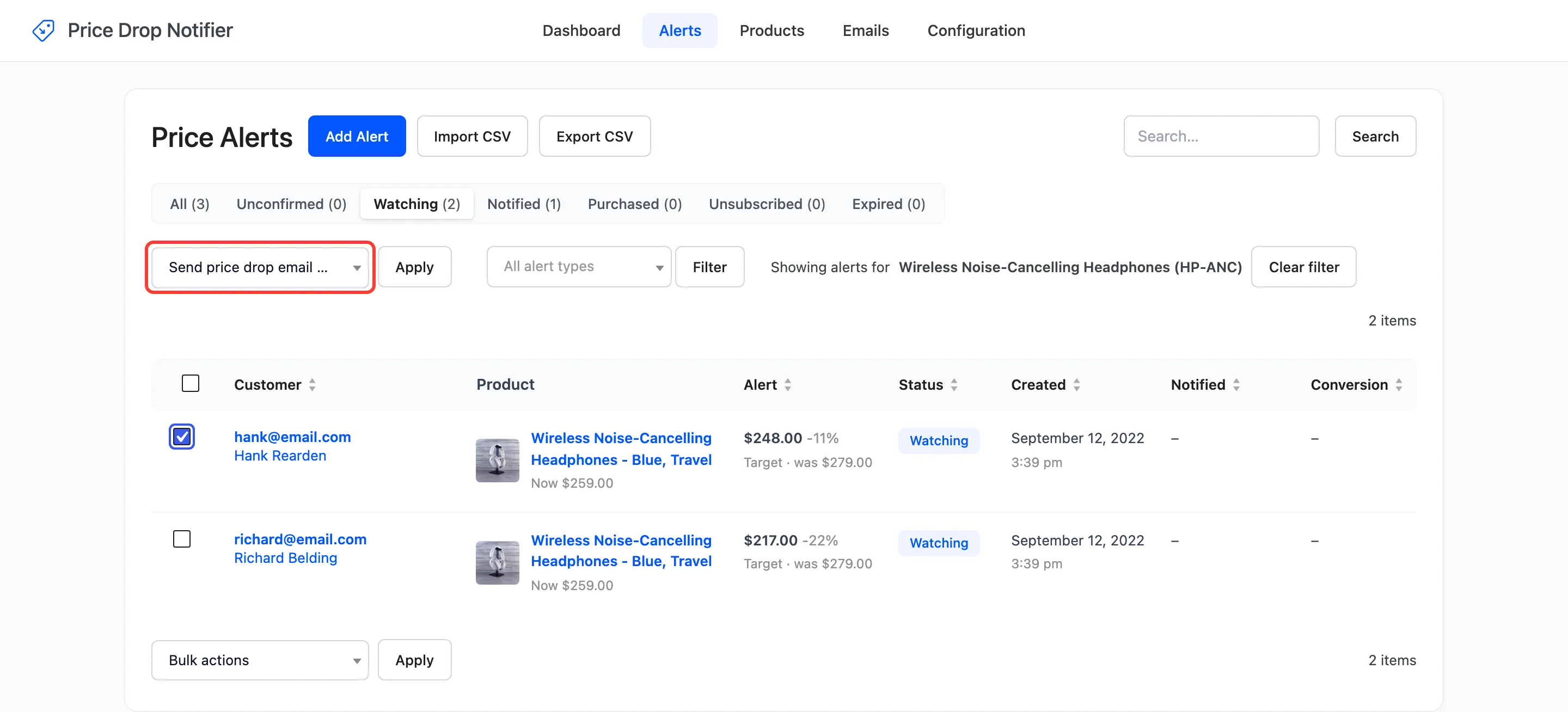
On the demo, Hank’s alert waited for $248 and the price was $259. He was emailed anyway, with a coupon, and the notice confirmed it.
A product that cannot be bought is skipped: “Nobody was emailed. Price drop emails are only sent while the product can be bought.”
Switch automatic emails back on
Section titled “Switch automatic emails back on”Tick Automatic Emails again when you are done. It does not go back over prices you already lowered: use Check now for those.