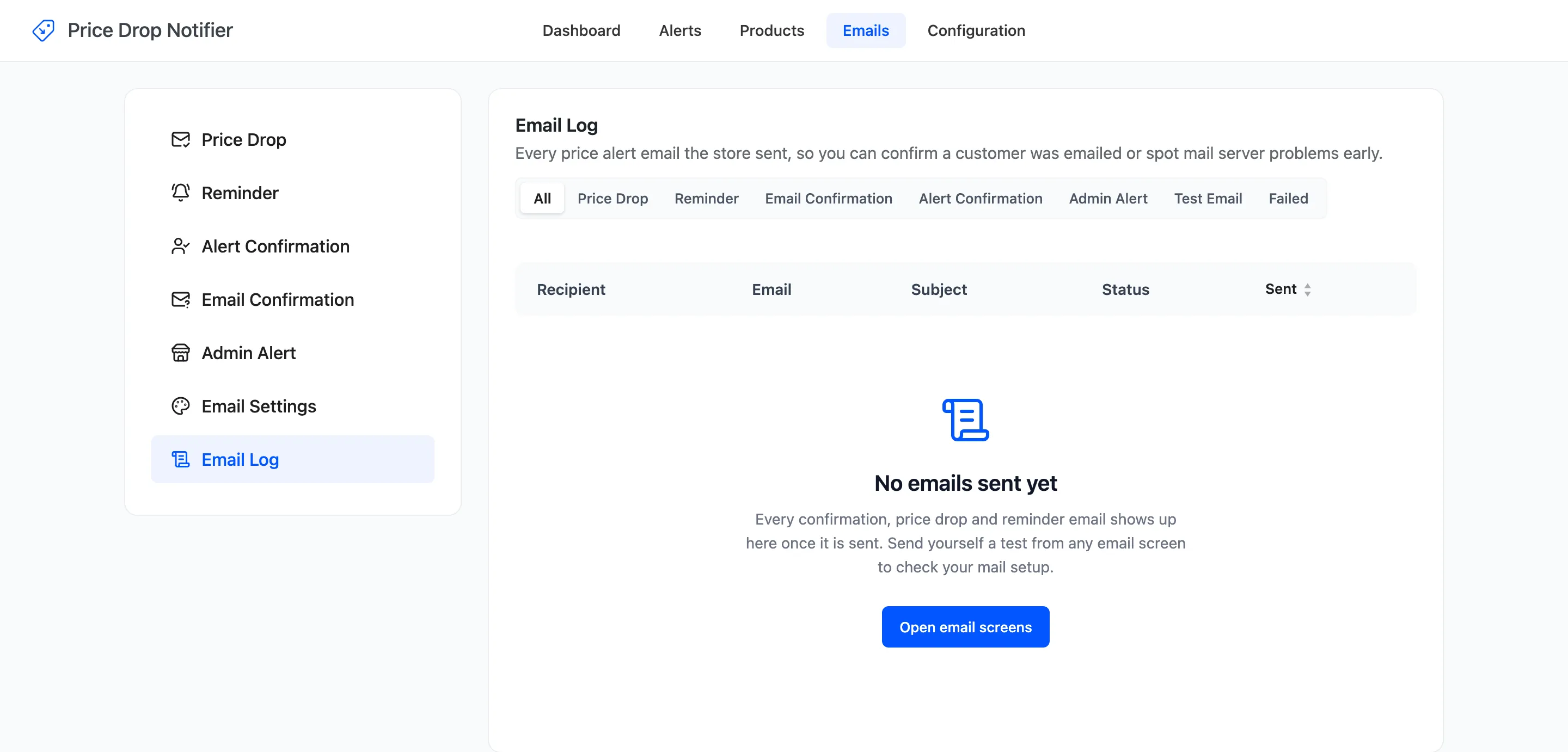
The Email Log
The Email Log lists every email the plugin sent, so you can confirm a customer was emailed or spot a mail problem early. Open DevDiggers Plugins → Price Drop → Emails → Email Log.
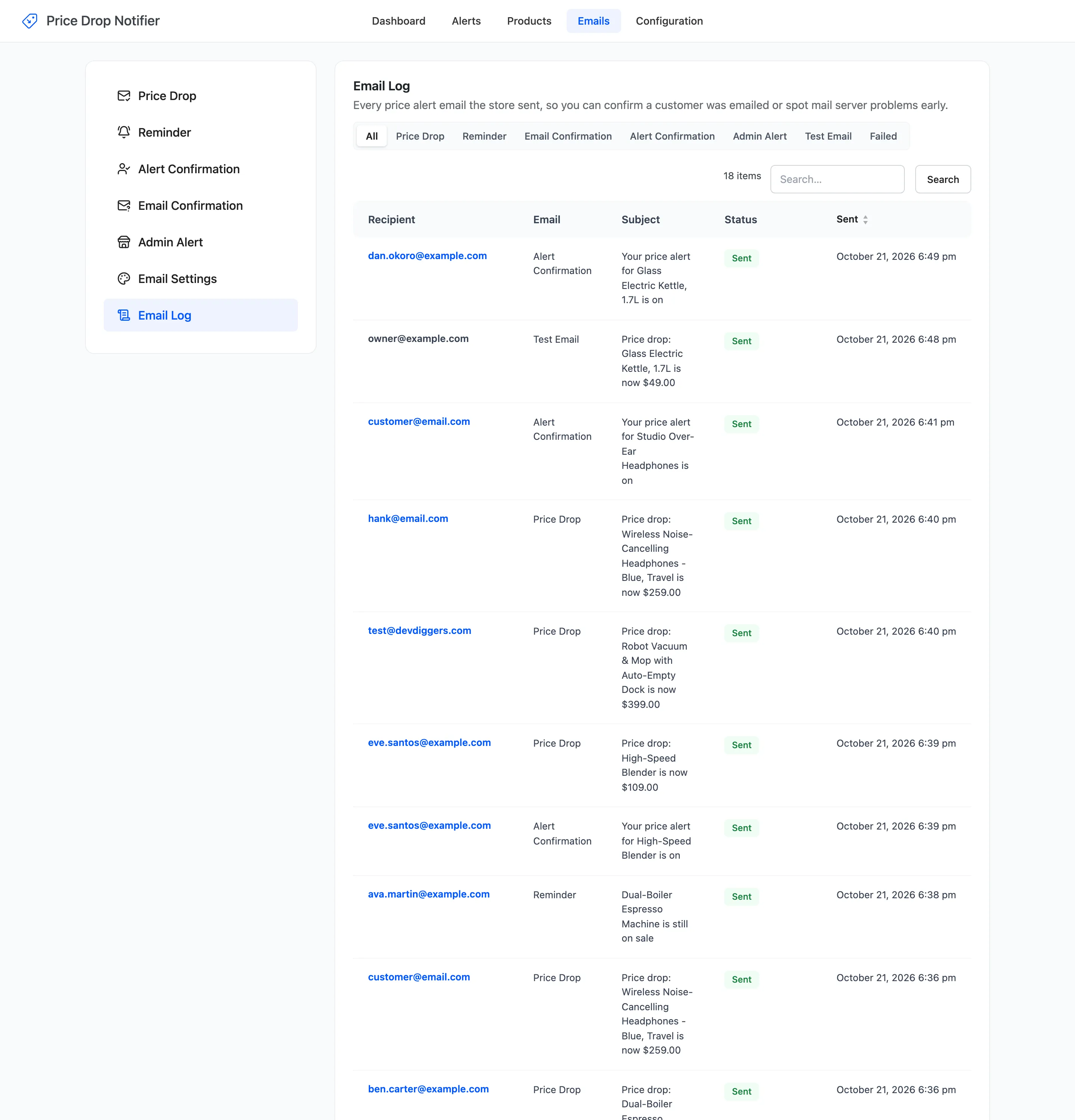
The columns
Section titled “The columns”- Recipient: Who it went to. For a customer email the address links to their alerts.
- Email: Price Drop, Reminder, Email Confirmation, Alert Confirmation, Admin Alert or Test Email.
- Subject: The subject as it was sent, placeholders filled in.
- Status: Sent when your mail server accepted it, Failed when it refused.
- Sent: The date and time. Newest first; click the heading to reverse.
Views and search
Section titled “Views and search”The views across the top show one type of email, or Failed only. The search box finds a recipient or a subject.
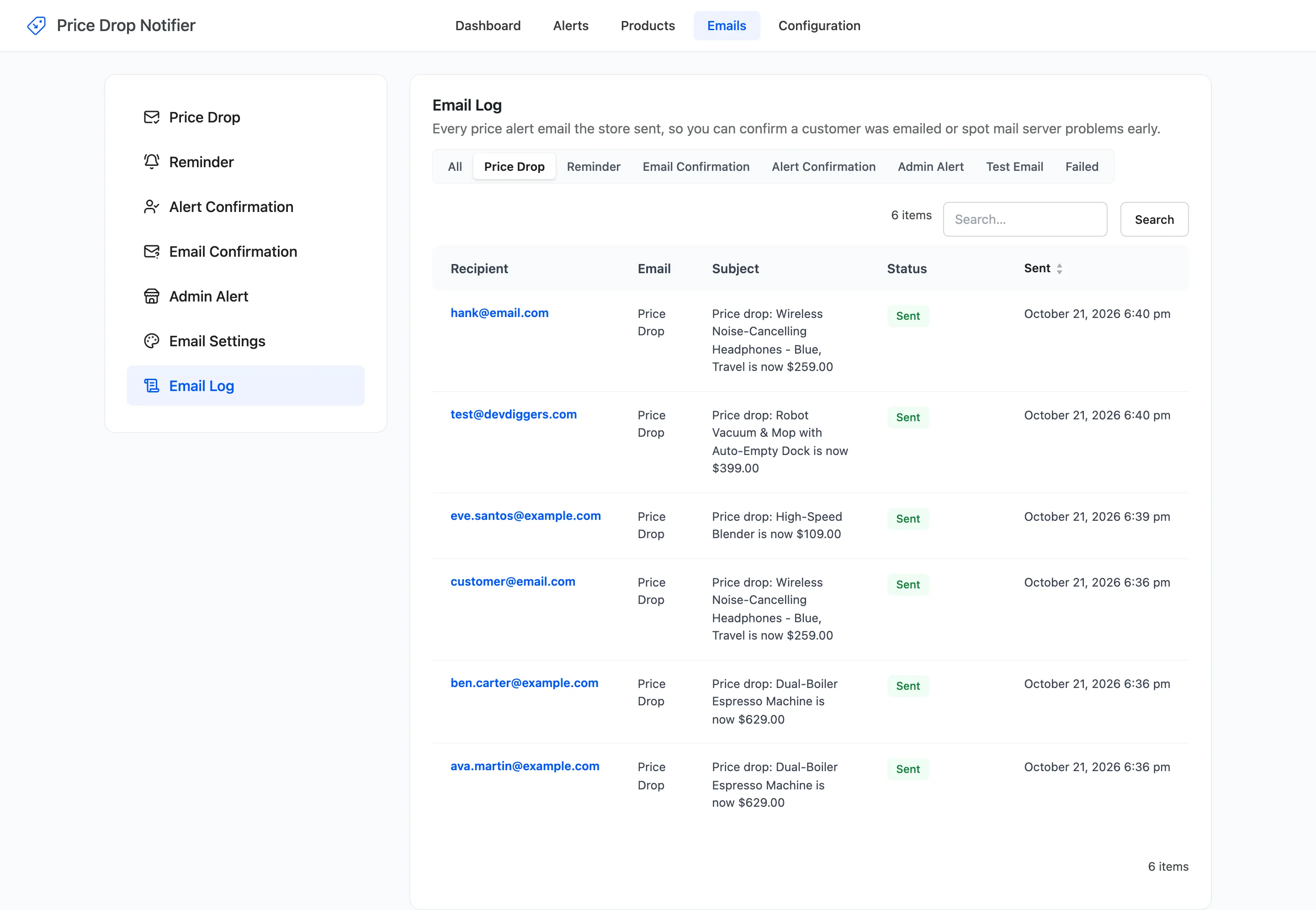
What Sent means
Section titled “What Sent means”Sent means WordPress handed the email to your mail server and the server accepted it. It does not prove it reached the inbox. If customers say they never got an email that shows Sent, check your SMTP plugin’s own log or your mail provider. A run of Failed usually means the site cannot send mail at all.
The log keeps the subject, not the message. Use Preview on an email’s screen to see what it looks like.
How long entries are kept
Section titled “How long entries are kept”Entries older than Keep Email Log (days) are deleted once an hour. The default is 90. 0 keeps everything. Set it under Emails → Email Settings.
Before anything is sent, the log shows “No emails sent yet”. Send yourself a test from any email screen to check your mail setup.