

How to Get an Email When Someone Sets an Alert
The Admin Alert tells your team about every new price alert, with the demand on that product. It is handy for planning promotions, and it is off by default because a busy store gets many alerts.
Step 1: Open the Admin Alert
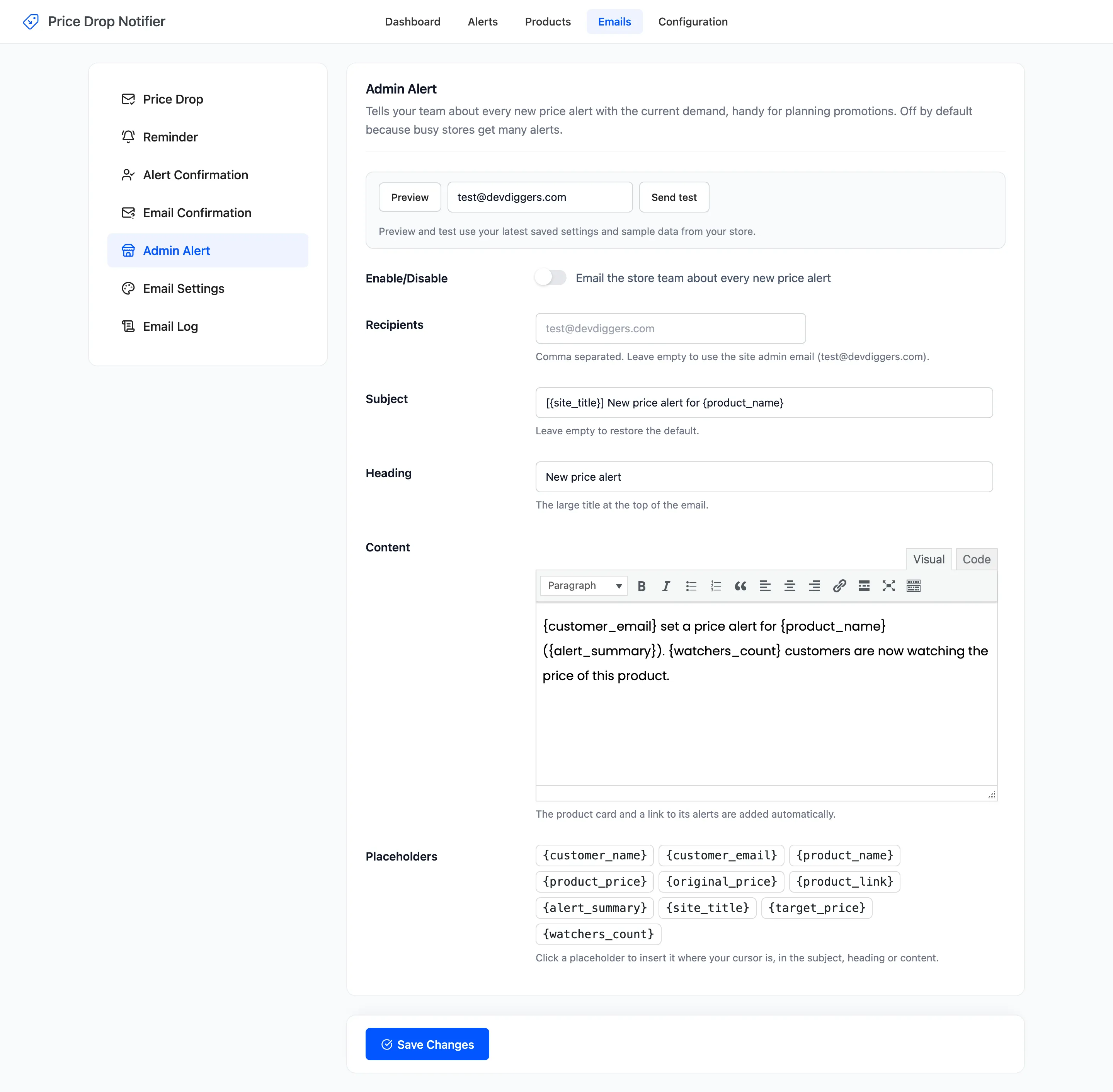
Section titled “Step 1: Open the Admin Alert”Go to DevDiggers Plugins → Price Drop → Emails → Admin Alert.
Step 2: Switch it on
Section titled “Step 2: Switch it on”Tick Enable/Disable, “Email the store team about every new price alert”.
Step 3: Choose the recipients
Section titled “Step 3: Choose the recipients”Enter one or more addresses in Recipients, separated by commas. Leave it empty to use the site admin email from Settings → General. Click Save Changes.
Step 4: Wait for the next alert
Section titled “Step 4: Wait for the next alert”Each new alert sends one email. The default reads like this one, from the demo’s second Espresso alert:
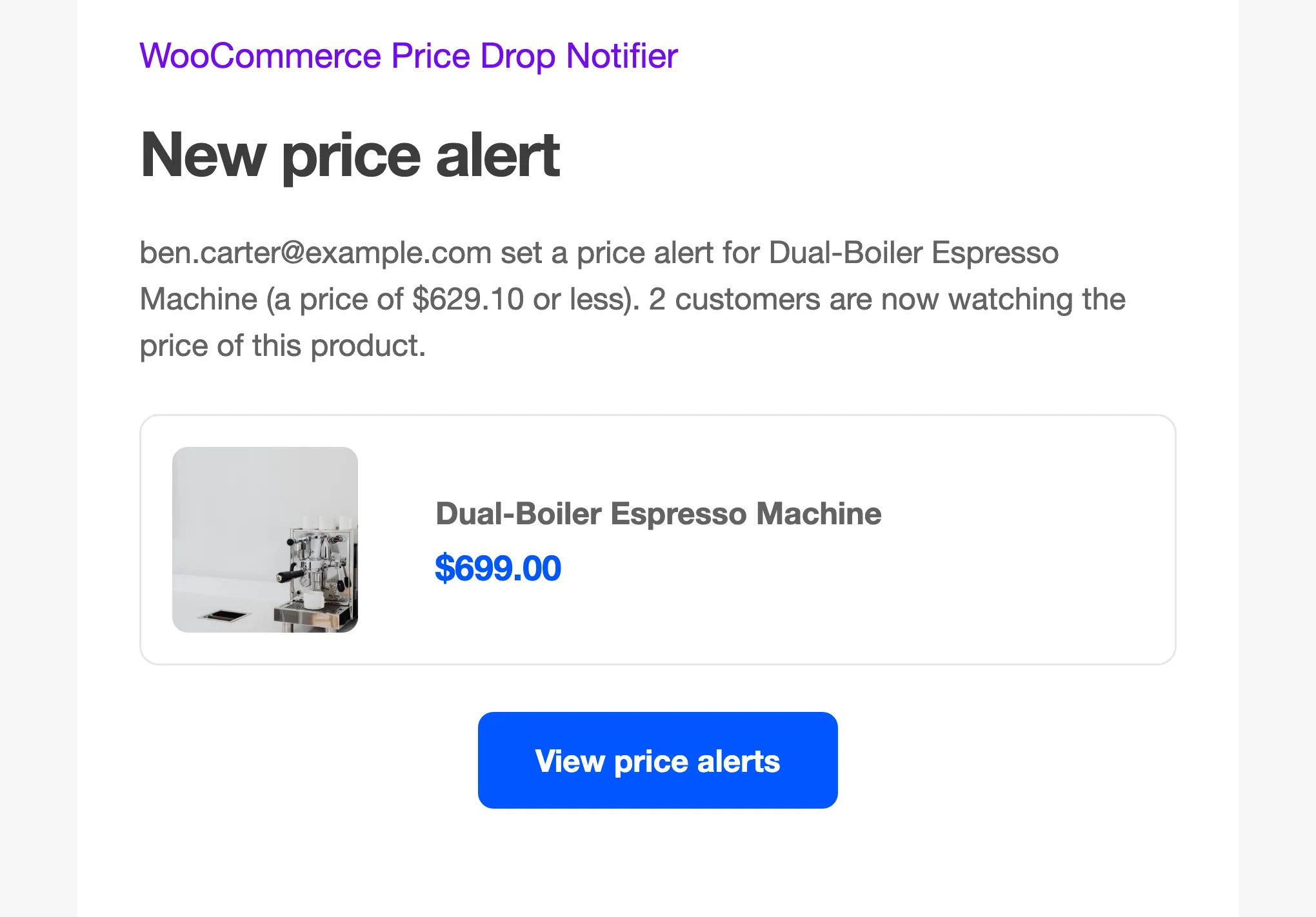
It names the shopper’s email, the product, what the alert waits for and how many people now watch it. View price alerts opens the Alerts screen for that product.
When it is sent
Section titled “When it is sent”- For a guest with double opt-in, once they confirm.
- For an alert you add by hand on the Alerts screen.
- Never for an import.