

The Alerts Screen
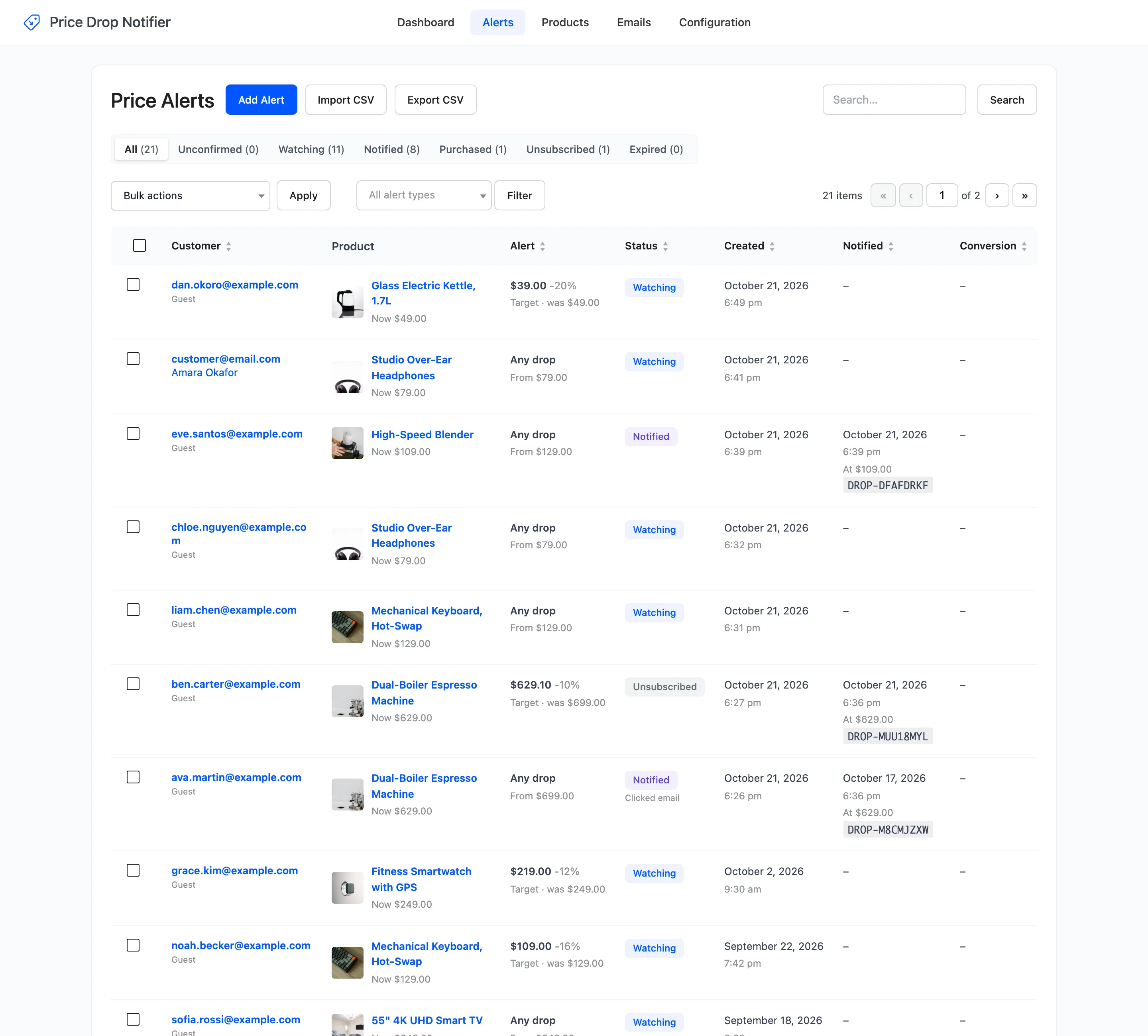
The Alerts screen lists every price alert: who set it, on which product, what it waits for and what came of it. Open DevDiggers Plugins → Price Drop → Alerts.
Views, filters and search
Section titled “Views, filters and search”- Status views: All, Unconfirmed, Watching, Notified, Purchased, Unsubscribed and Expired, each with its count.
- Alert type: Any price drop or Target price, then Filter. Reset clears it.
- Product: View alerts on the Products screen, or a product’s Price Alerts box, opens the list for that product only. The line “Showing alerts for” names it, with Clear filter.
- Search: Finds an email or a product name.
The columns
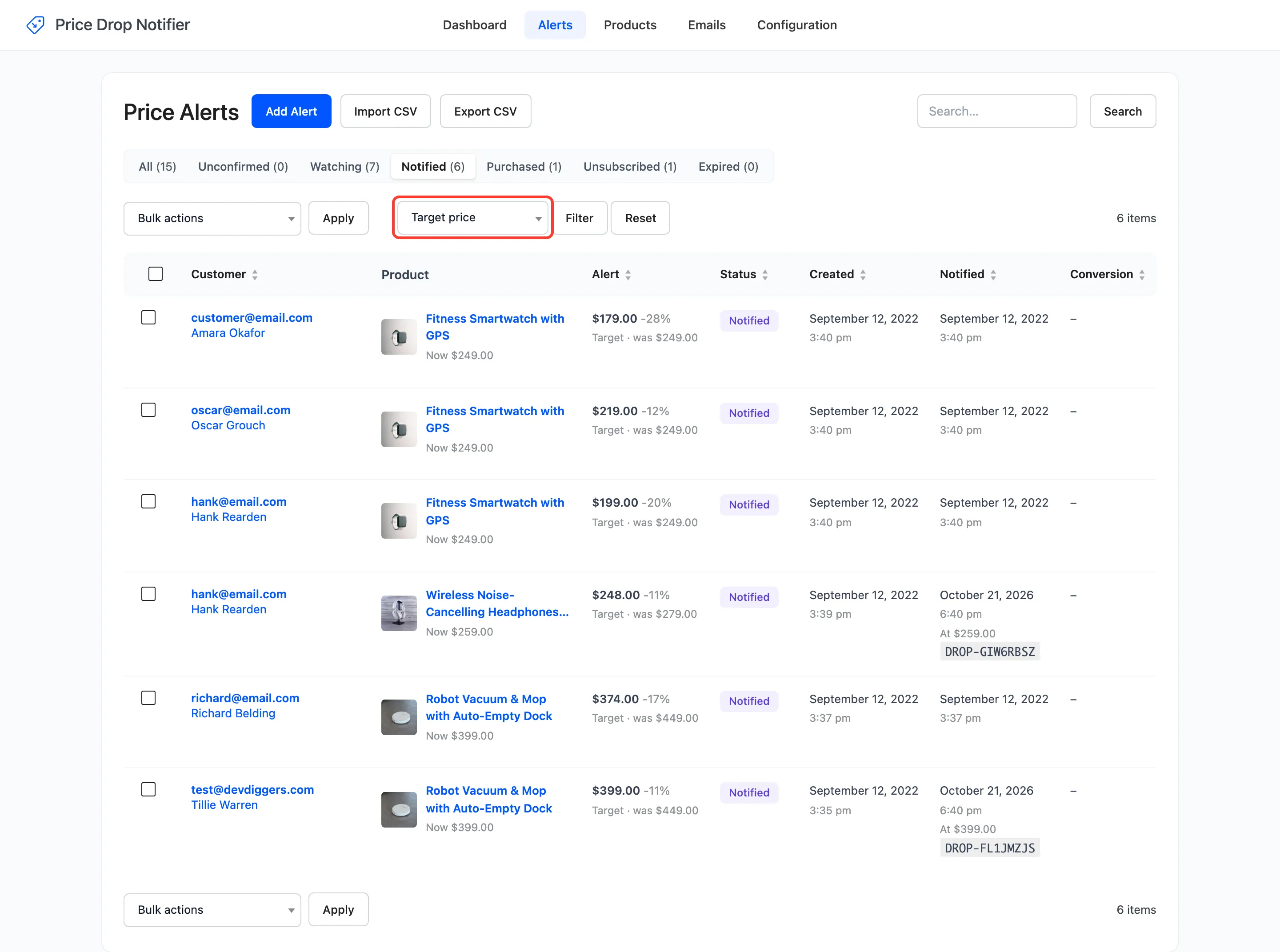
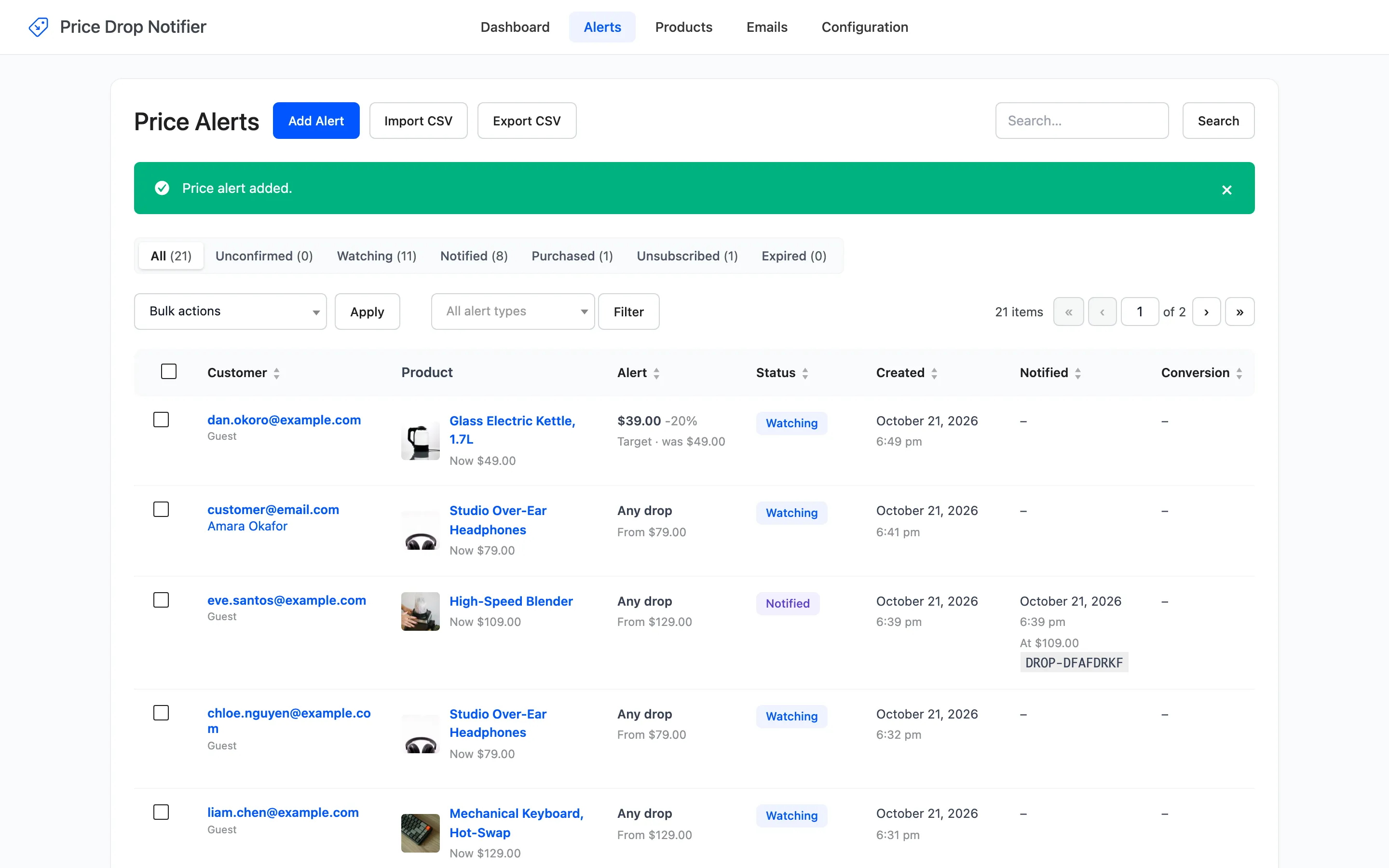
Section titled “The columns”- Customer: The email, and the account name or Guest.
- Product: The product or variation, its current price, and Out of stock when it is.
- Alert: A target price with how far below the signup price it is, or Any drop with the signup price.
- Status: The alert’s status, and Clicked email once the customer clicked the email’s button.
- Created: When the alert was set.
- Notified: When the price drop email went out, at which price, and its coupon code.
- Conversion: The order number and the revenue, once the customer bought.
Every column except Product sorts. Twenty alerts show per page; Screen Options changes that.
Row actions
Section titled “Row actions”Hover a row to see its actions.
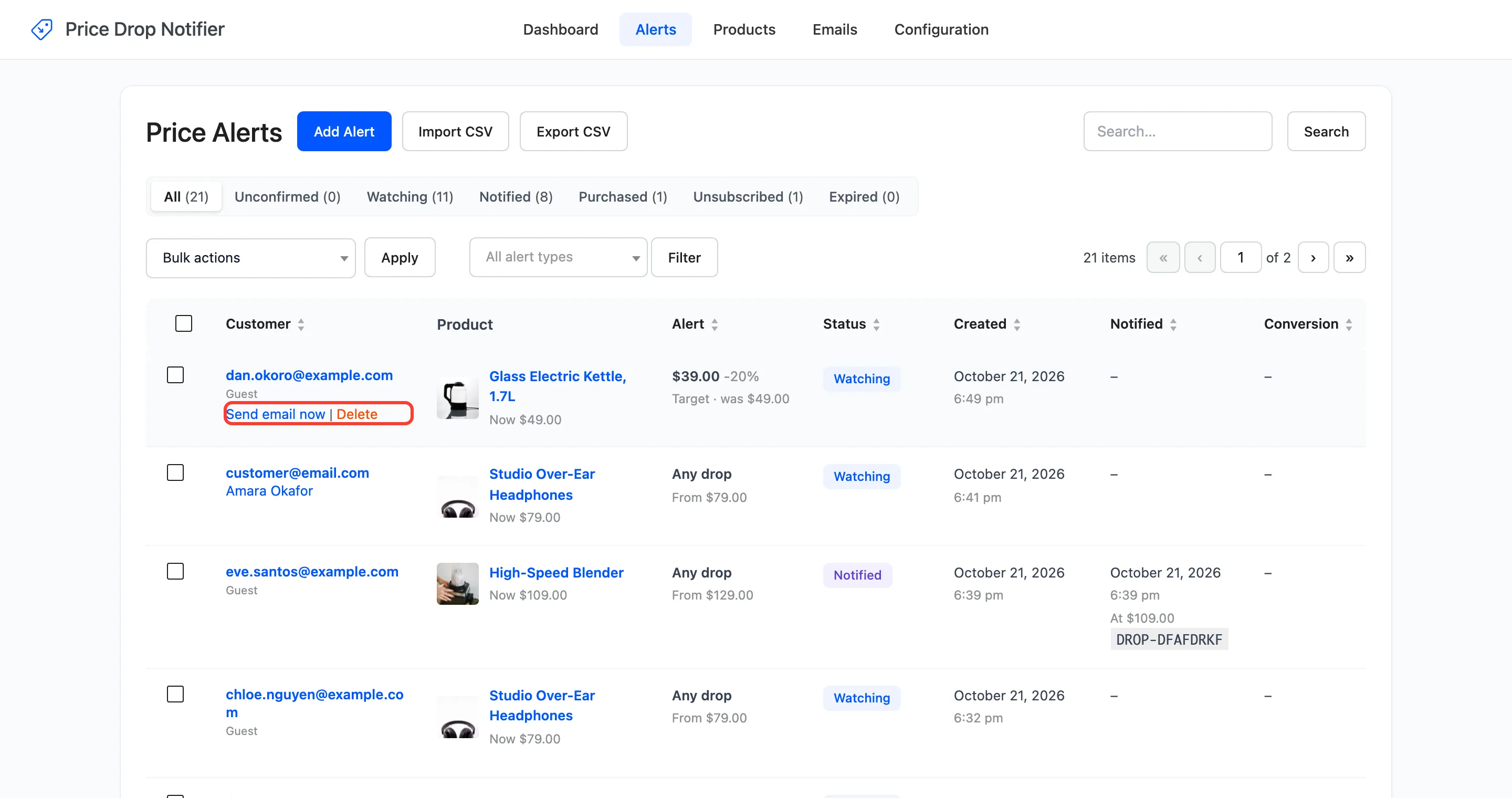
- Send email now: Sends the price drop email straight away, at today’s price, whatever the alert asked for. Shown on watching and notified alerts while the product can be bought.
- Switch back on: Puts an emailed, purchased, cancelled or expired alert back to Watching, so it can fire again. The coupon and the original date are kept.
- Delete: Removes the alert. It asks first.
Bulk actions
Section titled “Bulk actions”Tick alerts, pick a bulk action and click Apply: Send price drop email now, Switch alert back on or Delete. Sending and deleting ask first.
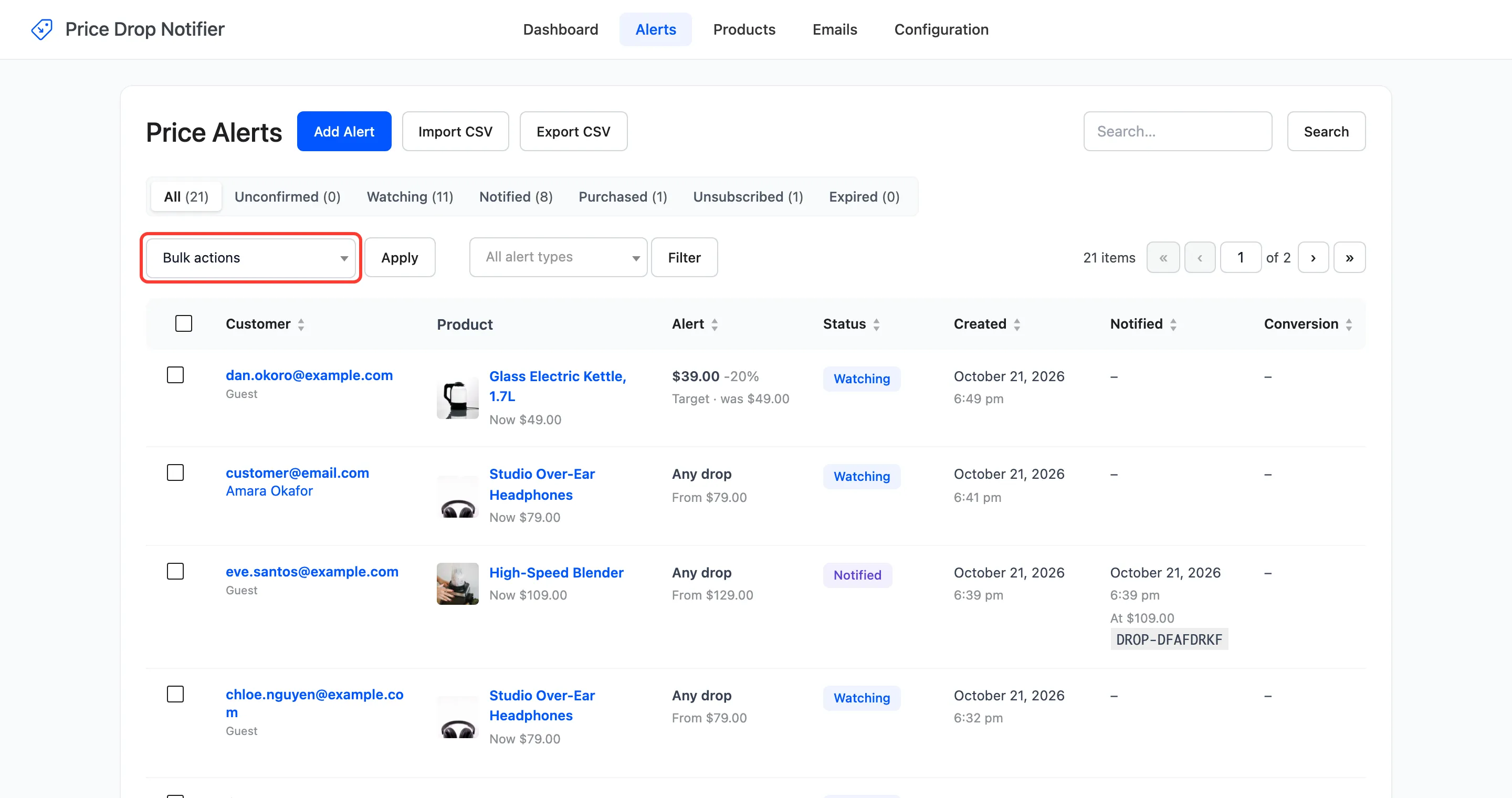
Send price drop email now skips a product that cannot be bought, and the notice says how many were emailed. See How to Check Prices and Email Watchers Yourself.
Add Alert
Section titled “Add Alert”Add Alert opens a row for one alert: an email, a product or variation, and an optional target price. Leave the target empty for an any-drop alert.
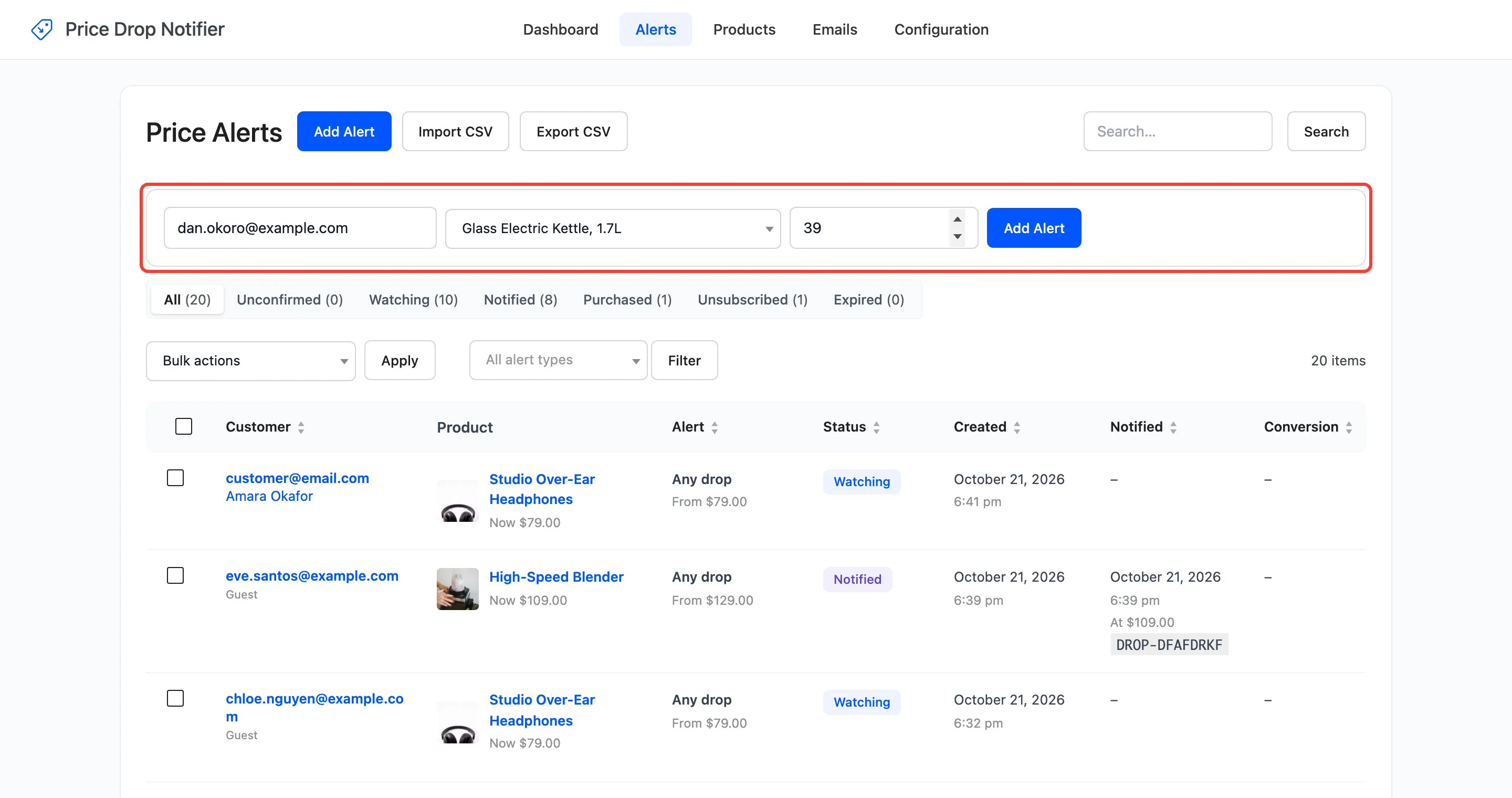
The alert starts Watching, from today’s price, and the customer gets the Alert Confirmation email, as if they had set it themselves. An email that already watches that product is refused with “This email already watches the price of that product.”
Import and export
Section titled “Import and export”Import CSV and Export CSV sit next to Add Alert. The export takes the current status, product and search filter. See Import and Export.