

Alert Form Settings
The Alert Form tab sets everything shoppers see on the form. That covers its words, the kinds of alert, where it sits and how it looks. Open DevDiggers Plugins → Price Drop → Configuration → Alert Form.
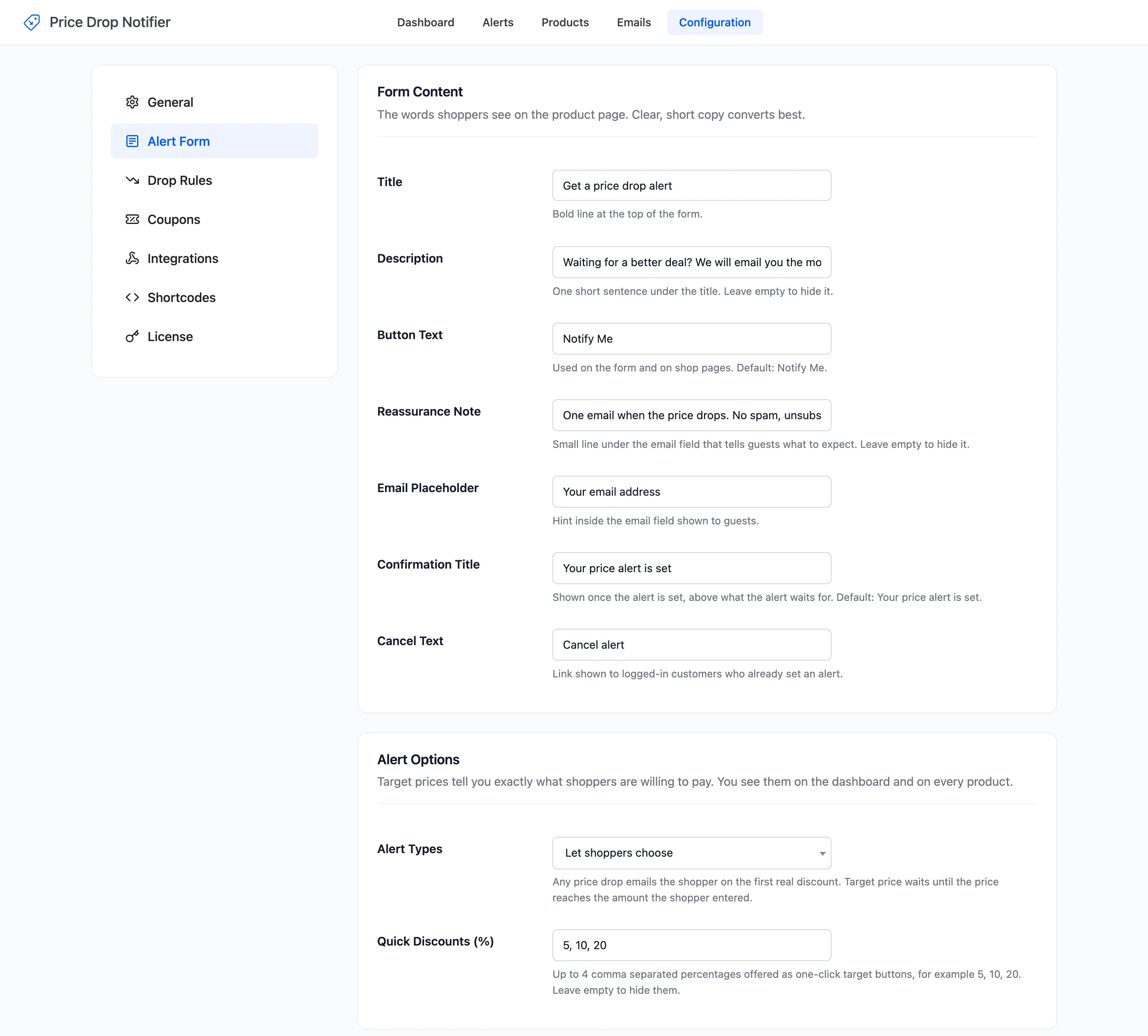
The tab has five sections. An emptied text field goes back to its default when you save.
Form Content
Section titled “Form Content”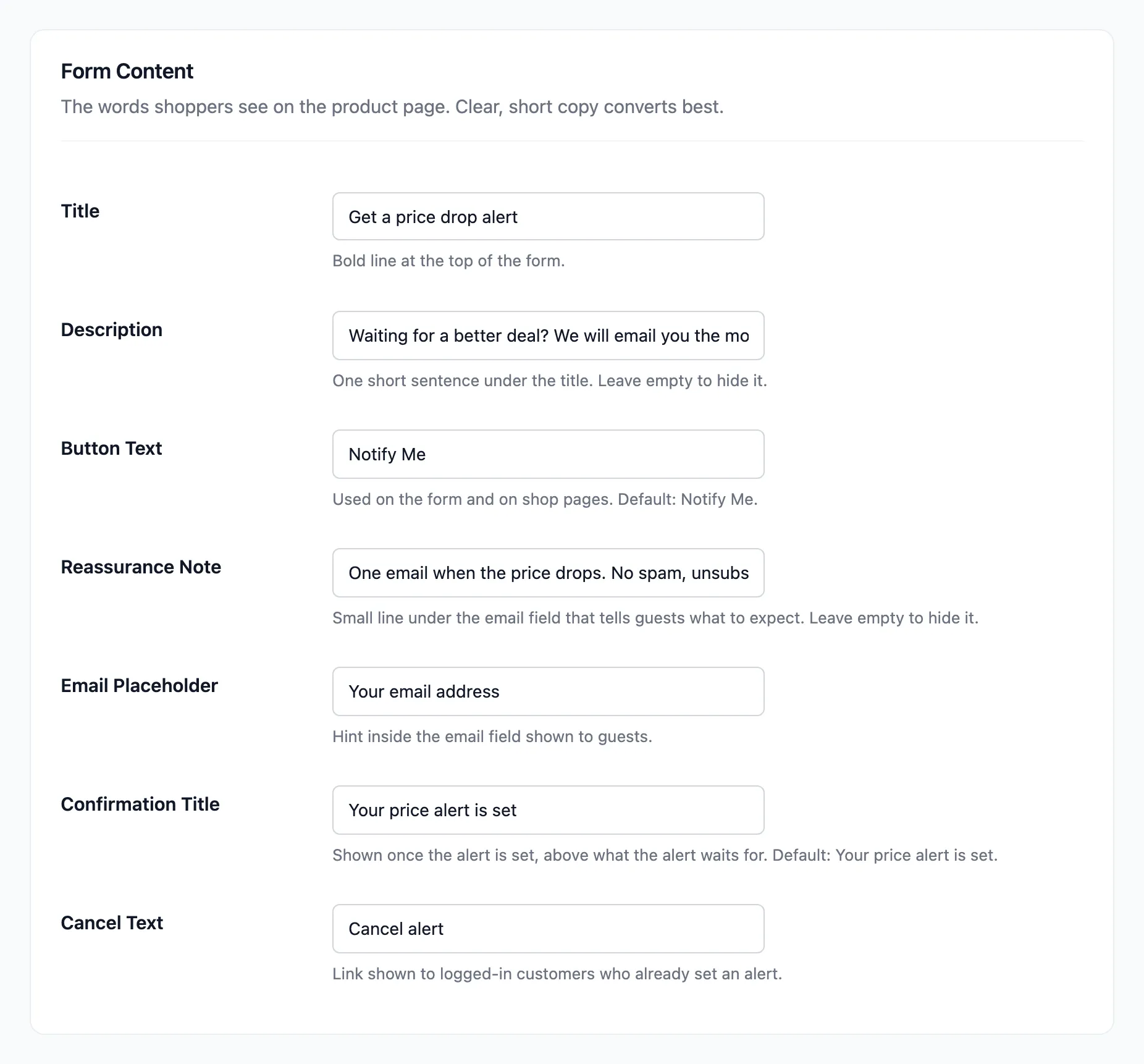
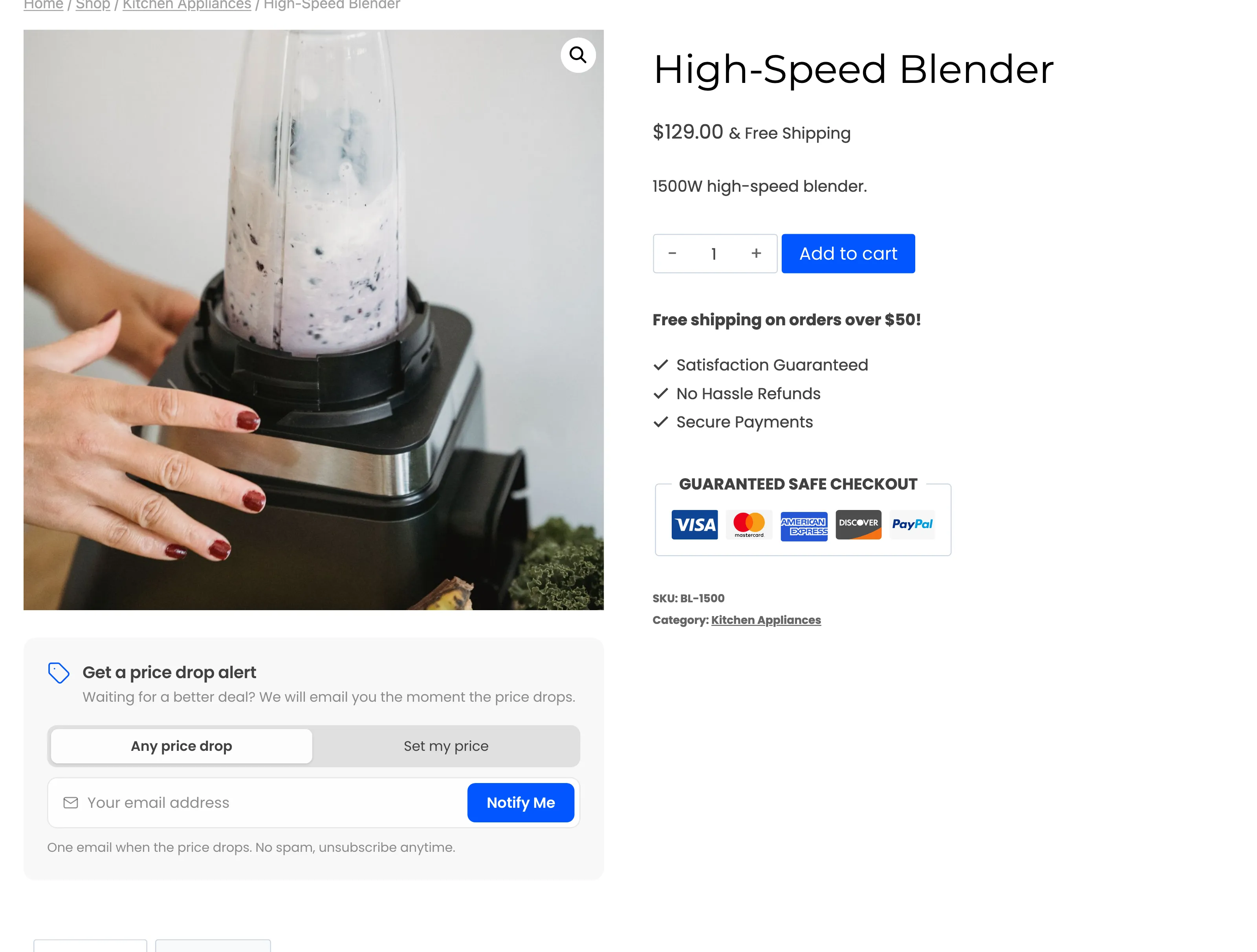
- Title: The bold line at the top. Default Get a price drop alert.
- Description: One sentence under the title. Default “Waiting for a better deal? We will email you the moment the price drops.”
- Button Text: The button on the form and in the shop window. Default Notify Me.
- Reassurance Note: The small line under the email field, shown to guests. Default “One email when the price drops. No spam, unsubscribe anytime.”
- Email Placeholder: The hint inside the email field. Default Your email address.
- Confirmation Title: Shown once the alert is set. Default Your price alert is set.
- Cancel Text: The link logged-in customers use to cancel. Default Cancel alert.
Alert Options and Where It Shows
Section titled “Alert Options and Where It Shows”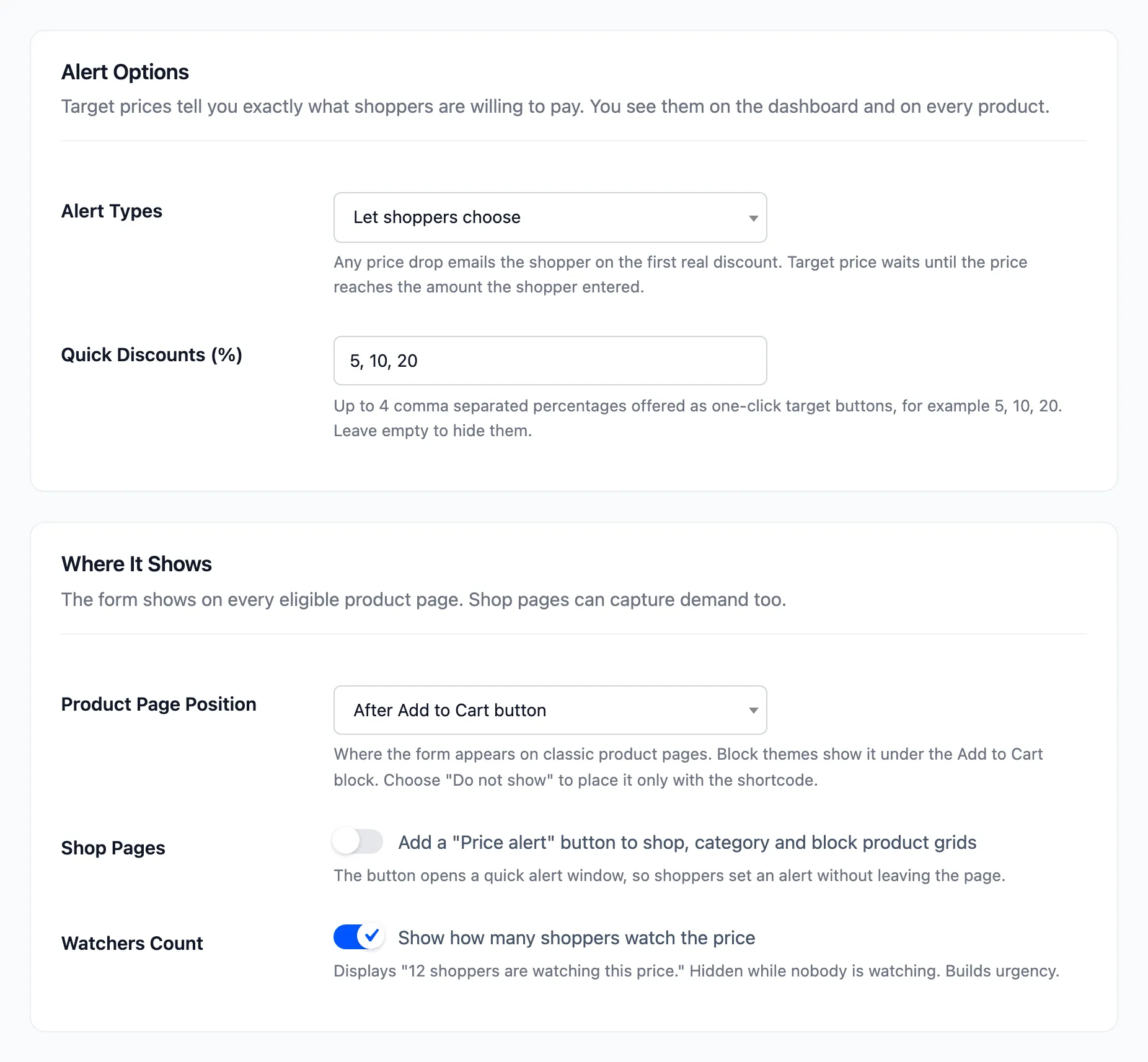
- Alert Types: Let shoppers choose (default), Any price drop only or Target price only. With one type the switch disappears. Target only opens the price field straight away.
- Quick Discounts (%): Up to four comma separated percentages offered as one-click targets. Default 5, 10, 20. Leave it empty to hide the buttons.
- Product Page Position: Where the form sits on classic product pages. Default After Add to Cart button. The other choices are End of product summary, After short description, After product title and Before product title. After product images, Before product tabs and Do not show (shortcode only) complete the list.
- Shop Pages: “Add a “Price alert” button to shop, category and block product grids“. Off by default. The button opens a quick alert window.
- Watchers Count: “Show how many shoppers watch the price”. On by default, and hidden while nobody is watching.
Block themes render product pages from blocks, where the classic positions do not apply. There the form sits under the Add to Cart block, for every position except Do not show.
Privacy & Spam Protection
Section titled “Privacy & Spam Protection”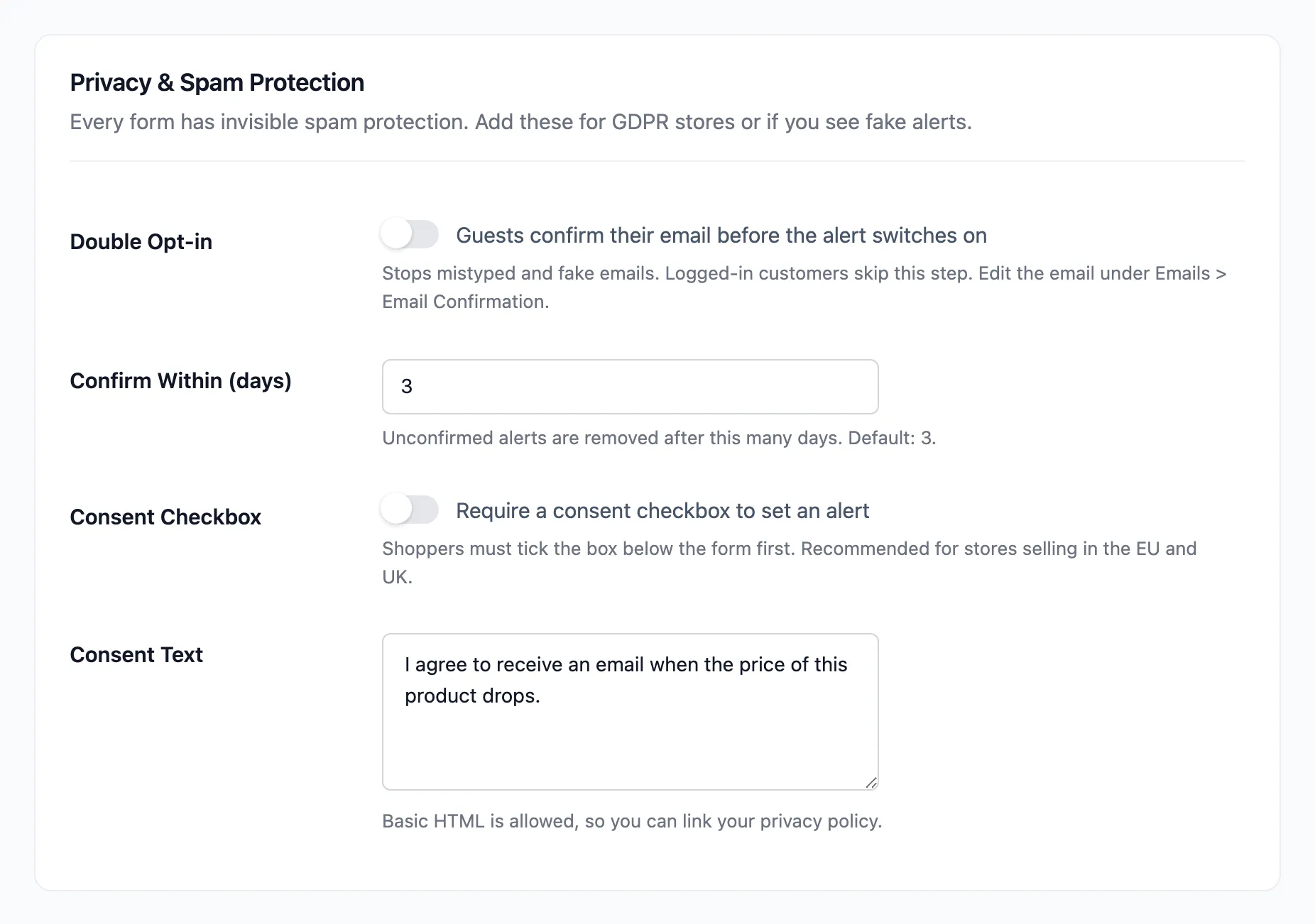
Every form carries a hidden spam trap. A bot that fills it in sees success and nothing is saved.
- Double Opt-in: “Guests confirm their email before the alert switches on”. Off by default. Logged-in customers skip it.
- Confirm Within (days): Unconfirmed alerts are deleted after this many days. Default 3.
- Consent Checkbox: “Require a consent checkbox to set an alert”. Off by default.
- Consent Text: The checkbox label. Default “I agree to receive an email when the price of this product drops.” Basic HTML is allowed, so you can link your privacy policy.
See How to Turn On Double Opt-in and How to Add a Consent Checkbox.
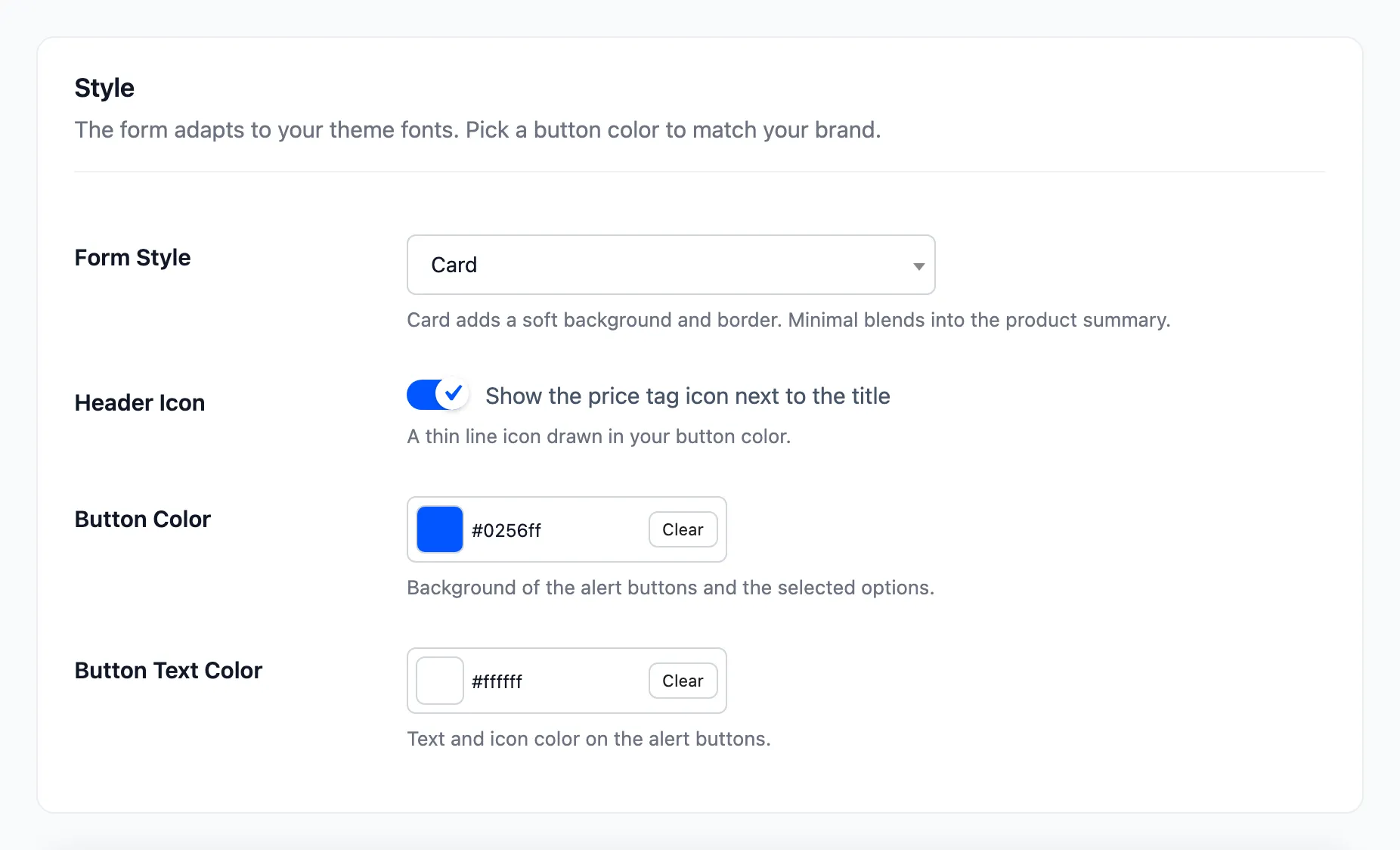
- Form Style: Card (default) adds a soft background and border. Minimal blends into the product summary.
- Header Icon: “Show the price tag icon next to the title”. On by default.
- Button Color: The background of the buttons and the selected options. Default #0256ff.
- Button Text Color: The text and icons on the buttons. Default #ffffff.
The form takes your theme’s fonts. See How to Style the Alert Form.
Click Save Changes at the bottom of the tab.