

How to Hold Alerts While a Product Is Sold Out
A price drop email for a product nobody can buy is a wasted email and a disappointed customer. With Stock Check on, the email waits until the product is back.
Step 1: Check Stock Check is on
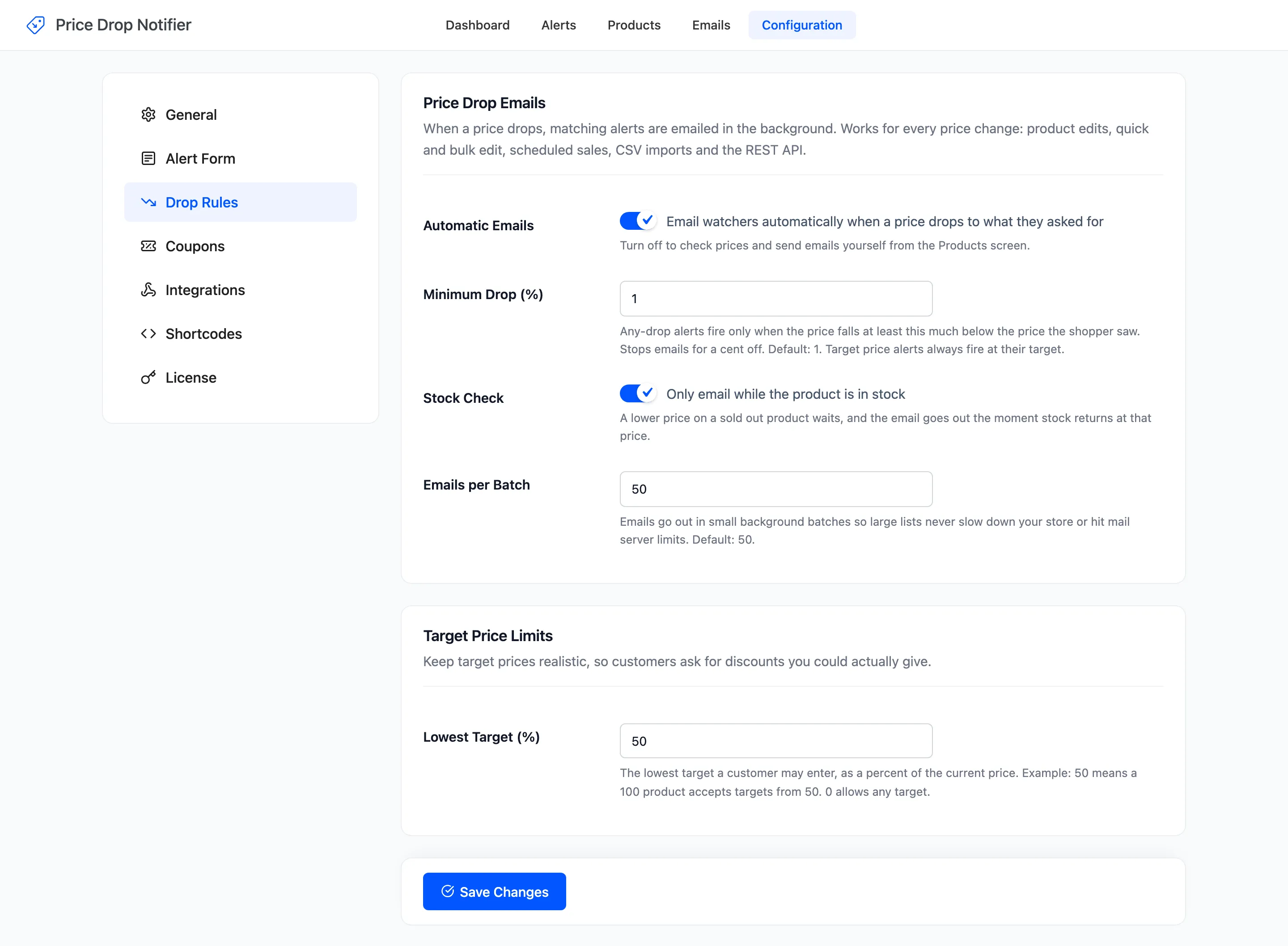
Section titled “Step 1: Check Stock Check is on”Open Configuration → Drop Rules. Stock Check, “Only email while the product is in stock”, is on by default.
Step 2: Lower the price of a sold out product
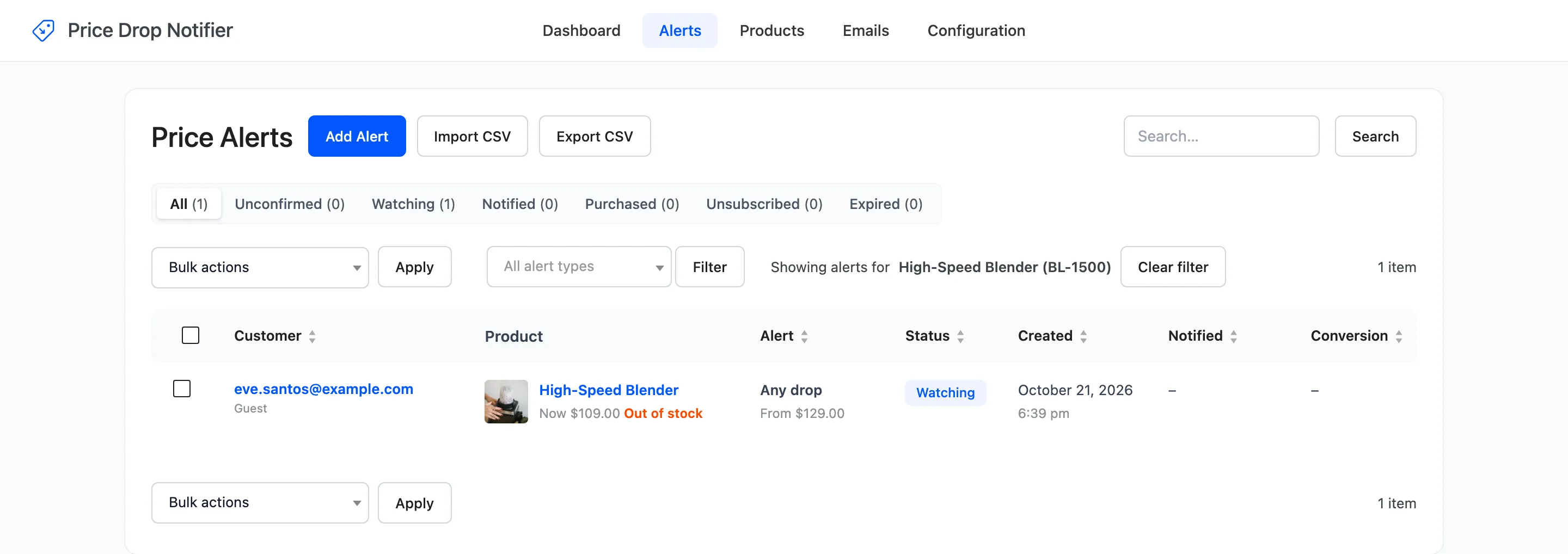
Section titled “Step 2: Lower the price of a sold out product”On the demo, a guest watched the High-Speed Blender at $129.00. The blender was set out of stock, then dropped to $109.00. The check ran and emailed nobody.
On the Alerts screen the alert is still Watching, and the product shows Out of stock.
Step 3: Put it back in stock
Section titled “Step 3: Put it back in stock”Set the product In stock, or raise its stock quantity, and save. A restock through an import, an order cancelled back into stock or the REST API counts the same.
Step 4: Check the emails
Section titled “Step 4: Check the emails”The plugin checks the product’s alerts again as soon as it is back. The blender’s alert was emailed at $109.00, with a coupon, and turned Notified.
If the price went back up while the product was sold out, the alerts it no longer satisfies keep watching.
With Stock Check off
Section titled “With Stock Check off”The email goes out at once, sold out or not. The product page still says Out of stock, so the customer can only wait or set another alert. Most stores keep it on.