

How to Use a Different Template per Content Type
Blog posts might suit Editorial while your landing pages suit Corporate Report. Rules let each content type keep its own template.
Step 1: Open the Rules tab
Section titled “Step 1: Open the Rules tab”Go to Content to PDF → Configuration → Rules.
Step 2: Pick a template per type
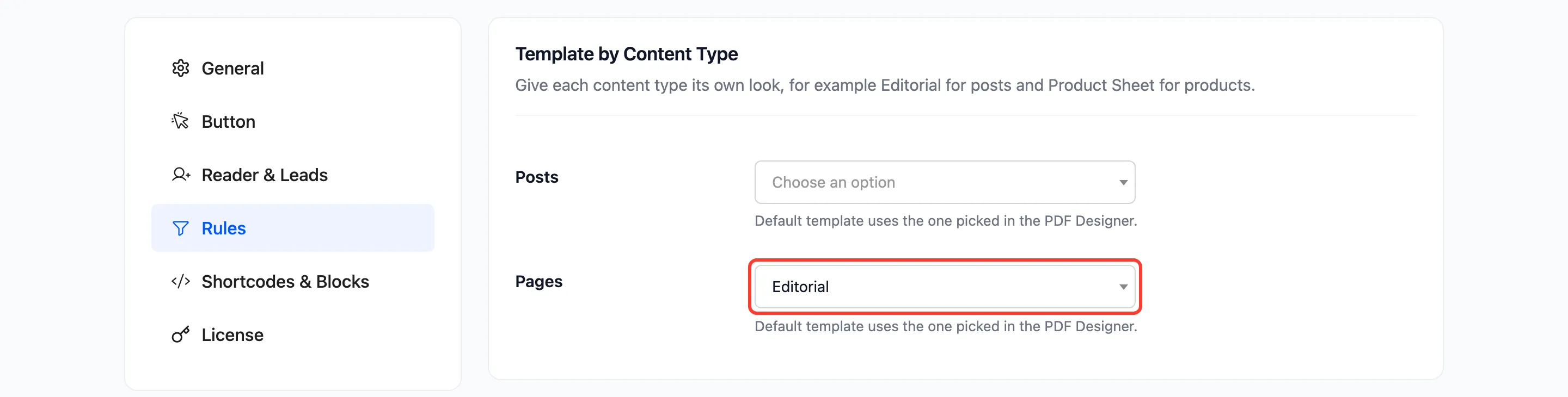
Section titled “Step 2: Pick a template per type”Template by Content Type has one menu per content type. Leave a type on Default template to use the PDF Designer’s template. On the demo, Pages were set to Editorial.
Step 3: Save and check
Section titled “Step 3: Save and check”Click Save Changes and open a page’s PDF. It uses Editorial, while posts keep the default.
Things to know
Section titled “Things to know”The template is picked in this order:
- The reader’s choice in the reader’s menu, when template switching is on.
- The template for the content type, set here.
- Product Sheet for WooCommerce products.
- The PDF Designer’s template.