

How to Limit PDFs to Members
Making PDFs a member perk gives visitors a reason to sign up. This takes one setting, plus a role list if only some members qualify.
Step 1: Turn off guest access
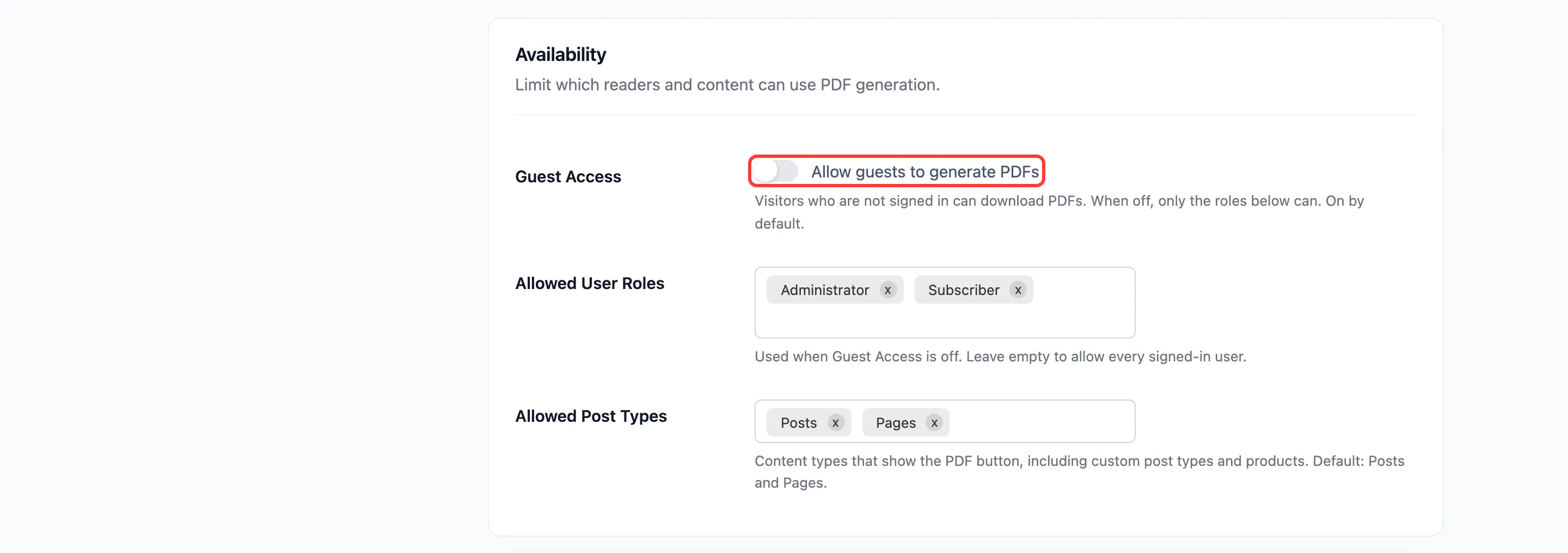
Section titled “Step 1: Turn off guest access”Go to Content to PDF → Configuration → General and untick Allow guests to generate PDFs.
Step 2: Choose the roles
Section titled “Step 2: Choose the roles”- Empty: Every signed-in user can download PDFs.
- Some roles: Only users with one of them can. On the demo, Administrator and Subscriber were allowed.
Step 3: Save and check as a guest
Section titled “Step 3: Save and check as a guest”Click Save Changes. On the demo, three things followed:
- Guests saw no button.
- A signed-in Customer, not in the list, saw no button either.
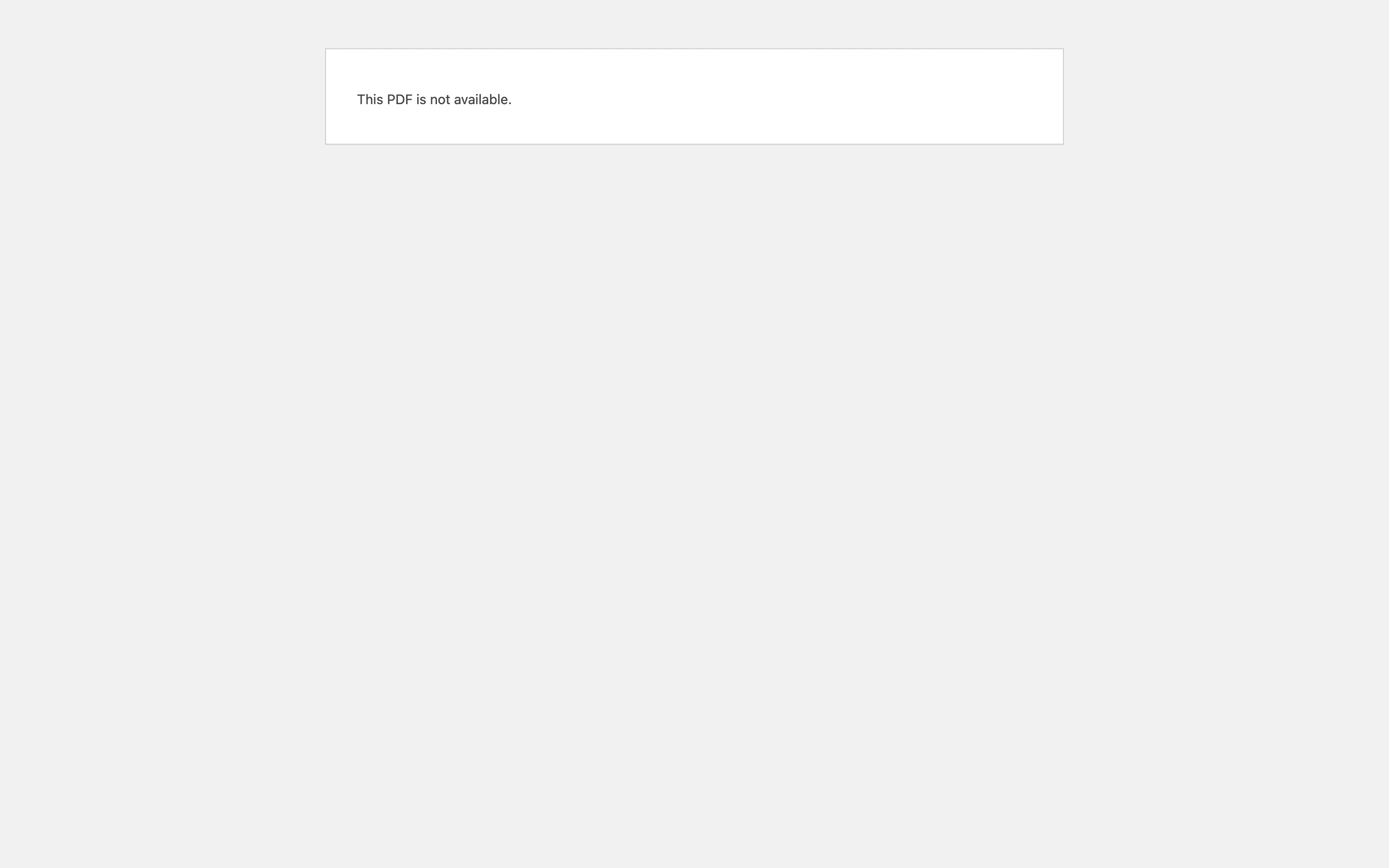
- A guest opening a reader link got “This PDF is not available.”
Things to know
Section titled “Things to know”- The lead form is for guests, so it has nothing to do once guests are off.
- To limit only some content, use the exclusions on the Rules tab instead. See How to Hide the PDF Button on Some Content.