

How to Let Readers Edit a PDF Before Downloading
Readers often want part of a post: the steps without the introduction, or the checklist with their own notes. Editing lets them shape their copy. Your post is never changed.
Step 1: Check Edit Before Saving is on
Section titled “Step 1: Check Edit Before Saving is on”Under Content to PDF → Configuration → Reader & Leads, Edit Before Saving is ticked by default.
Step 2: Enter edit mode
Section titled “Step 2: Enter edit mode”In the reader, press the pencil.

The hint bar reads “Click text to edit it. Use the trash button to remove a block.” with Reset and Done.
Step 3: Change the text
Section titled “Step 3: Change the text”Click any paragraph or heading and type. Pasted text arrives as plain text.
Step 4: Remove a block
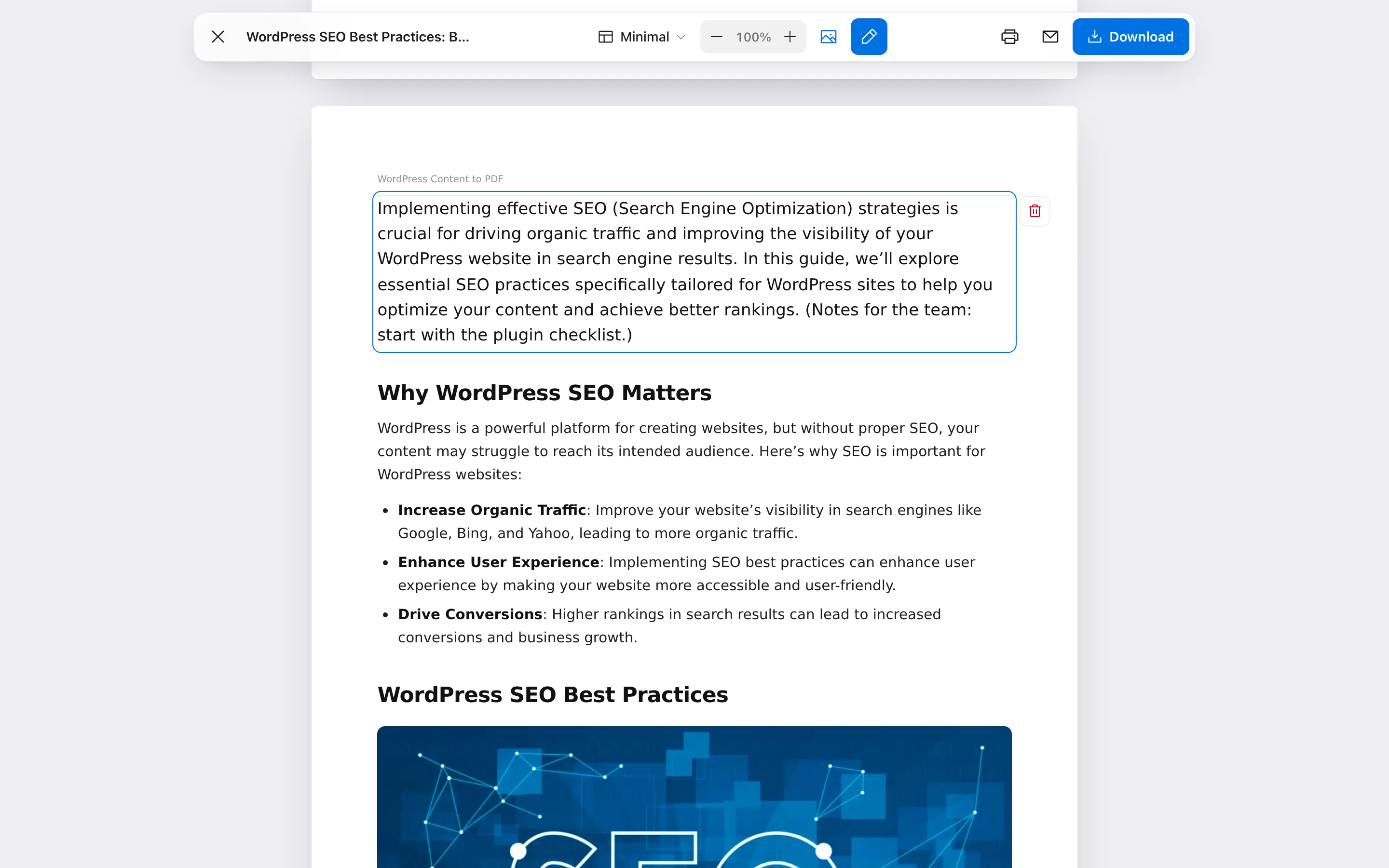
Section titled “Step 4: Remove a block”Hover over a paragraph, heading, list or image. A trash button appears at its right.
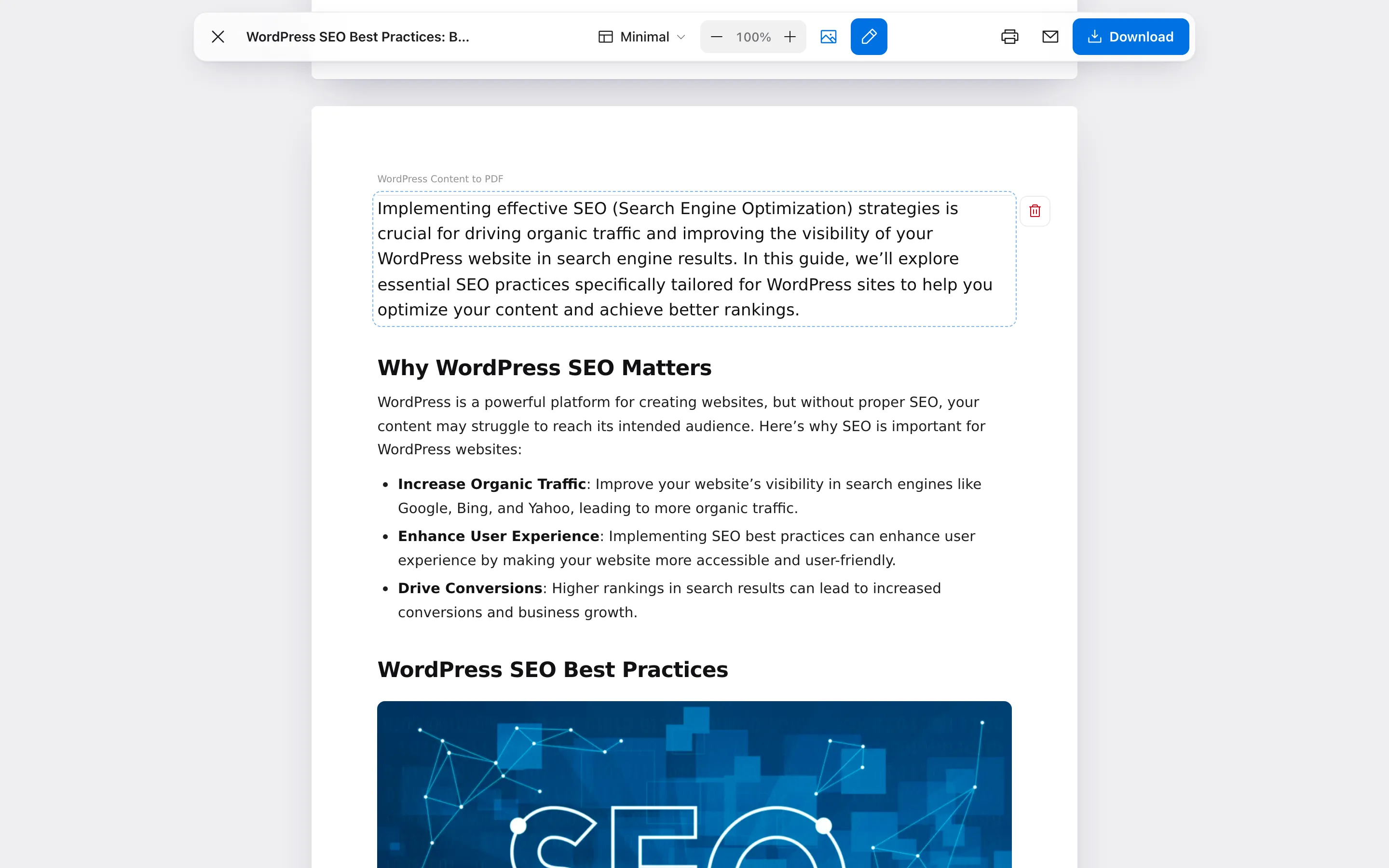
Press it. “Block removed” appears with Undo, and the arrow in the toolbar undoes removals one by one.
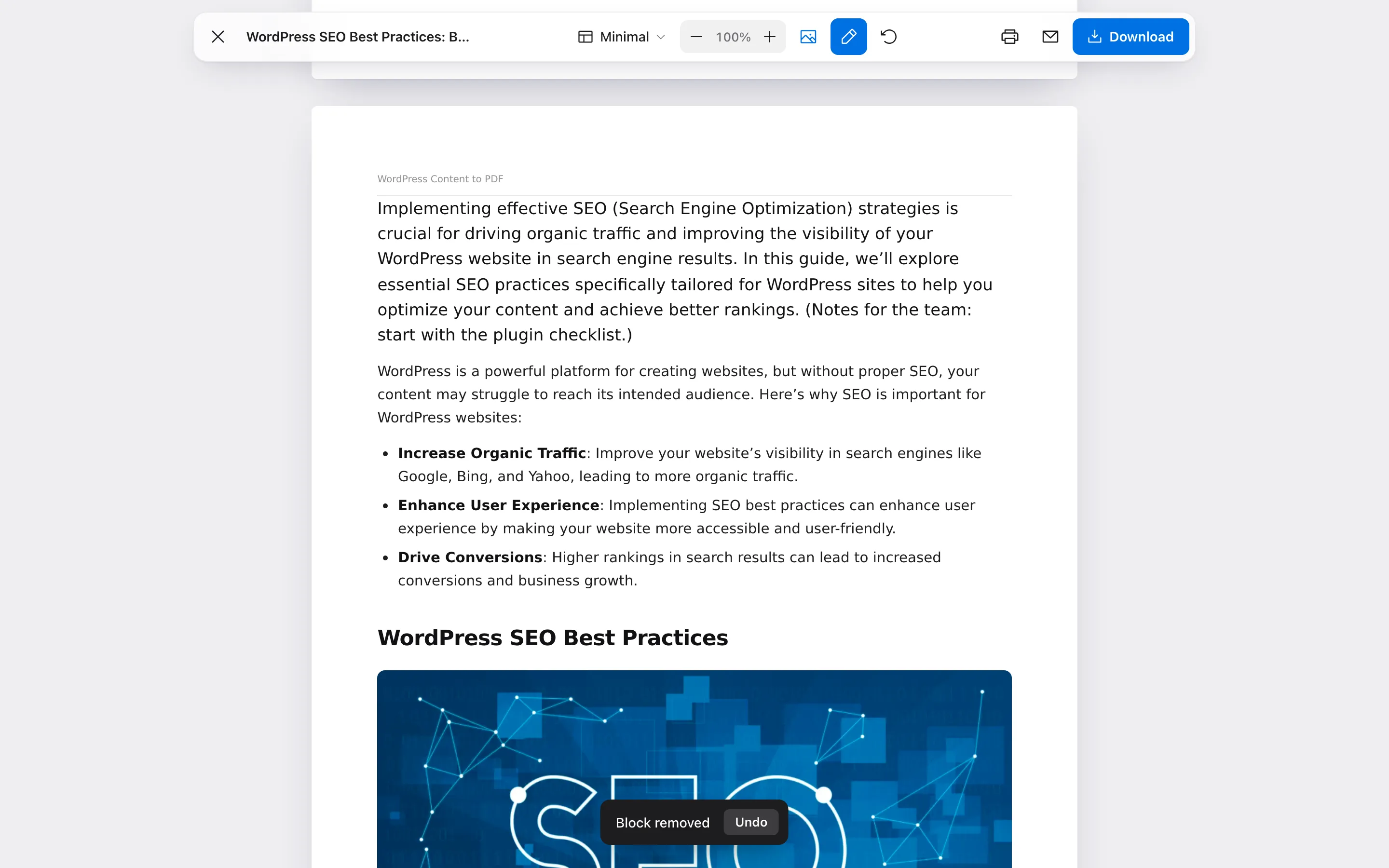
Reset brings back the original text and every removed block.
Step 5: Download
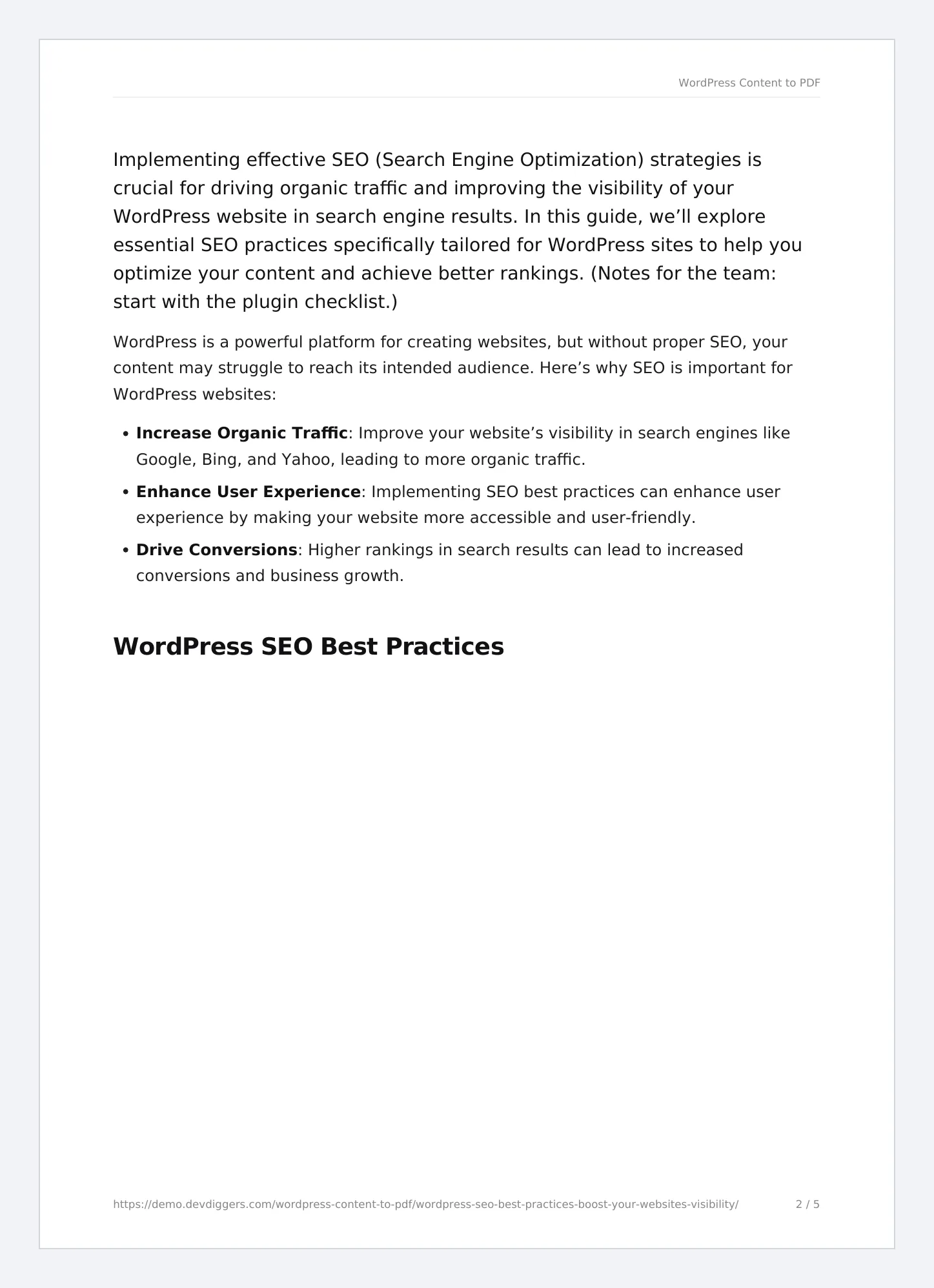
Section titled “Step 5: Download”Press Done, then Download. On the demo, the PDF carried the added note and left out the removed heading.
Things to know
Section titled “Things to know”- Pick a template first. Switching template reloads the reader and drops the edits.
- Edits go into downloads and prints. A guest’s emailed PDF holds the published text.
- Edited copies are made fresh each time and never reused for other readers.