

How to Create PDF Product Sheets
A product sheet is a one-page PDF a buyer can file, print or forward to a colleague. It needs WooCommerce to be active.
Step 1: Add Products to the allowed types
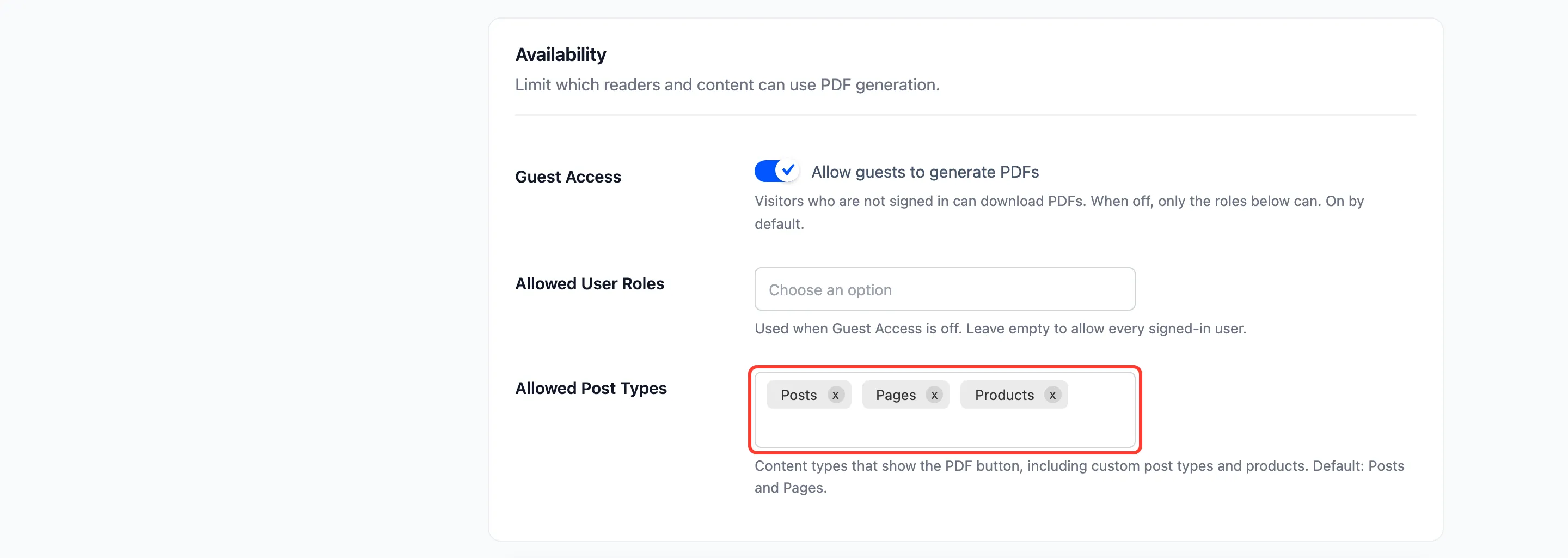
Section titled “Step 1: Add Products to the allowed types”Go to Content to PDF → Configuration → General and add Products to Allowed Post Types. Click Save Changes.
Step 2: Check the product template
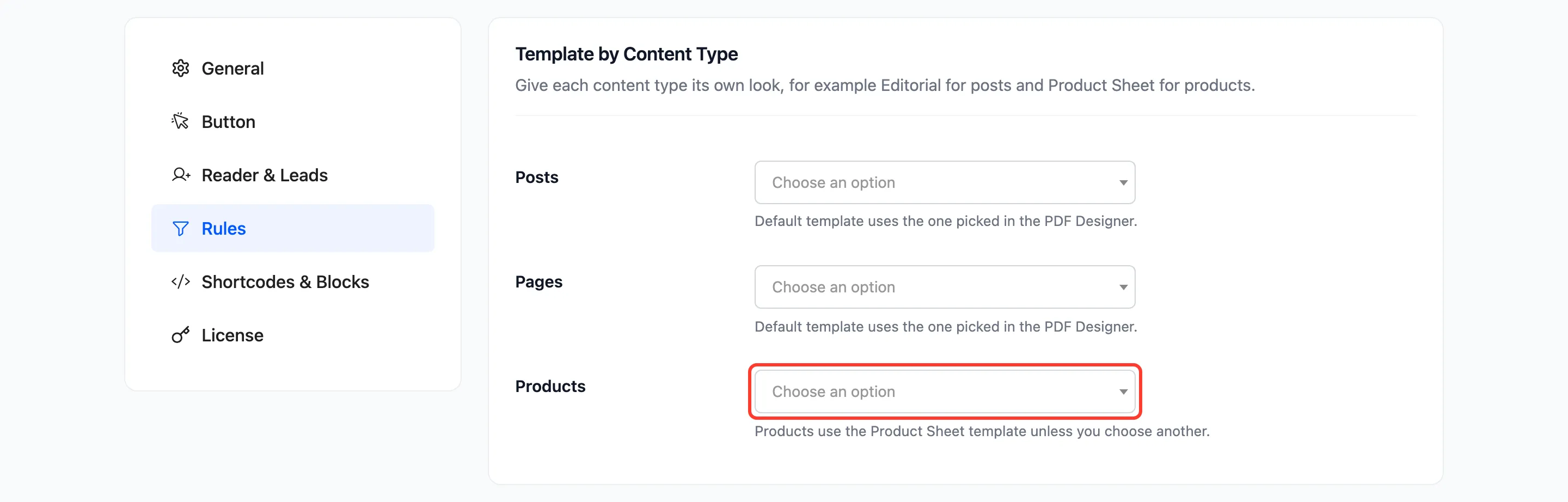
Section titled “Step 2: Check the product template”Under Rules, the Products menu reads Default template. For products, that means Product Sheet. Pick another template here only if you want products to look like your posts.
Step 3: Open a product
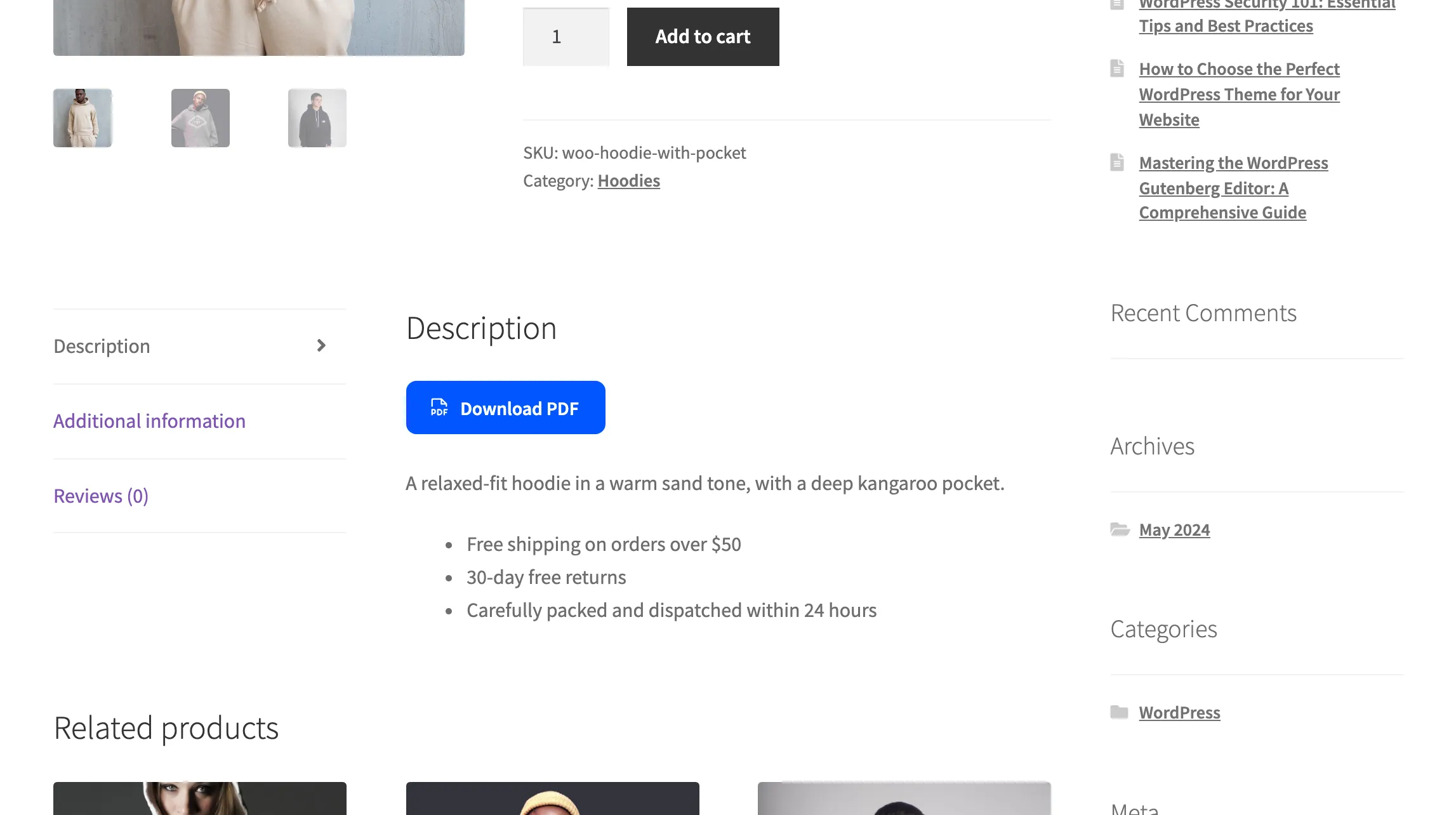
Section titled “Step 3: Open a product”The button sits before the product’s description.
Step 4: Download the sheet
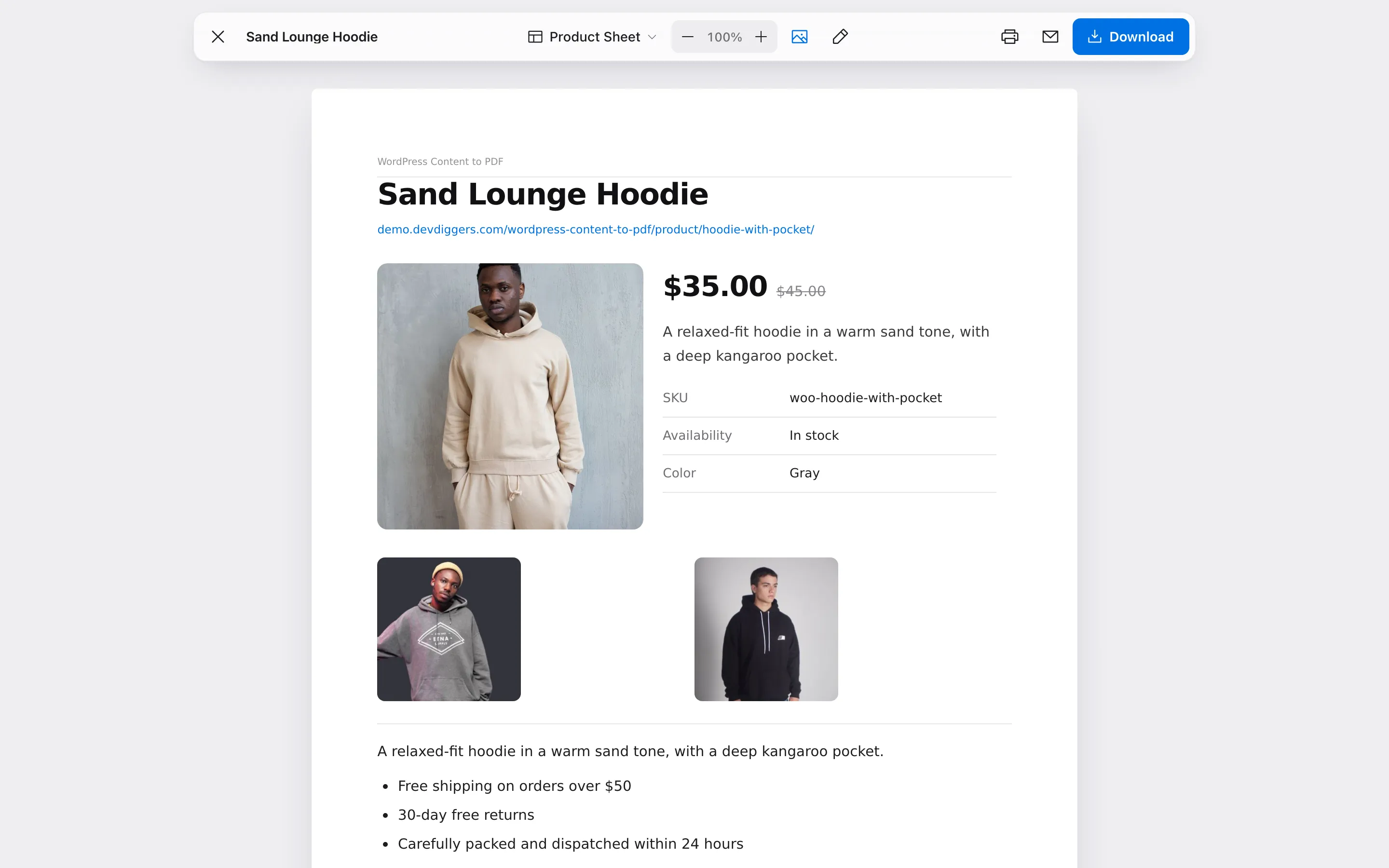
Section titled “Step 4: Download the sheet”The reader shows the sheet. Product Sheet is offered in the template menu only on products.
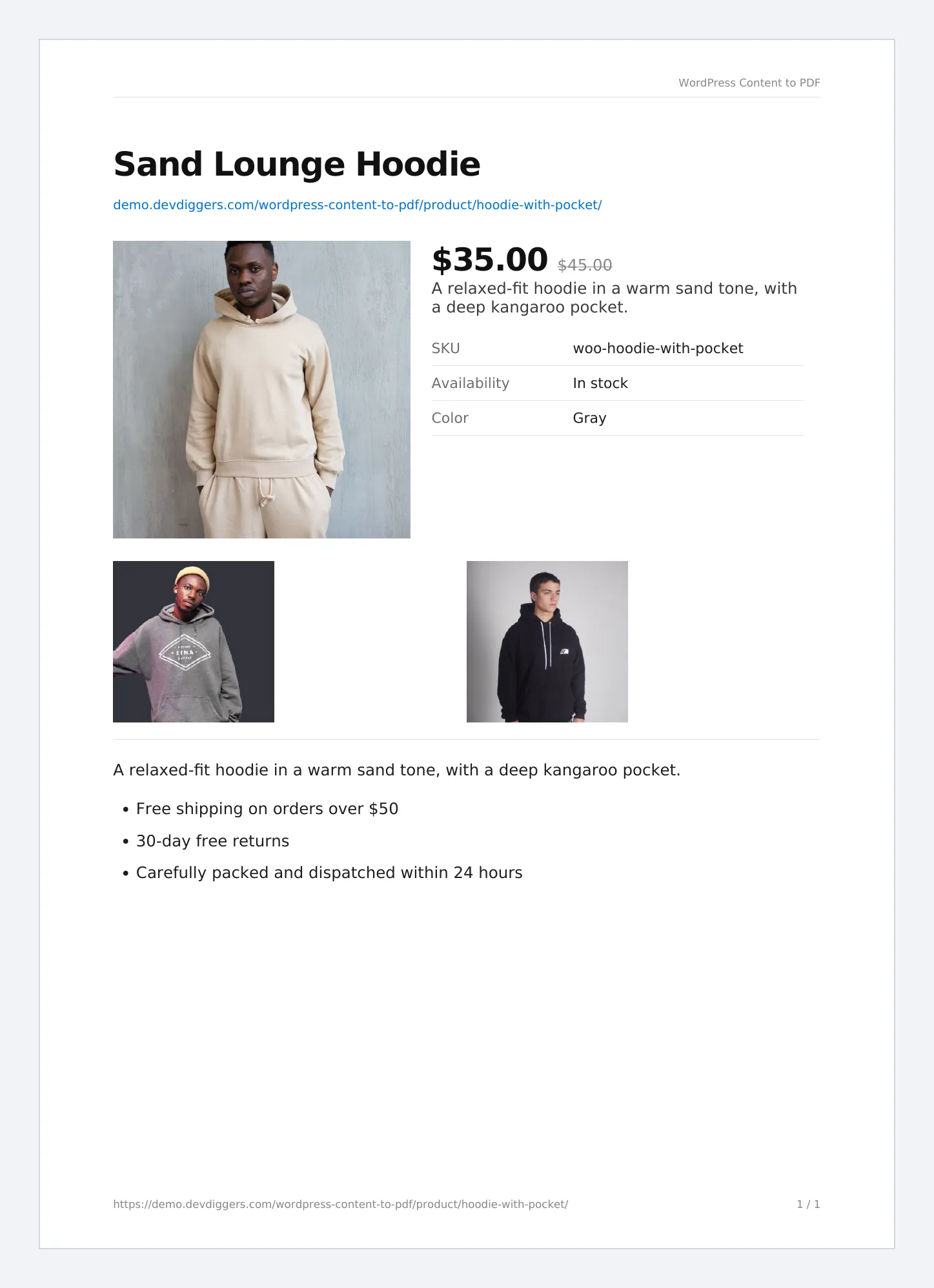
The sheet carries:
- The product name and its address.
- The price, with the regular price struck through during a sale.
- The short description, SKU, stock status and attributes.
- The main image and the gallery images.
- The full description.
A product sheet has no cover page, even when Cover Page is on.
Things to know
Section titled “Things to know”- A product sheet has no contents page either, even when Table of Contents is on.
- Your header, footer, logo and watermark appear on product sheets too.