

Button Settings
The Button tab places the PDF button and styles it to match your theme. Open Content to PDF → Configuration → Button.
Placement
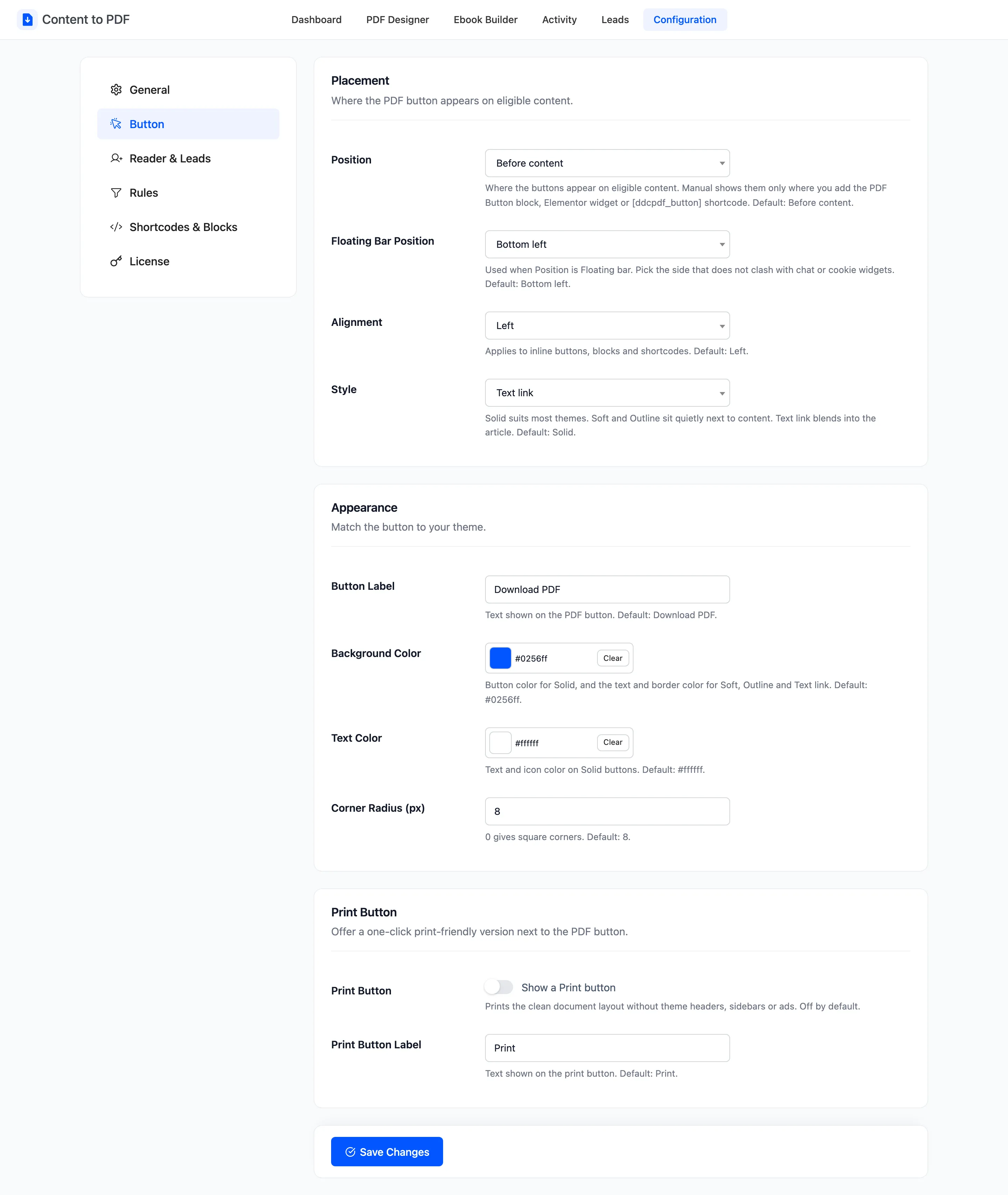
Section titled “Placement”- Position: Where the buttons appear on eligible content. Default Before content.
- Before content, After content, or Before and after content.
- Floating bar (bottom of the screen): Stays in view while the reader scrolls.
- Manual (block, widget or shortcode): Only where you add the PDF Button block, the Elementor
widget or the
[ddcpdf_button]shortcode.
- Floating Bar Position: Bottom left, Bottom center or Bottom right. Used only with the floating bar. Default Bottom left.
- Alignment: Left, Center or Right, for inline buttons, blocks and shortcodes. Default Left.
- Style: Solid, Soft tint, Outline or Text link. Default Solid.

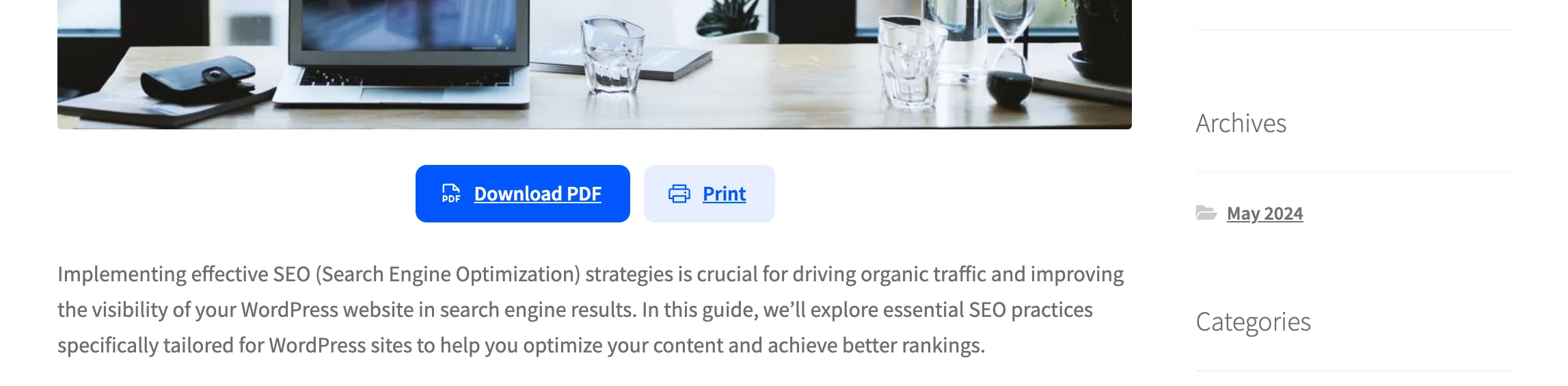
“Before content” means the start of the post’s text. Most themes print the featured image above that, so the button sits under the image.
Appearance
Section titled “Appearance”- Button Label: The text on the button. Default Download PDF.
- Background Color: The button color for Solid. For Soft tint, Outline and Text link it is the text and border color. Default #0256ff.
- Text Color: Text and icon color on Solid buttons. Default #ffffff.
- Corner Radius (px): From 0, square corners, to 30. Default 8.
Print Button
Section titled “Print Button”- Print Button: “Show a Print button”. Adds a second button that opens the clean layout and the print dialog. Off by default.
- Print Button Label: Default Print.
Click Save Changes at the bottom of the tab.