

How to Export Leads and Activity to CSV
Both screens export everything they hold, whatever filter or search is on screen.
Step 1: Export the leads
Section titled “Step 1: Export the leads”Open Content to PDF → Leads and click Export CSV.
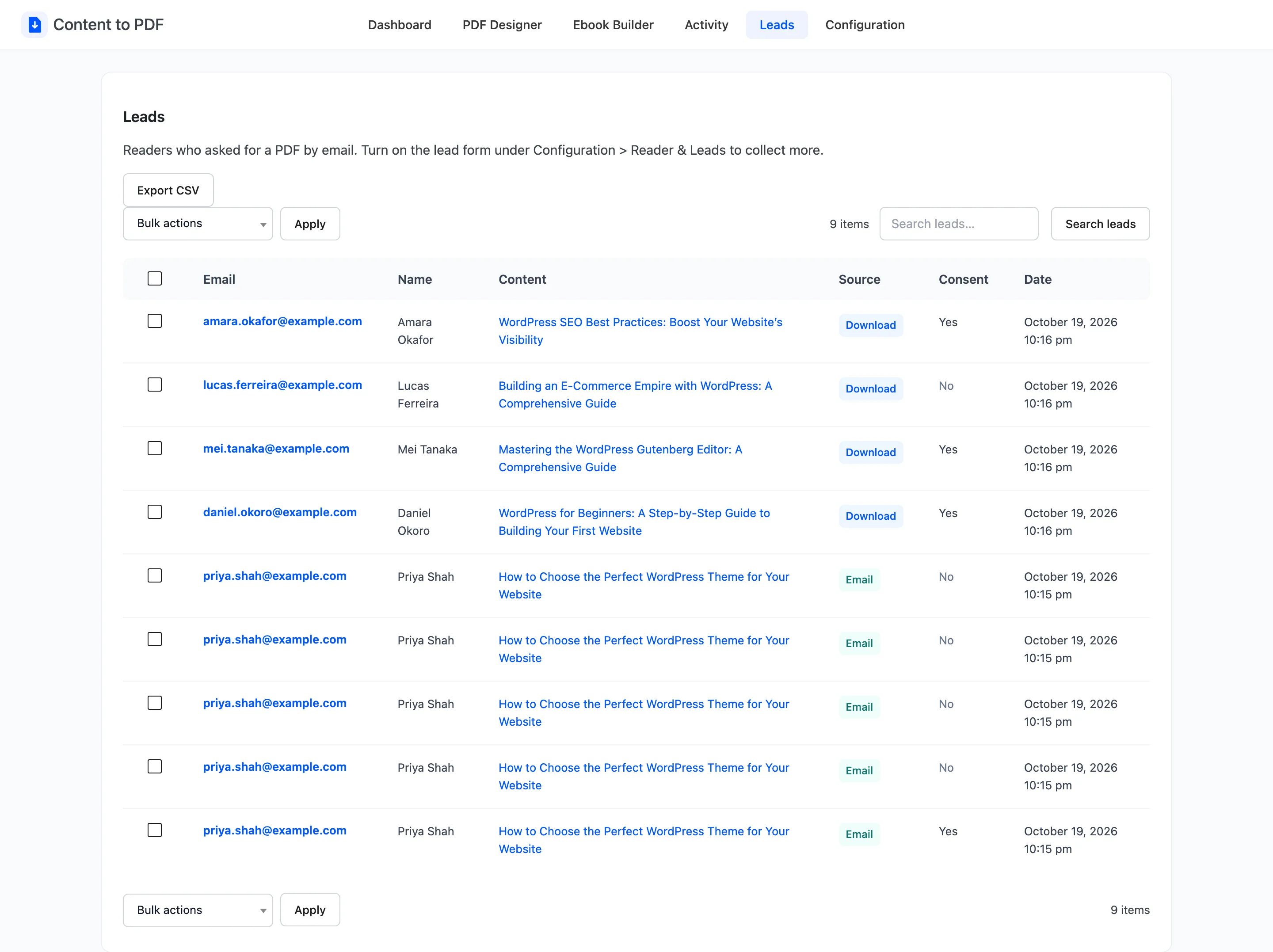
The file is content-to-pdf-leads-<date>.csv. A row from the demo:
Name,Email,Content,Source,Consent,Date"Lucas Ferreira",lucas.ferreira@example.com,"Building an E-Commerce Empire with WordPress: A Comprehensive Guide",download,no,"2026-10-19 21:04:43"Step 2: Export the activity
Section titled “Step 2: Export the activity”Open Content to PDF → Activity and click Export CSV.
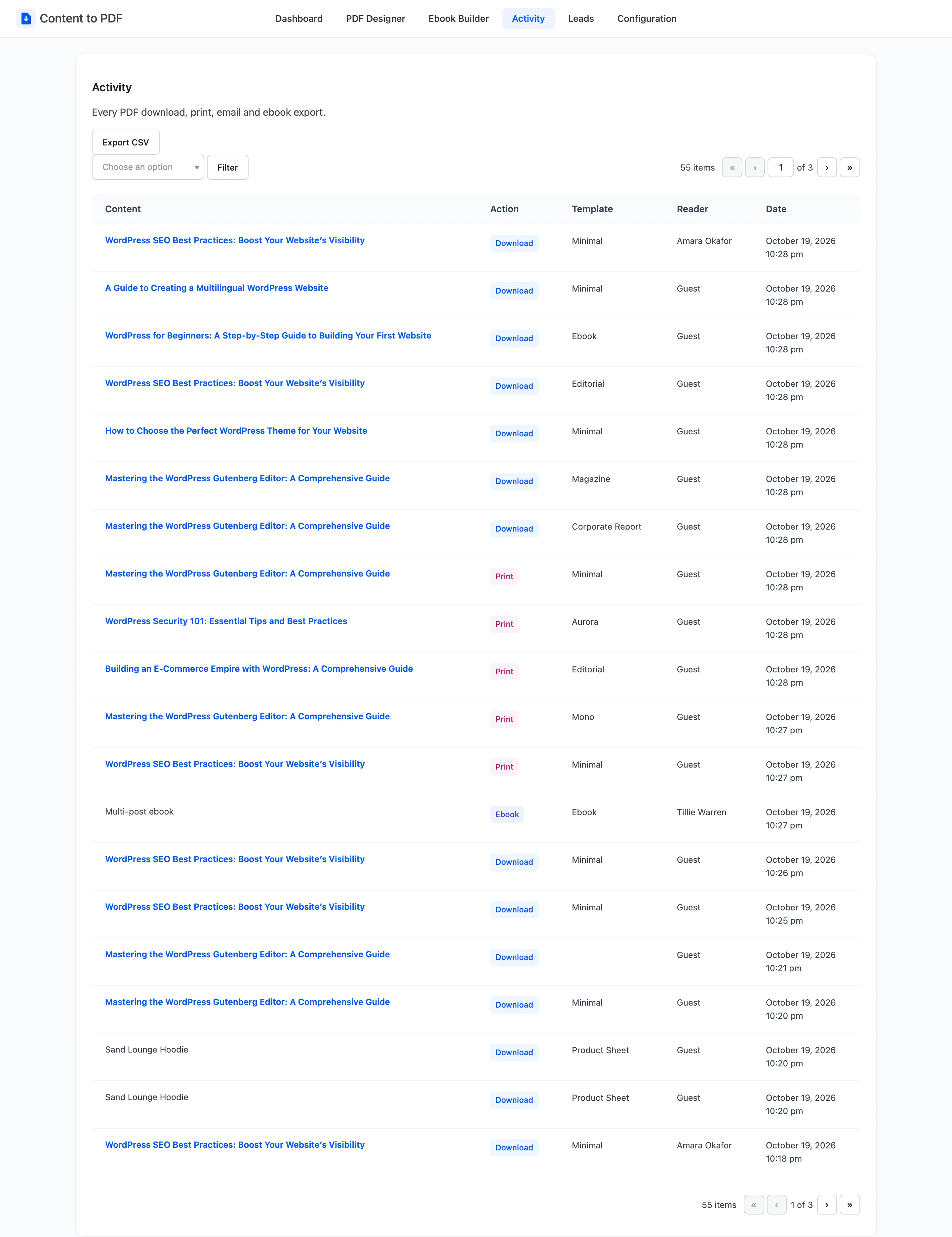
The file is content-to-pdf-logs-<date>.csv, with the columns Content, Action, Template, User and Date.
A signed-in reader is listed by email, a visitor as Guest.
Step 3: Open the files
Section titled “Step 3: Open the files”Both open in any spreadsheet. Before importing leads into a mailing tool, keep only the rows where Consent is yes.
Things to know
Section titled “Things to know”- Values starting with
=,+,-or@get a leading apostrophe, so a spreadsheet does not run them as formulas. - For leads as they arrive, rather than in a file, use the
ddcpdf_lead_capturedaction.