

Shortcodes and Blocks
This tab is a reference. It has no settings to save. Open Content to PDF → Configuration → Shortcodes & Blocks.
Block and Elementor
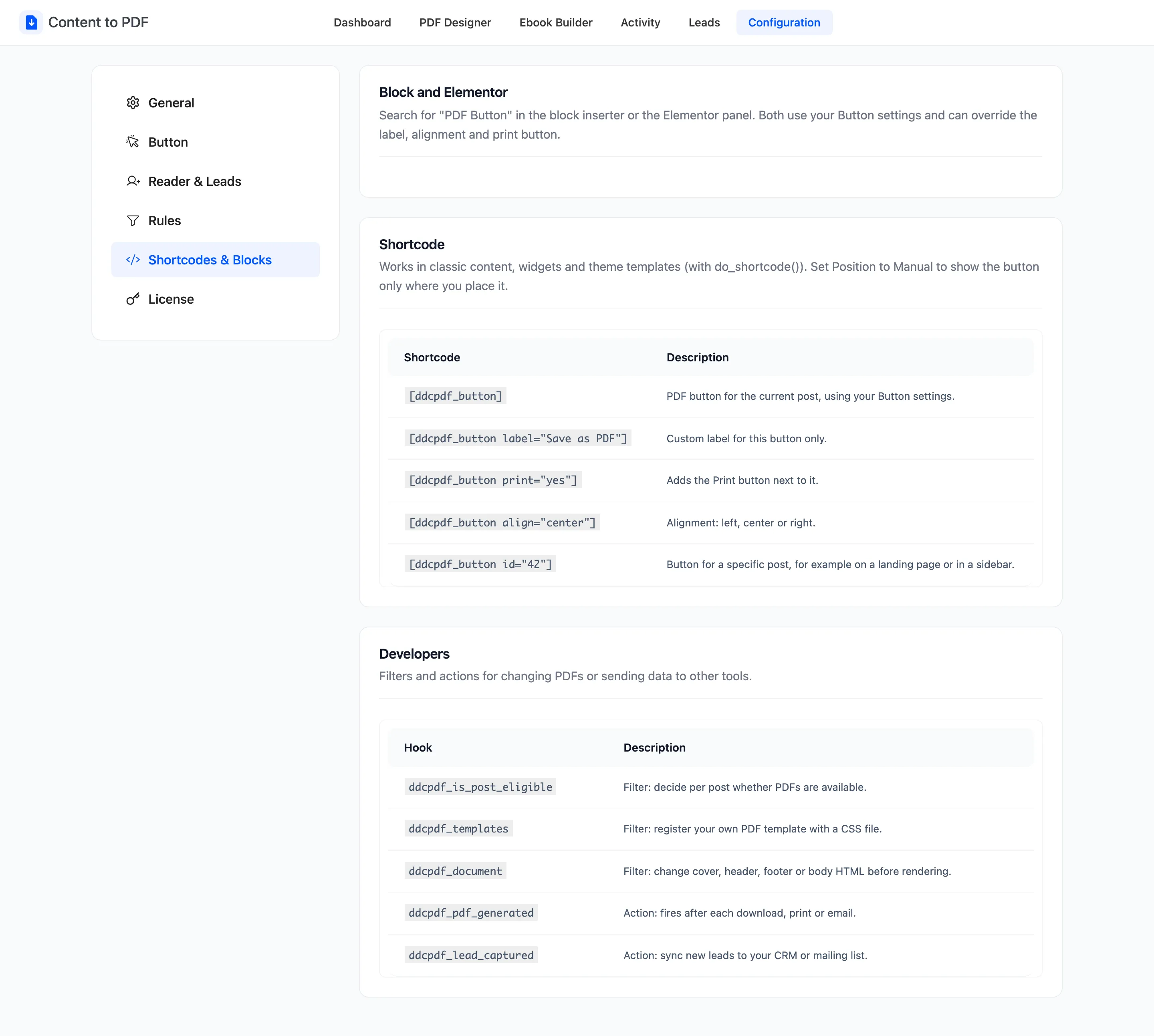
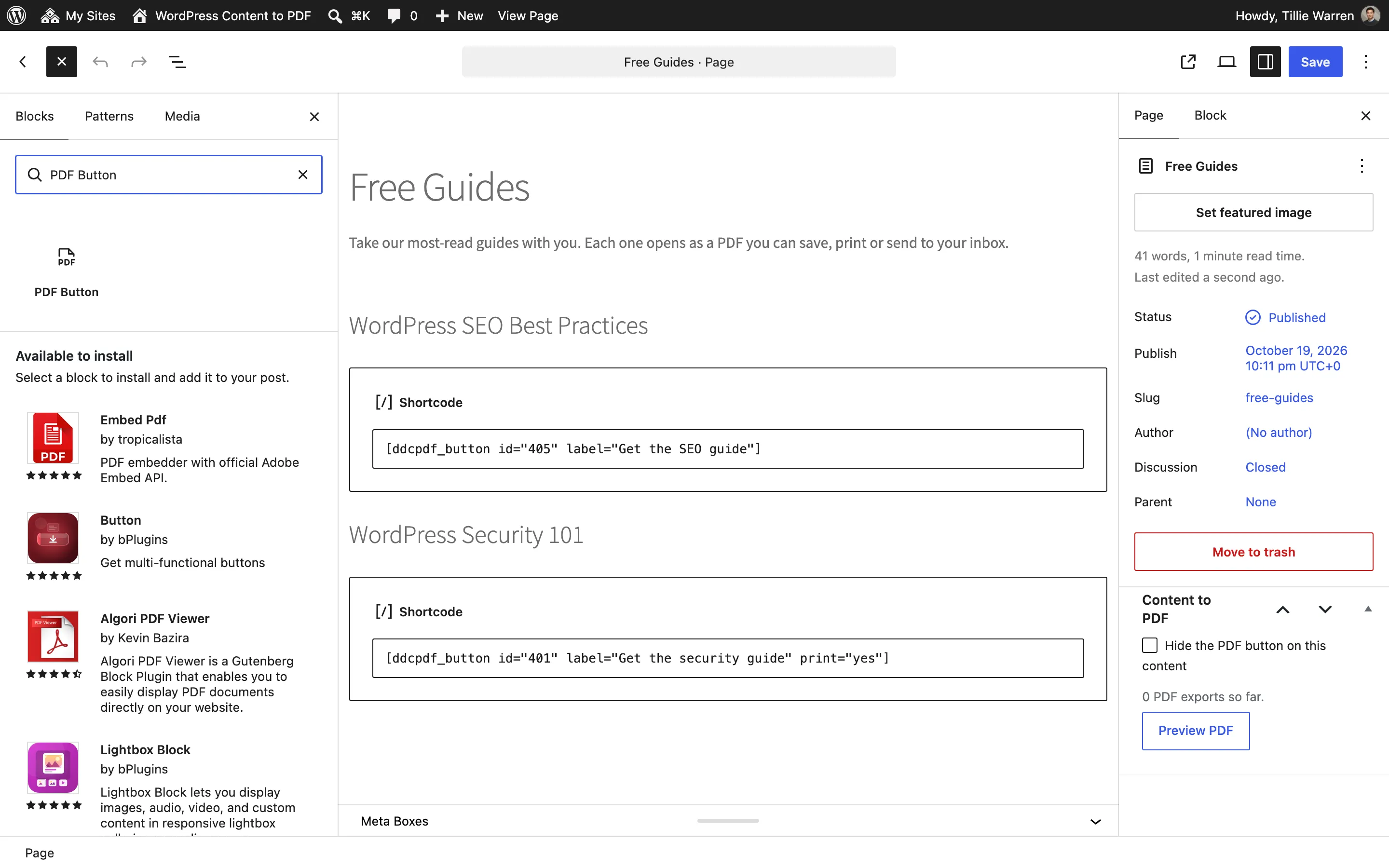
Section titled “Block and Elementor”Search for PDF Button in the block inserter or the Elementor panel. Both use your Button settings and can override the label, the alignment and the Print button.
Shortcode
Section titled “Shortcode”[ddcpdf_button] works in classic content, widgets and theme templates (with do_shortcode()).
| Shortcode | What it does |
|---|---|
[ddcpdf_button] |
The PDF button for the current post, with your Button settings. |
[ddcpdf_button label="Save as PDF"] |
A custom label for this button only. |
[ddcpdf_button print="yes"] |
Adds the Print button next to it. |
[ddcpdf_button align="center"] |
Alignment: left, center or right. |
[ddcpdf_button id="42"] |
The button for a specific post, for example on a landing page. |
Attributes combine: [ddcpdf_button id="405" label="Get the SEO guide" print="yes"].
A shortcode for content the visitor may not export prints nothing. Set Position to Manual on the Button tab if you want the button only where you place it.
Developers
Section titled “Developers”ddcpdf_is_post_eligible(filter): Decide per post whether PDFs are offered.ddcpdf_templates(filter): Register your own template with a CSS file.ddcpdf_document(filter): Change the cover, header, footer or body HTML before the PDF is made.ddcpdf_pdf_generated(action): Fires after each download, print or email.ddcpdf_lead_captured(action): Fires for each new lead, to send it to a CRM or mailing list.