

How to Hide the PDF Button on Some Content
Some content should not be saved as a PDF: members-only lessons, legal pages, or offers that expire. There are three ways to keep the button off.
Step 1: Hide it on one post
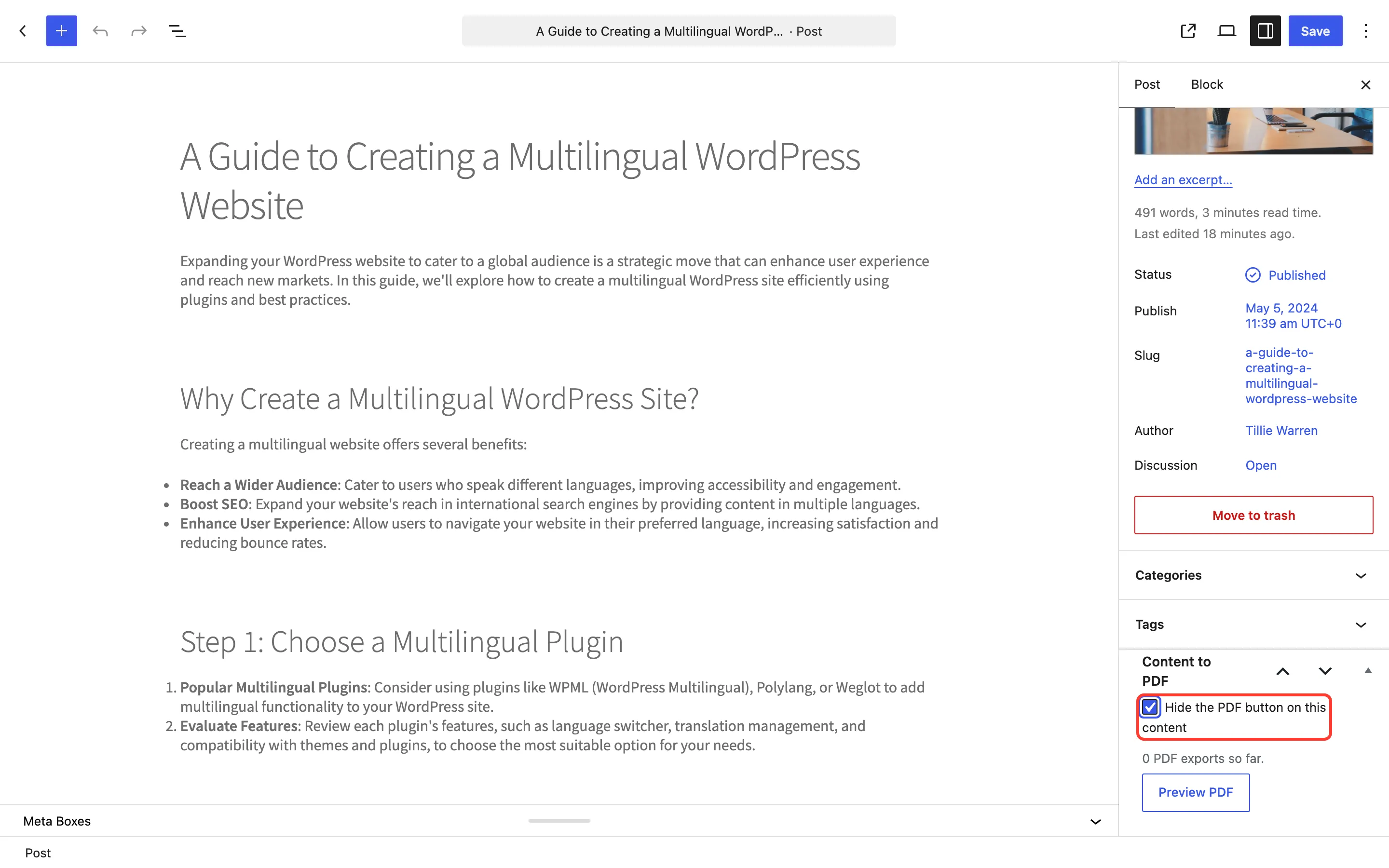
Section titled “Step 1: Hide it on one post”Open the post in the editor. In the sidebar’s Content to PDF box, tick Hide the PDF button on this content, then save the post.
Step 2: Hide it on a list of posts
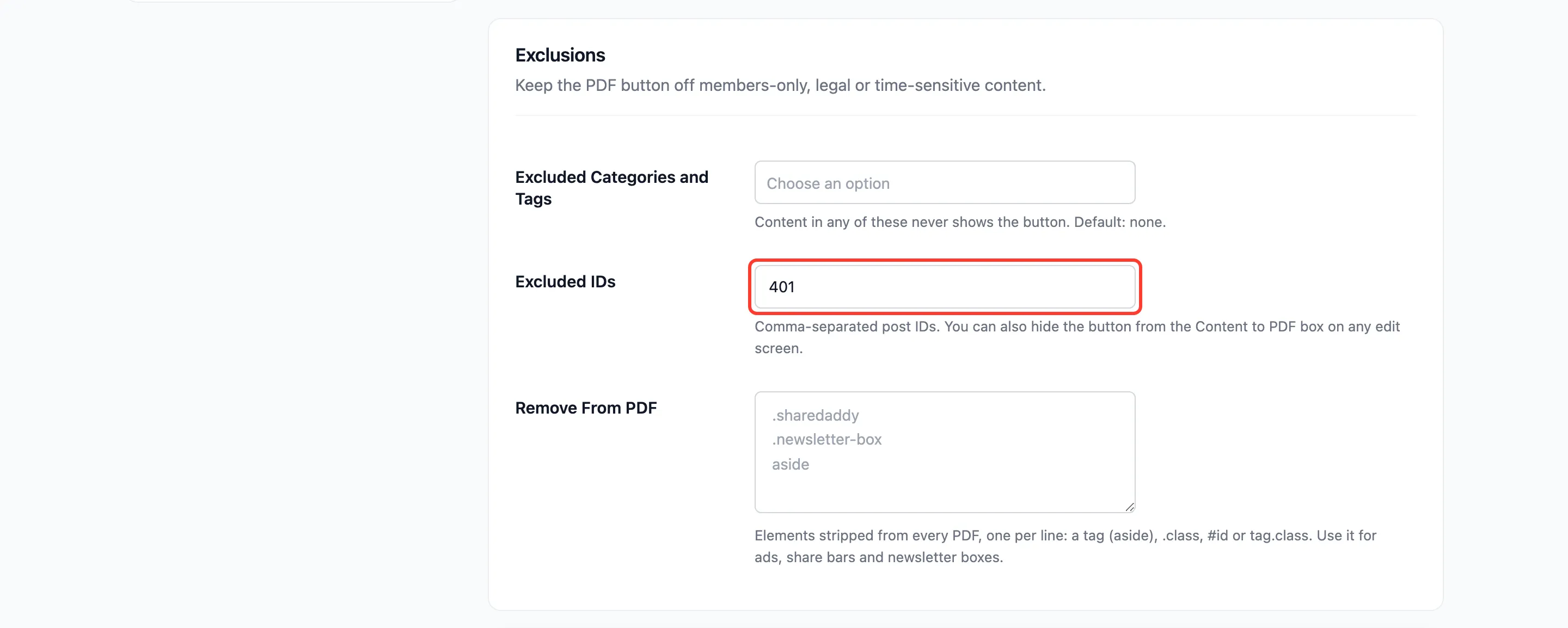
Section titled “Step 2: Hide it on a list of posts”Go to Content to PDF → Configuration → Rules and enter the post IDs in Excluded IDs, separated by
commas. You find a post’s ID in its edit link, after post=.
Step 3: Hide it on categories or tags
Section titled “Step 3: Hide it on categories or tags”On the same tab, choose them in Excluded Categories and Tags. Every post in any of them loses the button. The list covers post categories and tags.
Click Save Changes.
Step 4: Check the post
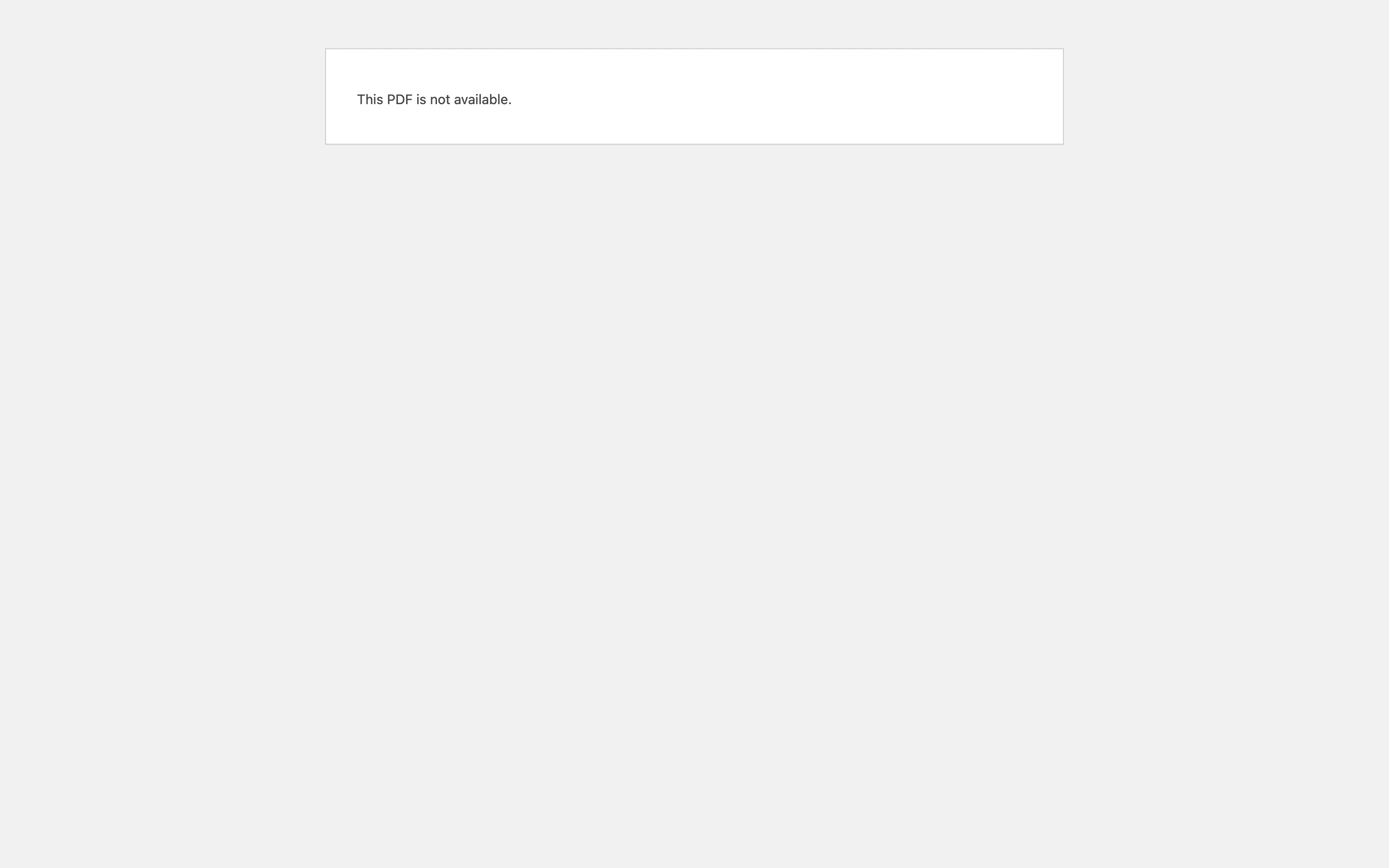
Section titled “Step 4: Check the post”Open the post in a private window. The button is gone. A reader who opens an old reader link gets “This PDF is not available.”
Things to know
Section titled “Things to know”- Excluded content also drops out of shortcodes and blocks that point at it.
- Excluded posts can still go into an ebook from the Ebook Builder, which is an admin tool.