

How to Collect Leads with a PDF
The lead form turns a useful guide into a reason to share an email address. Readers fill it in once, and every later PDF downloads straight away.
Step 1: Turn on the lead form
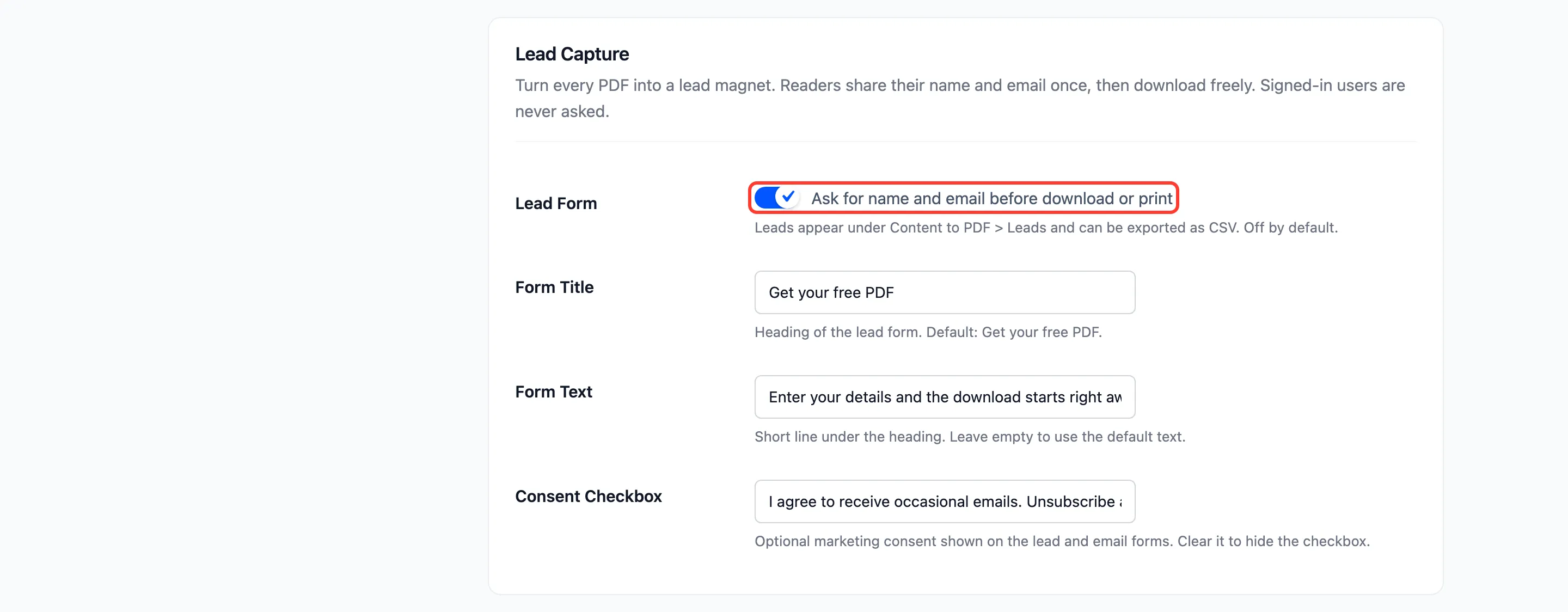
Section titled “Step 1: Turn on the lead form”Go to Content to PDF → Configuration → Reader & Leads and tick Lead Form.
Step 2: Write the form
Section titled “Step 2: Write the form”- Form Title: Default Get your free PDF.
- Form Text: Default Enter your details and the download starts right away.
- Consent Checkbox: An optional marketing consent line. Clear it to hide the checkbox.
Click Save Changes.
Step 3: Try it as a guest
Section titled “Step 3: Try it as a guest”Open a post in a private window. Press Download PDF, then Download or Print in the reader. The form appears.
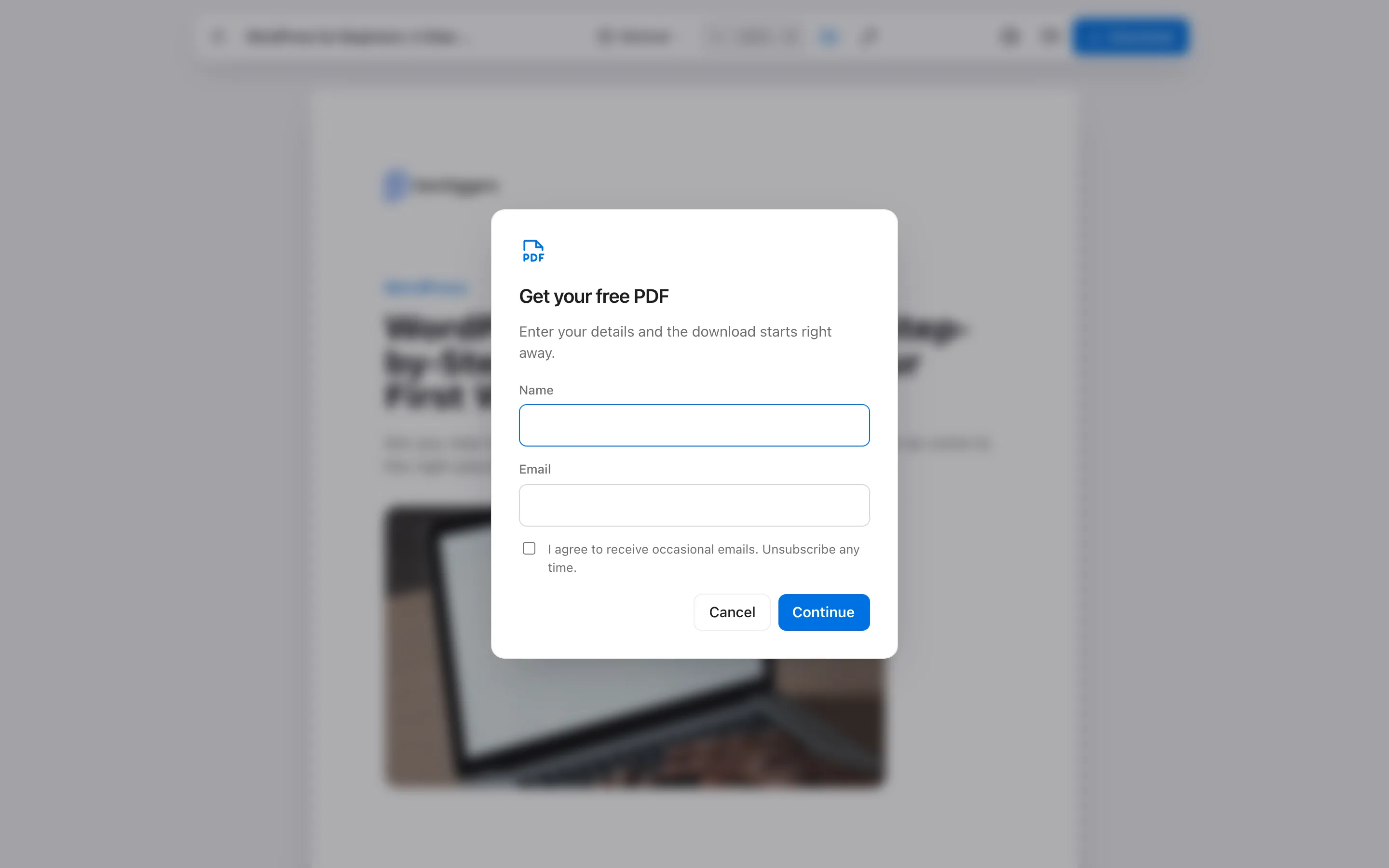
Name and email are required. Continue saves the lead and starts the download at once.
The browser remembers the reader for 90 days. On the demo, the next post’s PDF downloaded without the form.
Step 4: Find the lead
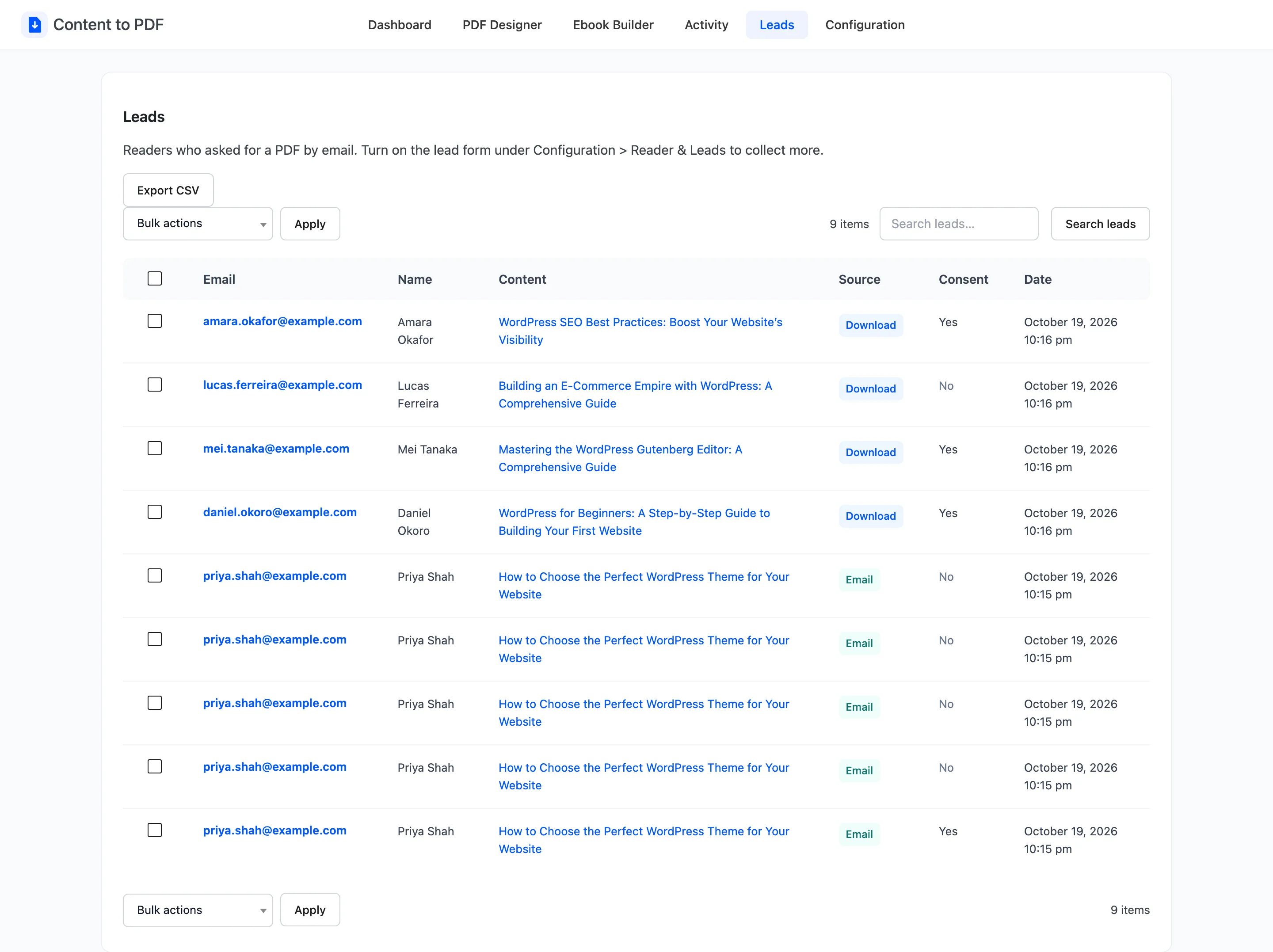
Section titled “Step 4: Find the lead”Open Content to PDF → Leads. Each row shows the email, name, the post, the source and whether they ticked consent.
Things to know
Section titled “Things to know”- Signed-in users are never asked.
- The form covers Download and Print. Email has its own form, and every address it collects is a lead too, with Email as its source.
- Export CSV on the Leads screen downloads them all. See How to Export Leads and Activity to CSV.
- To send each lead to a CRM, hook into
ddcpdf_lead_captured. It receives the name, email, post ID, source and consent.
add_action( 'ddcpdf_lead_captured', function ( $lead ) { // $lead['name'], $lead['email'], $lead['post_id'], $lead['source'], $lead['consent']} );