

How to Choose a PDF Template
The template sets the whole look of a PDF: the cover, the type, headings and tables. Every PDF on this page is the same post, downloaded from the demo in each template.
Step 1: Compare the templates
Section titled “Step 1: Compare the templates”Minimal
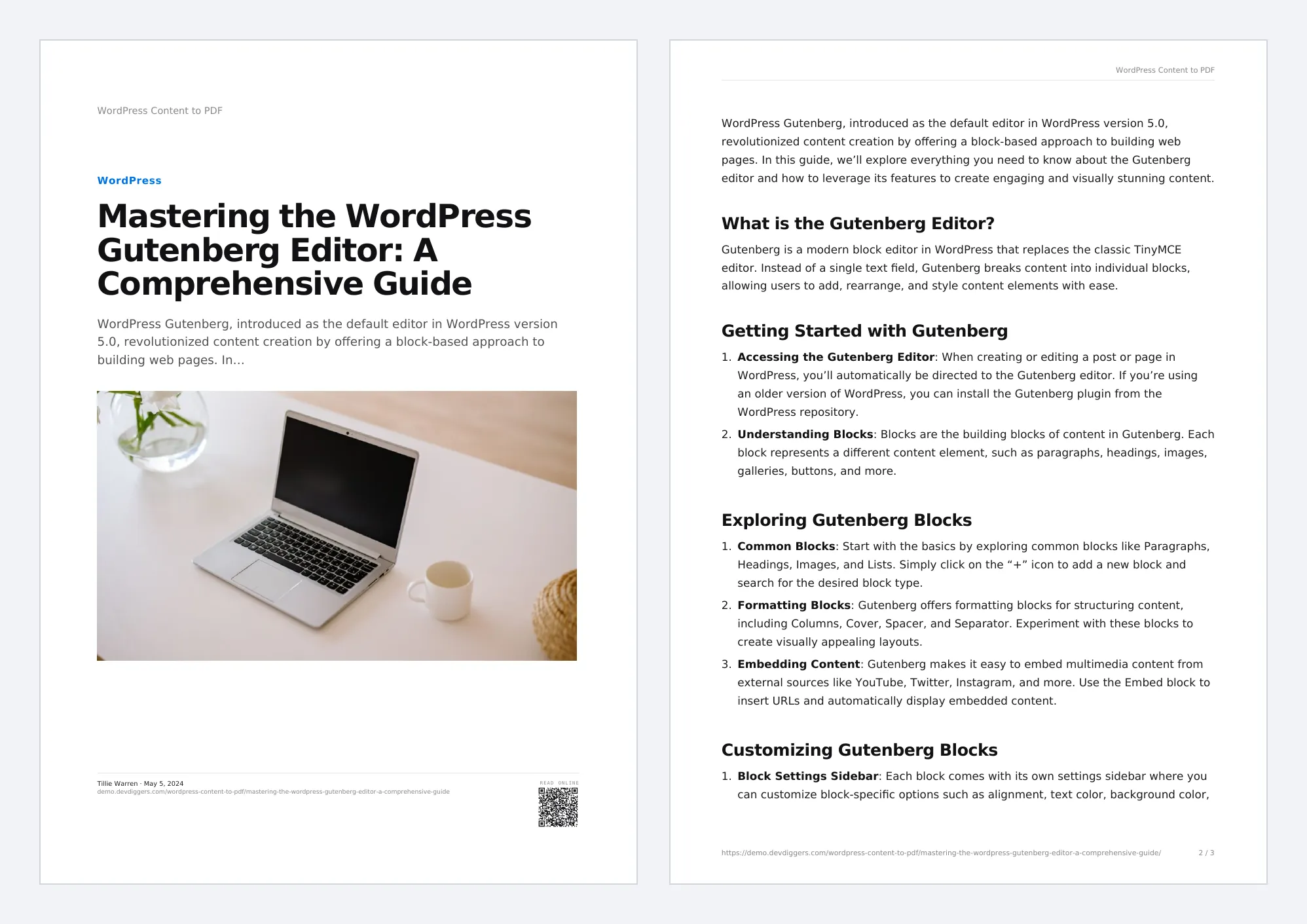
Section titled “Minimal”Clean sans-serif pages with lots of white space. The default.
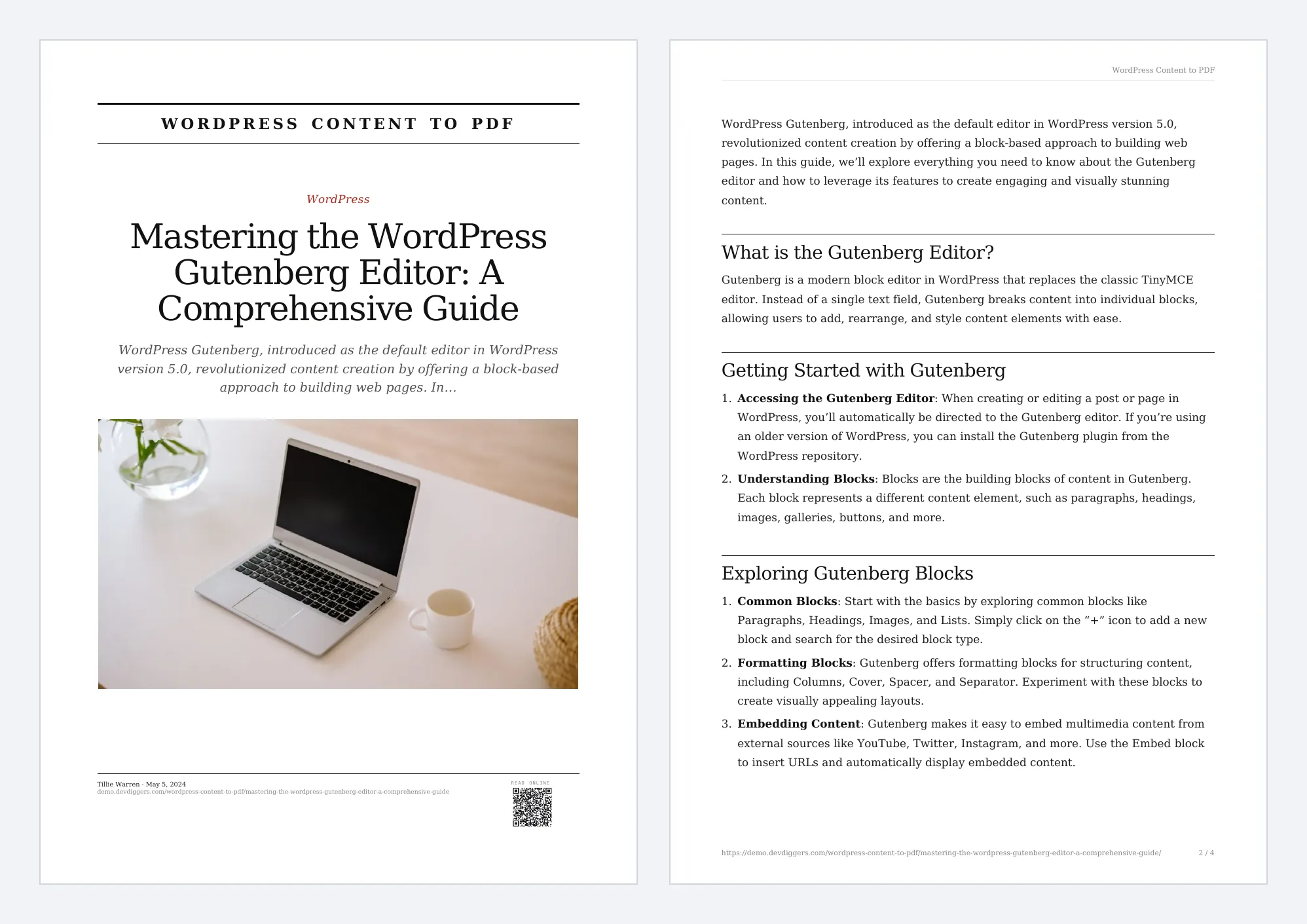
Editorial
Section titled “Editorial”A newspaper masthead, serif headlines and centred pull quotes.
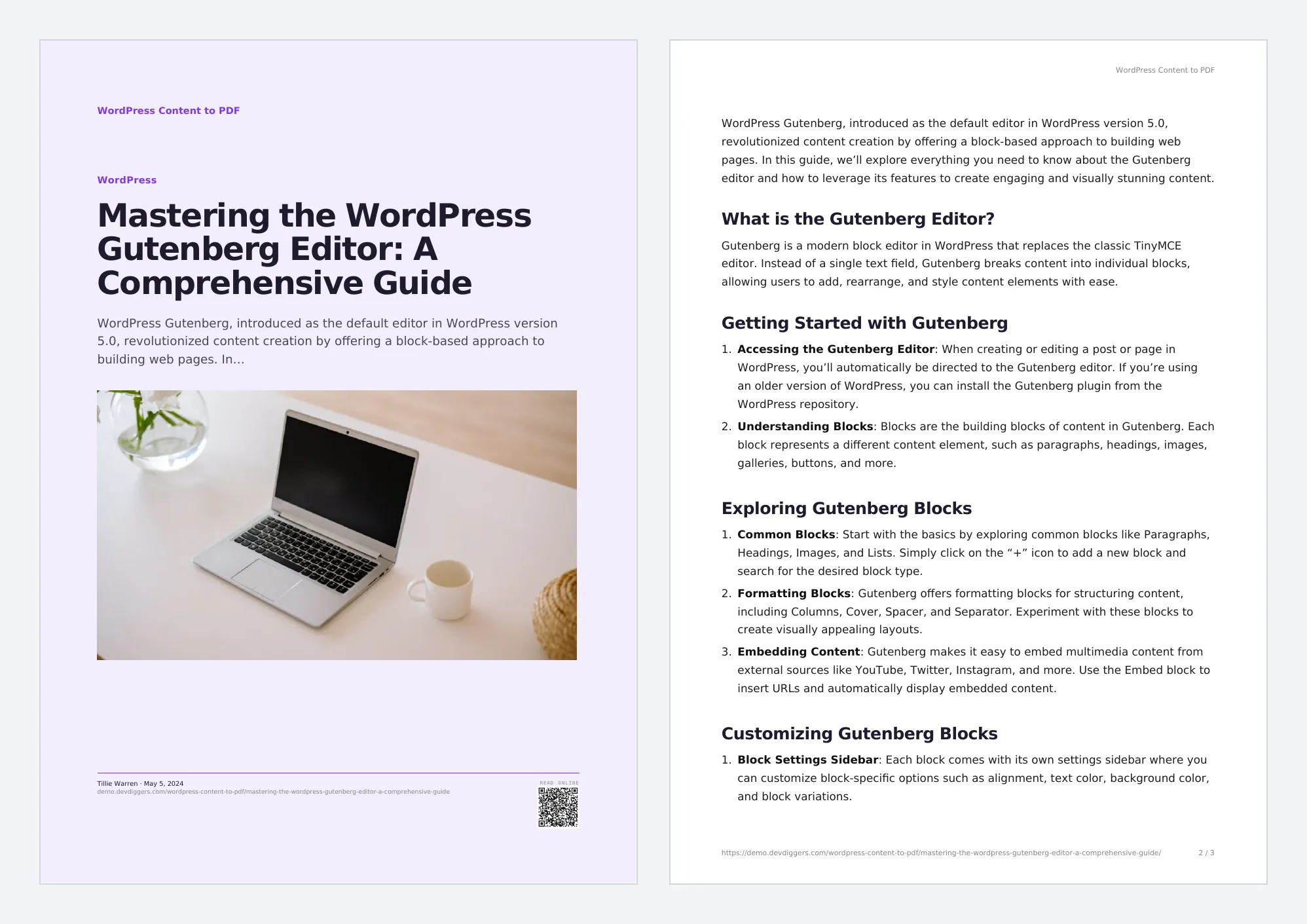
Aurora
Section titled “Aurora”A soft tinted cover, rounded cards and friendly type.
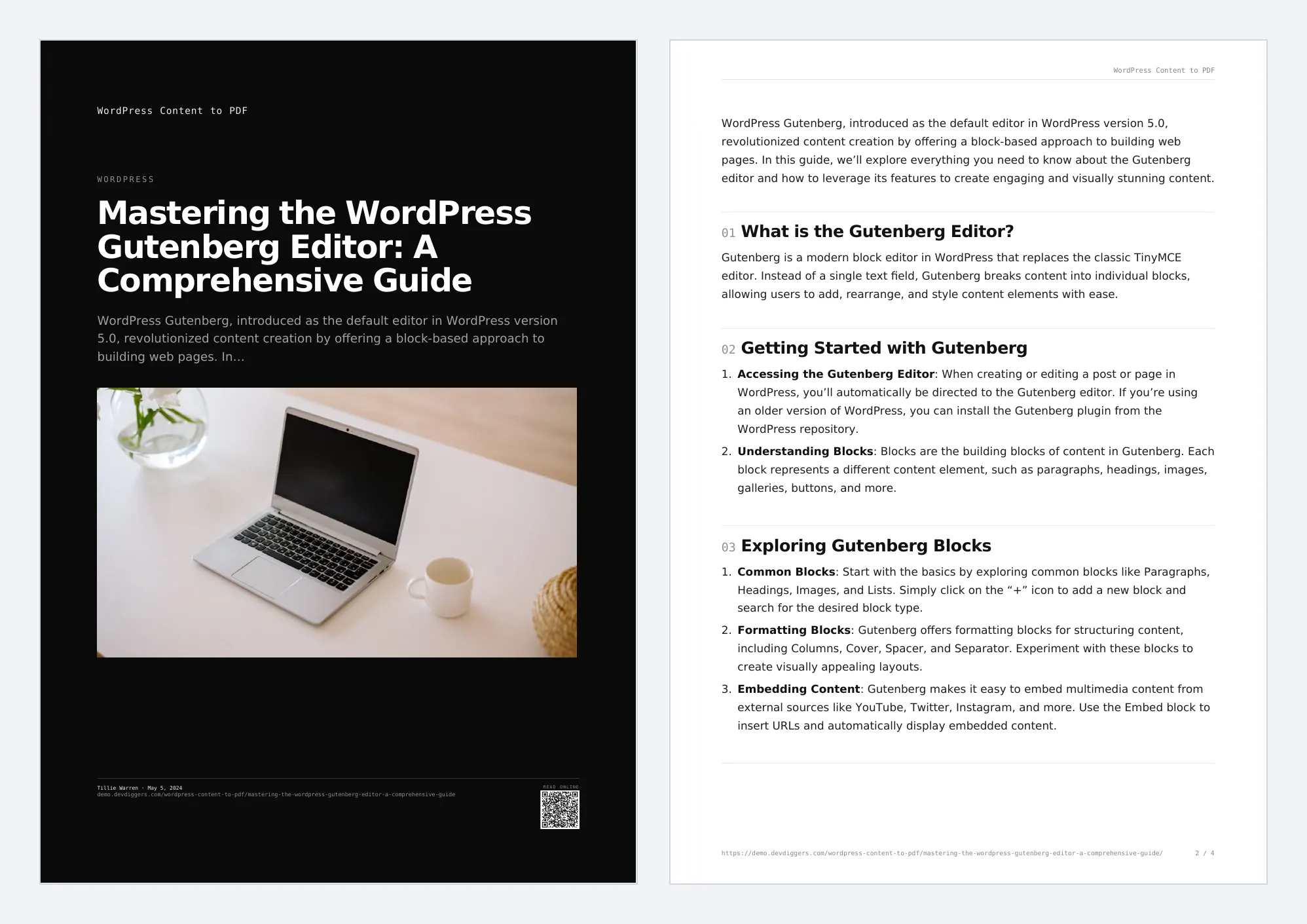
A black cover, monospace labels and numbered sections, for docs and guides.
Magazine
Section titled “Magazine”A bold colored cover, a big headline and a two-column body.
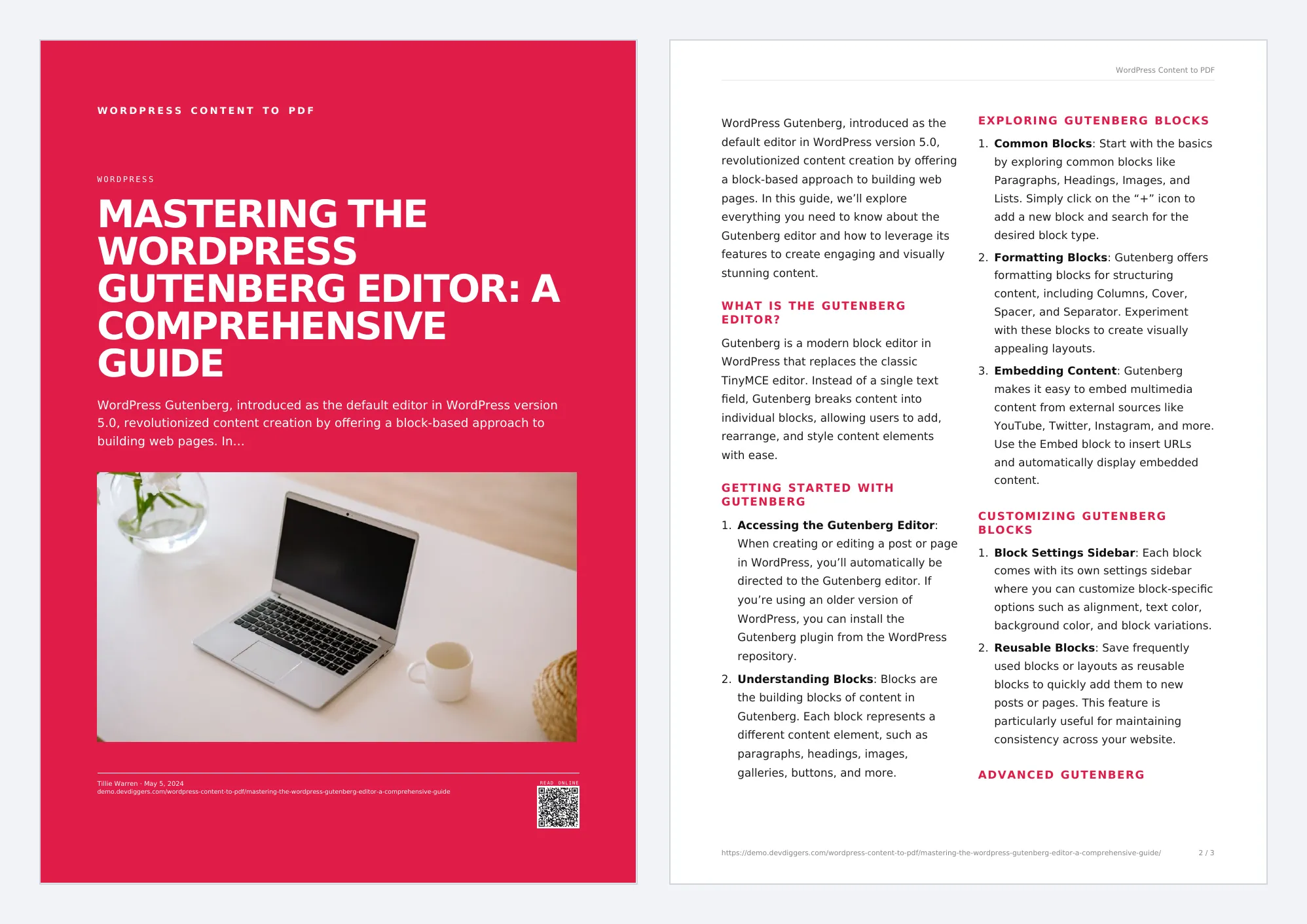
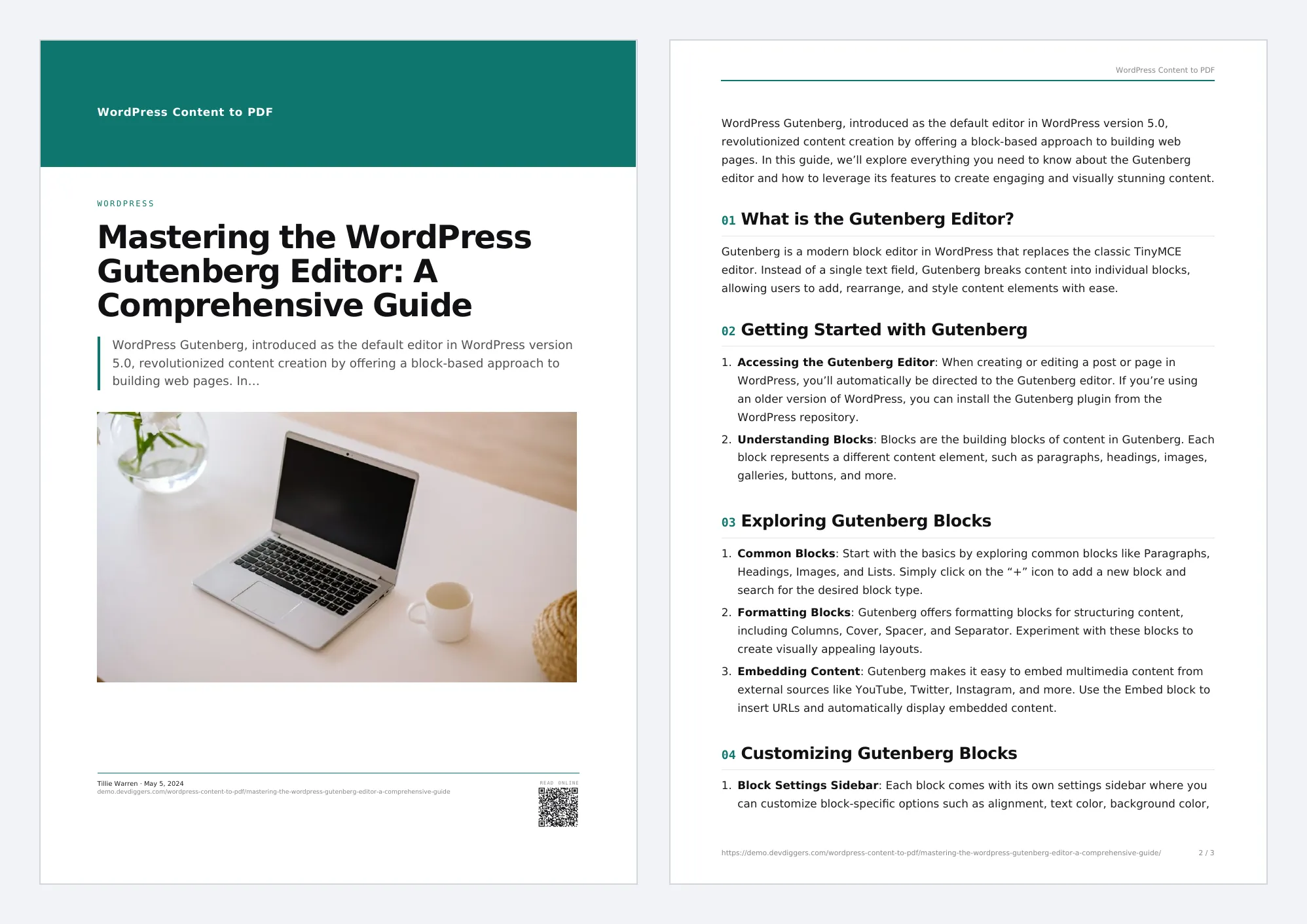
Corporate Report
Section titled “Corporate Report”A color band, numbered sections and tidy tables.
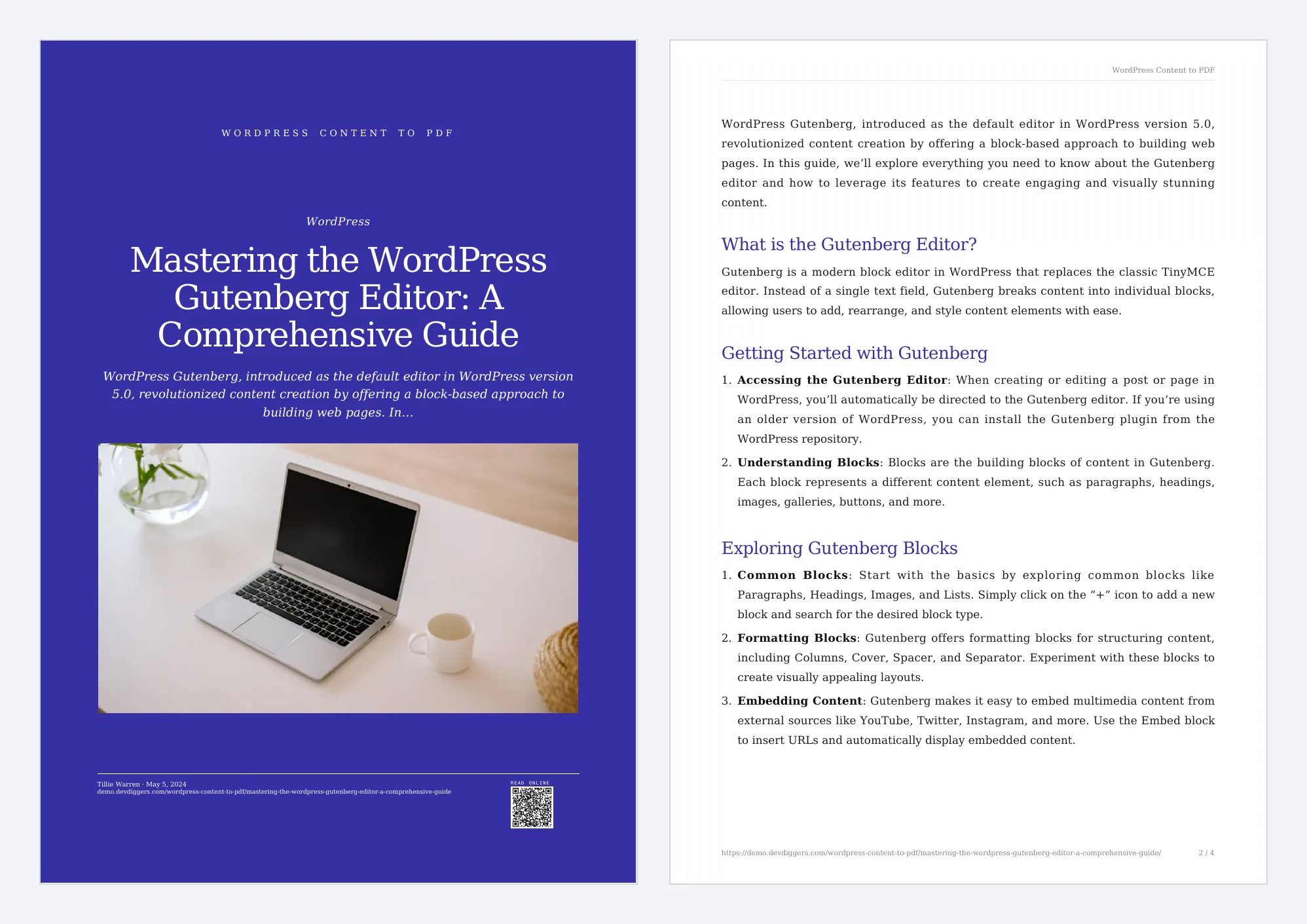
A full-color book cover and serif chapters. The Ebook Builder starts on it.
Product Sheet
Section titled “Product Sheet”A WooCommerce spec sheet with price, SKU, attributes and gallery. It opens on the product, with no cover. See How to Create PDF Product Sheets.
Step 2: Pick one in the PDF Designer
Section titled “Step 2: Pick one in the PDF Designer”Go to Content to PDF → PDF Designer and click a card in Template.
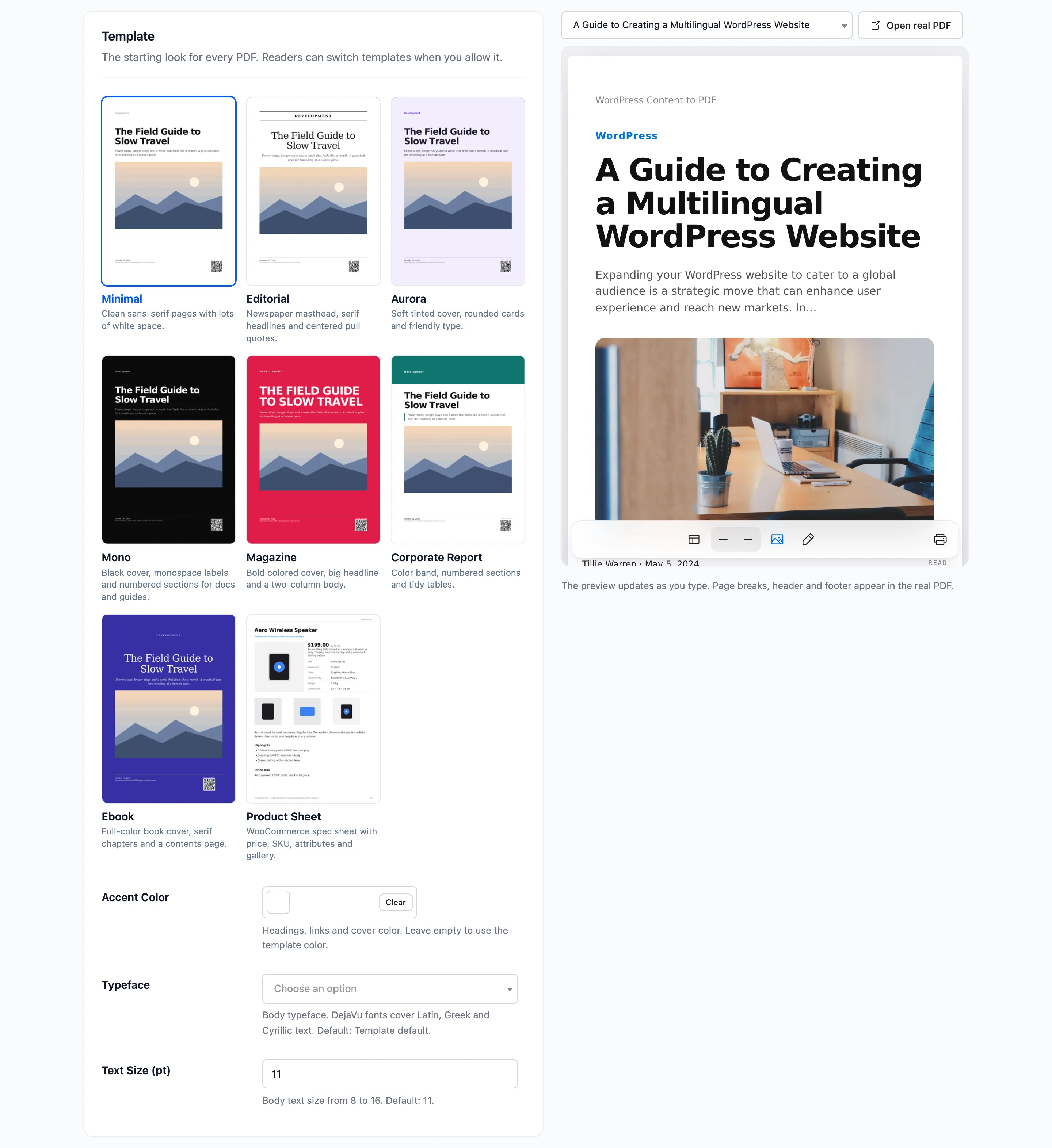
The live preview on the right redraws a real post in it.
Step 3: Set the accent color and typeface
Section titled “Step 3: Set the accent color and typeface”- Accent Color: Headings, links and the cover. Empty uses the template’s own color.
- Typeface: Template default, Sans-serif or Serif.
Step 4: Save
Section titled “Step 4: Save”Click Save Changes. New PDFs use the template from now on.
Things to know
Section titled “Things to know”- Readers can still switch templates in the reader, unless you turn off Template Switcher under Reader & Leads.
- A content type can have its own template. See How to Use a Different Template per Content Type.