

How to Place the Button with a Shortcode or Block
Manual placement suits landing pages and resource lists, and themes where the automatic spot looks wrong. On the demo, a “Free Guides” page offers two posts as PDFs, each under its own heading.
Step 1: Switch the automatic button off
Section titled “Step 1: Switch the automatic button off”Go to Content to PDF → Configuration → Button and set Position to Manual (block, widget or shortcode). Click Save Changes. The button now appears only where you place it.
You can skip this step to keep the automatic button as well.
Step 2: Add the block
Section titled “Step 2: Add the block”In the block editor, open the inserter and search for PDF Button.
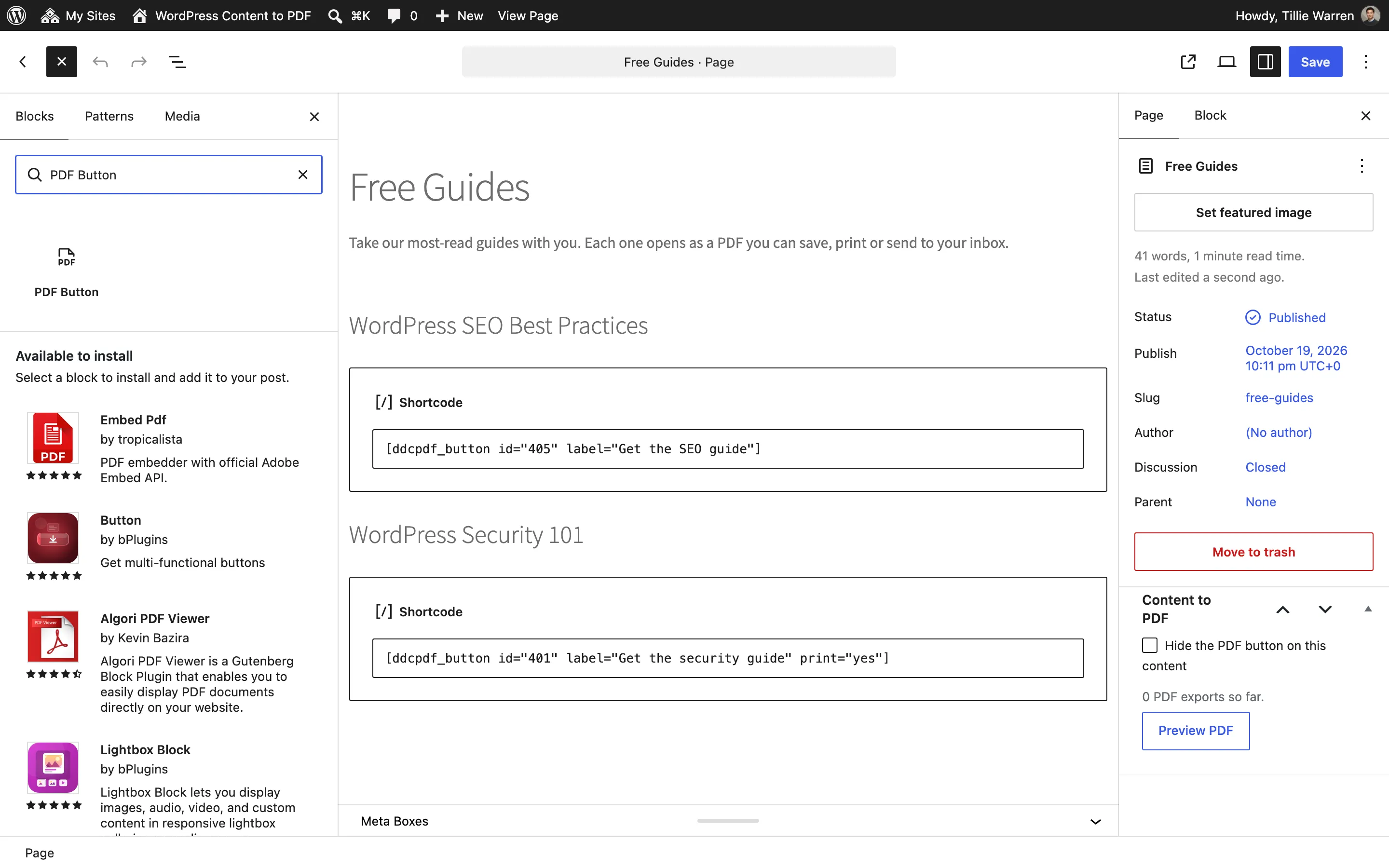
Add it. The block’s settings, in the sidebar, are:
- Label: Leave empty to use the label from the Button tab.
- Alignment: Left, Center or Right.
- Show Print button: Adds the Print button beside it.
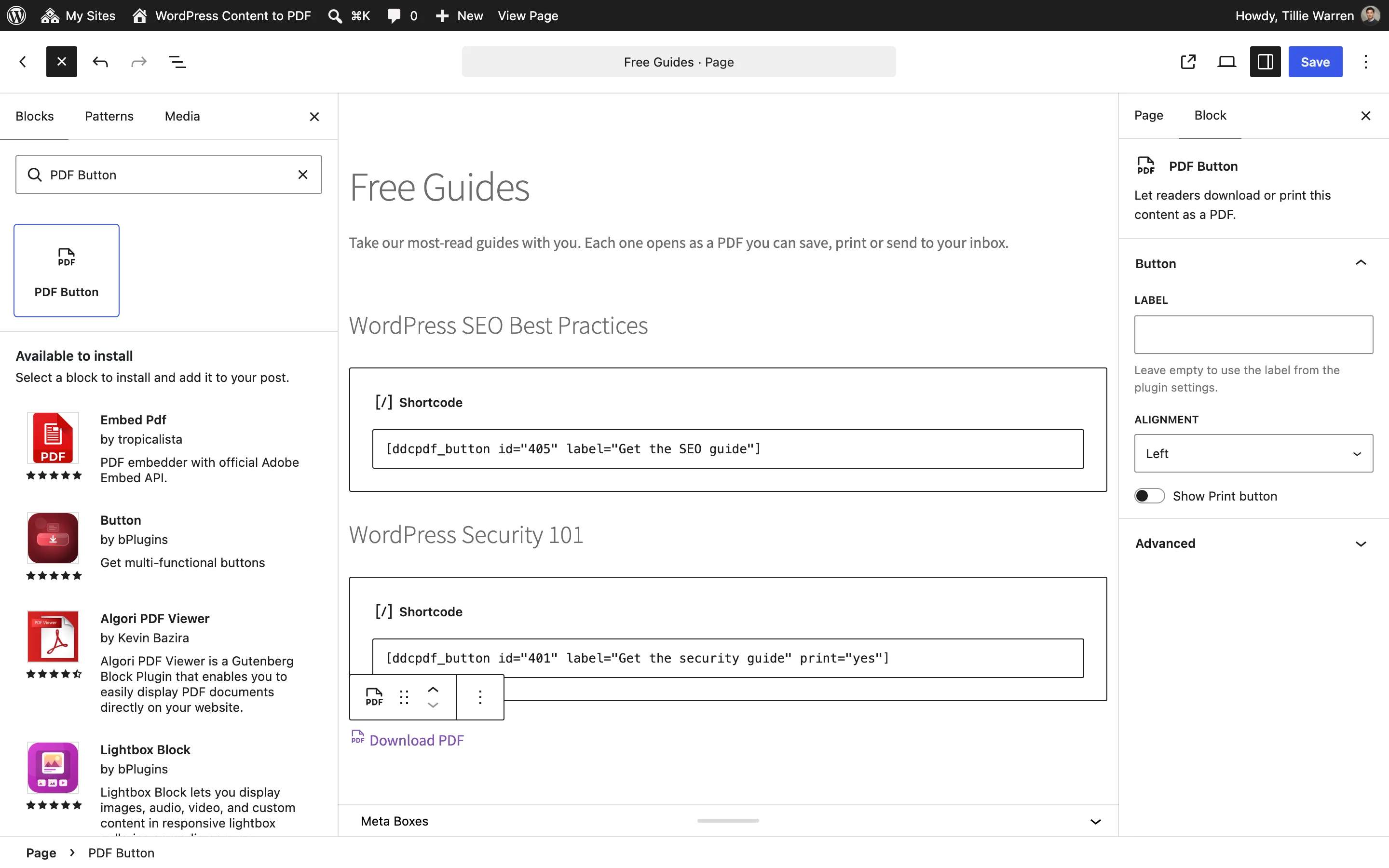
The block makes a button for the post it sits on.
Step 3: Or add the shortcode
Section titled “Step 3: Or add the shortcode”The shortcode works in classic content, widgets and theme files.
[ddcpdf_button][ddcpdf_button id="405" label="Get the SEO guide"][ddcpdf_button id="401" label="Get the security guide" print="yes"]id: A post’s ID, for a button that exports another post. Without it, the current post.label: The button’s text.print="yes": Adds the Print button.align: left, center or right.
In a theme file, print it with do_shortcode():
echo do_shortcode( '[ddcpdf_button]' );Step 4: Check the page
Section titled “Step 4: Check the page”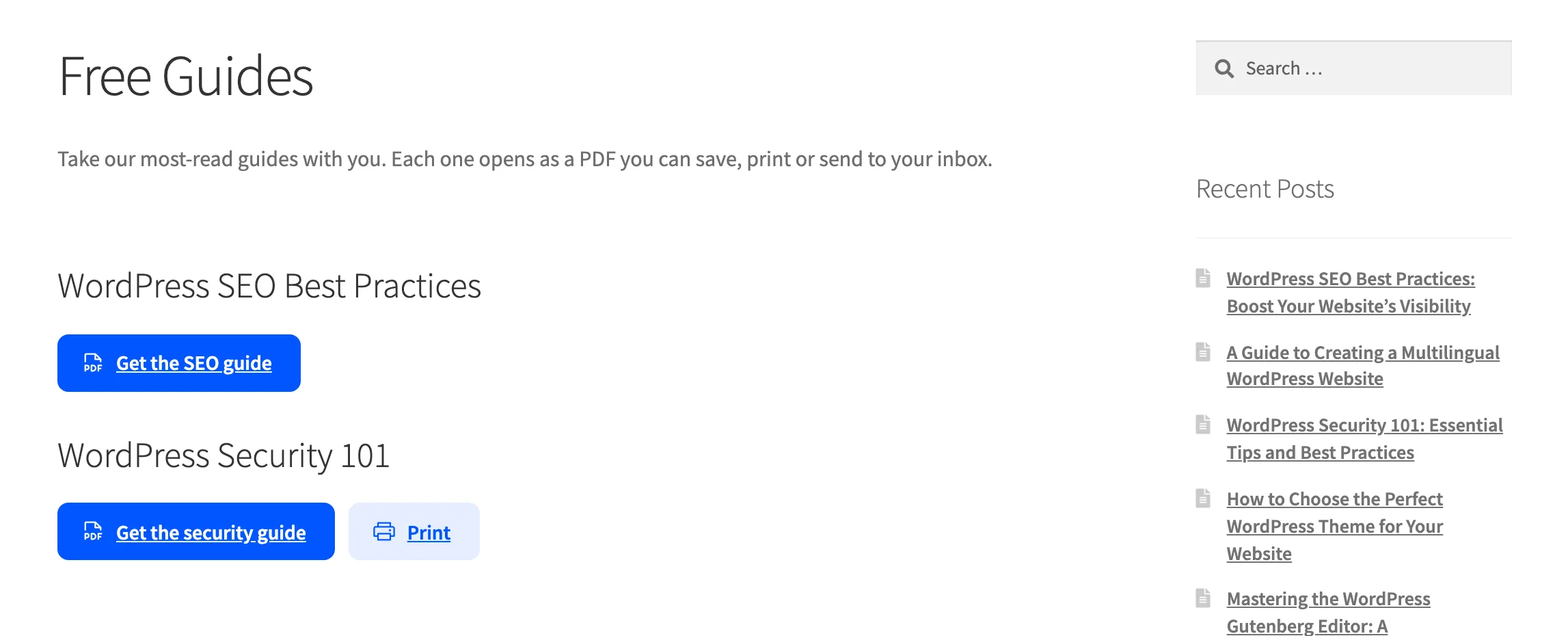
Each button opens the reader for its own post.
Elementor
Section titled “Elementor”With Elementor active, search for PDF Button in the Elementor panel. It has the same three settings: Label, Alignment and Show Print button.
Things to know
Section titled “Things to know”- A button for content a visitor may not export prints nothing.
- Buttons use your Button tab’s style and colors.