

How to Password-Protect PDFs
Protection is for content you hand out but do not want passed around freely, such as a members’ guide.
Step 1: Set the open password
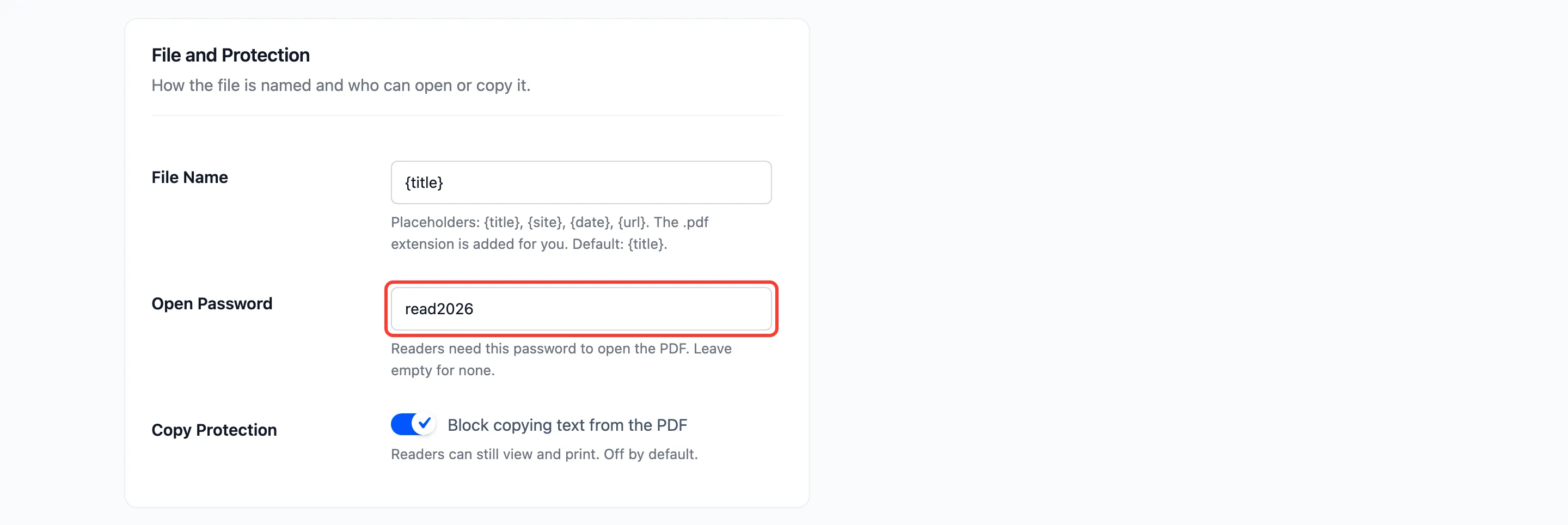
Section titled “Step 1: Set the open password”Go to Content to PDF → PDF Designer → File and Protection and type a password into Open Password.
Step 2: Block copying if you need to
Section titled “Step 2: Block copying if you need to”Tick Copy Protection to stop readers selecting and copying text. Viewing and printing still work. You can use it with or without a password.
Step 3: Save and test a download
Section titled “Step 3: Save and test a download”Click Save Changes, then download a PDF from a post. On the demo, the file then refused to open without the password. With it, the file opened with printing allowed and copying blocked.
Things to know
Section titled “Things to know”- Every reader gets the same password. Share it where you share the PDF, for example in a members’ area.
- The reader’s preview in the browser is not protected, only the downloaded file.
- Emailed PDFs are protected the same way.
- Clear the field and save to stop protecting new PDFs. Files already downloaded keep their password.