

How to Remove Ads and Share Bars from PDFs
Ad blocks, share bars and “subscribe” boxes make sense on a web page and none in a PDF. Remove From PDF strips them out of every file.
Step 1: Find the element’s selector
Section titled “Step 1: Find the element’s selector”On your site, right-click the element and choose Inspect. Note one of these:
- Its tag, such as
asideorul. - A class, such as
.sharedaddyor.newsletter-box. - An ID, such as
#related-posts. - A tag and a class together, such as
figure.wp-block-image.
Step 2: Add it to Remove From PDF
Section titled “Step 2: Add it to Remove From PDF”Go to Content to PDF → Configuration → Rules and add one selector per line to Remove From PDF. On the demo, the list removed every image block and every bullet list.
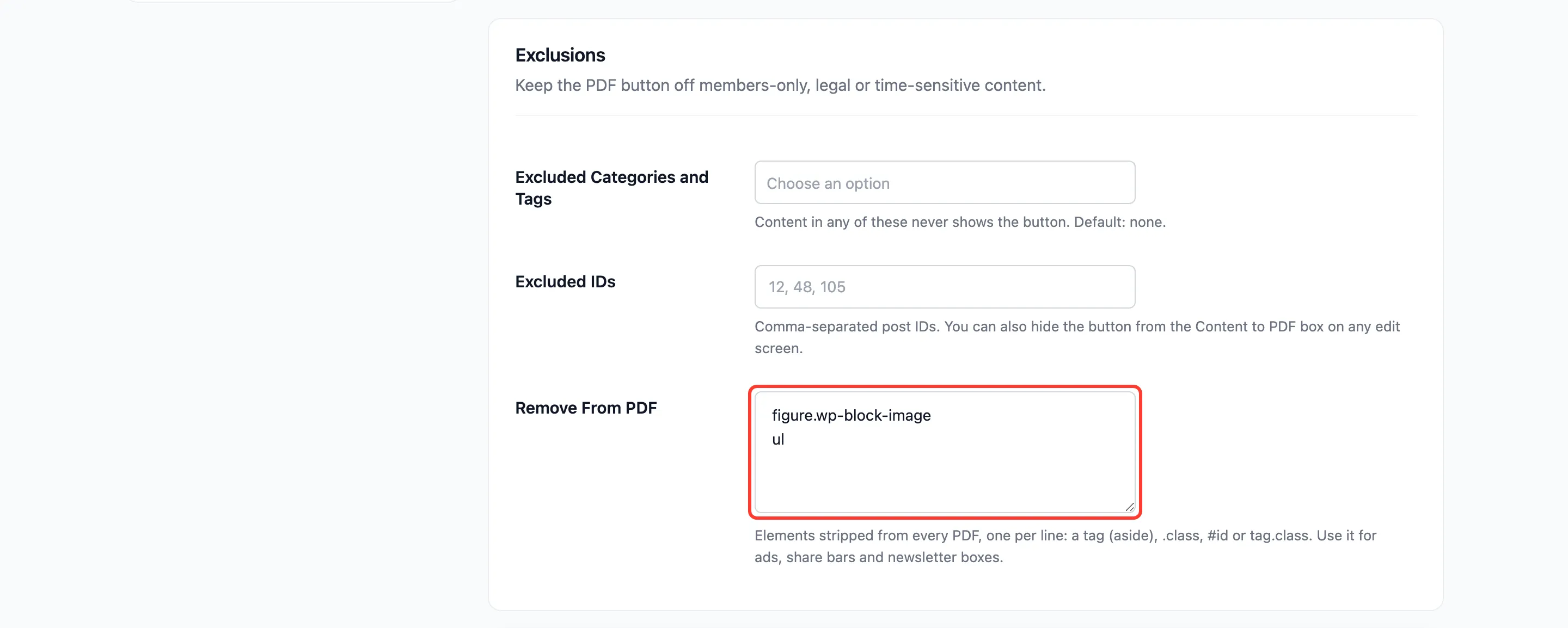
Step 3: Save and check a PDF
Section titled “Step 3: Save and check a PDF”Click Save Changes and download a PDF. The same page of the same post, before and after:
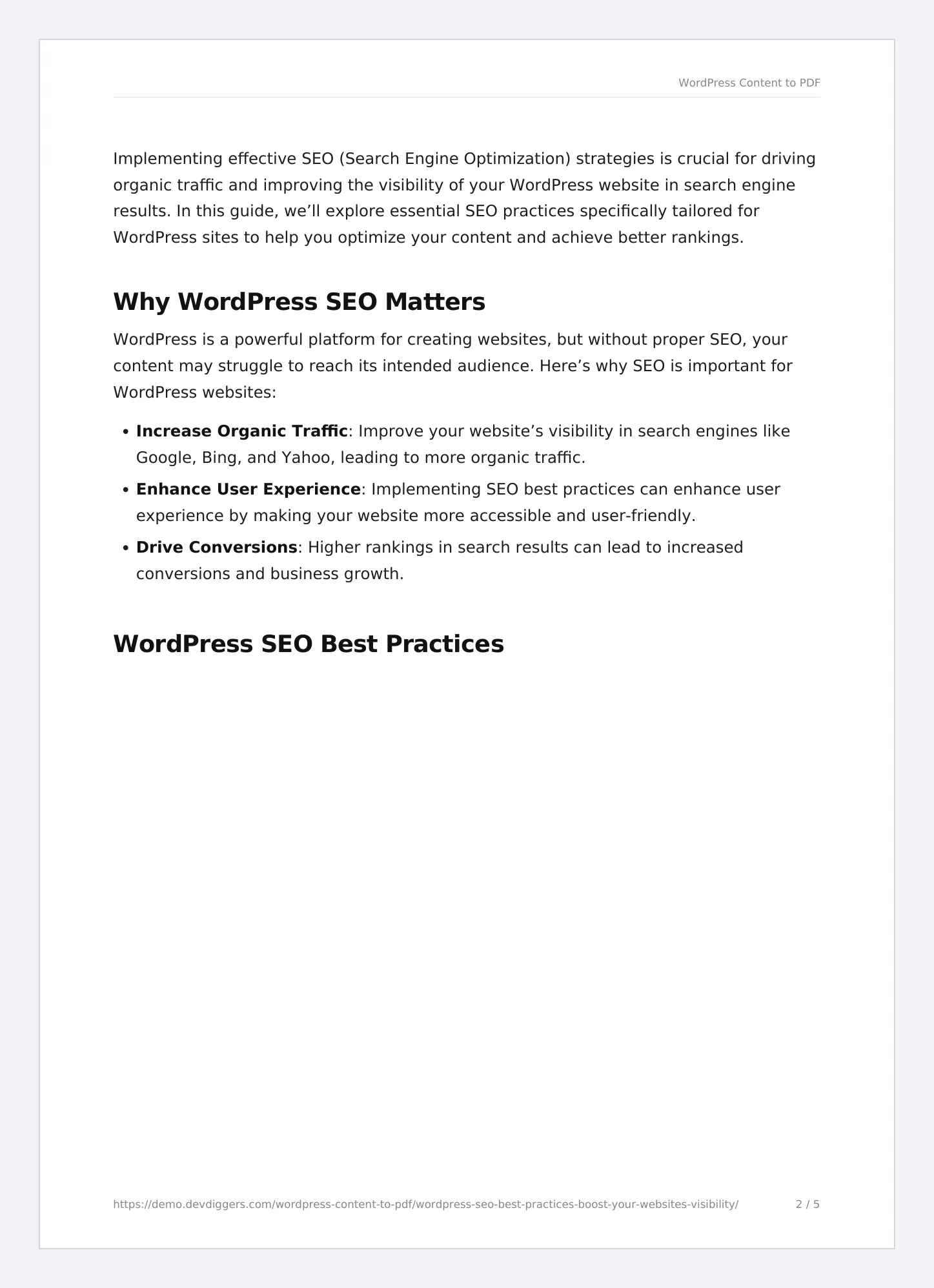
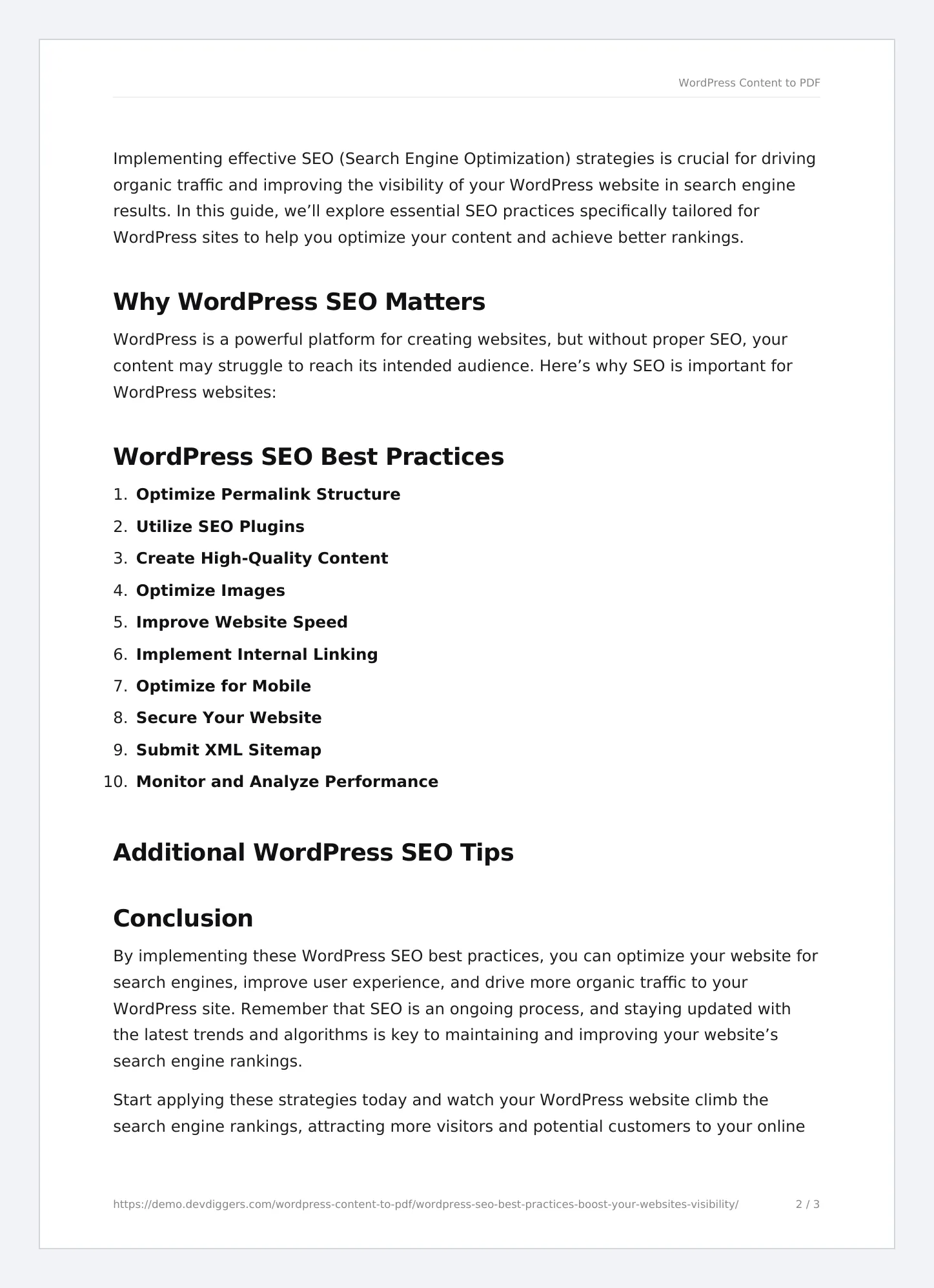
The post went from five pages to three.
Things to know
Section titled “Things to know”- Only these four forms work. Longer selectors, such as
.entry .share, are not supported. - The rule applies to every PDF and ebook. For a one-off, a reader can remove blocks in the reader.
- Embedded videos are already replaced by a link, so they need no rule.