

The Reader Experience
The reader is what your visitors see after pressing the PDF button. It shows the document as it will be saved, with a toolbar across the top.
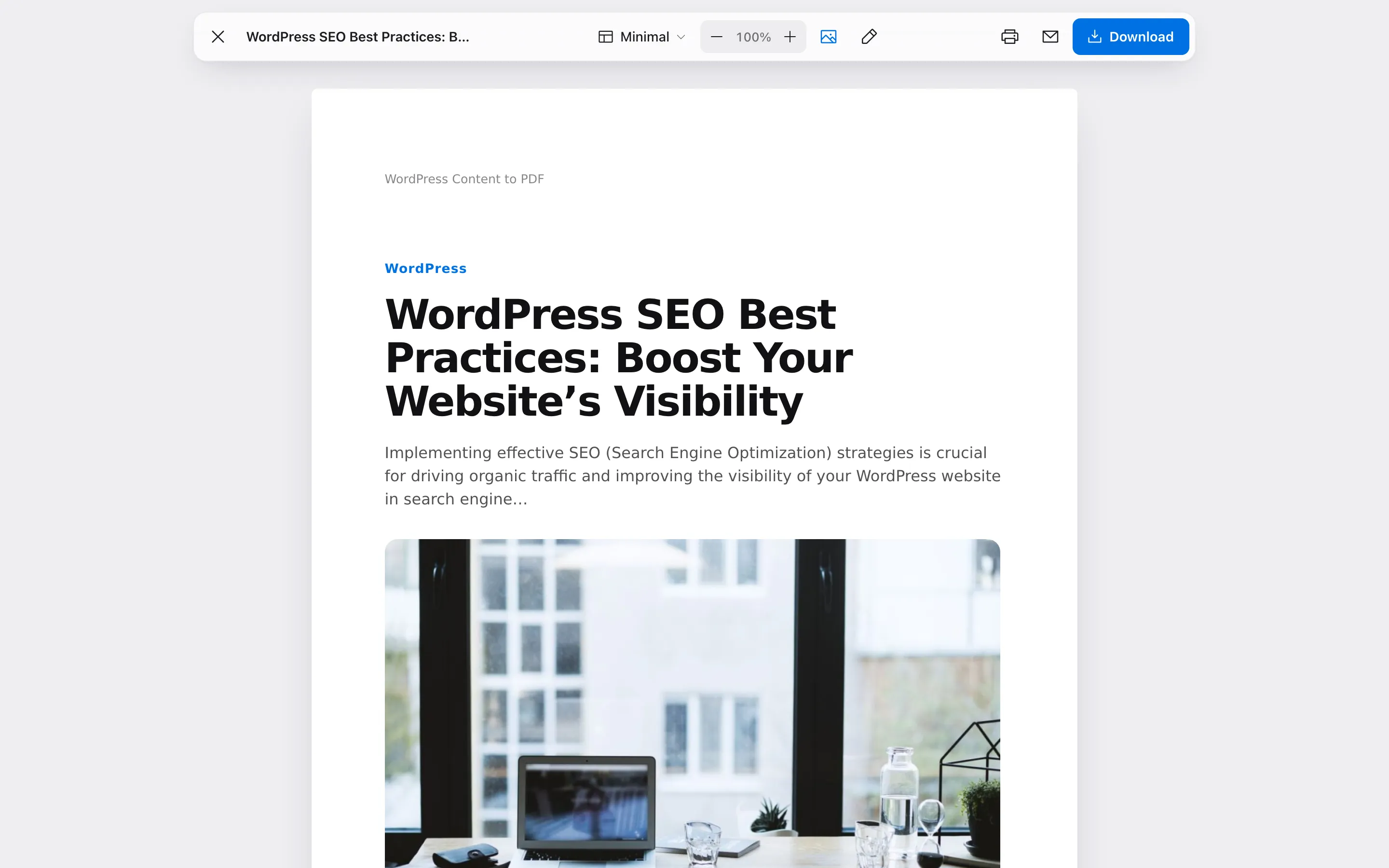
The reader opens over the article. Close (the X), or the Escape key, returns to the page.
The toolbar
Section titled “The toolbar”
From left to right:
- Close and the document title.
- Template: A menu of templates, when you allow switching.
- Text size: Minus and plus buttons, from 70% to 150% in steps of 10.
- Images: Hides or shows every image.
- Edit: Lets the reader change text and remove blocks.
- Print, Email and Download.
Each tool can be turned off under Configuration → Reader & Leads, except Print and Download.
Switch the template
Section titled “Switch the template”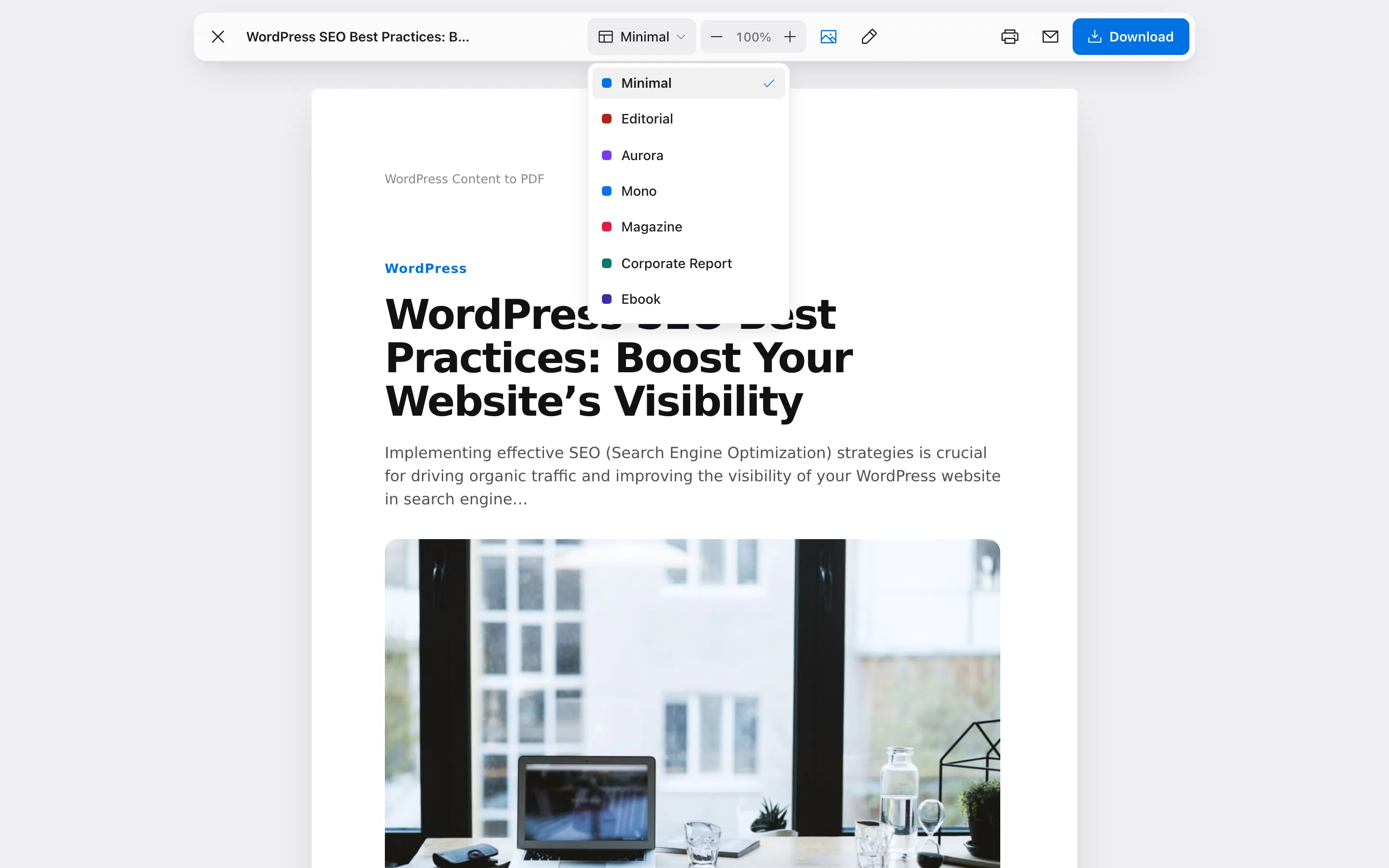
Picking a template redraws the preview in it. Product Sheet is only offered on WooCommerce products.
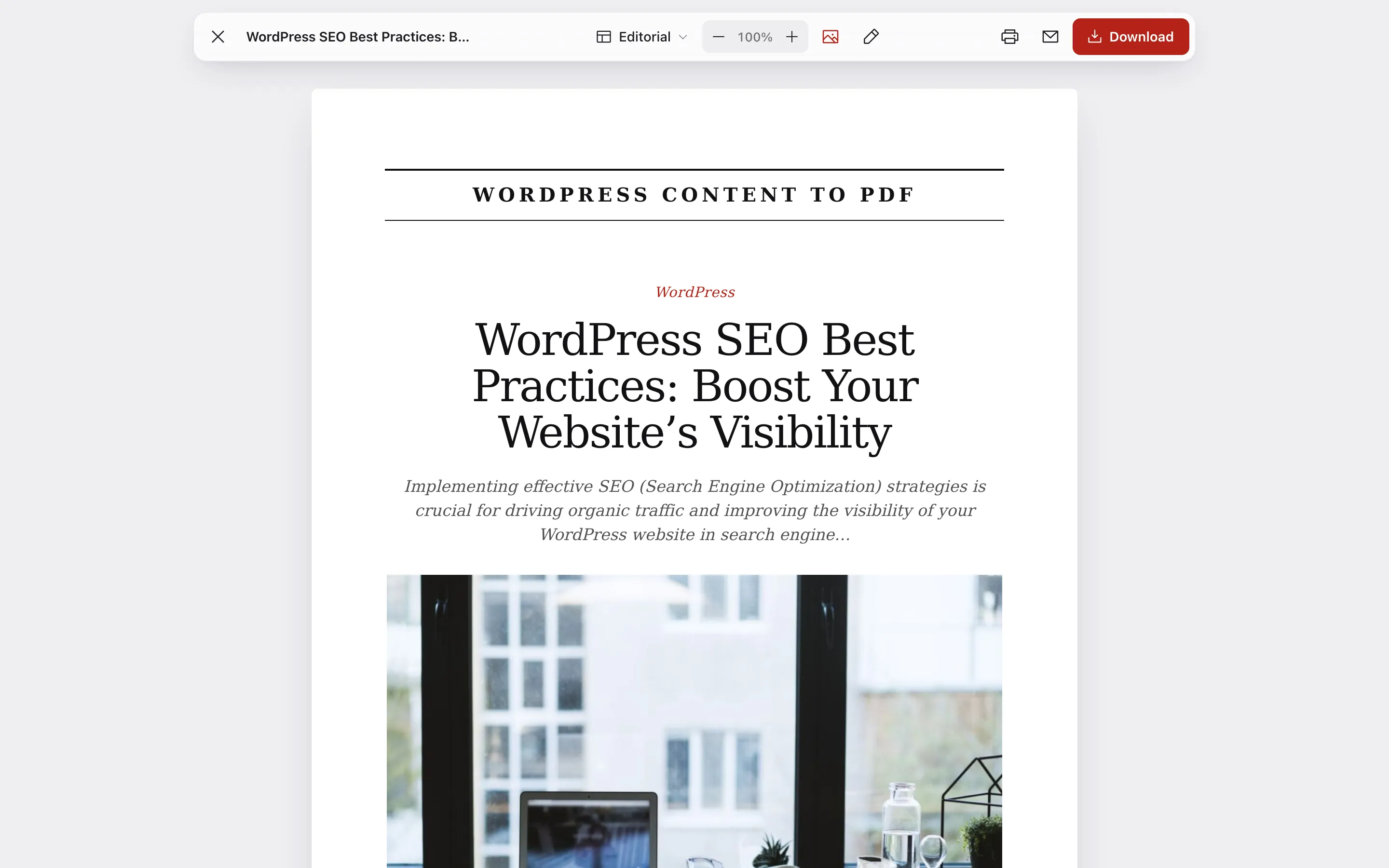
The page reloads to switch, so choose the template before editing any text.
Resize text and hide images
Section titled “Resize text and hide images”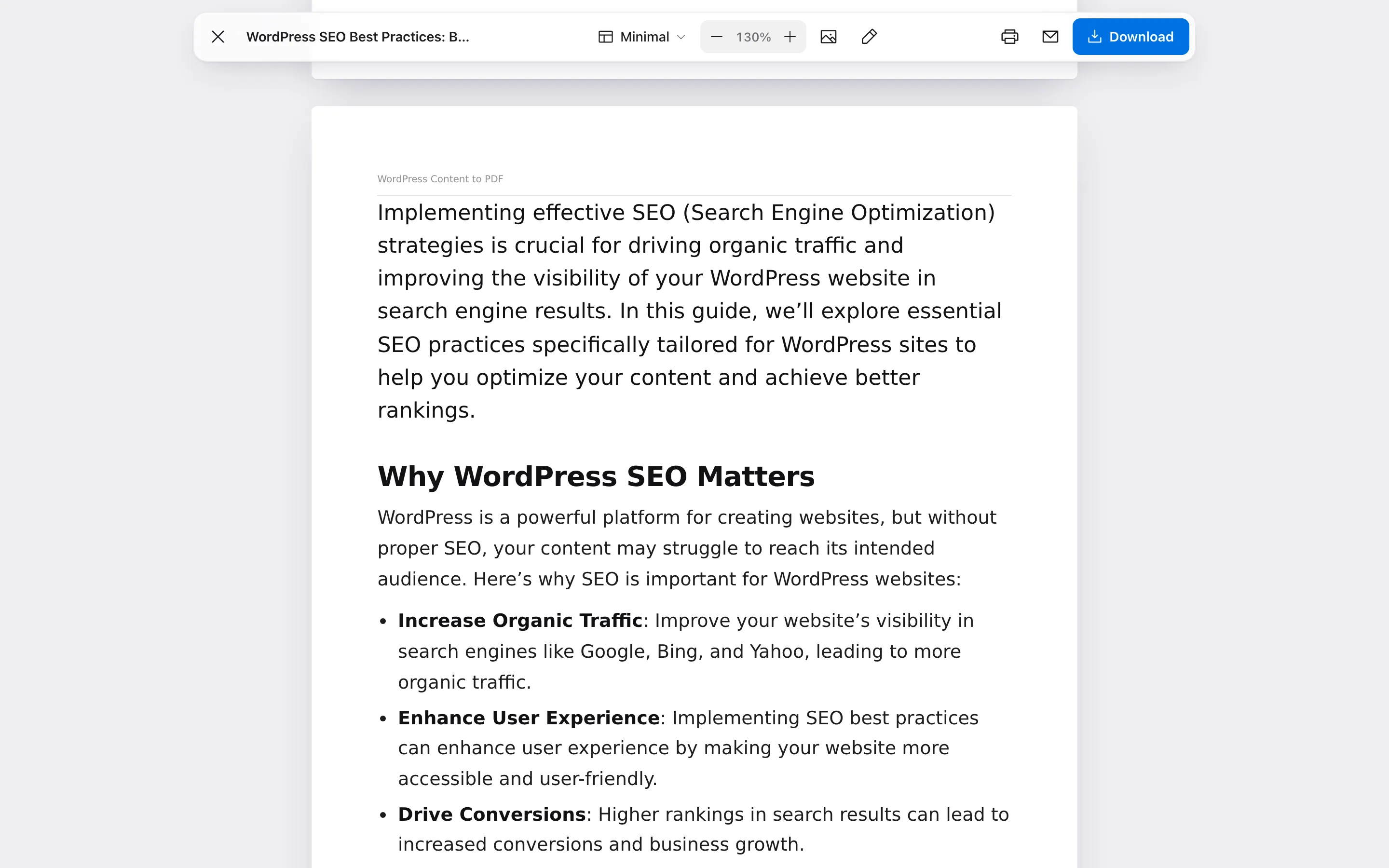
Both change the reader’s own PDF only. Text size changes the article’s text, not the cover.
Edit before saving
Section titled “Edit before saving”Press the pencil. The hint bar reads “Click text to edit it. Use the trash button to remove a block.”
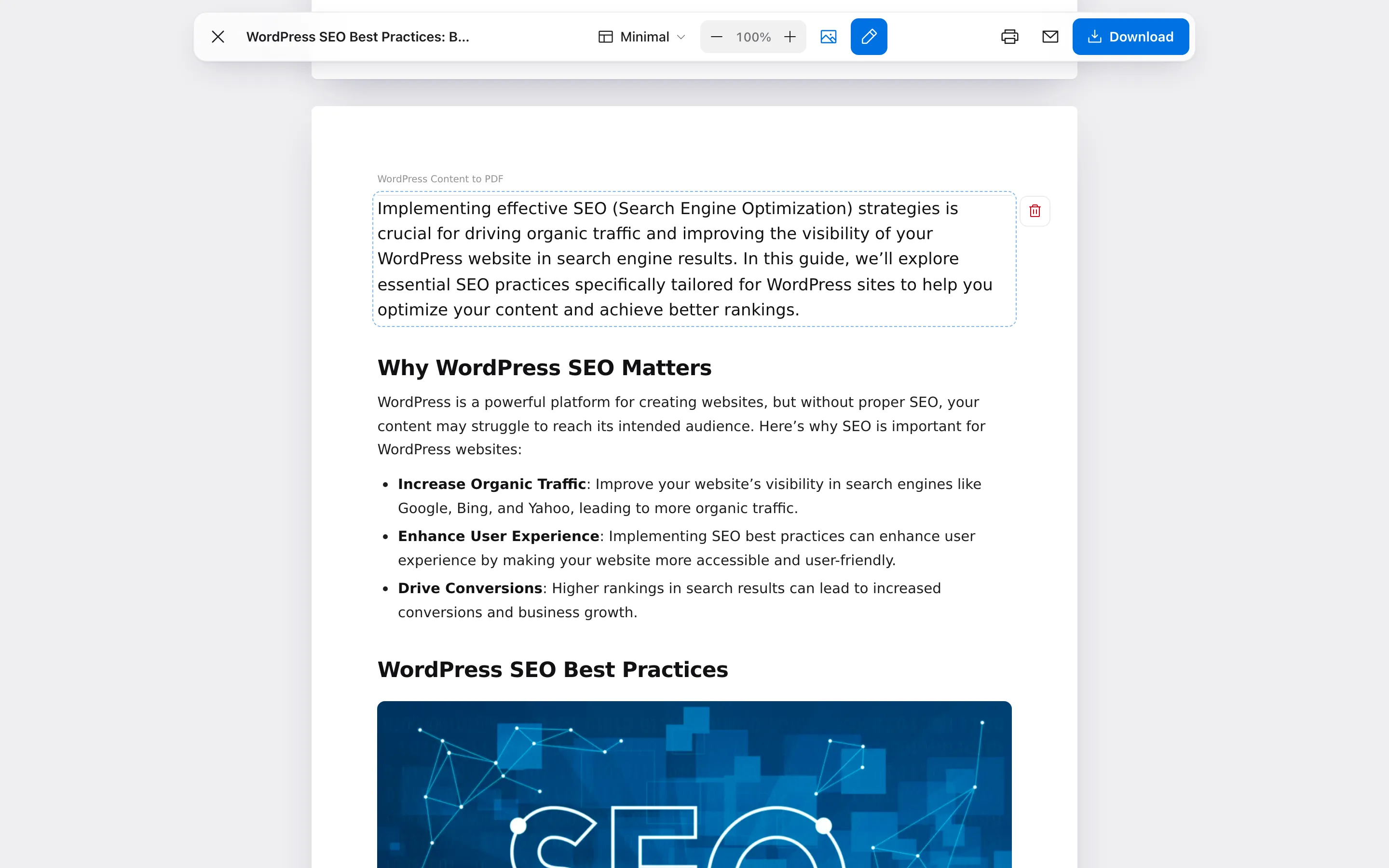
- Click any paragraph or heading to change its words.
- Hover a block and press the trash button to remove it. A message offers Undo.
- Reset brings back the original text. Done leaves edit mode.
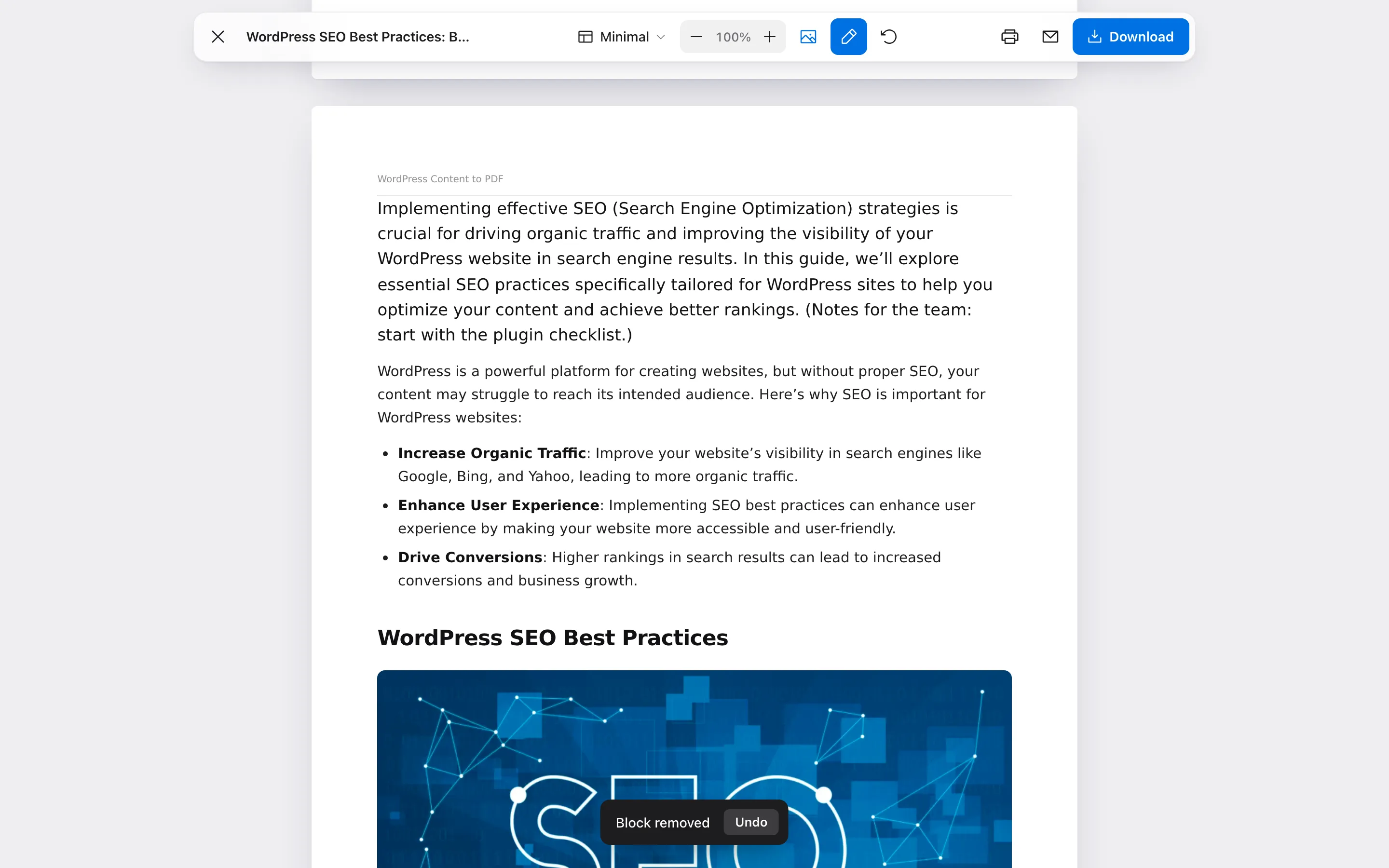
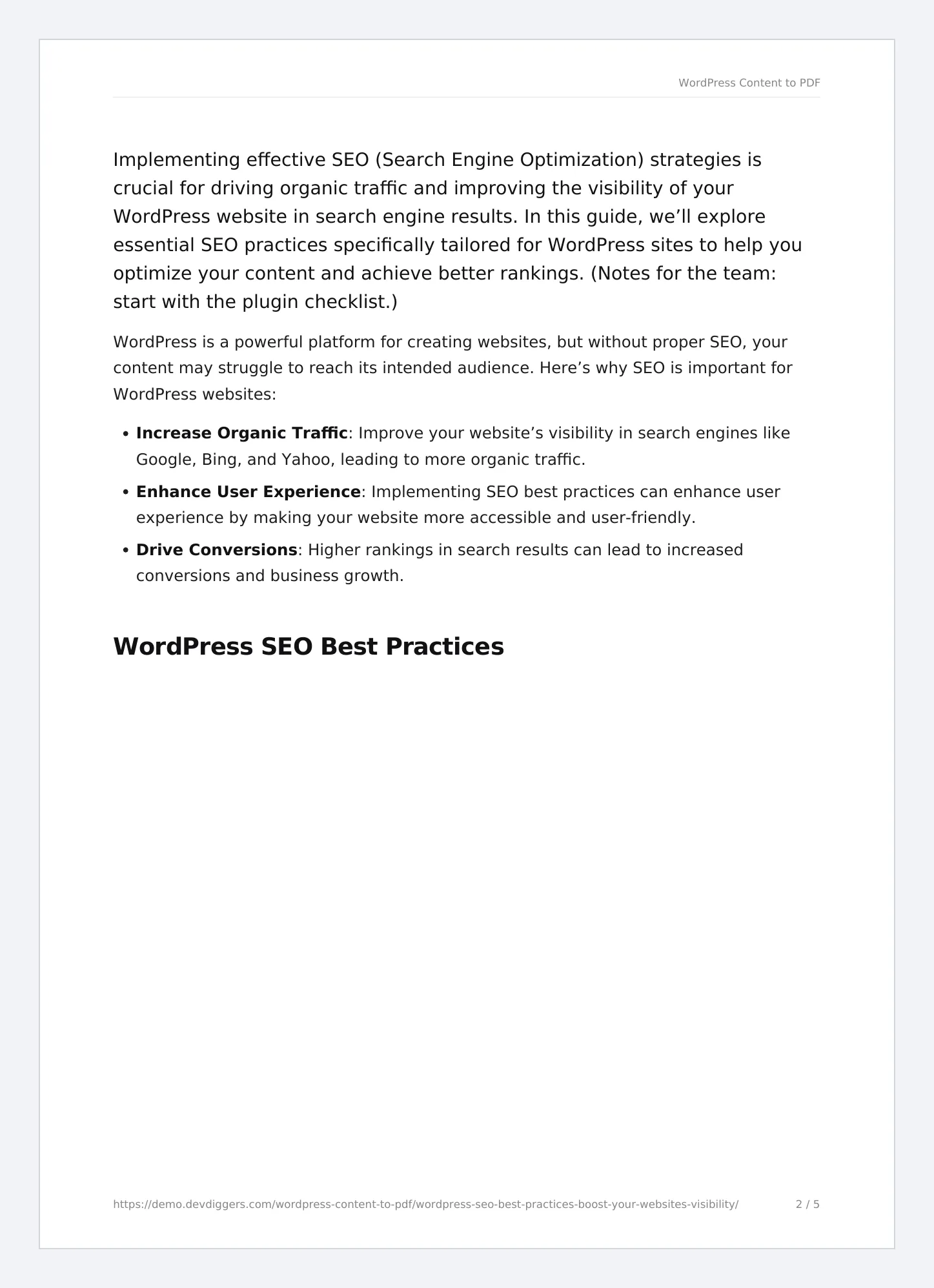
The edits go into the downloaded file. They change nothing on your site.
Download
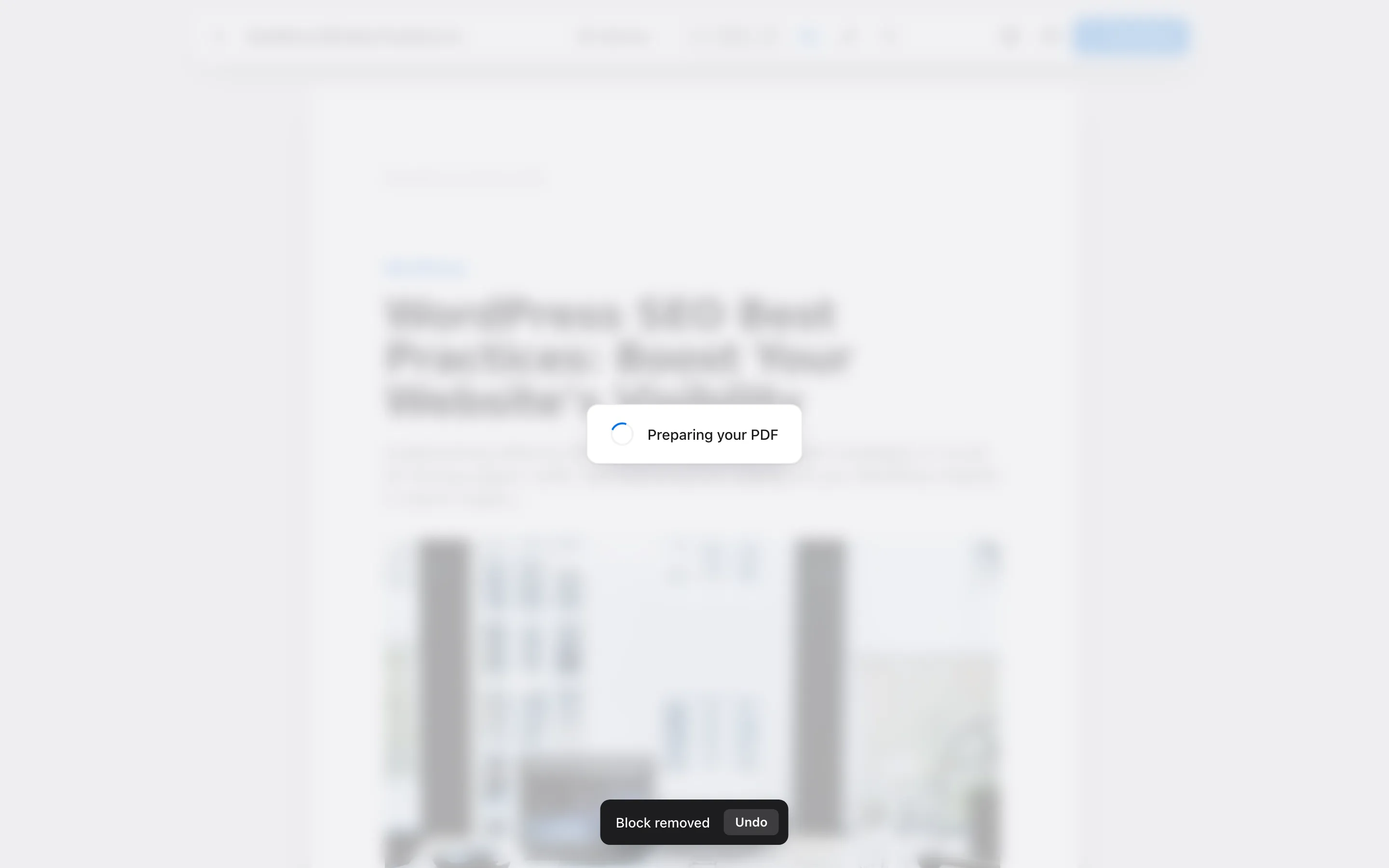
Section titled “Download”Download shows “Preparing your PDF”, then saves the file and shows “Your PDF is downloading”.
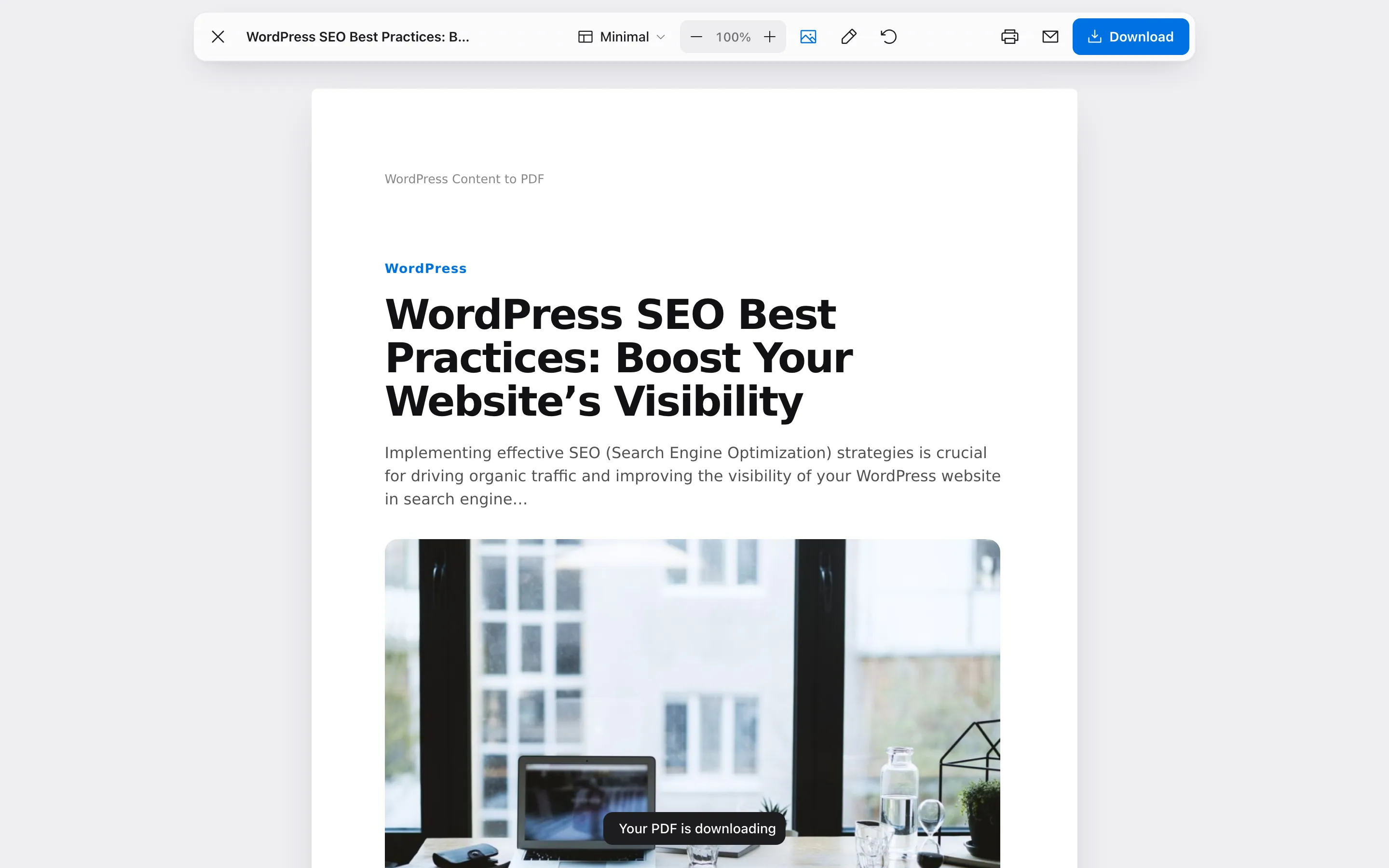
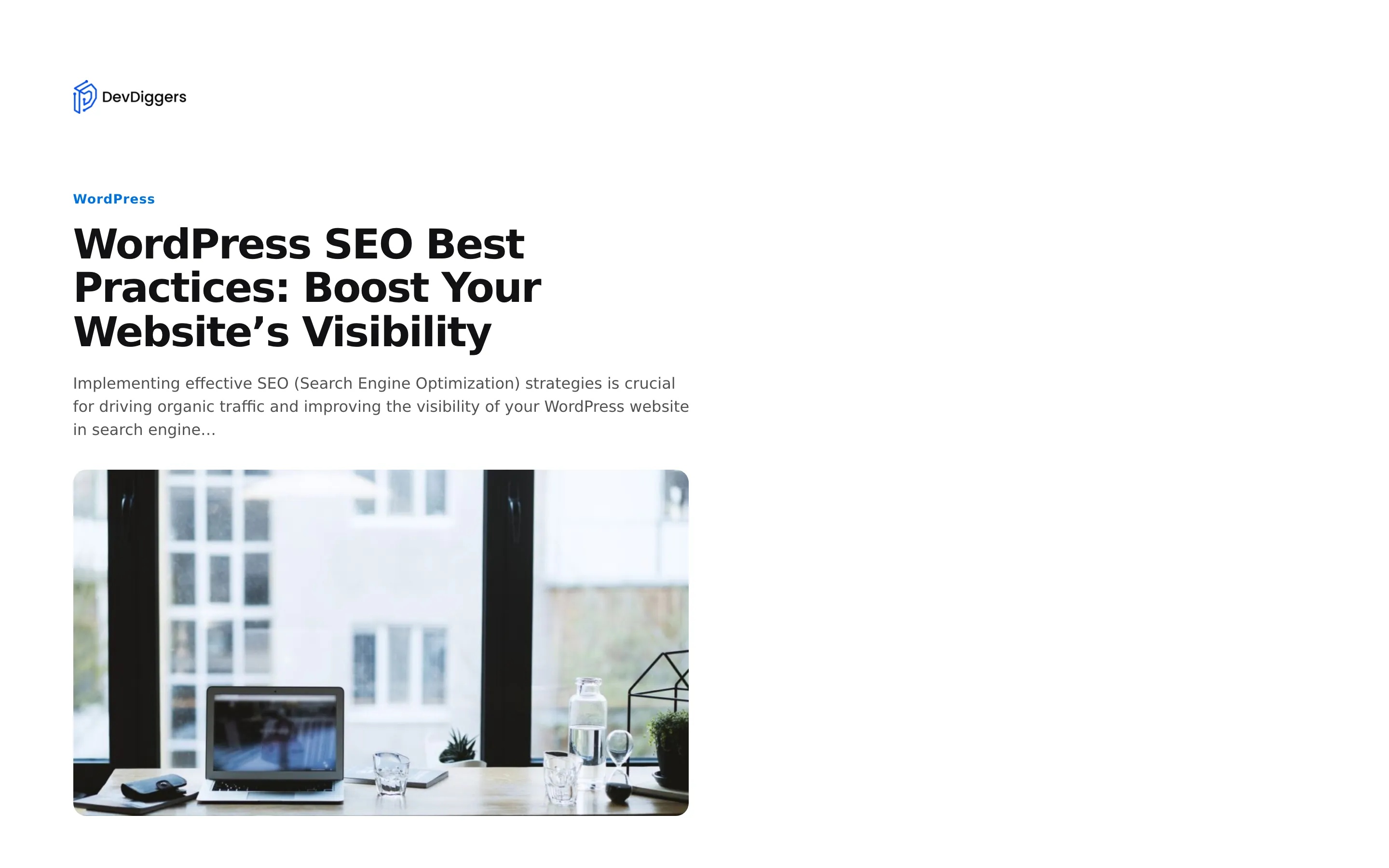
Print opens the browser’s print dialog with the clean document layout, without your theme.
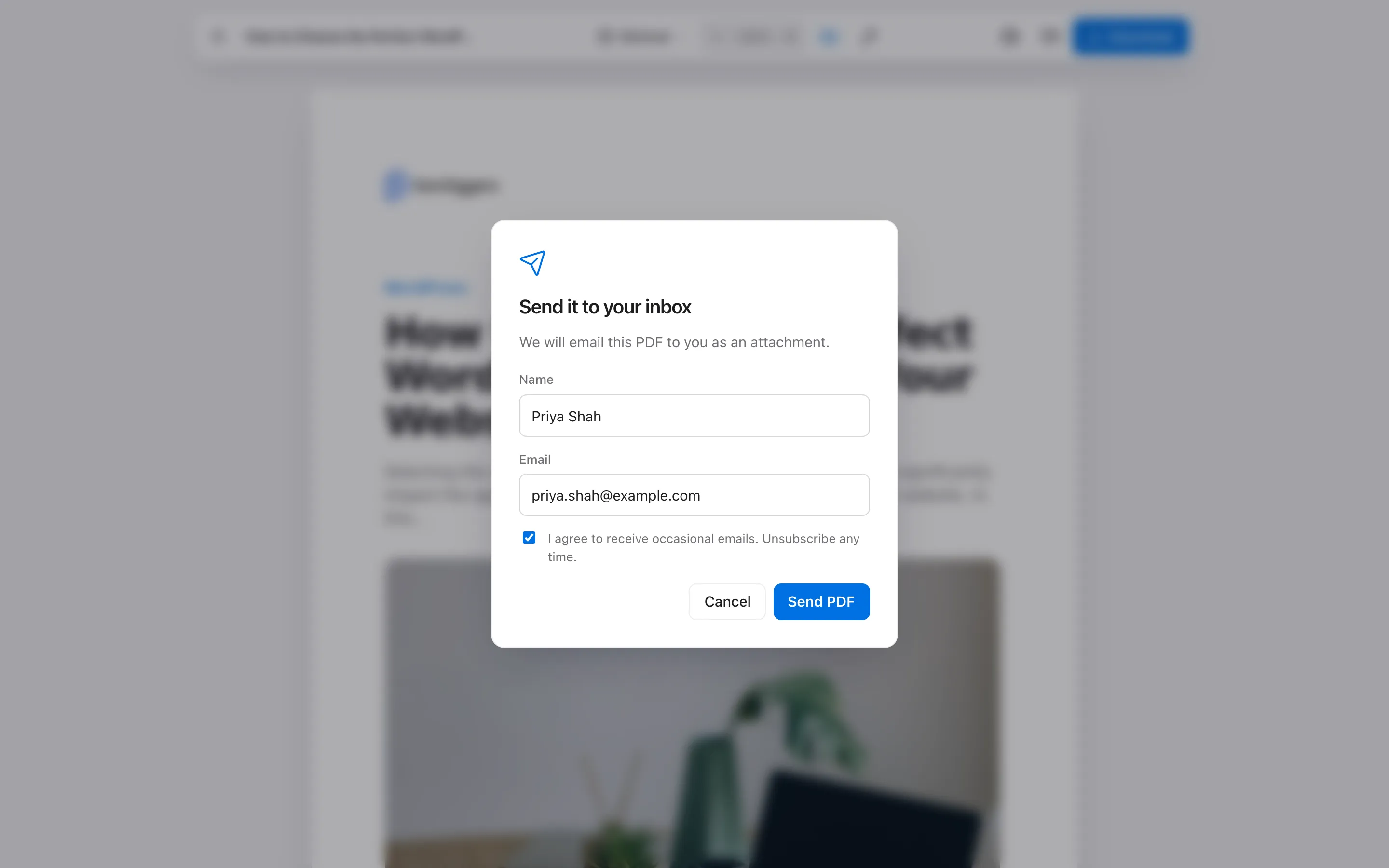
The envelope opens “Send it to your inbox”. The reader enters an email and, optionally, a name, then presses Send PDF. The PDF arrives as an attachment.
On a phone
Section titled “On a phone”On a phone the toolbar moves to the bottom of the screen and keeps every tool.
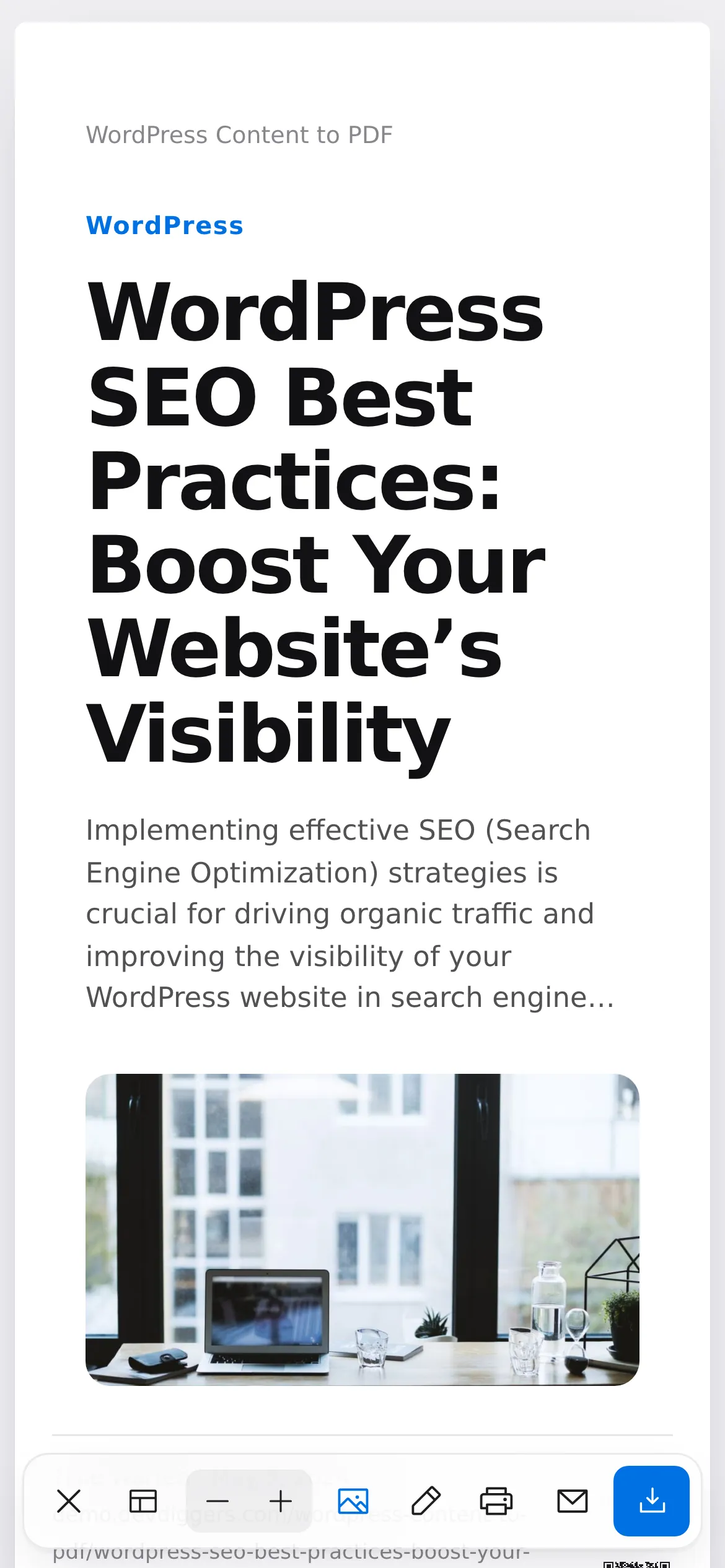
The cover is redrawn with screen spacing so the title reads at phone width. The saved PDF keeps its paper layout.