

General Settings
The General tab decides whether PDFs are on, how readers get them, and who and what they are for. Open Content to PDF → Configuration → General.
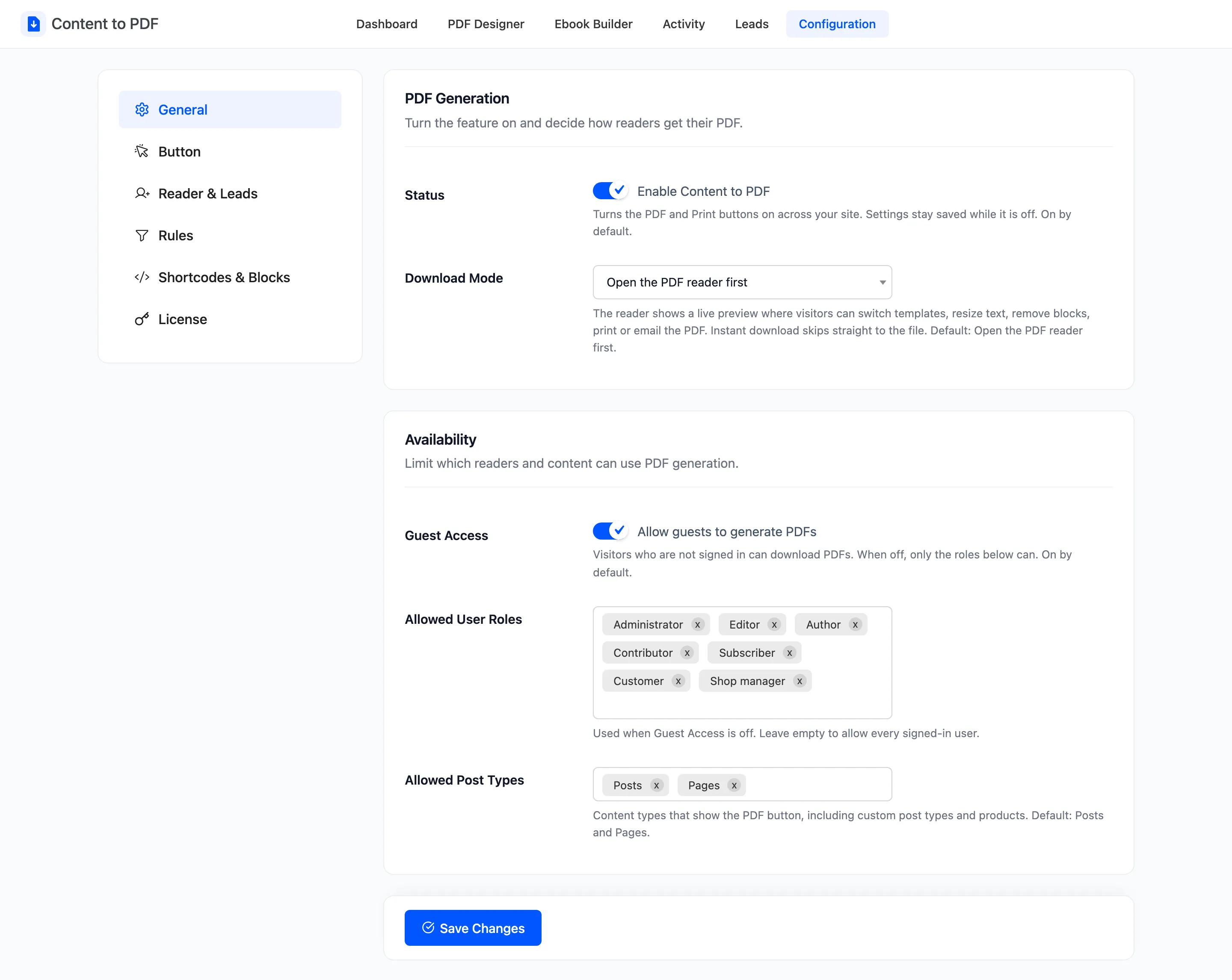
PDF Generation
Section titled “PDF Generation”- Status: “Enable Content to PDF”. Turns the PDF and Print buttons on across your site. Settings stay saved while it is off. On by default.
- Download Mode: How the button behaves.
- Open the PDF reader first (default): A preview where the reader can switch templates, resize text, remove blocks, print or email.
- Download instantly: Skips the preview and saves the file at once.
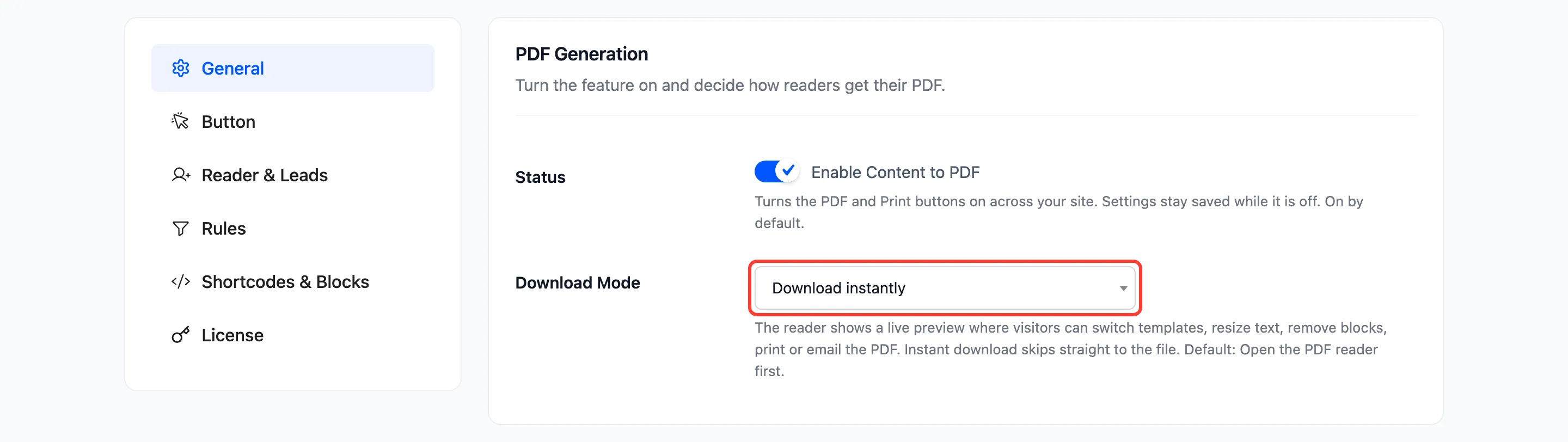
With Download instantly, the page shows “Preparing your PDF” while the file is made. The lead form still appears first when it is on. See How to Make PDFs Download Instantly.
Availability
Section titled “Availability”- Guest Access: “Allow guests to generate PDFs”. Visitors who are not signed in can download PDFs. On by default. Off, only the roles below can.
- Allowed User Roles: Used only when Guest Access is off. Leave it empty to allow every signed-in user.
- Allowed Post Types: The content types that show the PDF button. Every public post type is listed, including custom post types and WooCommerce products. Default Posts and Pages.
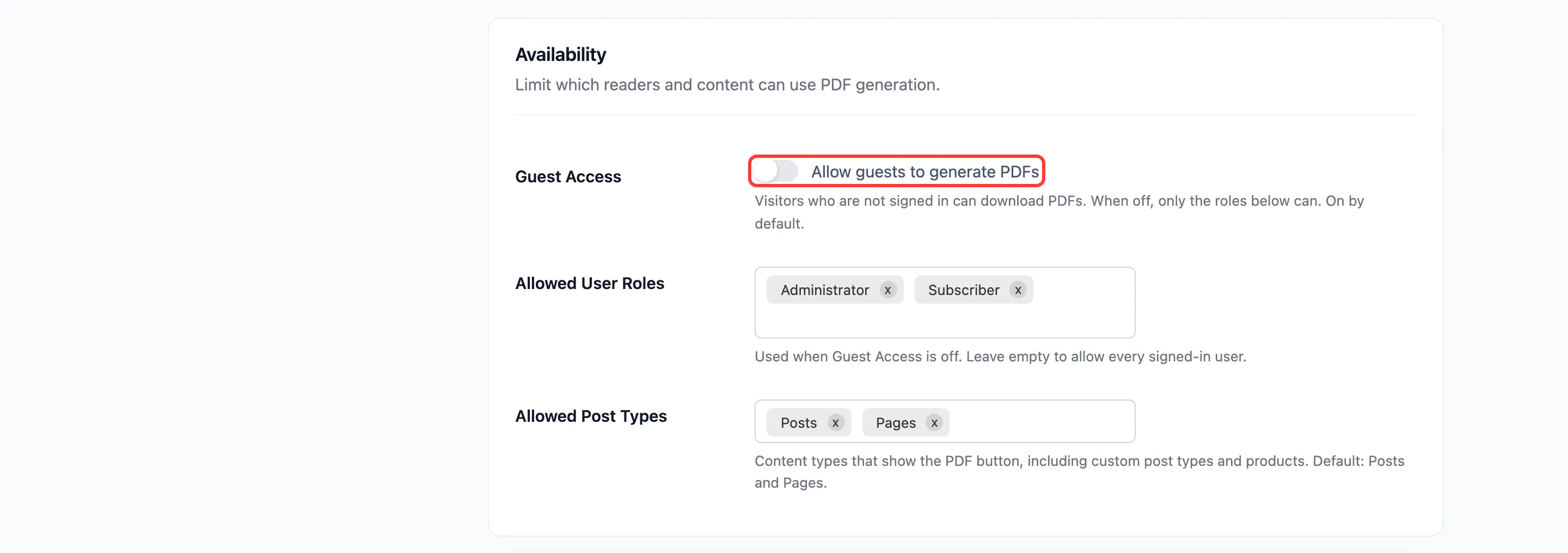
A visitor who is not allowed sees no button. If they open a reader link anyway, they get “This PDF is not available.”
Allowed Post Types also decides where the per-post Content to PDF box appears, and which list screens offer the Export to PDF ebook bulk action.
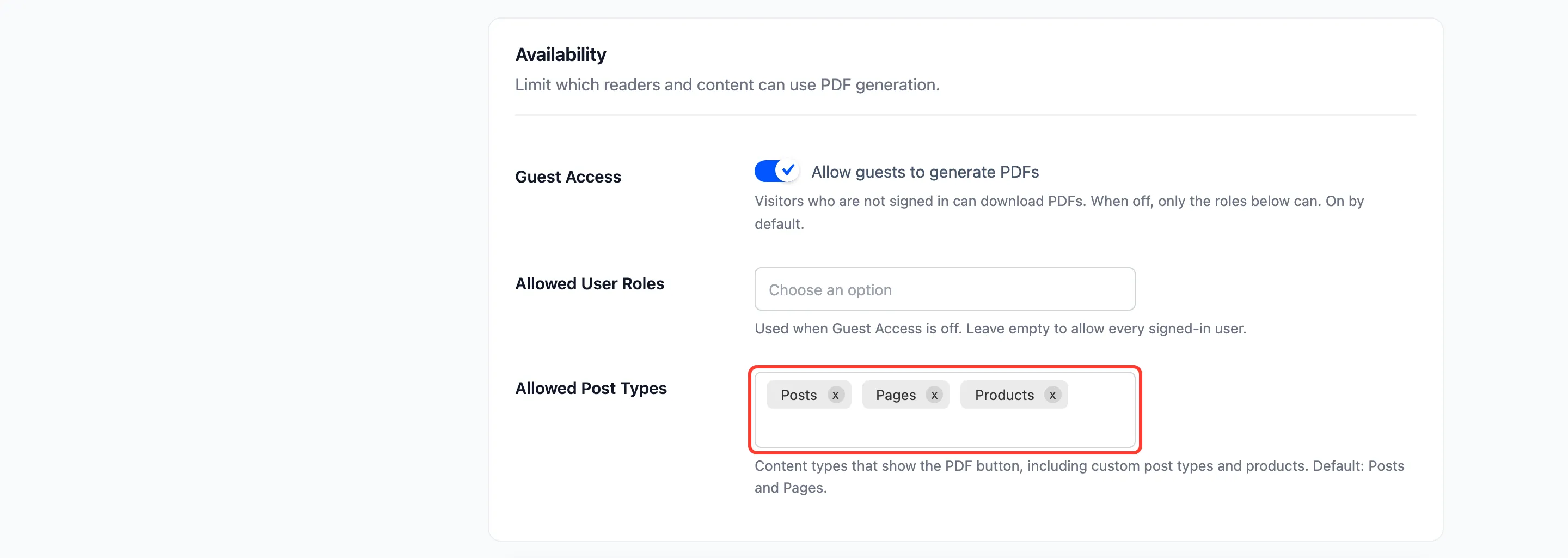
Click Save Changes at the bottom of the tab.